Access rights
Who can do what in the system is decided by three things on the user's card: the role, the default access and the list of companies. All of it lives in two registers of the System module — «Users» and «Roles». This article is about how the three settings work together.
How the system decides «allowed or not»
Every time a user opens a register, a report or a maintenance item, the system asks two questions in turn:
- What does the role say? Among the role's rows it looks for a row about this specific object; if there is none — for the row «about all objects of this type» (the one with an empty «For» column).
- The role is silent? Then the «Default access» switch on the user's card answers: «Full» — everything is allowed, «Read only» — looking is allowed, changing is not, «Denied» — nothing is allowed.
The role is the precision tool, the default access is the background for everything the role does not mention. So a user without a role and with full access can do everything, a user without a role and with «Denied» can do nothing, and normal staff are set up with a role on top of a strict background.
The one exception is actions — separate operations like «remove OK from a document». The background does not apply to them: where the role is silent, the action itself decides. Most are closed without a row in the role («Can remove OK», «Show cost price»), a few are open («Can open process manager», «Can open resource manager», «Show report on all bonuses», «Can change salesman in POS») — such an action can be closed only by a row with denyAll: its own row or the row «for all actions».
The user card
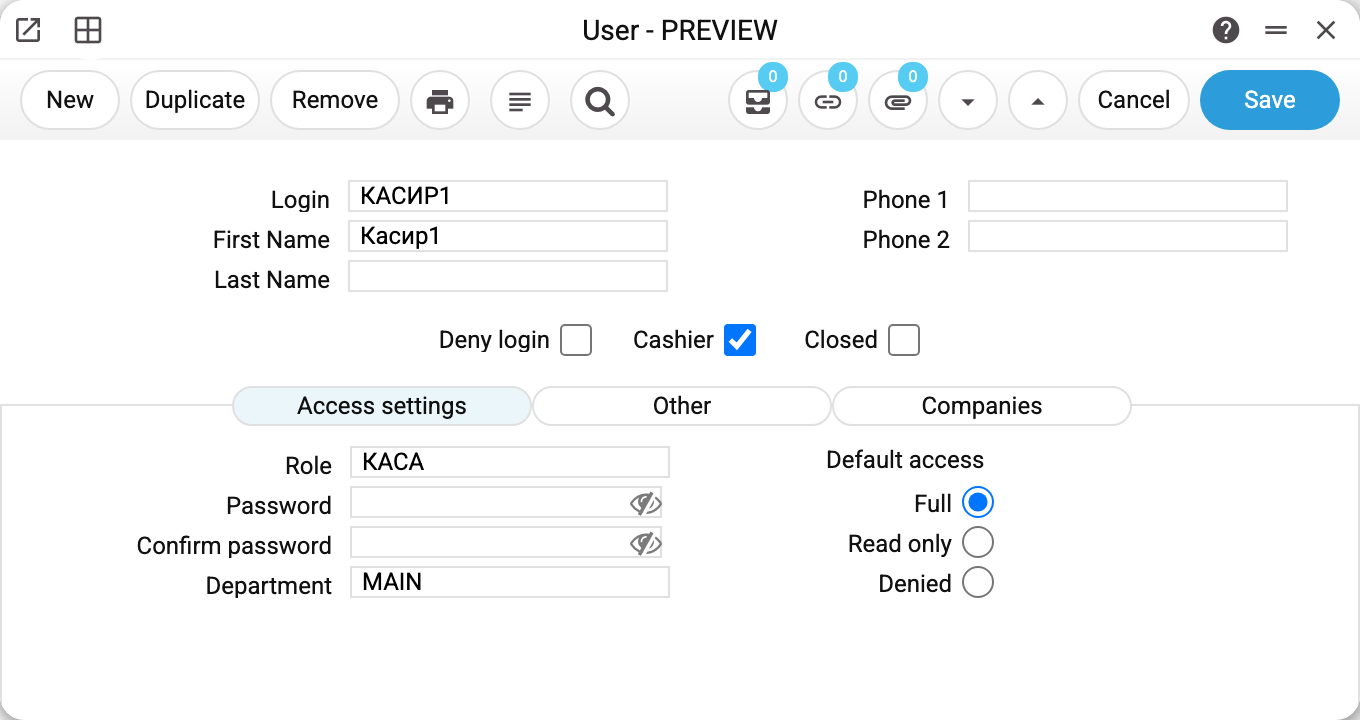
The frame shows a cashier. The «Access settings» tab holds both levers: the «Role» field (КАСА here) and the «Default access» switch. Next to them — the password with its confirmation and the department, which is required for POS work.
Above the tabs there are three flags, and they should not be confused:
- «Deny login» — the person cannot log in but stays «alive» in the reference data: they can still be named as responsible on documents. Good for a temporary block.
- «Closed» — the archive: the employee has left. Login is closed, the whole history of their documents is preserved.
- «Cashier» — a POS flag, nothing to do with permissions.
Both blocking flags act immediately: if the person was logged in, all their sessions — in the windows and at the till — are ended.
The licence is tied to blocking too: the user limit counts only the «alive» ones — not closed and not denied. The limit is checked not when you create a user but when you create any other record: when there are more alive users than the licence allows, the system answers «Users limit exceeded! Allowed - …, used - ….» and suggests closing users in module «System», register «Users». There is no need to delete anyone — close the ones who are gone and the seat frees up.
The role
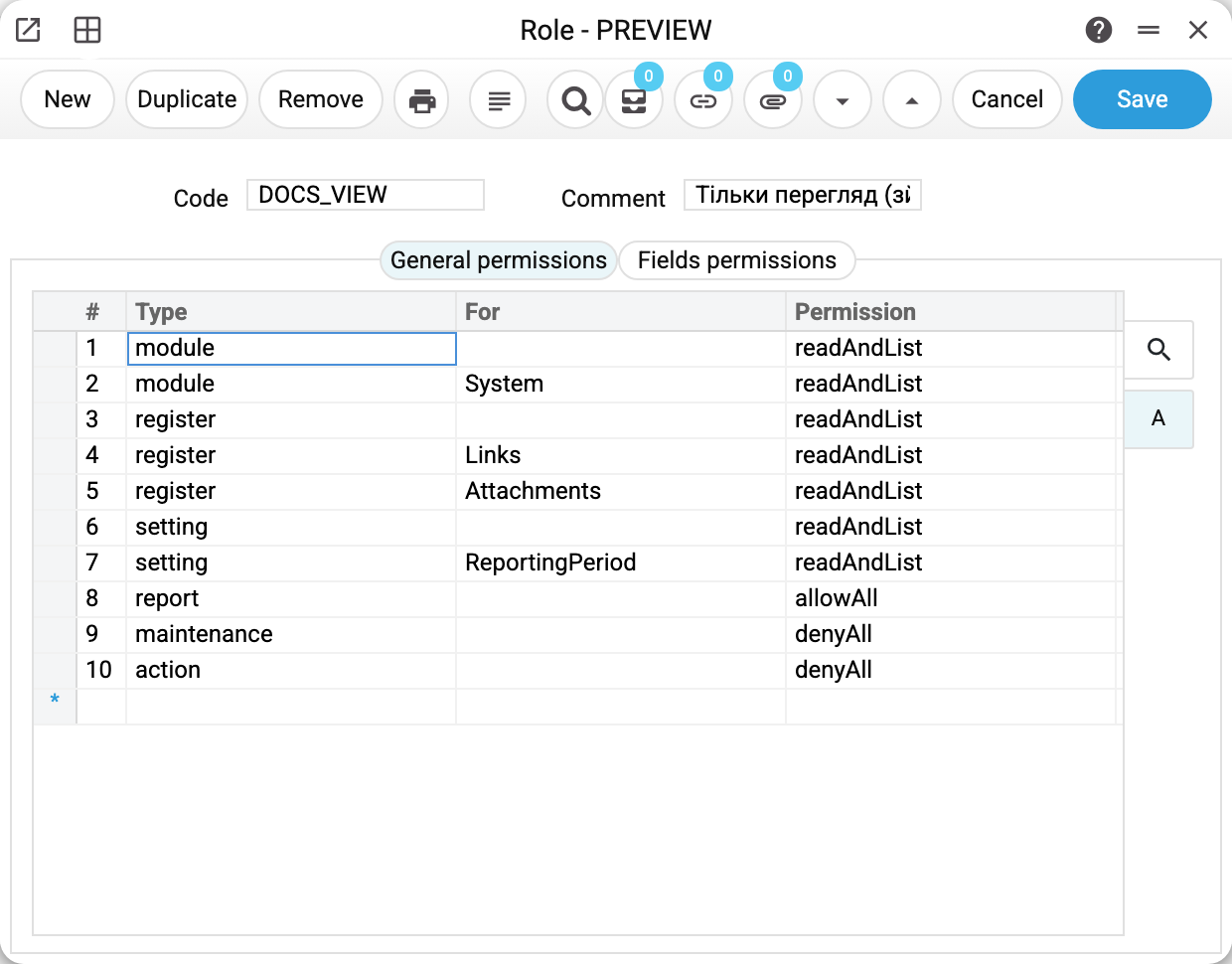
A role is a list of rows with three columns:
- «Type» — what the row is about:
module,register,setting,report,maintenance,action; - «For» — the specific object; an empty column means «all objects of this type»;
- «Permission» — one of the ready-made permission codes.
The codes are the same across the system:
| Code | What it allows |
|---|---|
allowAll |
everything: see, create, change, delete |
readAndList |
see the list and open records without changing anything (does not open a maintenance) |
showOnly |
only see the item (does not open a maintenance) |
runOnly |
only run (actions and maintenances) |
denyAll |
nothing |
An exact row beats the «about all» row: if registers in general get readAndList but the «Attachments» register gets allowAll, attachments can also be added. And whatever the role says nothing about is decided by the background from the user card.
A module row decides only the menu. A closed module disappears from the menu, but its registers, reports and maintenances stay open: whatever the role says nothing about is opened by the background from the user card — through a link from a window of another module, over the API and MCP. To close the data itself you need register, report and maintenance rows: the simplest way is «about all» rows with denyAll and precise permissions on top of them, as in the receiver's role in the «Roles» article.
The frame shows the «view only» role this documentation's screenshots are taken with: modules, registers and settings get readAndList everywhere, reports get allowAll (running a report changes no data), maintenance and actions get denyAll. A person with this role sees everything and can touch nothing.
One subtlety about maintenance: a maintenance is either available or not. It is visible in the menu and can be run only when the code allows running — allowAll or runOnly. readAndList, showOnly and the «Read only» default do not open maintenances: maintenances change data, and there is no «see but not run» for them.
The «Fields permissions» tab is fine-tuning inside a register: a single field can be locked for the role — «read only (for field permission)», «edit only (for field permission)» or «create only (for field permission)»; the window enforces these limits (the exception is the approval (OK) flag: the server enforces it too). «hidden (for field permission)» hides the value on the server too, but a role with even one such field gets no reports and no printing at all. That is why cost and purchase prices are hidden from the sales team not by the tab but by the «Show cost price» right — see the «Roles» article.
Companies
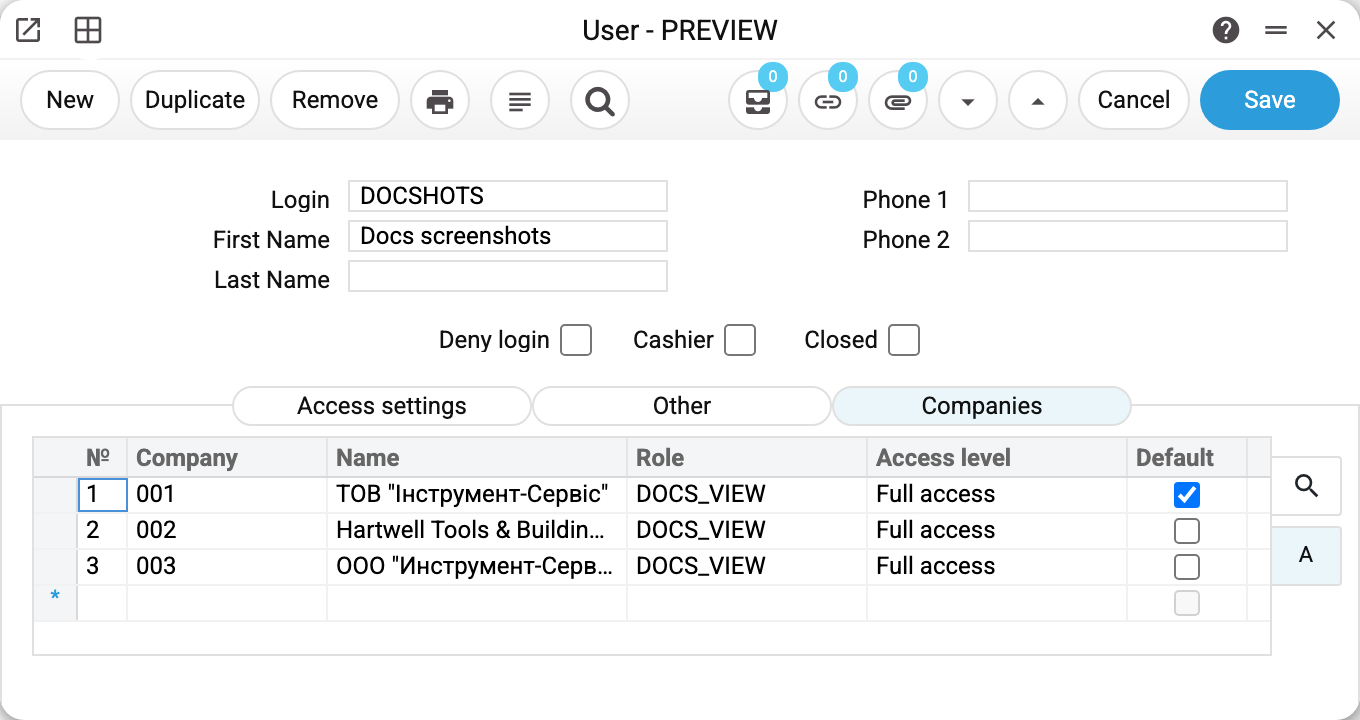
When there are several firms in the database, the «Companies» tab of the user card decides three things:
- which companies the person can enter at all — once the list is filled, firms outside it are closed to them: no login and no switching;
- «Default» — which company the person lands in right after login;
- a separate «Role» and «Access level» for every firm. A chief accountant can be a full user in one company and a viewer in the next one. Empty columns mean «the role and access from the first tab apply».
When the user switches company, the system swaps in the role and the level of the firm they moved to. If the firm's role or level cannot be read (a database failure), login refuses with «Login denied: failed to determine your role in the company» and switching fails with an error: the system does not fall back to the rights from the first tab.
An empty tab is a setting too. A user with no rows here lands in the first active company by code (not by name), and has nowhere to switch: the company list shows only that one. So a new firm whose code sorts before the existing ones takes over every user with an empty tab — from their next login.
The frame shows the service user that takes the screenshots for this documentation: it is included in all three demo firms with the «view only» role in each.
Typical set-ups
Several firms in the database. Fill in the «Companies» tab for every new user: a row for each firm they work in, and «Default» on the main one. Without it they land in the first firm by code — and conclude that yesterday's documents are gone.
A new employee who is only being shown around. Default access «Read only»; the role can stay empty. They open registers and settings for viewing only and run reports, while maintenances and actions are closed to them.
A cashier. The till role, the «Cashier» flag, the department filled in. The till works, nothing extra is visible.
An auditor or an observer. A role like the one on the frame above: readAndList everywhere, reports allowAll, maintenance and actions denyAll.
A manager who should not see purchase prices. A normal working role without the «Show cost price» right. Without a row for this action the right is closed anyway, but an action row with an empty «for» and allowAll or runOnly opens it; safer is a separate action row «Show cost price» with denyAll.
An employee has left. The «Closed» flag on the card. The document history stays, login is impossible, the licence seat frees up. No need to delete the user.
Block login temporarily. «Deny login»: the person cannot enter, but can still be named on documents.
How to be sure the rights are set up correctly
- The most reliable way is to log in as this user and look with their eyes: which modules are in the menu, which registers open, what the buttons say.
- A different role or a different «Default access» in the card, a new password, and on the «Companies» tab a different role or «Access level», or a company added or removed, end all of the person's sessions at once — the next login comes with the new rights. The «Default» flag on the «Companies» tab ends no sessions: it only decides which company the next login leads to. Editing the role itself applies without a new login: the server checks the role's rights on every action.
- The complaint «my menu item disappeared» is almost always the role: check whether there is a row about this module or register and what the «Permission» column says (how the menu is laid out: The desktop: windows, search and bookmarks).
- «Users limit exceeded» is not about permissions: the licence counts alive users. Close the ones who no longer work.