Clear Print Queue
A simple housekeeping operation: throw away everything sitting in the print queue.
Where to find it: Modules → Print Receipt → Maintenances → Clear Print Queue
A worked example
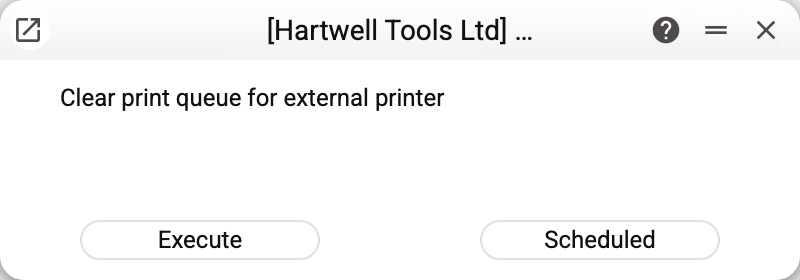
One line of explanation and two buttons: "Execute" to clear now, "Scheduled" to do it automatically.
When it is needed
The queue is meant to empty itself: the printer takes a job and deletes it once printed. Today, though, jobs land in the queue without a printer code, and no device collects them (more in the print queue): the queue piles up, and only this service removes it. Besides that, clearing is needed when jobs are stuck: the printer was switched off, replaced or moved elsewhere, and its work stayed in the list.
A schedule makes sense where labels are printed rarely and in small batches: a daily sweep stops rubbish accumulating behind printers that no longer exist. Bear in mind that clearing does not tell a stuck job from a fresh one — a job queued a minute before the run and not yet printed is gone too.
Scope
The service removes jobs for the current company only. That is an important promise: in a multi-company database, clearing in one does not touch the others' queues (in a single-company database the whole queue is cleared). A scheduled run clears the queue of the company in which the schedule was set up.
Clearing cannot be undone — the jobs are deleted. Documents are not touched, though: if a receipt or a label is still needed, it is printed again — the receipt from the sales order, the label from the item card or the goods receipt.
Where to look next
- Print queue — exactly what will be deleted.
- Printers — check the device is active before clearing.