Booking
Online booking for customers: a web page where a person picks a service, a day and a free time slot. Once confirmed, the system immediately creates a task for the technician and an invoice for the customer — nothing has to be entered by hand.
Where to find it: Modules → Sales Ledger → Registers → Booking
The register itself is not a log of bookings but the setup of the page: one record = one booking page with its own service list, schedule and design.
A worked example
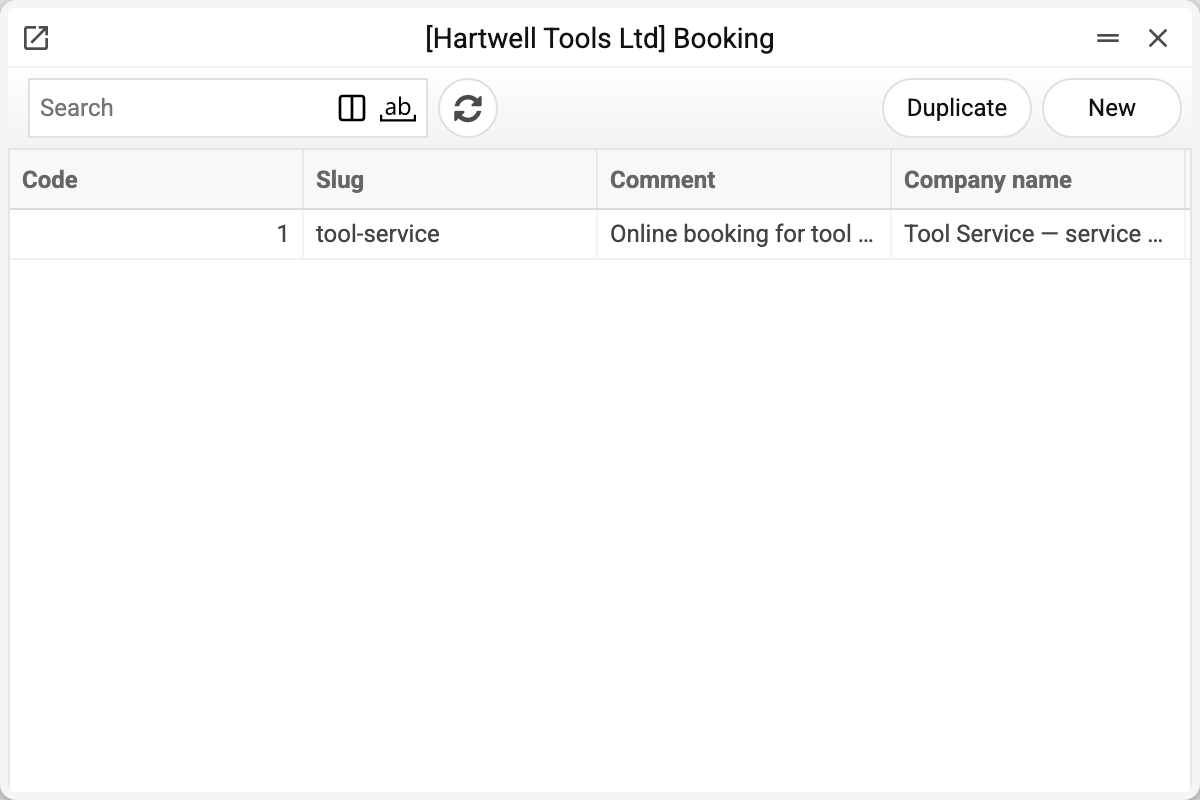
The list shows the number, URL slug, comment and company name. Usually there are only one or two records: a separate record is needed only when there are several booking points (say, two branches with different technicians and schedules).
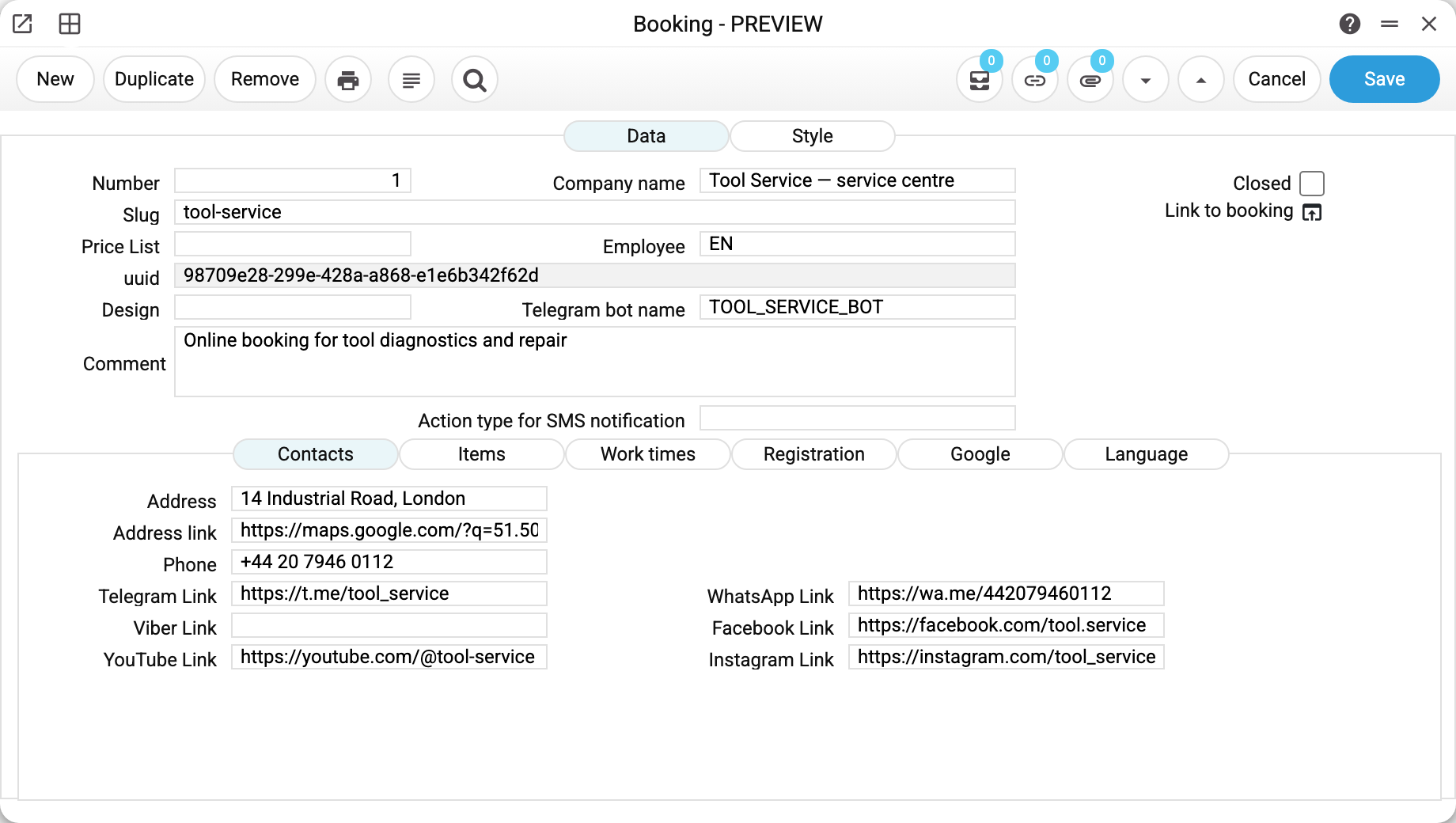
The header says whose page this is and who is responsible for the bookings:
| Field | What it does |
|---|---|
| Number | Record code, filled in automatically |
| Slug | A caption under the company name on the page. It is not the address: the page opens by uuid |
| Price List | Copies prices from a price list, once, into the service rows whose items have a price in it; other rows stay as they are |
| uuid | Page identifier, issued on creation; cannot be changed |
| Design | Name of a ready-made page template. Empty — the standard page is used |
| Company name | Page title. Mandatory |
| Employee | Comma-separated logins of the users who will get the tasks and notifications; the window expands an executors group into logins. Mandatory |
| Telegram bot name | A bot from the connected ones that announces a new booking |
| Closed | Instead of the form, the page behind the link shows a notice that booking is temporarily unavailable and accepts no bookings |
| Comment | A note for yourself, not shown on the page |
| Action type for SMS notification | WashUp template only: when filled, every booking creates one more task of this type, linked to the invoice, and sends an SMS for it right away (SMS notifications). The standard page does not read this field |
The button next to the «Link to booking» caption (tooltip «Open booking page») opens the page in a new tab — this is the address you give to customers. It works only for a saved record in view mode, otherwise — «Save or discard changes!».
If the «Employee» field holds an executors group code, the system expands it into the list of the group members' logins.
What can be booked
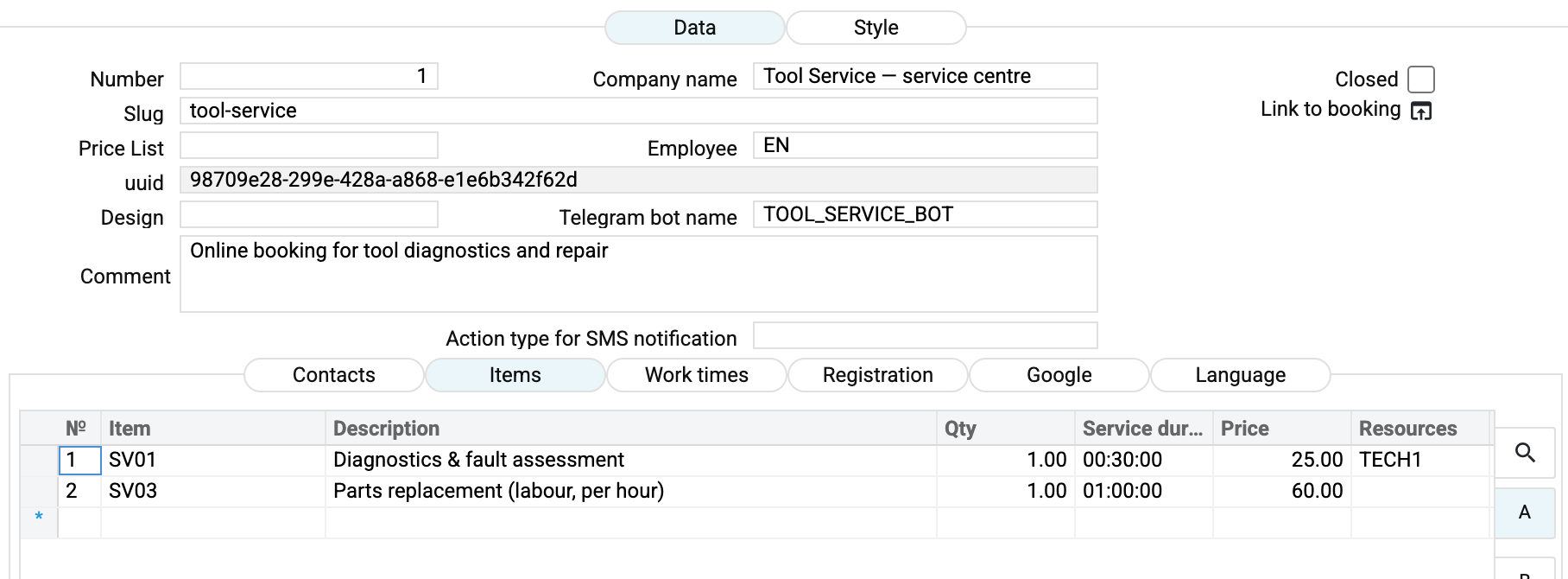
The «Items» matrix is the menu of the page. Every row holds:
- Item — a service from the register (the picker opens with the «Work/Service» filter by default). Once the code is entered, the description, the price from the item card and the service duration are filled in;
- Qty — how many units of the service can go into one booking (the customer sees a counter with that maximum);
- Service duration — the key scheduling field: it defines how much time the booking takes;
- Price — what the customer sees on the page;
- Resources — the specific resource, that is the technician or workplace performing the service.
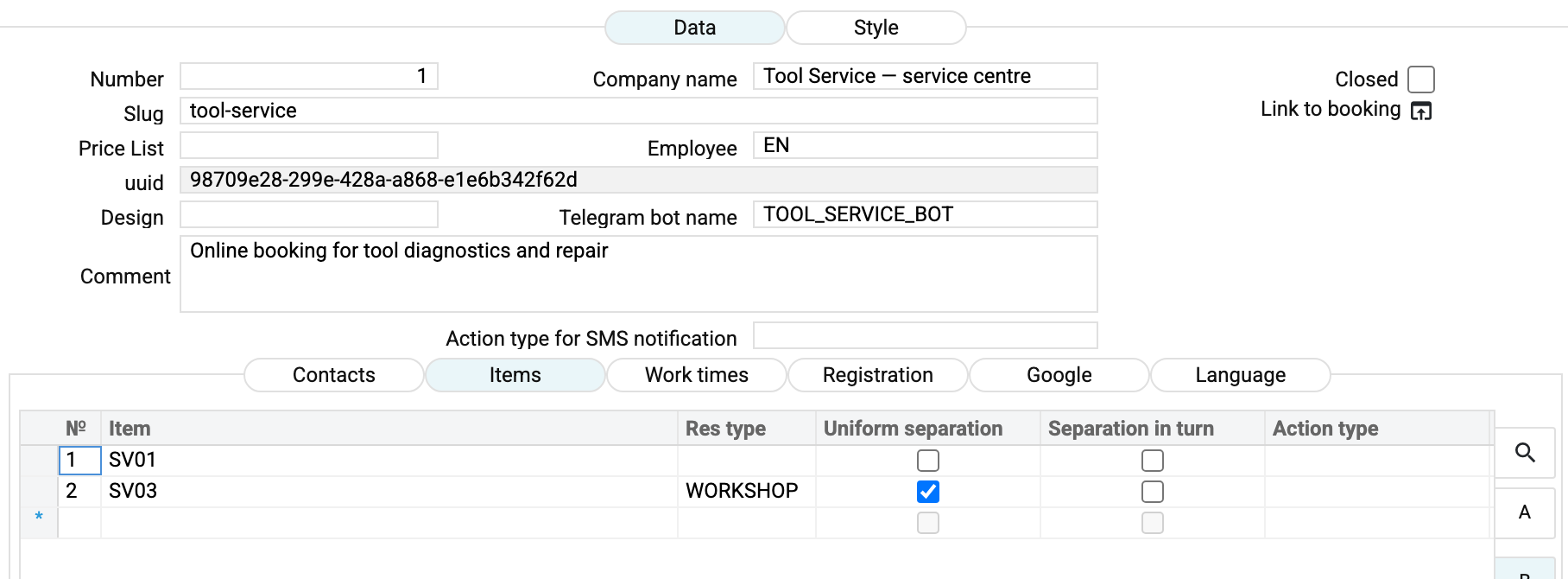
Tab «B» offers another way to assign work. Instead of a specific technician you set a resource type: any member of the team can do the job and the system picks a free one. Next to it is the rule: «Uniform separation» or «Separation in turn». One more column, «Action type», sets the type of the task being created.
In the example the diagnostics is done by TECH1 only, while parts replacement is handled by the whole workshop with uniform allocation.
Working hours
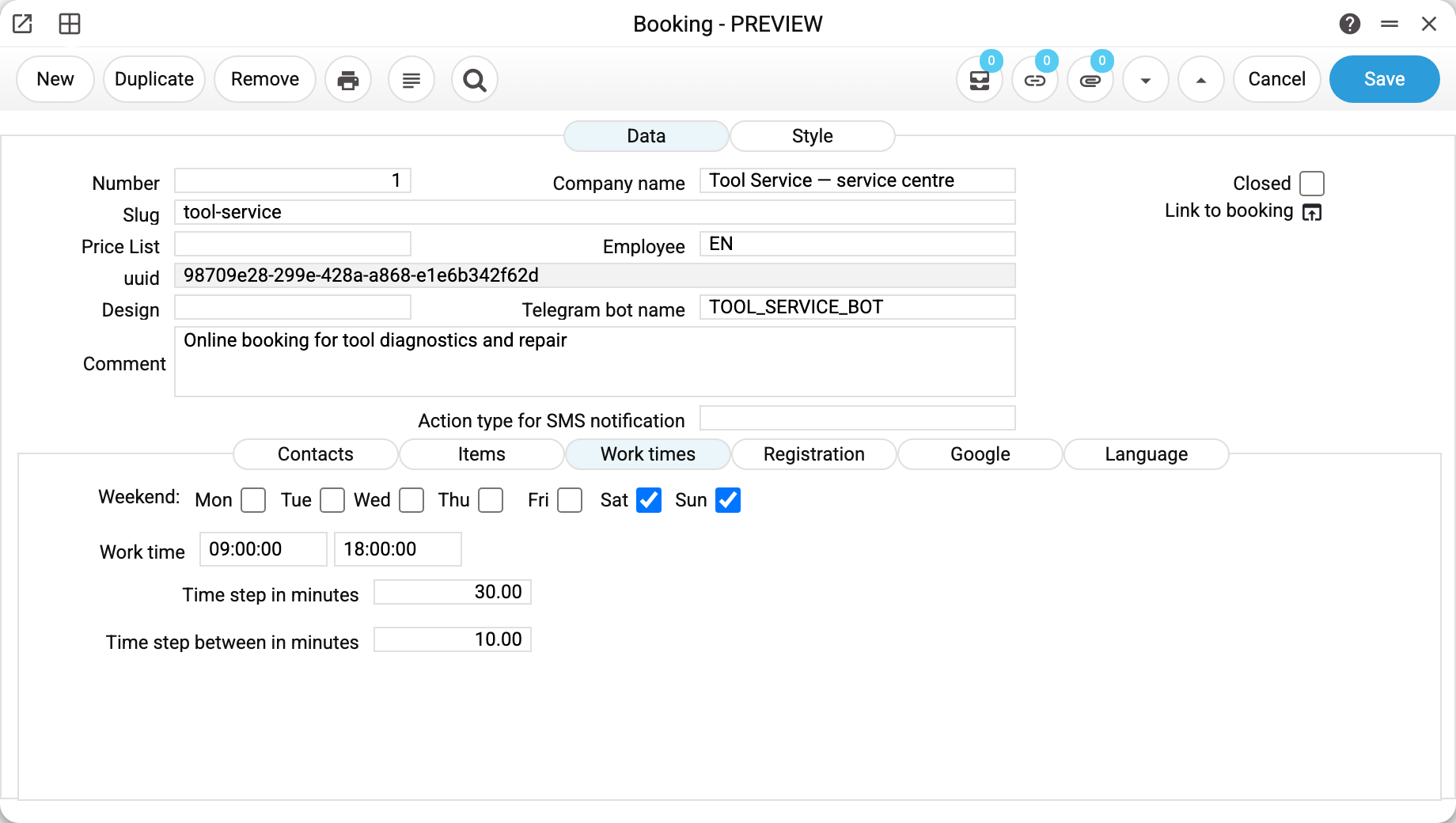
This is where the grid of free time comes from:
- Weekend — a ticked day means no bookings that day. In the example Sat and Sun are ticked, the rest are working days;
- Work time — the boundaries of the day, 09:00 to 18:00;
- Time step in minutes — the interval between offered slots: 30 min give 09:00, 09:30, 10:00…;
- Time step between in minutes — a technical pause after every booking (10 min) so the technician can tidy up.
The language of the page
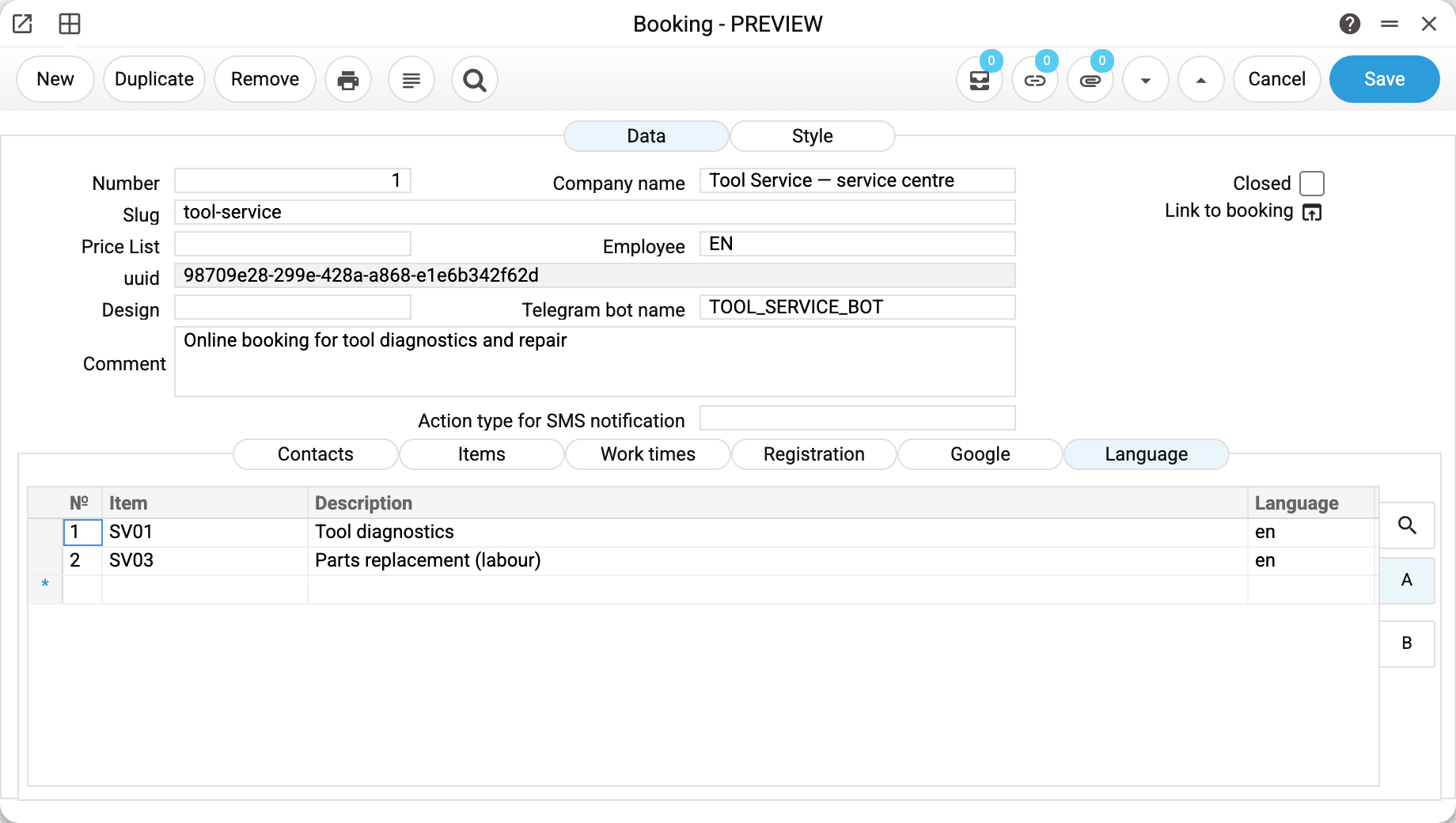
The «Language» matrix holds the translations for the page. Every row is a service + a language + its name in that language; tab «B» adds the message texts: about a day off, about no free time left, about a successful and a failed booking.
The language codes here are ua, ru, en; the language switcher on the page is built from this very column. If there is no row for the chosen language, the page falls back to English, and if that is missing too — to the description from the service matrix.
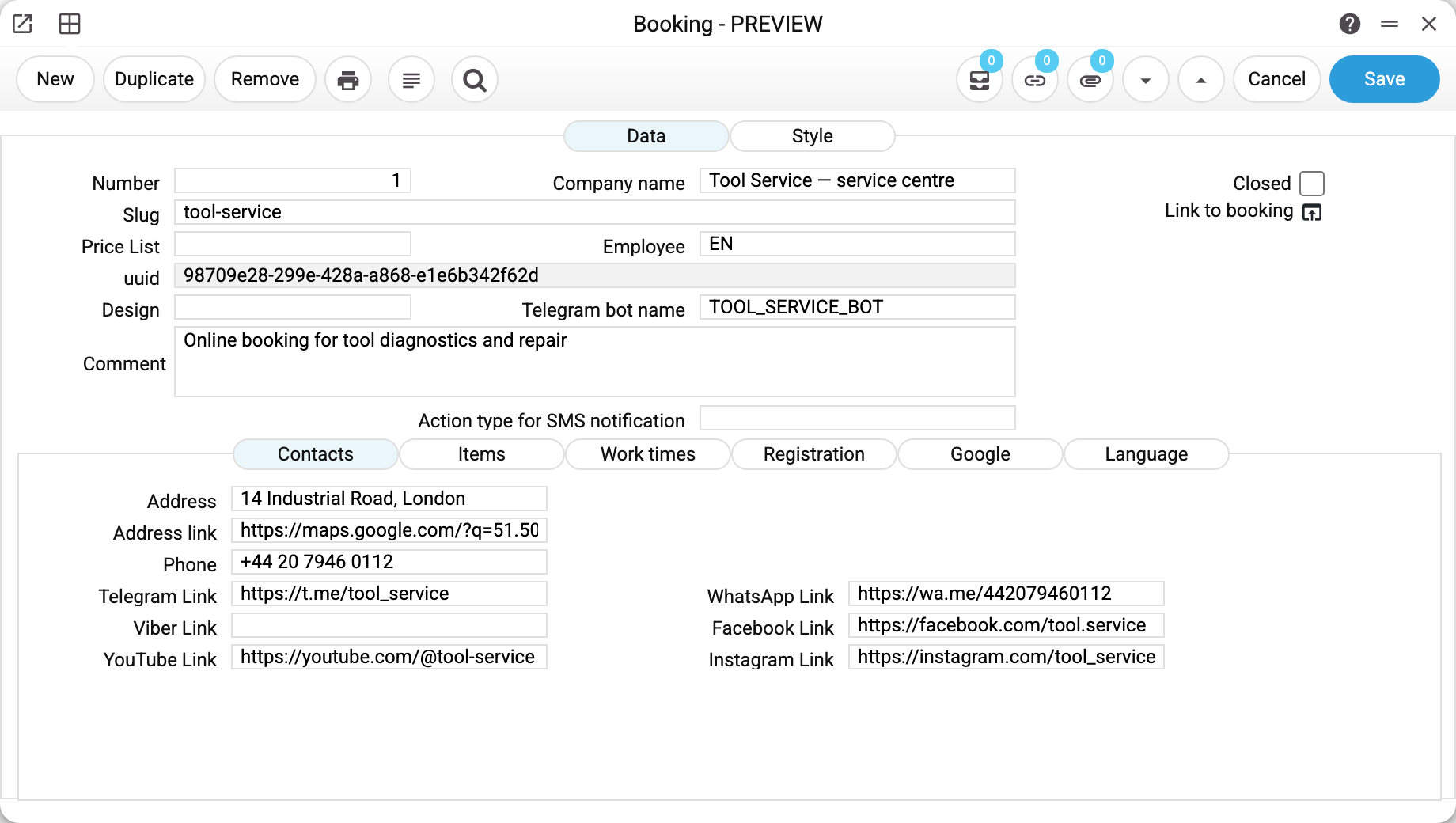
The «Contacts» tab holds what the customer sees under the company name: address, map link, phones, messengers and social networks. Empty fields are simply not shown.
The customer address and the map
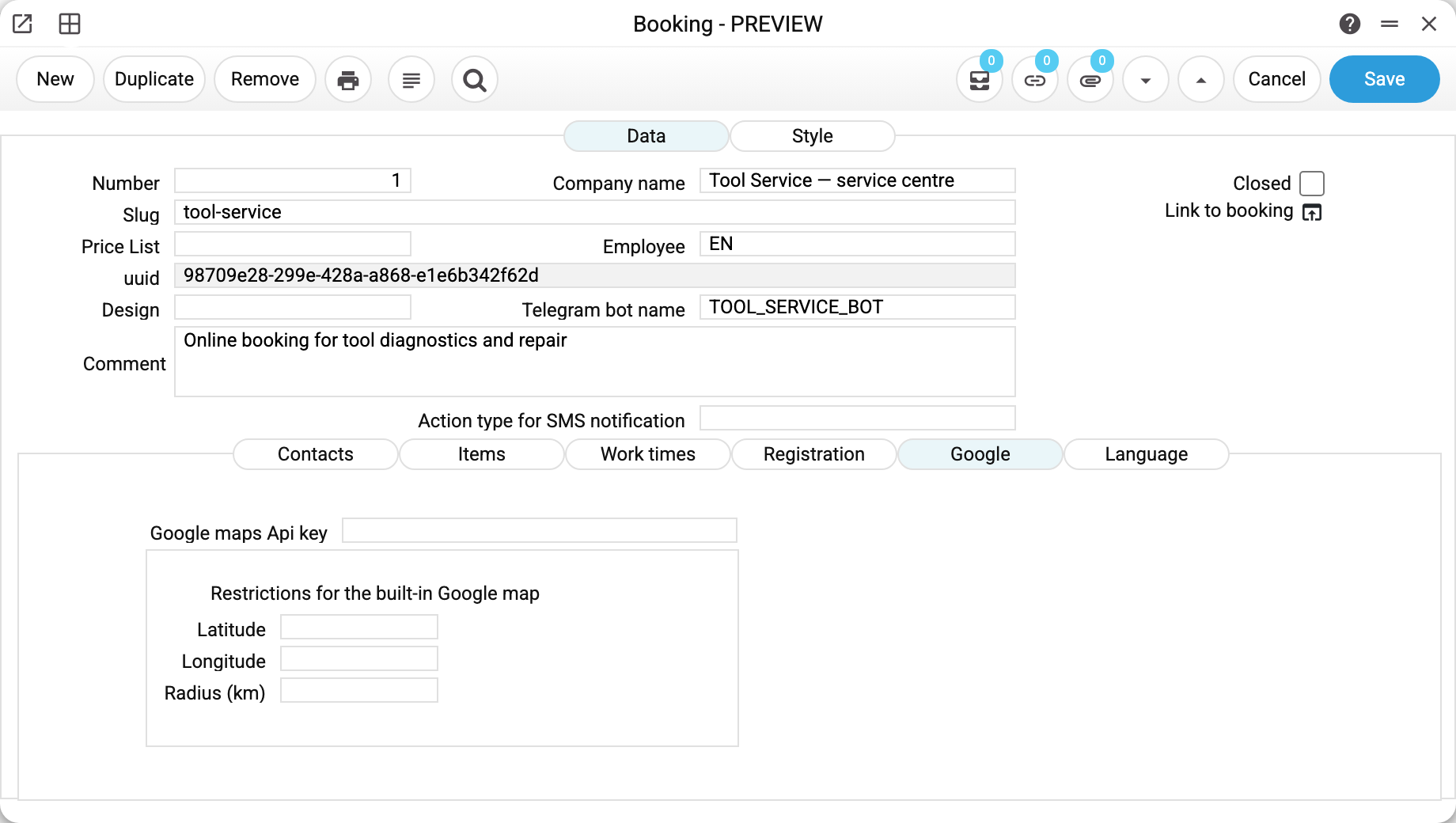
The «Google» tab solves a single problem: how the customer types their address on the last step of the booking.
Leave «Google maps Api key» empty and the address stays a plain text line: whatever the person typed goes into the technician's task. Fill the key in and the field becomes a Google search: suggestions as you type, the chosen point on a map, and a link to that point in the task.
The «Restrictions for the built-in Google map» box narrows the suggestions down to your region: latitude and longitude set the centre, radius (km) the distance around it. With a radius filled in the search is bounded strictly, and an address from another town cannot be picked at all. Empty fields mean suggestions worldwide.
The key comes from the Google Cloud console and the company pays for it: it is a Google service, not a part of the system.
How the page looks
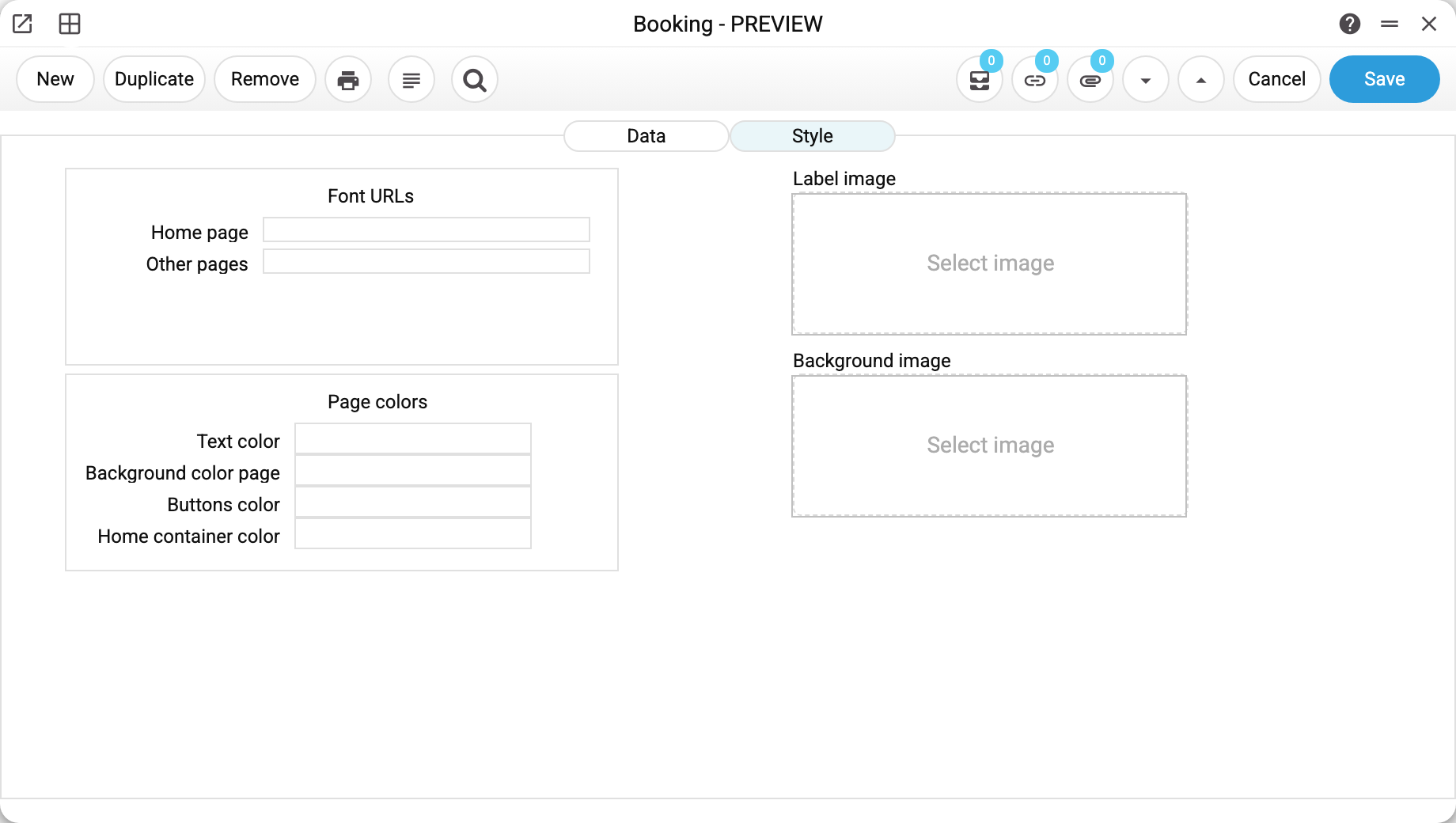
The «Style» tab sits at the top next to «Data», not in the lower row of tabs: it is about the looks, not about the bookings.
- Font URLs — addresses of the fonts to load, separately for the first screen and for the other pages;
- Page colors — text, page background, buttons and the container (the card holding the content of the first screen); picked from a palette;
- Label image and background image — pictures are uploaded right here.
An empty tab is not a problem: the page falls back to the standard looks. The «Design» field in the header and this tab solve different problems — «Design» replaces the page template entirely, «Style» tunes the standard one. A ready-made template is free to ignore these settings: the WashUp template, for one, carries its own.
What the customer sees
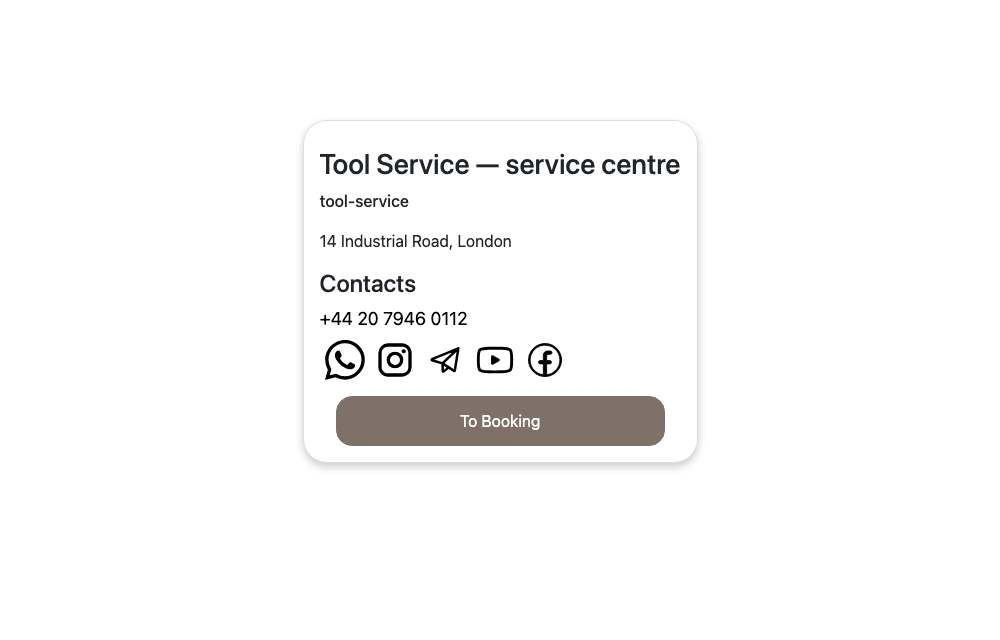
The first screen is a business card: name, address, phone, messenger icons and the «To Booking» button.
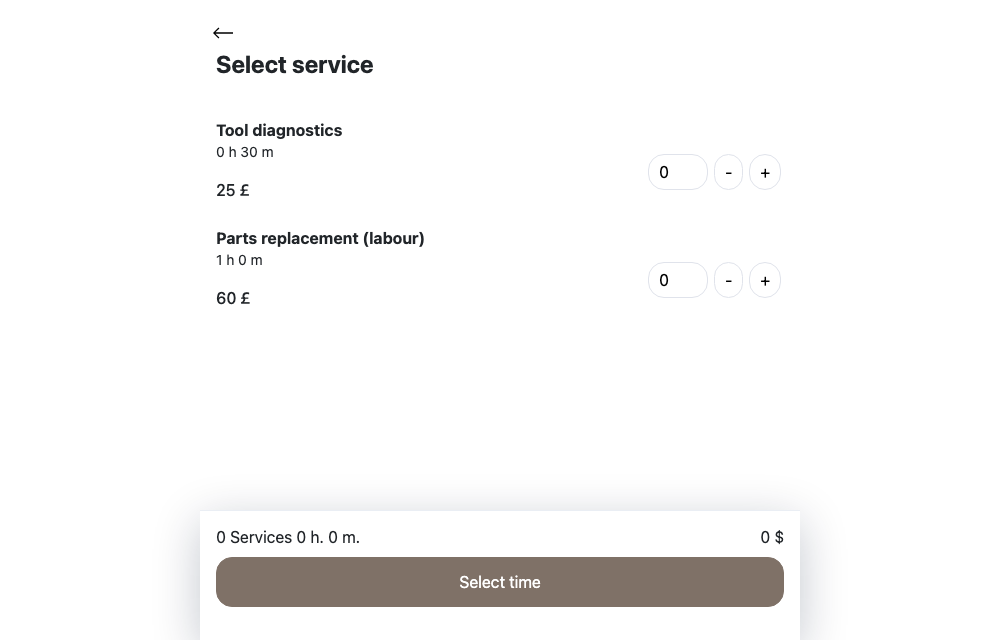
Then comes the list of services with duration and price. The names come from the language matrix, the prices from the service matrix, and the counter is capped by the «Qty» column. The summary at the bottom shows how many services are selected, how much time and money that is.
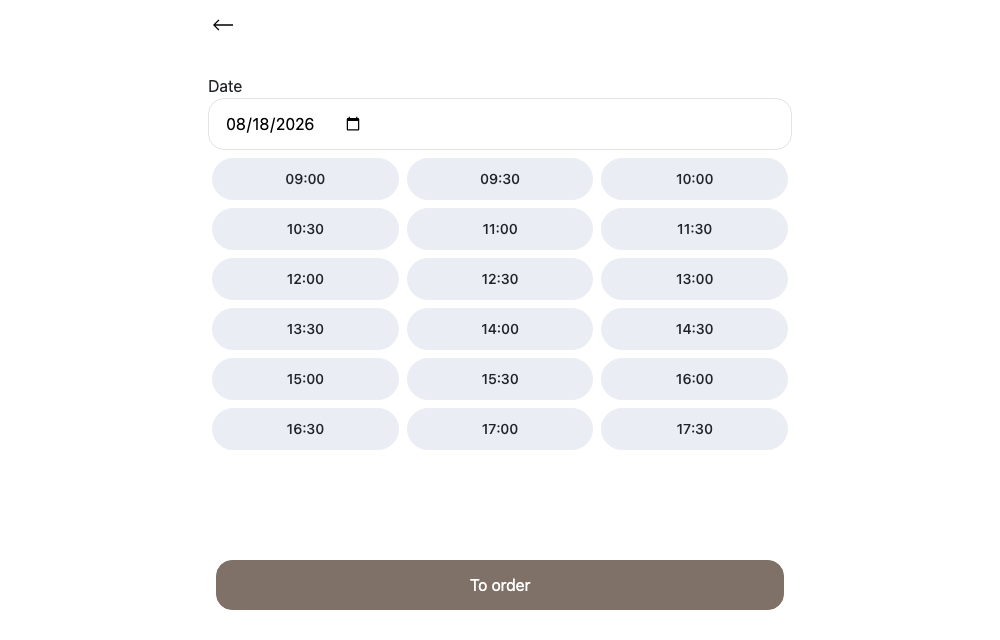
Once the date is chosen, the page shows the free slots. These are not merely opening hours: the system has already taken into account the duration of the chosen services, the pause between bookings and how busy the technicians are.
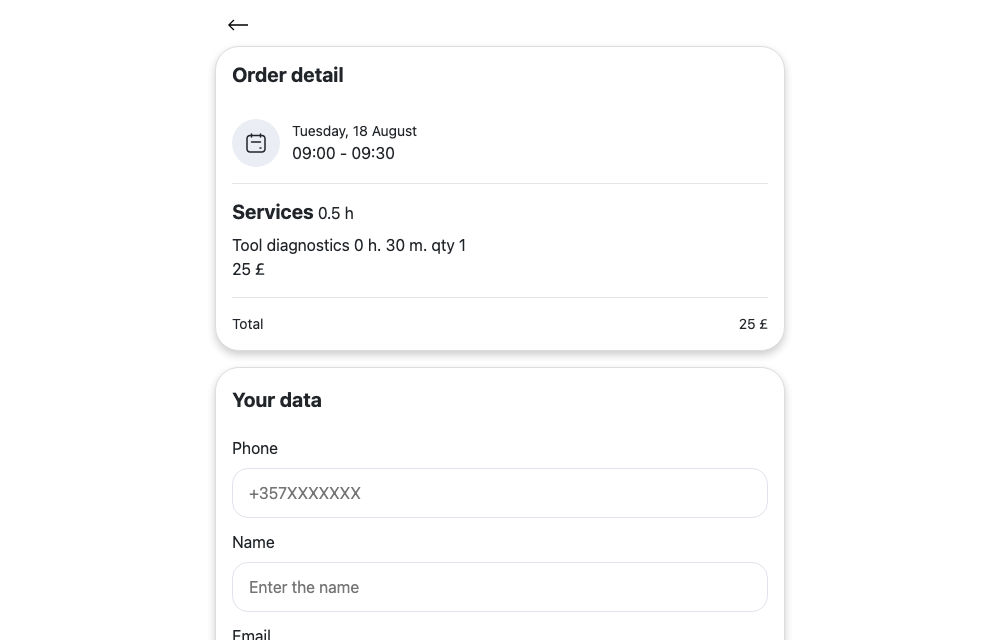
On the last step the customer sees the details (day, time, service, amount) and leaves a phone number, name, e-mail, address and comment. The «Make order» button completes the booking.
What appears in the system afterwards
By the phone number the system looks the customer up among the contacts — by code, by the first and the second phone, and by a matching number ending. If nothing is found, it creates a new customer record whose code is the phone number itself.
Then a task per involved resource is created: date, start and end time, service name, customer, their phone, the comment from the website. The resource's users become the executors; if the resource has none, the employee from the booking header does.
At the same time an invoice for that customer is issued with the selected services — only those present in this booking's service matrix — and every task is linked to it — the document tree shows what grew out of what.
The invoice price is recalculated. On the page the customer sees the price from the service matrix, while the invoice follows the usual rules: the customer's price list, discounts, VAT. That is, the invoice prices by the invoice's price list, and the price may differ from the one on the page.
If a Telegram bot is set in the header, everyone involved (the employee from the header and the resources' executors) gets a message about the new booking — provided their telegram ids are listed in the bot setup.
One more detail worth knowing: the address entered on the page is appended to the customer record (next time the page will offer it ready-made), and the e-mail is written only if the record has none yet.
How free time is calculated
- The day is split into slots of the «time step» from the beginning to the end of the working hours.
- The total duration of the chosen services is taken (quantity included).
- Slots where the booking would not fit before the end of the day are removed.
- Slots taken by uncompleted tasks of those resources are removed as well, plus the pause between bookings. A task marked as completed no longer holds the time.
- If the day is ticked as a day off, the page shows the day-off text and offers no slots at all.
When a service is assigned to a resource type, the slot counts as free while at least one member of the team is free. With a specific resource it is the opposite: if that resource is busy, the slot is busy too.
How the work is shared between technicians
| Method | Who gets picked |
|---|---|
| Uniform separation | The one with the fewest tasks on that date; on a tie — the first by code alphabetically |
| Separation in turn | The first free one by code alphabetically |
What is checked on saving
Company name and employee are mandatory — without them there is nobody to show the page to and nobody to handle the bookings. The employee login is validated: «ENGINEER2 User not found».
A service row must hold exactly one of the two — a specific resource or a resource type. Both at once: «Resource type and resource cannot be entered at the same time». Neither: «Resource type or resource must be entered».
A resource type requires an allocation method, and only one: without it — «Allocation type cannot be empty if it is a resource type», with both ticks — «Only one of the allocation types must be field».
The resource and the resource type must exist in their registers, otherwise — «This resources not found» or «This type of resources not found».
The design name is validated against the list of ready-made templates: «Invalid file name» (preceded by the name entered).
Typical situations
The page offers no time at all. Most often the «Time step in minutes» is empty — without it no grid is built. Next on the list: the day is ticked as a day off, the working hours are not set, all the slots are taken by the technician's tasks.
The booking went to the wrong executor. Check the resource: if it has no executors, the task goes to the employee from the booking header.
The page is in English although the company is not. In the «Language» matrix the Ukrainian code is ua. If it says uk or nothing at all, the page finds no translations and falls back to English.
The customer saw 25 £ and the invoice says something else. The invoice prices by the invoice's price list (the customer's price list and discounts), and the price may differ from the one on the page, which comes from the booking's service matrix.
A contact with an odd code like 0681234567 appeared in the register. That is a new customer the page could not find by phone and created on its own; the code is their number. It is worth filling the record in by hand.
Booking with a password. There is no such option: the client always leaves a phone number. The «Registration» tab with its «Phone» / «Phone + Password» switch has been removed from the card — the booking page never read that choice.
Pausing the bookings. Tick «Closed»: instead of the form, the page behind the link shows a notice that booking is temporarily unavailable (in Ukrainian, Russian and English at once), gives out no services or free time and accepts no orders. Untick it and the page works again through the same link.