Customer Information Report
A customer dossier on one screen: details and terms, addresses, contact persons, open orders, unpaid invoices, sales, unapplied prepayments, service orders and tasks. The report answers the question that comes up before every call to a customer: «what is going on with them at all?»
Where to find it: Modules → CRM (also in modules: Sales Ledger, Service Orders) → Reports → Customer Information Report
It is also the fastest way to prepare for that call: without opening five registers you see what was ordered, what is unpaid, what was sold and what was agreed.
Example walkthrough
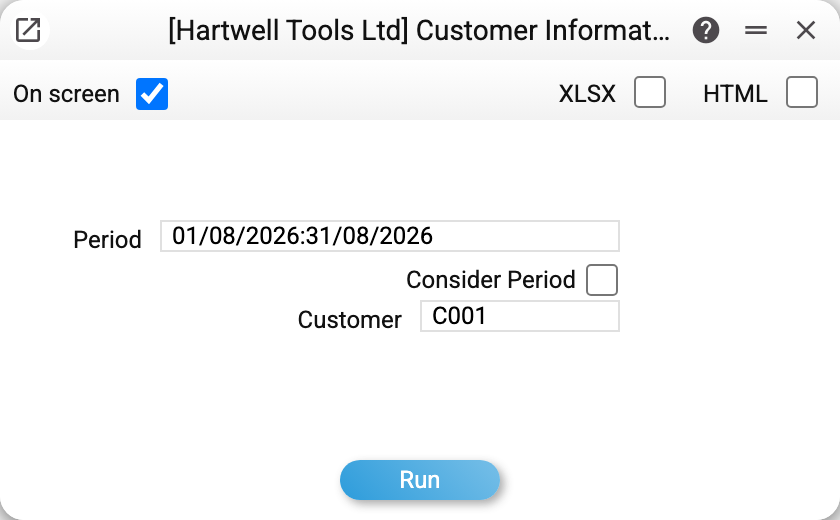
There is one required field — «Customer»; left empty, the window replies «Specify customer!». The «Period» field is filled with the general reporting period, but without the «Consider Period» box the report ignores it and takes documents for all time (what the box does is described below).
The same report opens straight from the contact card — menu item «Customer Information» — and in two more ways: the «i» button in the contact list and a menu item on the service order card. That way the customer is filled in automatically, and the report is built at once, with no parameter window and for all time.
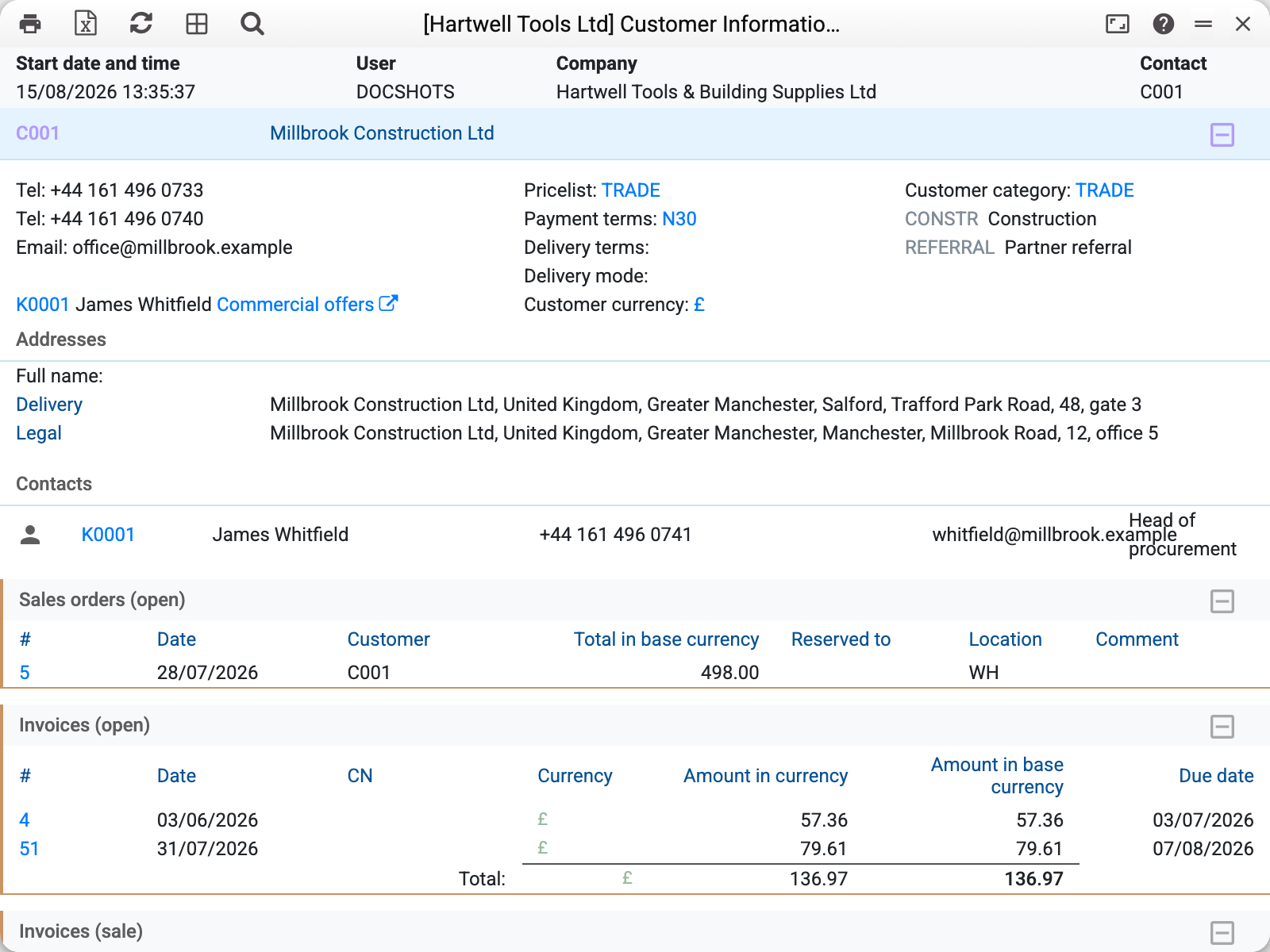
At the top sits the card itself: phones, e-mail, the TRADE price list, payment terms, the customer category and both classifications spelled out — CONSTR «Construction» and REFERRAL «Partner referral». Next to them are the contact person K0001 and a link to the quotation web showcase.
Below come «Addresses» (of every type set up in the customer's addresses — legal, delivery, postal) and «Contacts» — the contact persons with position and phone; linked companies are listed in the same block. All of it is maintained on the contact card — here it is simply gathered in one place.
Then follow the document sections, in this order:
- «Sales orders (open)» — orders with an unshipped row left. Only the order amount is shown here, with no currency and no base amount;
- «Invoices (open)» — posted invoices with an unpaid balance: the balance in the invoice currency and in base currency (the «Amount in currency» and «Amount in base currency» columns show the balance, not the invoice amount), «Due date», and in the «CN» column the numbers of the credit notes that reduced them;
- «Invoices (sale)» — posted invoices of the customer itself that have at least one row, paid or not: No., date, type («Normal», «Credit», «Cash»; an invoice without a type — loaded by an import, for example — «Normal», as accounting posts it), amount and currency. The rows themselves are not shown;
- «Prepayments (open)» — prepayments not yet applied to invoices, in their currency and in base currency;
- «Service orders» — all of them, in any state, with an expandable worksheet table; the row cost in it is in the base currency ("Cost, UAH"), the price and sum are in the worksheet's currency;
- «Actions» — all tasks and events, including completed ones (✓/✘). This section is collapsed by default — click to expand it.
A section with no documents at all is not shown: if, say, every invoice of the customer was brought to zero by credit notes, there is no «Invoices (open)» section.
What matters
Only three sections are «open»: orders (an unshipped row left), invoices (an unpaid balance left) and prepayments (not fully applied). Sales, service orders and tasks are shown in full. An order counts as open only by its unshipped row: the report does not look at the «Closed» and «Posted» marks.
What «Consider Period» does. Each section is filtered by its own date: orders by the order date; open invoices and credit notes by the invoice date; sales, service orders and tasks by the document date (for a task, its start date); prepayments by the payment date. The card, addresses and contact persons are not affected. With the box ticked, the balance of an open invoice is taken as at the period end: payments and credit notes dated no later than the period end count, including those dated before its start. So an invoice paid after the period end is shown open for its full amount, and an invoice paid in advance is shown closed. A credit note issued within the period against an invoice from another period is not shown as a separate line: that invoice is not in the selection.
Linked contacts appear in three sections only. If the head company has linked contacts (branches, subsidiaries), their open orders and open invoices land in the report as a separate collapsed sub-block «expand linked» with the linked customer's code. Their service orders stand together with the customer's own, unmarked. Sales, prepayments and tasks are the customer's own only. The link works both ways: a report on a branch also shows the head company's documents.
The invoice balance is reduced by posted payments, applied prepayments and posted credit notes. Cash invoices — type «Cash» or a cash payment term — count as paid straight away. The balance follows the same rule as the Customer Debt Report: a payment of a foreign-currency invoice is applied at the invoice's own rate, so a paid invoice does not stay open over a rate difference. The «Total:» row with the base-currency total is there even when all of the customer's open invoices are in a foreign currency.
The Excel export (the XLSX option) holds the same sections in the same order as the screen, «Invoices (sale)» included. Amounts are rounded as on screen — by the company's «Rounding» setting; quantity and discount stay as they are. The base-currency total sits only in the first «Total» row; in the rows of other currencies that column is empty.
Typical situations
The report is empty although the customer is active. Most often the «Consider Period» box is ticked and documents outside the period are dropped. If the customer code does not exist, the report replies «Contact not found! Check the field value and try again». If the code is right, the box is off and no sections appear, the customer simply has no open documents.
Only the debt is needed. Those are the neighbouring reports: Customer Debt Report, Customer Payments Information or Client Aging Report.
The report shows another company's documents. Not another — a linked one: check the «Linked Contacts» tab on the customer card.
The same picture is needed for a vendor. Purchasing has a mirror report — «Vendor information», called from the same contact card.