Print Queue
A mailbox for the external label and receipt printer. The system drops jobs in, and the printer is meant to collect them itself and delete them once printed — then an empty queue means "everything has printed". Today, though, jobs land in the queue without a printer code, and no device collects them — details below.
Where to find it: Modules → Print Receipt → Registers → Print Queue
A worked example
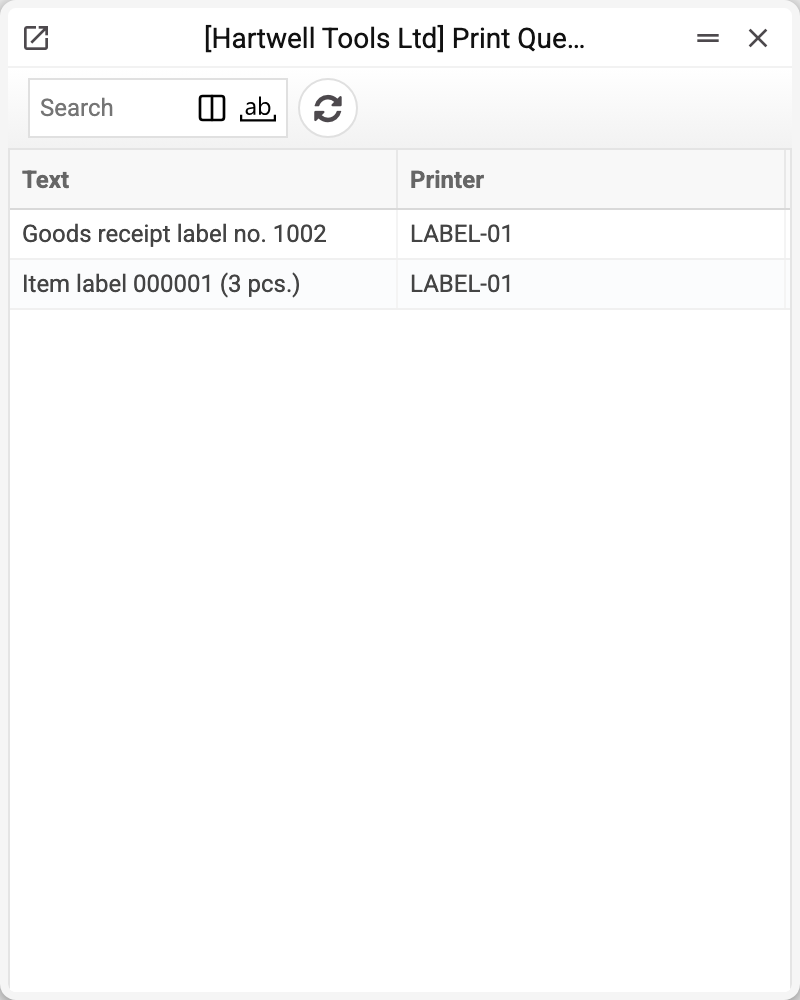
Two columns: the job text (what will be printed) and the printer it is addressed to. The entries have no card — the queue is for looking at: a record cannot be created or opened from the list.
How the exchange works
- Someone prints a label from the "Label Printing" window — in an item card with the "Print Labels" action (when no print form is chosen in the labels print setting; when one is, the label opens as a PDF file in a browser tab, bypassing the queue) or in a goods receipt with the "Print Labels (Printer)" action — or a receipt with the "Receipt printing" action in a sales order.
- The system renders the label text from a template in item labels (a receipt — from sales orders receipts) and creates a queue entry. No printer code is written into the job: jobs cannot be addressed to a particular device at present.
- The hardware printer calls the server with its own access key and takes only jobs of its company carrying its own "Printer ID". A printer without a "Printer ID" receives nothing. So no device receives jobs created this way.
- Once a job is printed, the printer deletes it from the queue.
The printer's access key and its company live in the Printers register — which is what stops someone else's printer from seeing your labels.
What a non-empty queue means
Today jobs without a printer code pile up in the queue until the clear print queue service removes them: this is how the system queues all jobs. Were jobs addressed to a device, a pile-up would mean the printer is not collecting work:
- the printer is off or off the network;
- it is marked inactive in the printers register;
- the device has no "Printer ID" filled in, or it does not match the code in the job.
Typical situations
Labels are not printing and the queue is growing. Jobs from the interface land in the queue without a printer code, and the device takes only jobs with its own "Printer ID" — so it will not receive them. Check the device's record in the printers register as well.
The queue is clogged with old jobs. Use the clear print queue service — it removes the current company's jobs.
«Label "…" is not found: nothing was sent to print». The print window holds the code of a label that is not in item labels; nothing reached the queue.
Where to look next
- Printers — the devices, their keys and their status.
- Clear print queue — remove stuck jobs.
- Default labels — which label the print window offers straight away.