Items Labels
Label templates: what gets printed on the sticker put on an item or on a box in a goods receipt. One template — one sticker layout; which one is used by default is decided by the «Labels Defaults» setting.
Where to find it: Modules → Print Receipt → Registers → Items Labels
A worked example
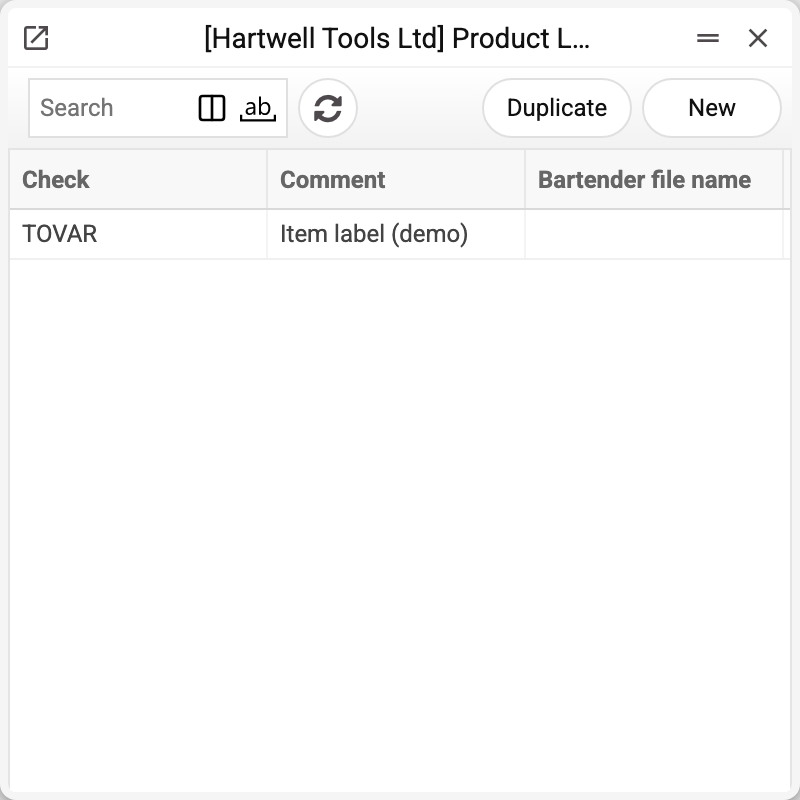
The journal shows the template code (the «Check» column), the comment and the Bartender file when the layout is external. There is one template here, TOVAR, and that is the one we take apart.
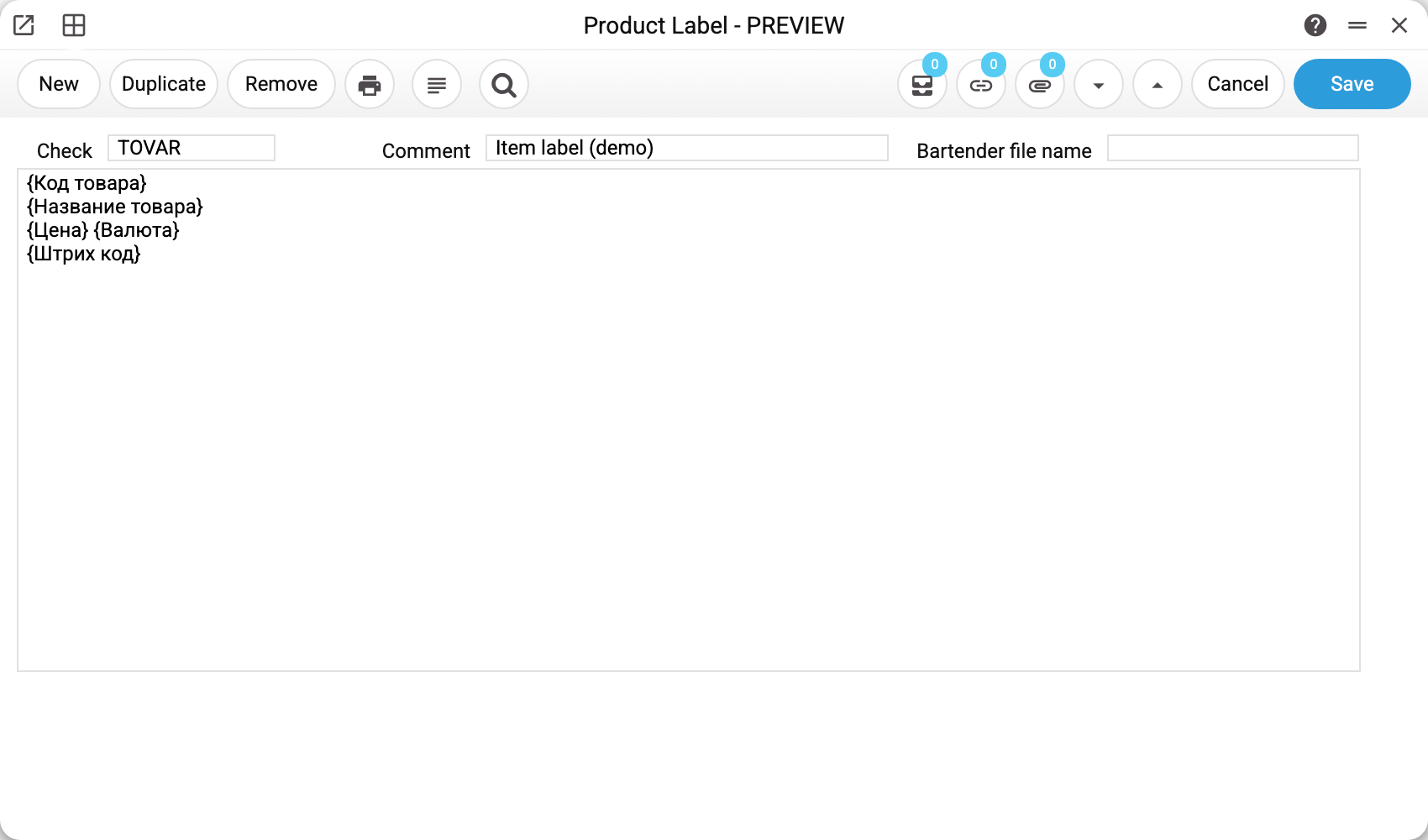
- Check — the template code (labels are picked by it in the print window and in the defaults setting).
- Comment — the human-readable name.
- Bartender file name — filled in when the labels are drawn by the external Bartender software: ERPJS then does not compose the sticker itself but hands the printer the layout file name and a data line for it (from a goods receipt — one line per document row). The number of copies from the print window is not passed to the Bartender layout.
- The large field is the label text with its substitutions.
Substitutions
Written in curly braces and always in Russian — they do not follow the interface language (just like the receipt tags, which are written in Ukrainian):
{Код товара} (item code), {Название товара} (item name), {Группа} (group), {Бренд} (brand), {Единица} (unit), {Цена} (price), {Валюта} (currency), {Базовая валюта} (base currency), {Штрих код} (barcode), {Альтернативный код} (alternative code) — the item card's data; {Этикеток} (label count) — the number of copies ordered in the print window; in a goods receipt also {Количество} (quantity), {Сумма} (sum), {Серийный номер} (serial number).
{Цена} depends on where you print from: from an item card it is the card's selling price, from a goods receipt it is the receipt line's price — the purchase price, in the receipt's currency. Printing from a goods receipt, the code, name, unit and price come from the receipt line, while the group, brand, barcode and alternative code come from the item card. {Валюта} is the currency of the price printed by {Цена}: from an item card it is the company's base currency, from a goods receipt it is the receipt's currency. The receipt line's {Сумма} is in the base currency, so put {Базовая валюта} (base currency) next to it — it is always the base one. For a receipt in dollars, the template {Цена} {Валюта} / {Сумма} {Базовая валюта} gives, for example, «10 USD / 410 UAH». In a Bartender layout it is the same — the ItemCurncy and ItemBaseCurncy columns.
{Повторить этикетку} stands apart, but repetition does not depend on it: when several copies are ordered in the print window, the whole template repeats as many times as copies were ordered — with the marker or without it. The system removes the marker itself from the text wherever you print from.
How printing works
The «Print Labels» button of an item card or «Print Labels (Printer)» of a goods receipt opens the «Label Printing» window with the template from «Labels Defaults»: pick the template and the count there. The exception is the item card when «Custom label print form» is set in «Labels Print Setting»: the label is then printed with that print form, not a template. The finished text lands in the «Print Queue», where the label printer picks it up.
Common situations
{Price} printed on the label. The substitution is not in Russian — write {Цена}, otherwise the system leaves the text as is.
Blank instead of data. The item card's field is empty (no barcode, say) — the substitution yields an empty string.
Bartender prints an old layout. The file name in the template must match the layout on the computer the printer is attached to exactly.
A template cannot be deleted: «A record of «Items Labels» is used in: Labels Defaults!» A template can be deleted only while its code is not set in the label defaults — neither for the item card nor for goods receipts. Deleted, it would leave a code there that no longer exists: the print window from an item card or a goods receipt would offer a label that is gone, and printing would not work. First pick another template in the setting.