Sales Orders
The customer has said yes. Three separate things now have to happen: hand over the goods, bill for them, collect the money. Each has its own document. The sales order is where the agreement is written down whole, and where all three grow from.
Where to find it: Modules → Sales Orders → Registers → Sales Orders
By itself this document moves nothing: stock stays as it was, the customer owes nothing yet, there are no ledger entries. But it does three things nothing else does:
- it shows goods that are about to leave — the item card keeps the quantity ordered by customers separately from the quantity on hand. That figure is where purchasing starts;
- it holds a reservation — with «Reserved» ticked, the goods count as taken by this customer;
- it collects the profit on the deal — once the goods have gone, the order shows the cost and the margin on every line.
And it keeps score: every line shows separately how much has been shipped and how much has made it onto invoices.
Do not confuse it with an invoice: an invoice creates a debt and ledger entries, an order is an agreement that has changed nothing yet.
The register lives in the Sales Orders module.
Where it sits
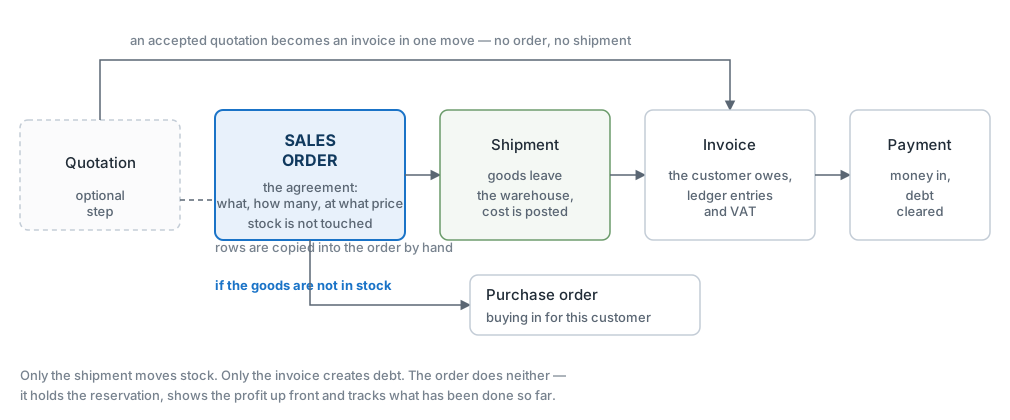
Each document is created from the previous one, from the card menu, and carries the rows across. The order can be broken: an invoice may be raised before the shipment, and money may be taken up front. One thing never changes — only the shipment moves stock, and only the invoice creates debt.
Where the numbers come from
The price in a row is not typed in — it is pulled. Knowing where from is worth the minute, because this is where most «why is this customer seeing a different price» questions hide.
| What | Where it comes from |
|---|---|
| Price list | Filled in from the customer card, and if it is empty there, from the category the customer belongs to, and failing that, from the price list of the customer's payment terms. A new document takes the user's default price list only when neither the customer card nor the customer's category has given one. That is why different customers legitimately see different prices for the same item |
| Price | From the price list on the document (empty — from the price list of the payment terms). If the list has no line for that item — the base price from the item card |
| Discount | The percentage — from the document's discount matrix, which the customer card or its category brings. A discount as an amount («Fixed discount») is typed by hand. Which of the two is primary — on tab A, and which one takes the difference when the row sum is edited by hand — is a module setting |
| VAT rate | A row takes its rate from the customer card, and if it is empty there, from the item card, its item group or the general settings. The «TAX» field on the «Price List» tab sets the rate on every row only if you changed it yourself |
| Cost | Written by the shipment — the actual cost of the batches that left. And only if «Update Cost Price on Order when Delivering» is on in the module settings, and only for shipments approved after it was switched on; otherwise the column stays empty |
| Profit | Row amount before VAT minus quantity × cost — the profit of the whole row, not of one unit. Until there is a cost, the cost counts as zero, and the row profit equals the whole row amount before VAT |
The row amount follows, and here is the fork that causes most of the confusion.
Whether VAT is included in the price is decided by the price list, and if no list is named, by the invoice settings. It changes not the amount of tax but the meaning of the number in the «Price» column:
- prices include VAT:
Sum = Qty × Price − Discount, and the tax is extracted from that same amount; - prices exclude VAT:
Sum = Qty × Price − Discount + VAT.
Either way the «Sum» column is the amount with tax. So checking a document by multiplying price by quantity only works in the first case; in the second the figure is legitimately larger.
A worked example
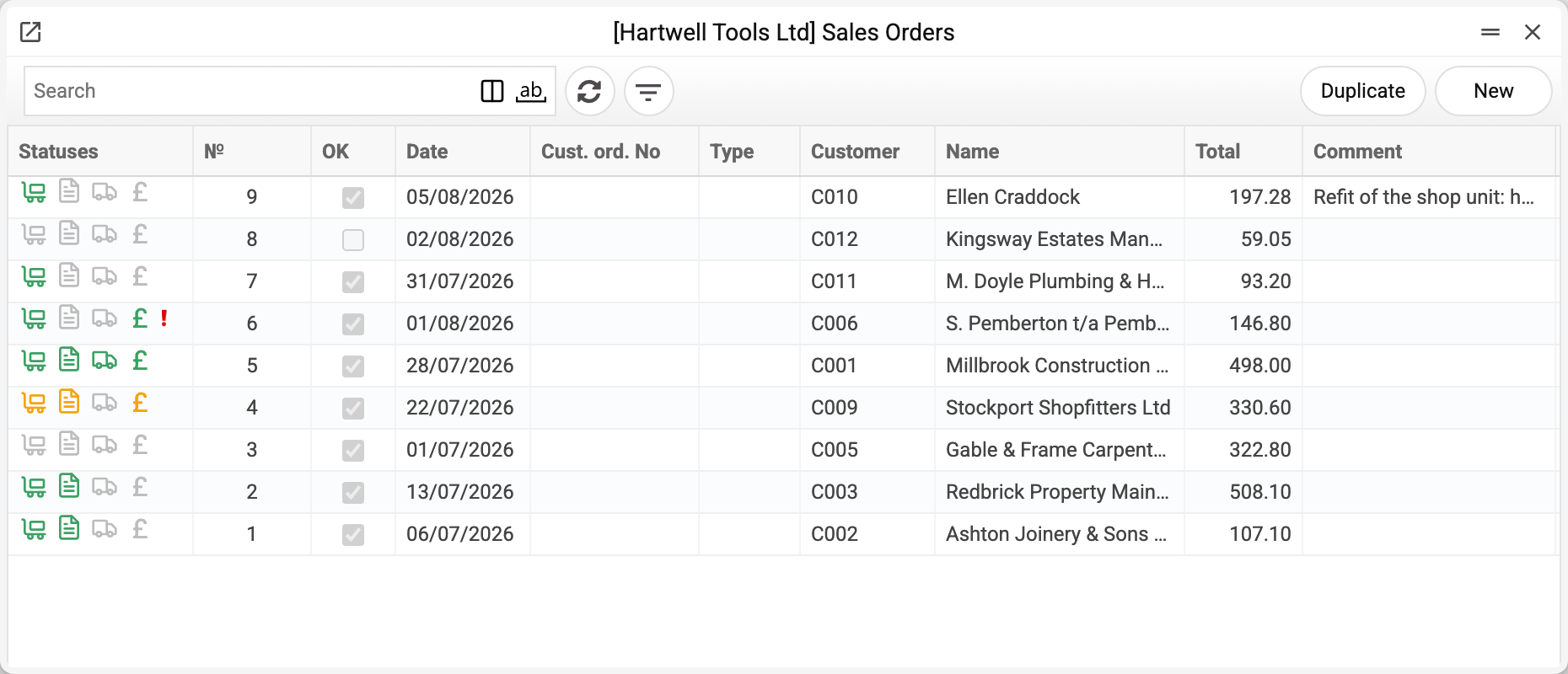
The first column of the journal is "Statuses", and it does the job of a report. Four icons show what has already been done for the order: the trolley is the shipment, the sheet is the invoice, the lorry is the waybill, the currency symbol is the payment.
The colour means the same for all four:
| Colour | What it means |
|---|---|
| Light grey | no document of that kind for this order |
| Dark grey | the document exists but is not approved; on the shipment and invoice icons, also when an approved return or credit note has cancelled part of what was done and the order is not done in full |
| Orange | partly done (part shipped or part paid) |
| Green | fully closed |
A red exclamation mark at the end means the order has an open prepayment: the money has arrived and there is nothing to set it against yet (see Document statuses and the icons in the list).
Stockport Shopfitters Ltd ordered three lines for a site kit-out: helmets, safety glasses and respirators. Payment 14 days after the invoice.
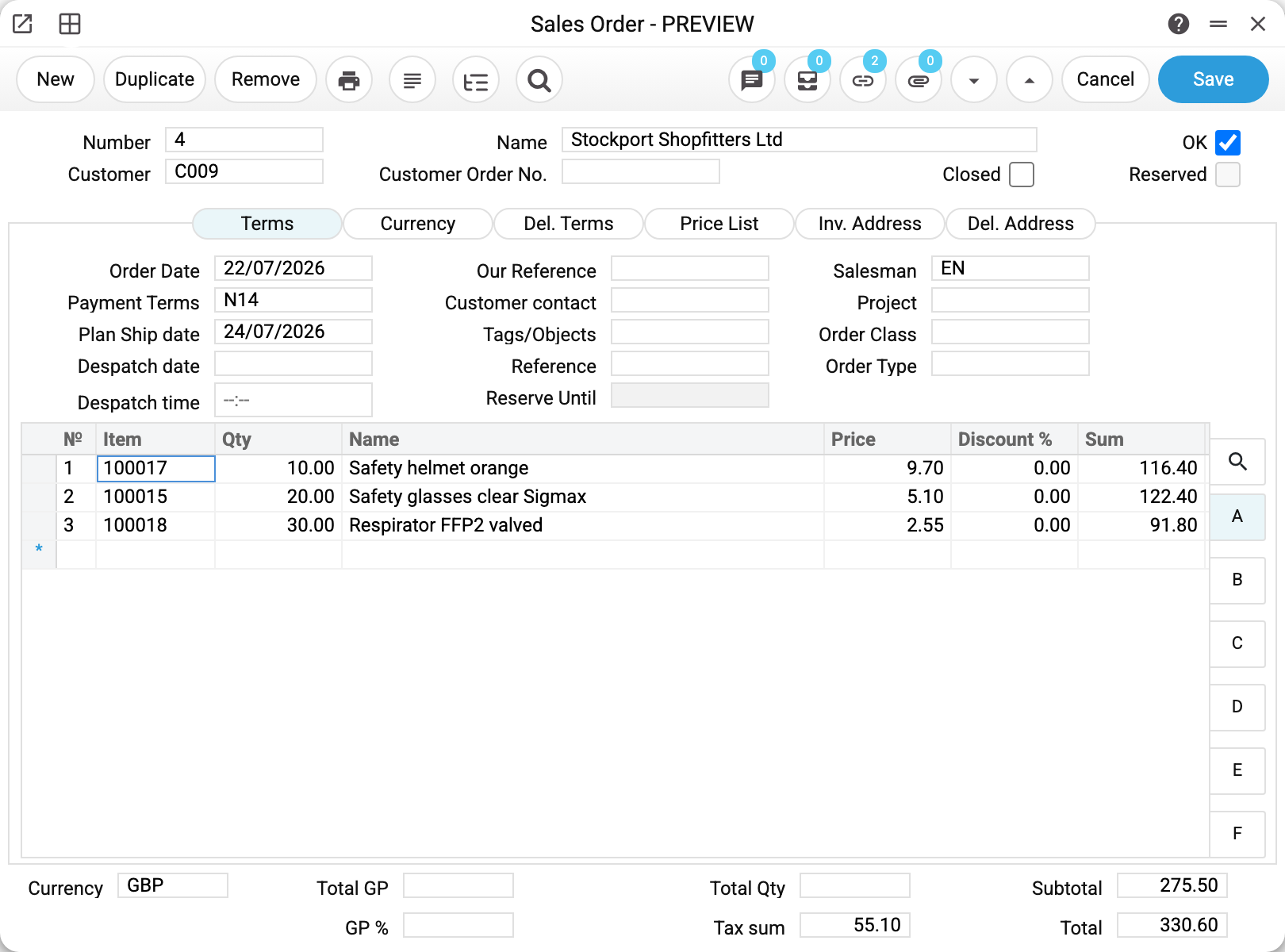
The header carries what applies to the whole deal: the customer, the date, «Payment Terms» N14 (the due date on the invoice will be worked out from these) and «Salesman» EN. «Customer Order No.» is empty — you fill it in when the customer runs their own numbering and later asks «what is happening with our order 4417».
The boxes on the right are three different things. «OK» approves the document. «Closed» is ticked when the order will not be worked on any further. «Reserved» holds the goods for this customer; here it is not ticked.
Prices: three lines, three different sources

This is the fork from the previous section, on live numbers. The document names the price list RRP, and every row got its price its own way:
| Item | On the item card | In price list RRP | On the order |
|---|---|---|---|
| Safety helmet orange | 10.90 | 9.70 | 9.70 |
| Safety glasses clear Sigmax | 4.50 | 5.10 | 5.10 |
| Respirator FFP2 valved | 2.55 | not listed | 2.55 |
The helmet went out cheaper than the card, the glasses dearer, and the respirator took the card price because the list has no line for it. So «why is the price on the document not the one on the item card» almost always means «look at which price list is in the header».
Now add up the first row: 10 × 9.70 = 97.00, while the «Sum» column says 116.40. The difference is VAT. Price list RRP holds prices without tax, so 20 % goes on top and «Sum» already carries it.
Where the tax itself is

Sheet B shows the rate and the tax amount per row: 19.40 on the helmets, 20.40 on the glasses, 15.30 on the respirators. Every row carries the rate S20: a row takes its rate from the customer card, the item card, the item group or the general settings, and the «TAX» field on the «Price List» tab overwrites the rows only when you change it yourself.
The three totals at the bottom of the card: «Subtotal» 275.50 is the amount before tax, «Tax sum» 55.10, and «Total» 330.60 is what the customer has to pay.
What has been done so far
Part of the order has shipped: 6 helmets of 10 and 15 pairs of glasses of 20. The respirators have not moved. Here is how that reads:

Three columns, three different states, and they are worth keeping apart:
- «Shpd. (unappr.)» — how much has been written onto shipments including unapproved ones. The goods are on a document, but they may still be sitting in the warehouse;
- «Shpd.» — how much has actually gone, from approved documents only;
- «Inv» — how much has made it onto invoices.
The gap between the first two answers the question «why does the warehouse still show the goods when the salesman says they are sold»: the shipment exists but has not been approved.
While any row has shipped less than ordered, the order can be shipped from further. A full shipment only sets the "fully shipped" mark in the header — the system never ticks «Closed» by itself; that is done by hand. The next shipment made from it will offer what has not yet been written onto any shipment, unapproved ones included: ordered minus «Shpd. (unappr.)», here 4 helmets, 5 pairs of glasses and all 30 respirators. Goods already on an unapproved shipment are not offered again.
Profit on the deal
Profit on the deal shows once the cost has reached the rows, that is, once the goods have left. Here is another order for the same Stockport Shopfitters — 2002: both of its rows went out in full with shipment 6.

The shipment wrote the cost of the batches that left into the rows: 79.60 per unit on the first row and 0.79 on the second, where five units went. Together that is 83.55. «Total GP» 53.05 is «Subtotal» 136.60 less that 83.55; it is worked out row by row, by the rule in the table above. «GP %» 38.84 is the same profit divided by «Subtotal», the amount before tax, not by «Total». In this order the two happen to be equal — it carries no tax at all, and step 2 below explains why.
An order posts nothing
Nothing appears in the Transactions register once the order is approved, and the stock does not move. An order is a commitment to the customer, not an operation: while the goods have not left and no invoice has been issued, there is neither revenue nor debt.
Further down the chain the transactions appear in a strict order: the shipment writes off the cost, the invoice creates the revenue and the customer's debt, the payment turns that debt into money. So an order tells you nothing about profit or receivables — it answers only «what did we promise and how much of it have we handed over».
Currency, delivery and addresses
These tabs are filled in from the customer card and the reference lists, and they rarely need a hand. But this is where people look for the answer to «where did this rate come from» or «why is the address on the invoice wrong».
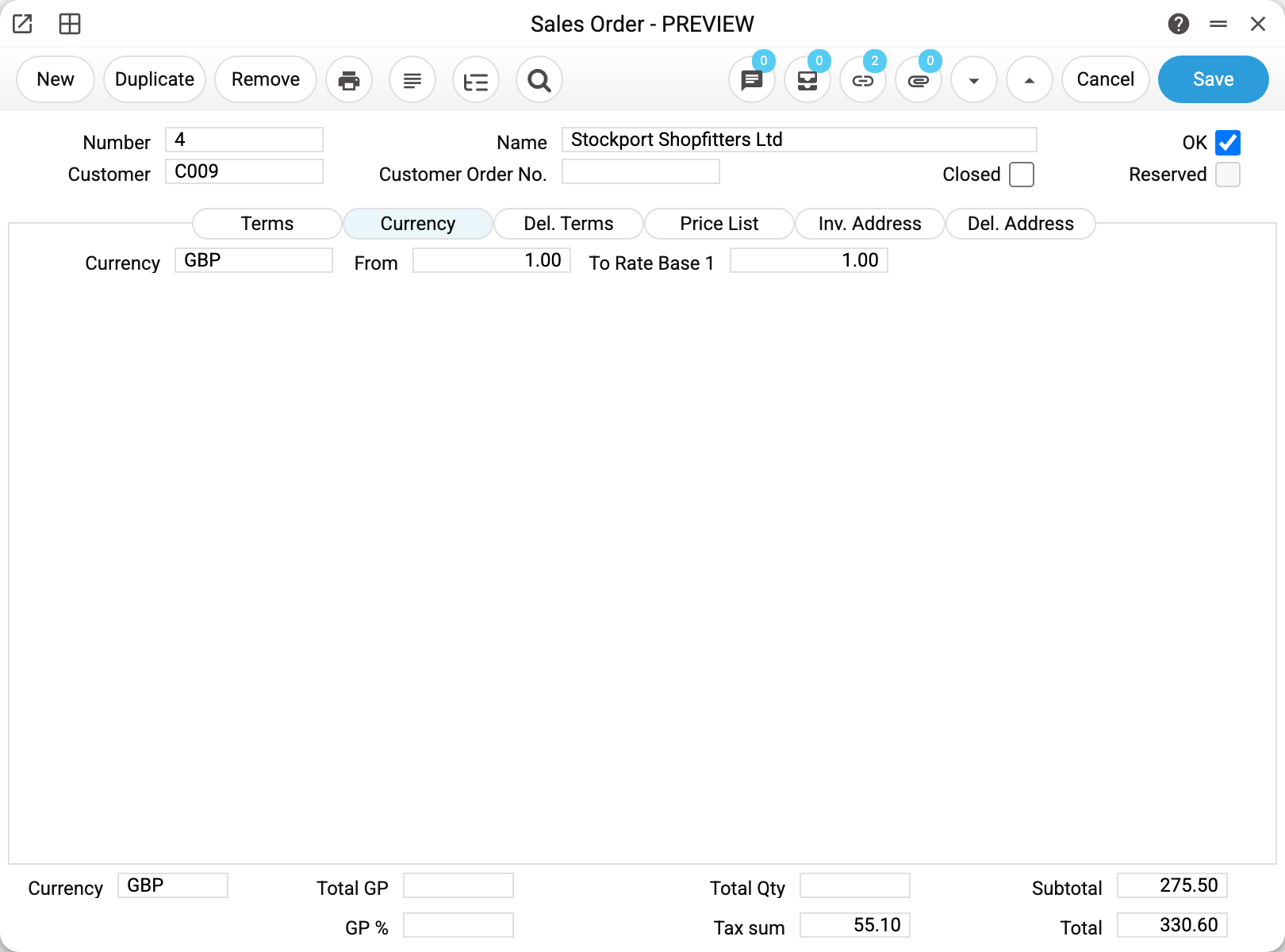
«Currency» — the currency of the document and its rate against the base currency. The rate is kept as a pair «From» : «To Rate Base 1», the same way as in exchange rates: «1 EUR = 0.87 GBP» is «From» 1 and «To Rate Base 1» 0.87. The pair is filled in by itself when the currency is chosen: the latest rate dated no later than the order date. The Stockport Shopfitters order is in GBP, the base currency, so both numbers are 1.
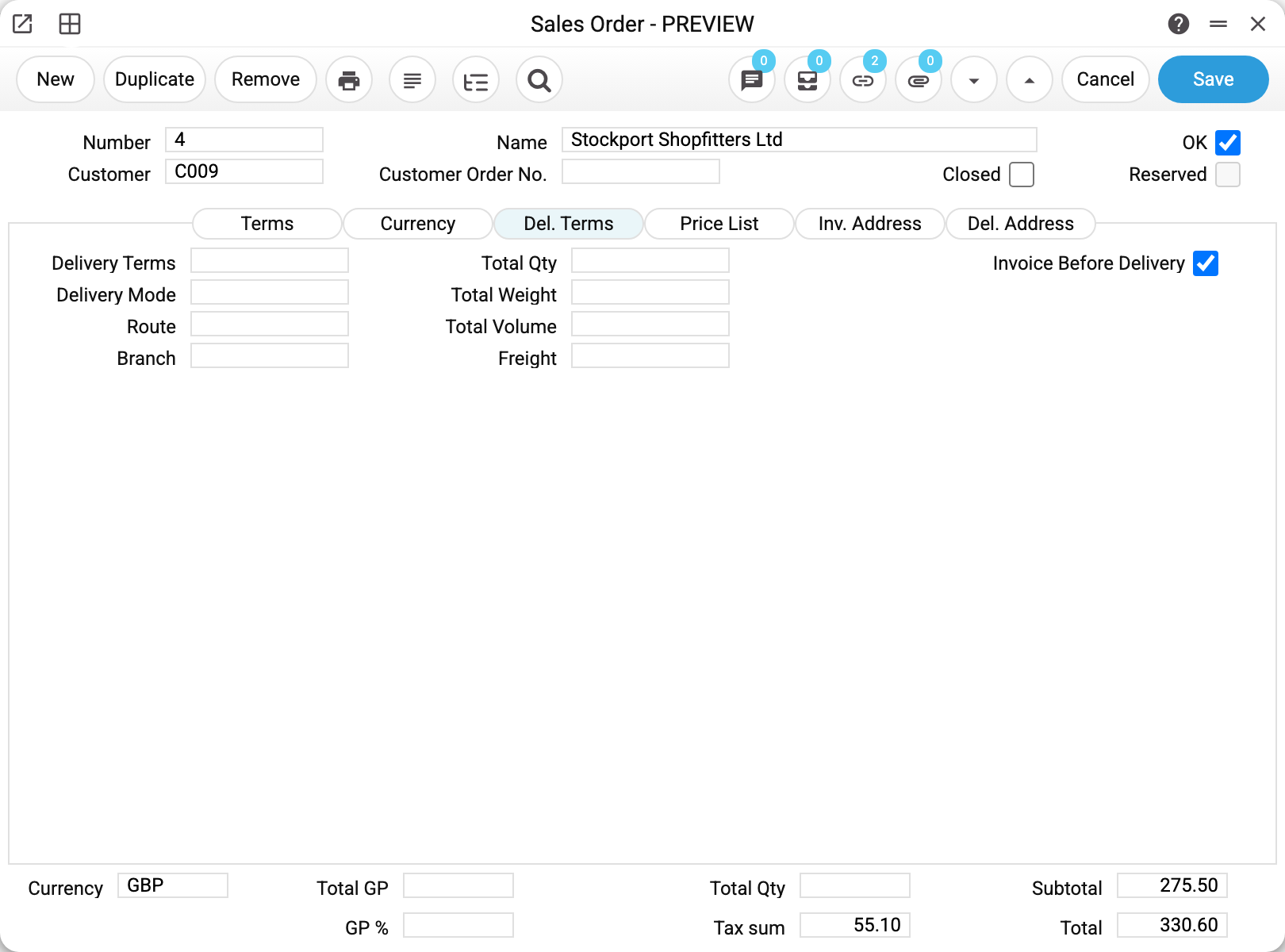
«Del. Terms» — how the goods will get to the customer:
- «Delivery Terms» and «Delivery Mode» are picked from the delivery terms and delivery modes lists: who pays for delivery and how the goods travel;
- «Route» — a free note for logistics;
- «Total Qty» — how many units the document holds in total;
- «Total Weight», «Total Volume» and «Freight» are typed in by hand when the printed form needs them. The order does not compute them, and freight is not added to «Total»;
- «Invoice Before Delivery» allows an invoice to be raised before the goods leave. A new order takes this tick from the invoice setting. Without it, «Create Invoice» puts on the invoice only what has already been shipped, plus the rows that never go on a shipment (type «Work/Service», and type «Free» without the «Set» mark);
- «Branch» — a service field for the exchange with an online shop; it is not filled in by hand. A Nova Poshta branch goes on the «Nova Poshta» tab.
«Inv. Address» and «Del. Address» — two addresses of the customer: the legal one that goes on the invoice, and the one the goods are taken to. Both come from the customer's address book. When the customer is chosen, the system puts the customer's legal address ticked «Default» on the first tab, and the delivery address ticked the same way on the second. «Addr. code» lets you pick another address of this customer from the list, and the fields below are filled in from it. «Address type» comes from the address book and cannot be changed by hand. «Represent» is the address in one line: from the address book it arrives ready-made (for an ordinary address — with the name first), and if you correct the fields by hand, the line is rebuilt from them, without the name.
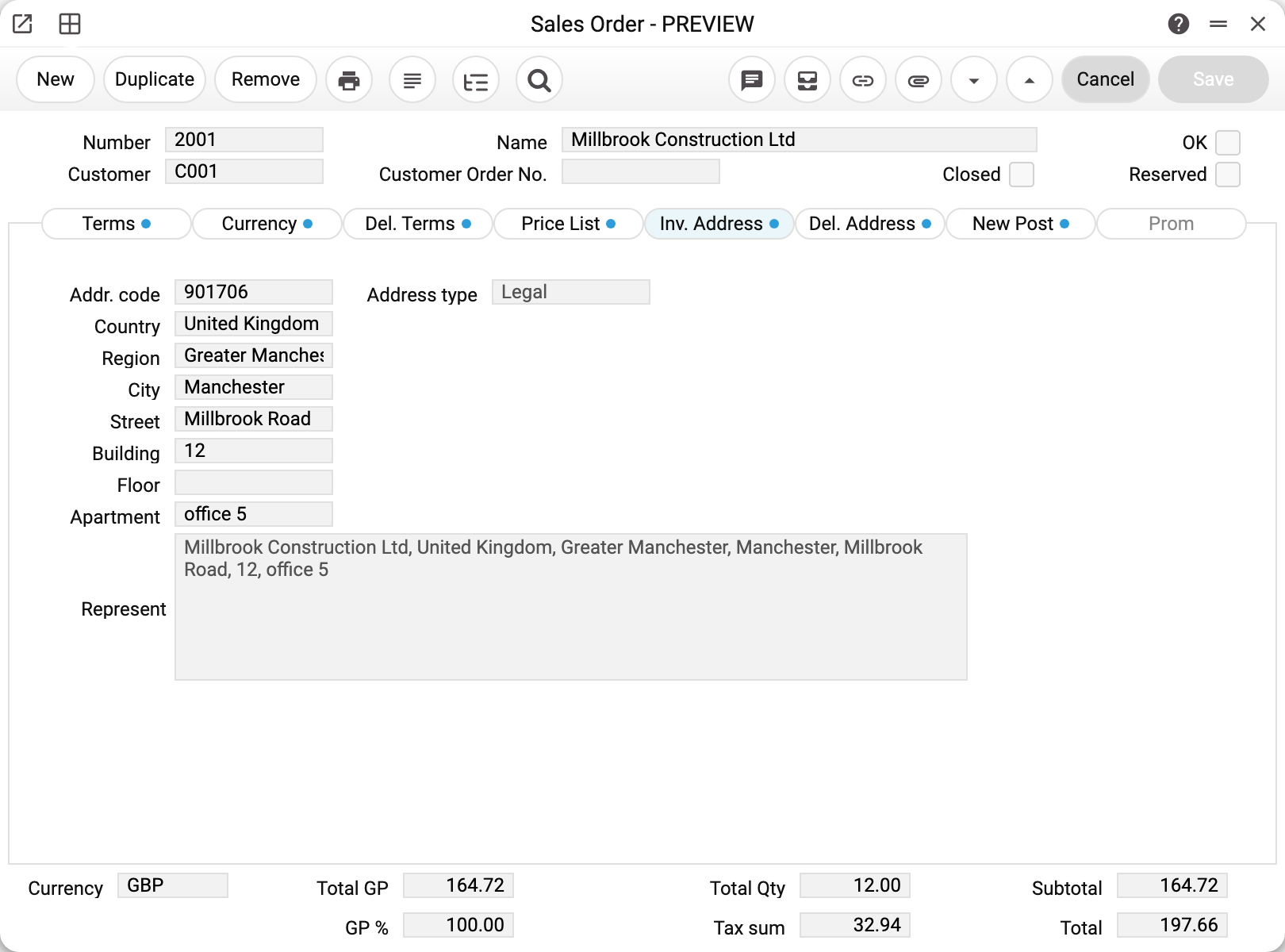
In the new order No. 2001 for another customer, Millbrook Construction Ltd, picking the customer put the legal address 901706 here on its own — 12 Millbrook Road, Manchester, office 5 — together with the «Represent» line that starts with the company name.
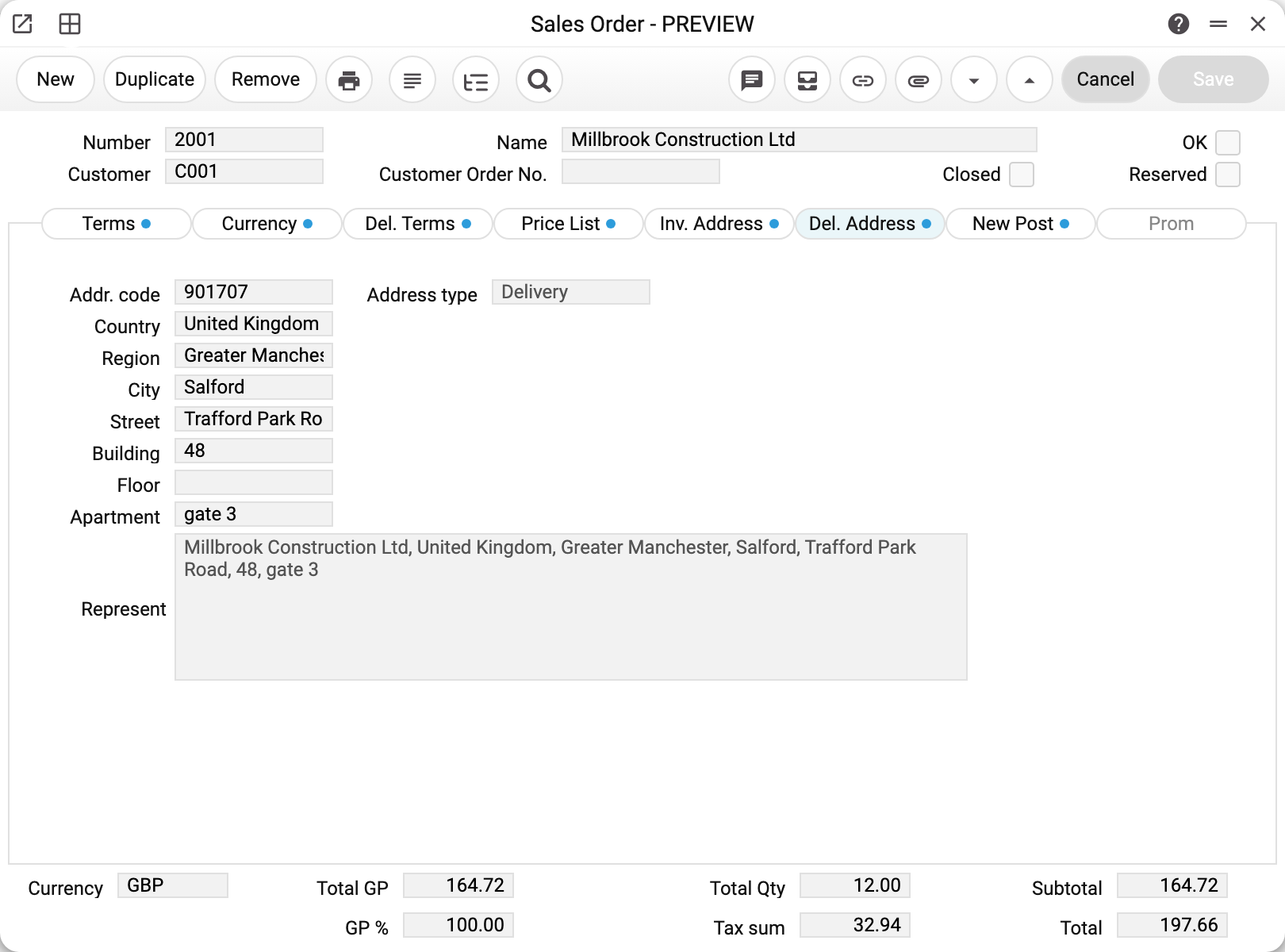
The delivery address 901707 is the customer's warehouse in Salford: Trafford Park Road, 48, gate 3.
If the chosen address is a Nova Poshta address (it has «NP Api» in the address book), its data goes onto the «Nova Poshta» tab, and «Delivery by Nova Poshta» is switched on in the order. That tab only appears when Nova Poshta is switched on in the «NP Setting» window. It holds the recipient, the branch or address, the payment method and the sender for the express waybill.
The «Prom» tab
It is filled in only for orders that arrived from the marketplace: they are brought in by the Prom order download and carry the order class PROM. Nothing is typed here by hand — it is a copy of what the buyer stated on the marketplace.
- Status code and Status name — the state of the order on Prom itself. The code is mapped to your own state through the Prom statuses, the name is kept as it is, for the eye;
- Cancellation reason — arrives when the buyer or the marketplace cancelled the order;
- Customer Notes — whatever the person wrote in the comment to the order: often it is «call after 6 pm» or «a different colour please»;
- Delivery option, Delivery address, Delivery cost — how the buyer chose to receive the goods;
- Payment option — how they intend to pay.
The fields are informational: the system calculates nothing from them and they never reach the postings. Their point is to save the manager from opening the marketplace back office for a single line.
There is one exception — «Status code». Changed in an unapproved order, it goes to Prom on save. With the cancellation status (or when «Cancellation reason» is filled in) the reason text the buyer sees goes along: whatever stands in «Cancellation reason», or without it a neutral phrase that the order was cancelled by the seller. The status goes only to the Prom order whose number stands in «Customer Order No.» as a whole number (spaces at the edges do not matter) and that no other order of class PROM carries: otherwise the status is not sent, and the server log names the reason and the order. A copy of the order does not carry the Prom number over. A failed call to Prom does not undo the save — the status on the marketplace then stays as it was. In an approved order the fields of this tab are changed only by the Prom order import.
How to work with it
1. Pick the customer
The customer code pulls almost all the terms of the deal: name and address, currency, payment terms, salesman, price list, discount matrix and VAT rate. Half the document fills itself in from what was entered once on the contact card.
If the customer is new, the card has to be created first: an order against a code that does not exist will not save.
2. Fill in the terms
«Payment Terms» are required for approval — OK will not go through without them, and they are on the first tab.
«Location», «TAX» and «Price List», however, sit together on the «Price List» tab — not on «Terms», where people look for them first. All three change the numbers: the price list gives the prices, the VAT rate gives the tax, and the location decides where the goods will come from and whether they can be reserved.
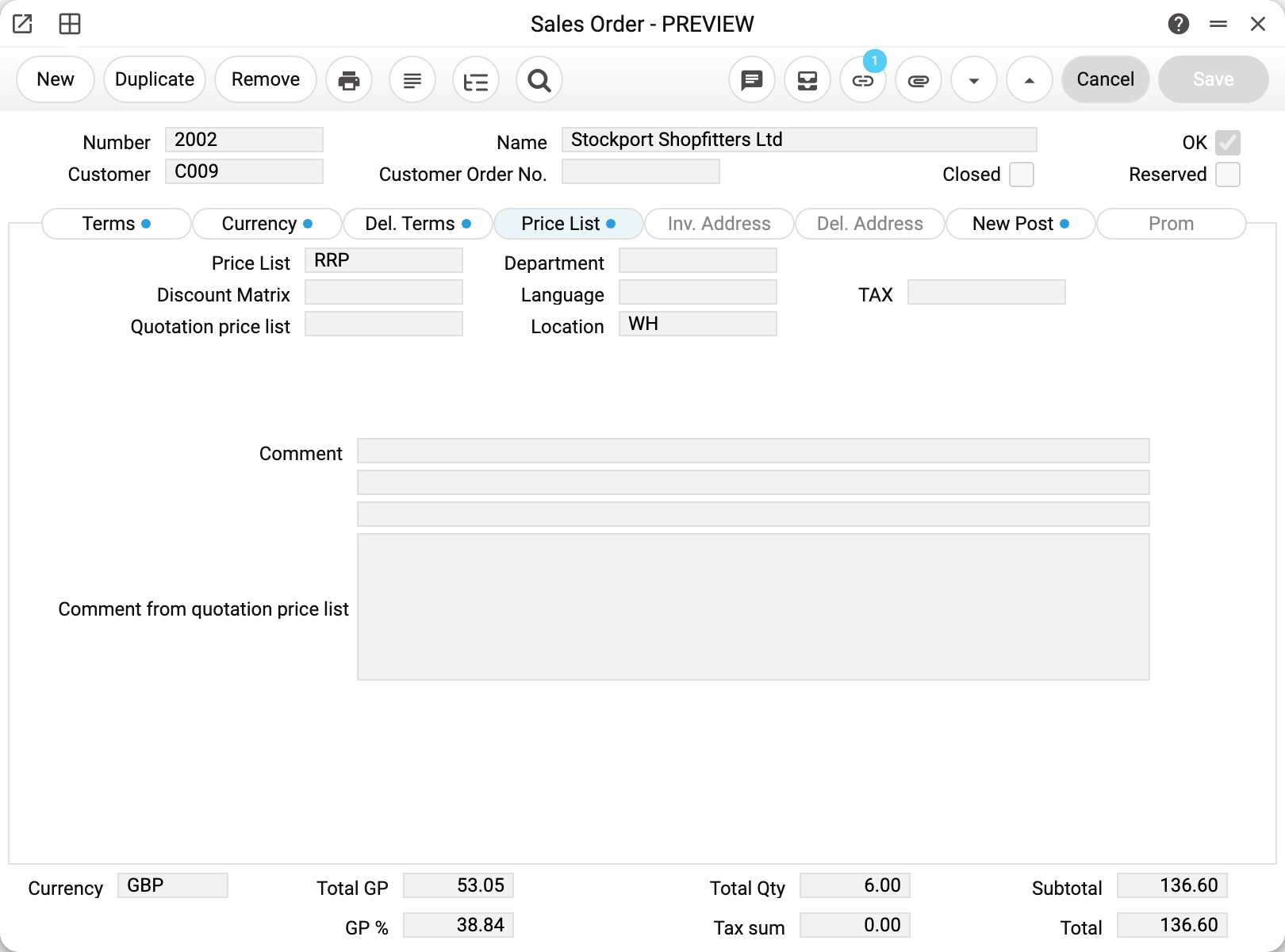
In order 2002 the list is RRP and the location WH, while «TAX» is empty: when the order was entered, the Stockport Shopfitters card held no VAT code, so there was nothing to copy. Hence the zero «Tax sum» in its totals and a «Total» equal to «Subtotal». The order saved without a word — exactly what check 3 below is about. The other fields of the tab are in the field reference.
Changing the price list on a document that already has rows recalculates all of them. Payment terms with their own price list do the same: pick them, and the document's price list switches to the terms' one and every row price is recalculated, including prices you corrected by hand. Terms without a price list, or with the same one, leave the row prices alone. Changing the date recalculates the exchange rate but leaves the row prices as they are.
3. Enter the rows
The item code pulls the name and the price, the tax rate comes from the customer card, the item card, the item group or the general settings (or from the «TAX» field on the «Price List» tab once you have changed it yourself). You type the quantity; the amount is calculated.
The item is not in the directory yet? A row with such a code can be entered and the order saved; you type the name and the price yourself. The order cannot be posted until you create the item card, and until then the row is not counted in the quantity ordered by customers.
4. Decide about the reservation
«Reserved» would hold the goods for this customer. A reservation does not change the stock figure, but it lowers what is available to other orders. If the module settings forbid over-reserving, the system will not let you reserve more of a stock item than is free in the document's warehouse (in stock minus what others have reserved).
5. Approve
OK and save. The order becomes an agreement the next documents can be built from. The quantity ordered by customers on the item card already went up when the order was first saved, before OK; approval does not change it. It is brought down by approved shipments and by closing the order.
6. Next — from the document menu
- «Create Shipment» — hand the goods over;
- «Create Invoice» — bill for them;
- «Create payment» — take the money;
- «Create Purchase Order» — buy in what you do not have, for this order;
- «Create Production Orders» — make the items that have a technological map: a separate production order for every such row, due on the planned ship date; running it again covers only the uncovered difference;
- «Production status» — the stage of production for this order;
- «Sales Orders Status» — what has been done so far;
- «Receipt printing», «Send email» — the printed form, and sending it to the customer.
How to be sure the document is right
- The currency and the payment terms are the ones you agreed with this customer, not the defaults off the card.
- «Total» matches the figure you quoted. If it does not, first check whether the price list holds prices with or without VAT.
- On sheet B, every taxable row has its VAT rate and VAT amount filled in. The «TAX» field on the «Price List» tab overwrites the rows only when you change it yourself, and an empty one does not zero their tax.
- If you ticked the reservation, the location is filled in.
- Profit on the cost sheet is not negative. Negative means you are selling below purchase price — sometimes on purpose, more often a mistyped price.
Print variables
Values available in this document's printed form templates. How to write a variable in a template — see Print Forms.
Header fields:
Main
| Variable | What it holds |
|---|---|
| SO_No | Number |
| Contact_Code | Customer (code) |
| Contact_Name | Customer (name) |
| SO_NameF | Name |
| SO_Ok | OK |
| SO_Res | Reserved |
| SO_NpDelTo | Delivery to |
| SO_NpPayType | Payment Method |
| SO_Gp | GP % |
| SO_TotalGp | Total GP |
| SO_TaxSum | Tax sum |
| SO_Total | Total |
| SO_Subtotal | Subtotal |
Terms
| Variable | What it holds |
|---|---|
| SO_OrdDate | Order Date |
| SO_PayD | Payment Terms |
| SO_PlShipDate | Plan Ship date |
| SO_DespDate | Despatch date |
| SO_DespTime | Despatch time |
| SO_OurCont | Our Reference |
| SO_CustC_No | Customer contact |
| OBJ_No | Tags/Objects (code) |
| OBJ_Comment | Tags/Objects (name) |
| SO_Refer | Reference |
| SO_Sel_No | Salesman |
| SO_Proj | Project |
| SO_OrdClass | Order Class |
| SOrderT_No | Order Type (code) |
| SOrderT_Comment | Order Type (name) |
Currency
| Variable | What it holds |
|---|---|
| SO_Currency | Currency |
| CurCode_No | Currency (code) |
| CurCode_Comment | Currency (name) |
| SO_RateFrom | From |
| SO_RateTo | To Rate Base 1 |
Price List
| Variable | What it holds |
|---|---|
| PrList_Code | Price List (code) |
| PrList_Comment | Price List (name) |
| DiscTable_Code | Discount Matrix (code) |
| DiscTable_Comment | Discount Matrix (name) |
| QPriceL_No | Quotation price list (code) |
| QPriceL_Comment | Quotation price list (name) |
| SO_SalesGr | Department |
| SO_Lang | Language |
| Loc_Code | Location (code) |
| Loc_Name | Location (name) |
| SO_CommF | Comment |
| SO_Comm2 | Comment 2 |
| SO_Comm3 | Appearance |
| SO_CommFQuaPL | Comment from quotation price list |
Inv. Address
| Variable | What it holds |
|---|---|
| SO_InvAddrCode | Addr. code (Inv. Address) |
| SO_InvAddrType | Address type (Inv. Address) |
| SO_InvCountry | Country (Inv. Address) |
| SO_InvRegion | Region (Inv. Address) |
| SO_InvCity | City (Inv. Address) |
| SO_InvStreet | Street (Inv. Address) |
| SO_InvBuilding | Building (Inv. Address) |
| SO_InvFloor | Floor (Inv. Address) |
| SO_InvApartment | Apartment (Inv. Address) |
| SO_InvRepresent | Represent (Inv. Address) |
Del. Address
| Variable | What it holds |
|---|---|
| SO_DelAddrCode | Addr. code (Del. Address) |
| SO_DelAddrType | Address type (Del. Address) |
| SO_DelCountry | Country (Del. Address) |
| SO_DelRegion | Region (Del. Address) |
| SO_DelCity | City (Del. Address) |
| SO_DelStreet | Street (Del. Address) |
| SO_DelBuilding | Building (Del. Address) |
| SO_DelFloor | Floor (Del. Address) |
| SO_DelApartment | Apartment (Del. Address) |
| SO_DelRepresent | Represent (Del. Address) |
Nova Poshta
| Variable | What it holds |
|---|---|
| SO_NpFullName | Full name |
| SO_NpPhone | Phone |
| SO_NpStreet | Street (Nova Poshta) |
| SO_NpBuilding | Building (Nova Poshta) |
| SO_NpAddrBuild | same as SO_NpBuilding |
| SO_NpApartment | Apartment (Nova Poshta) |
| SO_NpRegion | Region (Nova Poshta) |
| SO_NpAvance | Advance |
| SO_NpSender | Sender |
| SO_NpContact | Contact person |
| SO_NpDel | Delivery by Nova Poshta |
Del. Terms
| Variable | What it holds |
|---|---|
| ShipD_No | Delivery Terms (code) |
| ShipD_Comm | Delivery Terms (name) |
| ShipM_No | Delivery Mode (code) |
| ShipM_Comm | Delivery Mode (name) |
| SO_Route | Route |
| SO_Branch | Branch |
| SO_TotQty | Total Qty |
| SO_TotWeight | Total Weight |
| SO_TotVol | Total Volume |
| SO_FrPrice | Freight |
| SO_InvBefDel | Invoice Before Delivery |
Other variables
| Variable | What it holds |
|---|---|
| SO_CustC_Name | Name (Customer contact) |
| SO_Sel_Email | Responsible person's e-mail |
| SO_Sel_FName | Responsible person's first name |
| SO_Sel_LName | Responsible person's last name |
| SO_Sum_UA | Amount in words, Ukrainian |
| SO_Sum_ENG | Amount in words, English |
| SO_Sum_RU | Amount in words, Russian |
Row fields:
| Variable | What it holds |
|---|---|
| SO_Mat_No | Row position number |
| SO_Mat_ArtCode | Item |
| SO_Mat_Spec | Name |
| SO_Mat_Qty | Qty |
| SO_Mat_Price | Price |
| SO_Mat_Sum | Sum |
| SO_Mat_Reb | % |
| SO_Mat_rowGP | GP |
| SO_Mat_Ship1 | Shpd. (unappr.) |
| SO_Mat_Ship2 | Shpd. |
| SO_Mat_Invd | Inv |
| SO_Mat_Obj | Tag/Object |
| SO_Mat_BPrice | Cost |
| SO_Mat_SerNr | Serial No. |
| SO_Mat_Loc | Location |
| SO_Mat_Pos | Position |
| SO_Mat_PicDate | Pick. Date |
| SO_Mat_PicTime | Pick. Time |
| SO_Mat_InLoadDate | Inl. Date |
| SO_Mat_InLoadTime | Inl. Time |
| SO_Mat_DespRowDate | Desp. Date |
| SO_Mat_DespRowTime | Desp. Time |
| SO_Mat_UnitCode | Unit |
| SO_Units | same as SO_Mat_UnitCode |
| SO_Mat_UnitFacQ | Unit Qty |
| SO_Mat_UnitXVal | Width |
| SO_Mat_UnitYval | Height |
| SO_Mat_UnitZval | Depth |
| SO_Mat_UnitFPrice | Unit price |
| SO_Mat_Tax | VAT |
| SO_Mat_TaxSum | Vat Sum |
| SO_Mat_Barcode | Item barcode |
| SO_Unit_Name | Unit name |
The records the document refers to through its form fields (location, customer, currency…) also expose the rest of their variables — code and name are already listed in the tables above, the rest is described in the register's article:
- Customer — Contacts
- Tags/Objects — Objects
- Currency — Currency Codes (
CurCode_*) - Price List — Price Lists
- Discount Matrix — Discount matrix (
DiscTable_*) - Quotation price list — Quotation price lists
- Location — Locations (
Loc_*) - Company details — name, addresses, bank accounts, officers, the printing user: Main Company
Common situations
The customer changed their mind about some of the lines. While nothing has been shipped or invoiced for a row, the quantity can be reduced and the row deleted. The system refuses to drop the quantity below the invoiced one: "You can not reduce the quantity, the goods have been sold". Below the shipped quantity too — and every shipment of the row counts, even one not yet approved: "The quantity cannot be less than the already shipped quantity". Reduce or delete the shipment first (un-approve an approved one first), then the quantity in the order. Both rules watch the reduction itself: if a row has already been invoiced or shipped beyond the ordered quantity, the order still saves — the rules only fire when the row's quantity is reduced.
Returning goods with a "minus" row. The system does not accept a negative quantity in an order row — neither on the first save nor later: "The quantity cannot be negative", with the row's Quantity highlighted. A customer return is a separate document — Returns From Customer.
The goods are not in stock. That does not block the order — an order records an agreement, not availability. From the menu, create a purchase order: it inherits the lines, and the buying is done for a named customer.
The order is part-done and will not be finished. Tick «Closed» — it drops out of the open list and releases the reservation. A reservation that was already on does not stop the closing — the closing itself releases it. What is not allowed is turning «Reserved» on in the same save as «Closed», or on an order that is already closed: «You cannot close the order and reserve the goods at the same time!», with advice to clear one of the two.
The prices on the document are wrong. Check the price list on the tab of that name: the price comes from it, not from the item card. Price lists can have validity periods, so the price can differ from one date to another.
The customer wants a discount on the whole order. A discount belongs to a row, not to the document. An overall discount has to be spread across the rows — or set up as the customer's discount matrix, in which case the percentages go into new rows by themselves.
The order currency was changed. Row prices and fixed-amount discounts («Fixed discount») are converted into the new currency: first into the base currency at the rate the order had, then into the new one at the rate for the order date. If the item has a price on the price list or on its card, that price is then taken from there in the new currency.
Field reference
Header
The fields above the tabs are always visible; the rest is spread over the tabs, and the «Where» column says which one.
| Field | Where | Description |
|---|---|---|
| Number | always | Order number, assigned automatically |
| Customer, Name | always | The customer and their name from the card |
| Customer Order No. | always | The customer's own reference for this order |
| OK | always | Approval: the order becomes an agreement other documents are built from |
| Closed | always | The order will not be worked on any further; releases the reservation |
| Reserved | always | The goods are held for this customer |
| Order Date | Terms | The date of the agreement |
| Payment Terms | Terms | Decide the due date on the invoice; required for approval |
| Plan Ship date | Terms | When the goods are planned to leave |
| Despatch date, Despatch time | Terms | When they actually left |
| Our Reference, Cust.Contact | Terms | Who runs the deal on your side and on the customer's |
| Tags/Objects | Terms | Analytical objects of the document |
| Reference | Terms | Free reference |
| Reserve Until | Terms | The reservation's term: after it, the «Reserve expiration» service removes the reservation when it runs; a partially shipped order is left alone |
| Salesman | Terms | The manager the sale is credited to |
| Project | Terms | Link to a project |
| Order Class, Order Type | Terms | Classification of the order for reports |
| Currency, From, To Rate Base 1 | Currency | Currency of the order and its rate pair against the base currency: «From» units of the order currency = «To Rate Base 1» units of the base one |
| Delivery Terms, Delivery Mode | Del. Terms | Who pays for delivery and how the goods travel — from the delivery terms and delivery modes lists |
| Route | Del. Terms | A free note for logistics |
| Branch | Del. Terms | A service field for the exchange with an online shop; not filled in by hand |
| Total Qty | Del. Terms | Total units over all rows |
| Total Weight, Total Volume, Freight | Del. Terms | Typed in by hand for the printed form; not added to the order amount |
| Invoice Before Delivery | Del. Terms | The invoice may be raised before the goods leave; a new order takes the tick from the invoice setting |
| Price List | Price List | The source of prices, and it decides whether they already include VAT |
| Discount matrix | Price List | The customer's discount table |
| Quotation price list | Price List | Filled in when the customer placed the order themselves on the page of a quotation price list. While it is set, neither changing the customer nor the payment terms change the price list |
| Department | Price List | A department code as free text: there is no list to pick from, and the order computes nothing from it — only the printed form sees it |
| Language | Price List | Language of the printed forms |
| Location | Price List | The warehouse the goods will come from |
| TAX | Price List | The header VAT code; it sets the rows' rate only when you changed it yourself |
| Comment | Price List | Free text, three lines |
| Comment from quotation price list | Price List | What the customer wrote when placing the order on the price list page |
| Addr. code | Inv. Address, Del. Address | An address from the customer's address book; the fields below are filled in from it |
| Address type | Inv. Address, Del. Address | The address type from the address book; read-only |
| Country, Region, City, Street, Building, Floor, Apartment | Inv. Address, Del. Address | The address itself |
| Represent | Inv. Address, Del. Address | The address in one line; built from the fields above |
| Tab fields | Nova Poshta | Recipient, branch or address, payment and sender for the express waybill. The tab is there only when Nova Poshta is switched on in the «NP Setting» window |
Item rows
The matrix has several sheets (A to H); the code, quantity and name are visible on all of them, the rest differs.
| Field | Sheet | Description |
|---|---|---|
| Item | all | Item code |
| Qty | all | Quantity ordered |
| Name | all | Item name |
| Price | A | Unit price from the price list or from the item card |
| % or Fixed discount | A, E | Discount on the row: tab A shows the one that is primary by the module setting, the other is on tab E |
| Sum | A | Row amount including tax |
| Tag/Object | B | Analytical objects of the row |
| VAT, Vat Sum | B | Tax rate and tax amount of the row |
| Shpd. (unappr.) | D | Written onto shipments, approved or not |
| Shpd. | D | Actually shipped, approved documents only |
| Inv | D | How much has gone onto invoices |
| No Reserve | D | This row is excluded from the reservation |
Document totals
| Field | Description |
|---|---|
| Currency | Currency of the order |
| Total GP | Profit on the order: the sum of the row profits |
| GP % | «Total GP» as a percentage of the amount before VAT |
| Total Qty | Total units on the order |
| Subtotal | Order amount before tax |
| Tax sum | Tax on the document |
| Total | What the customer has to pay |