Price Lists
A price list answers the question «how much is this item for this customer». Different customers legitimately see different prices: each has their own price list on the card (or on the category), and documents take prices exactly from it.
Where to find it: Modules → Prices → Registers → Price Lists
The register lives in the Prices module. It works in a pair with the «Prices» register: the price list is the «cover» with the rules, while the actual numbers live in «Prices» — one row per «price list + item» pair.
A worked example
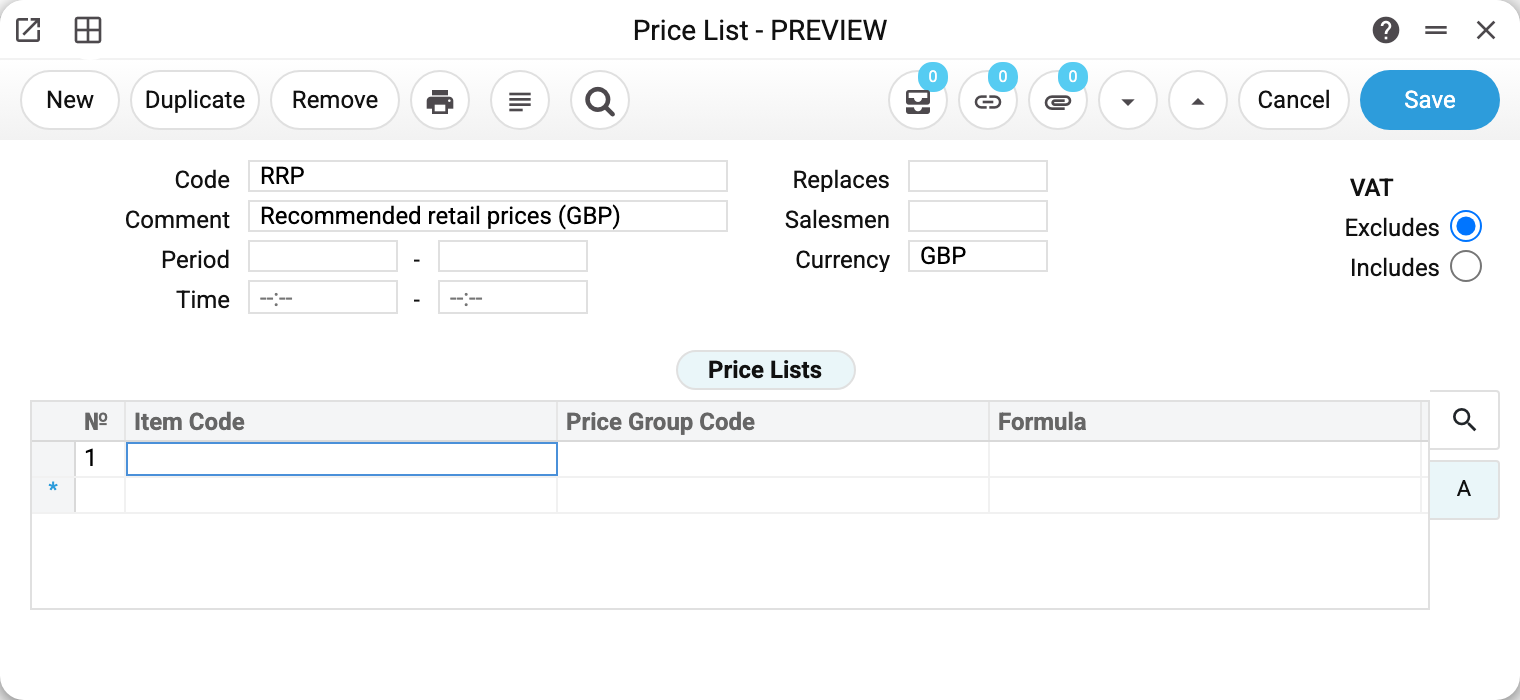
The demo database's main price list is RRP «Recommended retail prices (GBP)» (next to it lives the TRADE list — we will get to it below). In the header:
- «Code» and «Comment» — the name by which the price list goes into customer cards.
- «VAT»: Excludes / Includes — the most important switch. It says what the number in a price means: «Excludes» — prices are net, the tax is added on top; «Includes» — the tax is already inside. RRP keeps net prices: a helmet is 9.70, and the invoice shows it with the tax on top.
- «Currency» — the currency of all the list's prices; here GBP. Empty means the firm's base currency.
- «Replaces» and «Period» — the promo price list mechanism, covered below.
- «Salesmen» — the manager the price list is pinned to. The field is only stored and printed: it affects neither document prices nor who may use the price list.
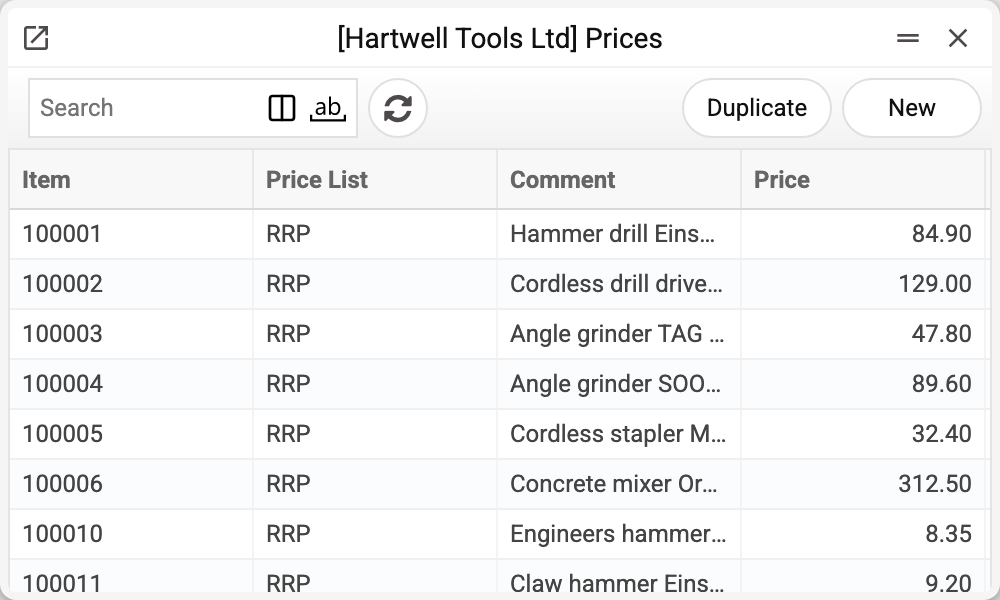
The numbers themselves are in the «Prices» register:
How a document finds the price
When an item is typed into an order or invoice row, the system goes in turn:
- Is a promo price list active right now? If there is a list whose «Replaces» field names ours and whose «Period» covers the document date, and the item is on it — the price comes from it. The item is not in the promo — the search goes on as without one.
- The price from «Prices» for the pair «document's price list + item» — if the document date falls within the price list's «Period» (an empty «Period» sets no limit). If the document's price list itself replaces another one, it acts as a promo too: only within its own «Period», and beyond it the search goes by the same steps to the price list it replaces.
- The item is not on the list — the base price from the item card is taken.
The demo data shows all three fates of an item: the safety helmet is cheaper on the list than on the card (9.70 against 10.90), the safety glasses are dearer (5.10 against 4.50), and the respirator is not on the list at all — it goes by the card (2.55). So in a three-line order the prices may have three different sources — and all three are correct.
Where the document's own price list comes from: the customer card, and when it is empty — the customer's category, and when that is empty too — the payment term. In the demo both customer categories point to RRP, so it lands everywhere. One more path is the user's «Price list by default»: a new document of this person takes it only when the document's customer gives no price list of its own, neither by card nor by category; and once a customer is chosen in the document whose card or category has its own price list (or whose payment term has one), the document takes that one.
The promo price list
To avoid rewriting prices back and forth for a sale, a separate list is created: its «Replaces» field names the main list, the «Period» holds the promo dates, and «Prices» holds the promo numbers. While the period lasts, documents take the promo prices by themselves; when it ends, they return to the main ones. The main price list is not touched at all.
Only the promo items need to go into the promo list: every other item keeps taking its price from the main list during the promo. If two promos of the same list are active on the document date and both contain the item, the one with the longer «Period» wins — the system measures length by class, from the difference between end and start: a one-day promo (start = end) is the shortest class, then a difference of 1–6 days, 7–30, 31–364, a year or more. So a one-day promo loses to a week-long one even if it started earlier. Within one class (say, both promos last between a week and a month) the one that started earlier wins. A promo that does not contain the item takes no part in the choice.
The system lets you save «Replaces» without a «Period», but such a price list never applies: neither as a promo nor as the document's own price list — a document with it takes the prices of the list it replaces. «Time» does not affect the choice of price: a promo is judged by the «Period» dates only.
The matrix at the bottom of the card
The rows «Item code — Price group code — Formula» are rules for mass price calculation. In RRP the matrix is empty: its prices are kept by hand directly in «Prices». The demo's TRADE price list, though, is built entirely by rules: a matrix row ties a price group or a single item to a formula, and the «Calc. Prices for Items» maintenance turns the rules into «Prices» rows. The mechanism is taken apart in «Price Forms».
How to work with it
1. Create the price list
Code, comment, the VAT switch (decide at once — flipping it on a live list would change what every number means), the currency if needed.
2. Enter the prices
In the «Prices» register: a row per item — price list, item, price. The quick start for a similar list is «Duplicate» on the existing prices.
3. Assign it
Put the price list into customer cards, or straight into a category — then every customer of the category gets it automatically.
Print variables
Values available in this document's printed form templates. How to write a variable in a template — see Print Forms.
Header fields:
| Variable | What it holds |
|---|---|
| PrList_Code | Code |
| PrList_Repl | Code 2 |
| PrList_Comment | Comment |
| PrList_StDate | Period |
| PrList_StTime | Time |
| CurCode_No | Currency (code) |
| CurCode_Comment | Currency (name) |
| PrList_VAT | VAT |
| PrList_EndDate | End Date |
| PrList_EndTime | End time |
| PrList_Sman | Salesman (login) |
Row fields:
| Variable | What it holds |
|---|---|
| PrList_MNo | Row position number |
| PrList_MItCode | Item Code |
| PrList_MPrGrCode | Price Group Code |
| PrList_MForm | Formula |
The records the document refers to through its form fields (location, customer, currency…) also expose the rest of their variables — code and name are already listed in the tables above, the rest is described in the register's article:
- Currency — Currency Codes (
CurCode_*)
Common situations
«Why did the customer get the wrong price?» Look at the document's «Price List» tab — whose list was filled in. Then the chain: customer card → category → payment term. Then — whether a promo replacing this list was active on the document date. And remember the third source: if the item is not on the list, the price came from the item card.
The item is new and not on the list yet. Documents will not stop — they take the base price from the card. Once you add a row to «Prices», the list prices take over.
Prices «shifted» after flipping the VAT switch. The number 9.70 under «Excludes» and under «Includes» are two different prices. The switch is set at creation and left alone.
The sale is over but the prices are still promotional. Check the promo list's «Period» — until its end date passes, it keeps replacing the main list. A document judges the promo by its own date, not by today: a document dated on a promo day keeps getting promo prices. And prices already entered into rows stay after the promo ends — changing the date alone does not re-read them.
Field reference
| Field | Description |
|---|---|
| Code, Comment | The list's name; this is what goes into customer and category cards |
| VAT: Excludes / Includes | What a price number means: tax on top or already inside |
| Currency | The currency of all prices; empty — the firm's base currency |
| Replaces | The main list this one replaces during the «Period» (a promo) |
| Period | When the promo list is active (by the document date) |
| Time | Only stored and printed; does not affect the choice of price |
| Salesmen | The manager the list is pinned to; only stored and printed |
| The matrix (Item / Price group / Formula) | Mass calculation rules — see «Price Forms»; empty when prices are kept by hand |