Print Forms
Print forms of documents: a Word or Excel template into which the system puts the record's data when you press the print icon in it. One record is one form of one register; a register can have several.
Where to find it: Modules → System → Registers → Print Forms
The template is a .docx (Word) or .xlsx (Excel) file. Save an old .doc or .xls file (Office 97–2003) as .docx or .xlsx first: the system fills in data only in these.
Fields
- Register — the register whose documents the form is for. Required.
- Form Name — how the form is called in the print window. Required and unique within the register.
- The template file — pick it or drag it in; File Real Name is filled in by itself (the system records the file size and checksum too, but the window does not show them). The "click here to download file" link returns the saved template so you can edit it. To replace the template, press "Delete file" and pick a new one: the form stays the same record with all its settings.
- Language, User, Department, Access Group — who sees the form in the print window. An empty field means no restriction. A filled one shows the form only for documents in that language, only to that user, only to users of that department or that role.
- Date format — how dates are printed in this form. Empty means Format settings.
- Disabled — the form is not shown in the print window but stays in the register.
- Print queue — all forms of this register in the order the print window shows them. The arrows next to Priority move the current form up or down. A form field the role cannot see («hidden (for field permission)» on the «Fields permissions» tab of the role) is hidden in the queue rows too — including other forms' values.
How to print
In the document's record press the print icon, pick the form and the action: Download — the template file with the data, Preview — open it in the browser, PDF — a PDF file. How to prepare the template itself is described in the sections below.
Format for creating a form for .docx files (Microsoft Office Word)
Field names (the "Print variables" section of the register documentation) must be entered in single braces
{FieldName}. Variables from matrices must be written as (example):
- Default matrix
{#t}- start of the table,{/t}- end of the table.- Additional matrices
{#MatrixNameFromDocumentation}- start of the table,{/MatrixNameFromDocumentation}- end of the table.
Number format in a .docx template field
To print a number in the form you need, add the num parameter to the field name. A field without the parameter prints as before: when a document is printed, in the number format from Format settings (or from User formats for the person printing).
How a document total of 116000.4 and a price of 12.3456 are printed:
{Total_Sum | num}— with a thousands separator, decimals as in the value: 116,000.4;{Total_Sum | num:2}— exactly 2 decimals, rounded: 116,000.40;{Total_Sum | num:0}— no decimals: 116,000;{Price | num:2:3}— from 2 to 3 decimals: 12.346 (a price of 1500 — 1,500.00);{Total_Sum | num:2:uk}— the separators of a language (uk,ru,en…): 116 000,40.
Without a language the separators are English: a comma between thousands and a point before the fraction. The parameter takes the document's number itself, so the user's number format does not affect it. A value that is not a number (document number, date, text) prints as is, and an empty one prints empty. In .xlsx templates the parameter is written differently — see "A number in an .xlsx cell" below.
Format for creating a form for .xlsx files (Microsoft Office Excel)
Field names (the "Print variables" section of the register documentation) must be entered in the following format
${FieldFromRegister}. Variables from matrices must be written as (example):
- Default matrix
${table:t.FieldName}.- Additional matrices
${table:MatrixNameFromDocumentation.FieldName}.
Variables are filled in on the first sheet of the workbook only: on the other sheets ${…} stays as written.
A number in an .xlsx cell
A field without the parameter prints the same way as in Word: in the number format from Format settings (or from User formats for the person printing). If that format has a thousands separator or a decimal comma, the number lands in the cell as text ("116 000,40"). Excel does not add up such text (SUM over the column skips it), and the cell's number format has no effect on it.
To put a number into the cell, add |num to the field name without spaces: ${Total_Sum|num}, in a matrix — ${table:t.Price|num}. Then the template cell's format sets how the number looks (for example, "#,##0.00"), and Excel formulas count it. The cell format sets the decimals and separators: there are no parameters like in Word. The parameter takes the document's number itself. A value that is not a number (document number, date, text) prints as is, and an empty one prints empty.
|num makes sense when the field is the only content of the cell. In a cell with other text ("Total: ${Total_Sum|num}") the number is inserted without separators: "Total: 116000.4".
Company details in forms
Documents whose article lists Company details in the "Print variables" section also carry the company and printing-user variables: Comp_Name, Address, Bank_Acc, Reg_No, User_Login, User_FName… The full list is in Company information. Not every document gets them — check the linked sets in the document's article.
Algorithm for working with .docx format forms:
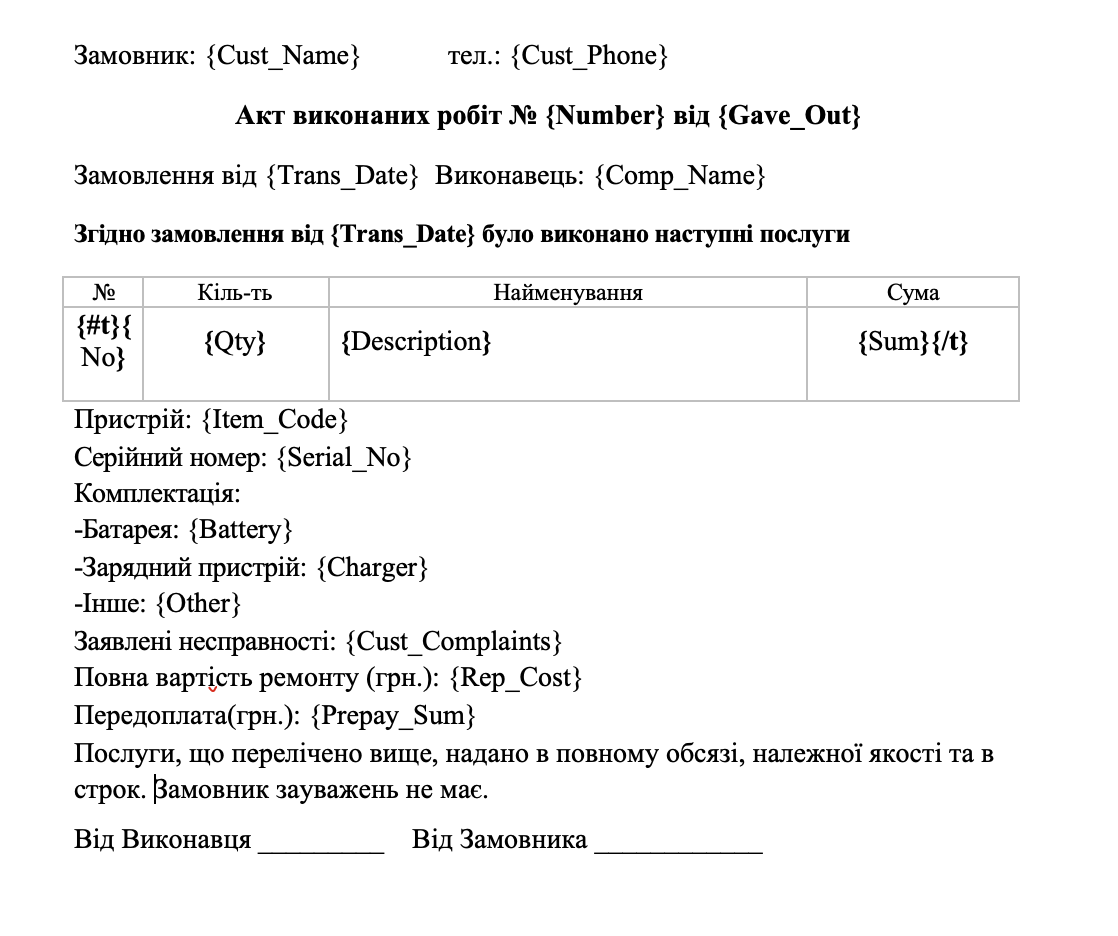
- 1) Create a document for printing in .docx format (Microsoft office word formats). Fields from the register that you want to output should be entered in single braces
{}. The list of fields for printing is given in the register documentation (to open the register doc, click the question mark in the upper right corner of the record window of the desired register). In the example, we will work with the Service Orders register.
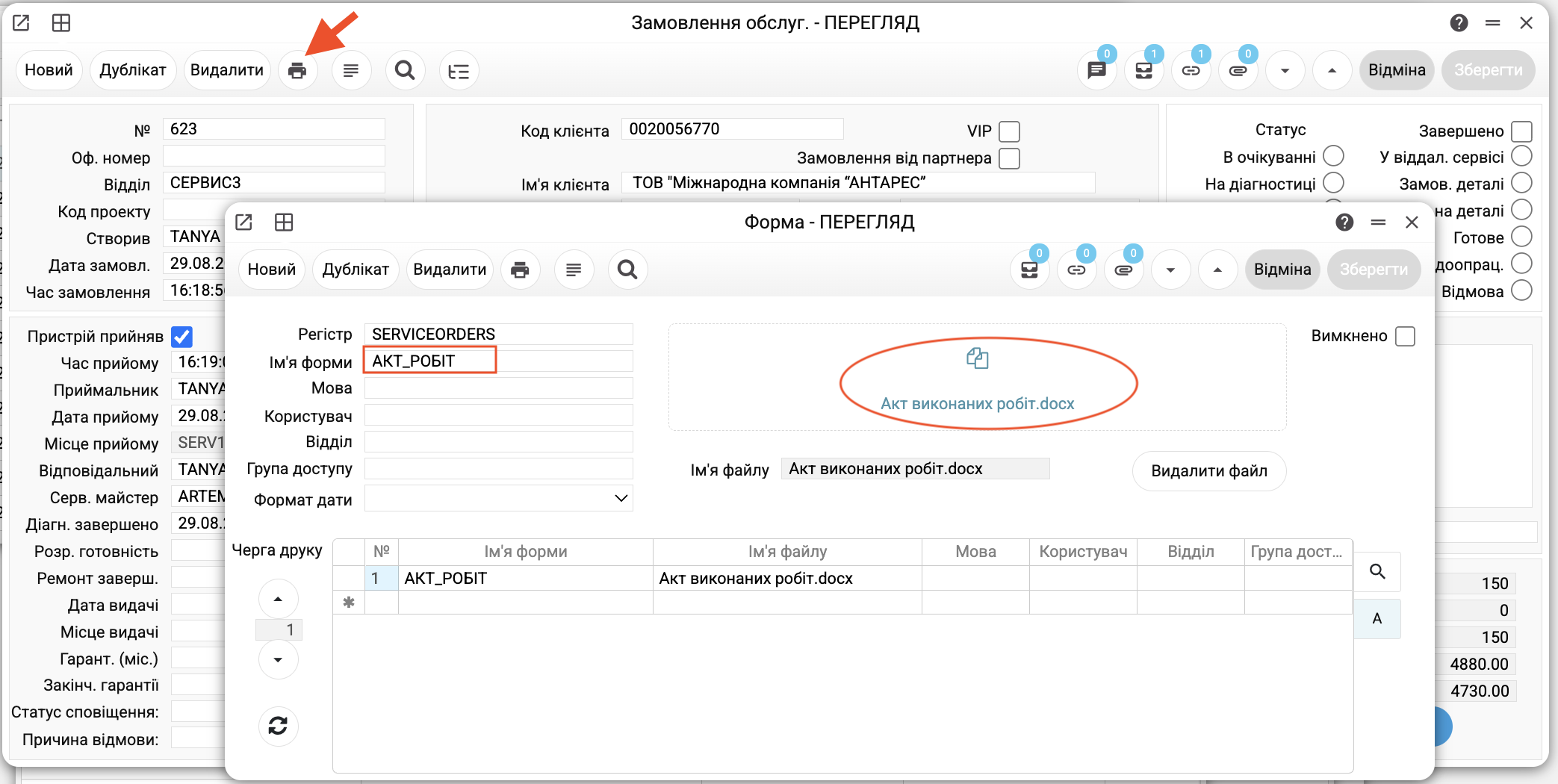
- 2) Upload the document to the system by selecting or dragging the desired file. Specify the register name on the basis of which the form will be generated. Specify the form name. Click the save button.
- 3) Open the register record on the basis of which the form will be generated and click the "print" icon.
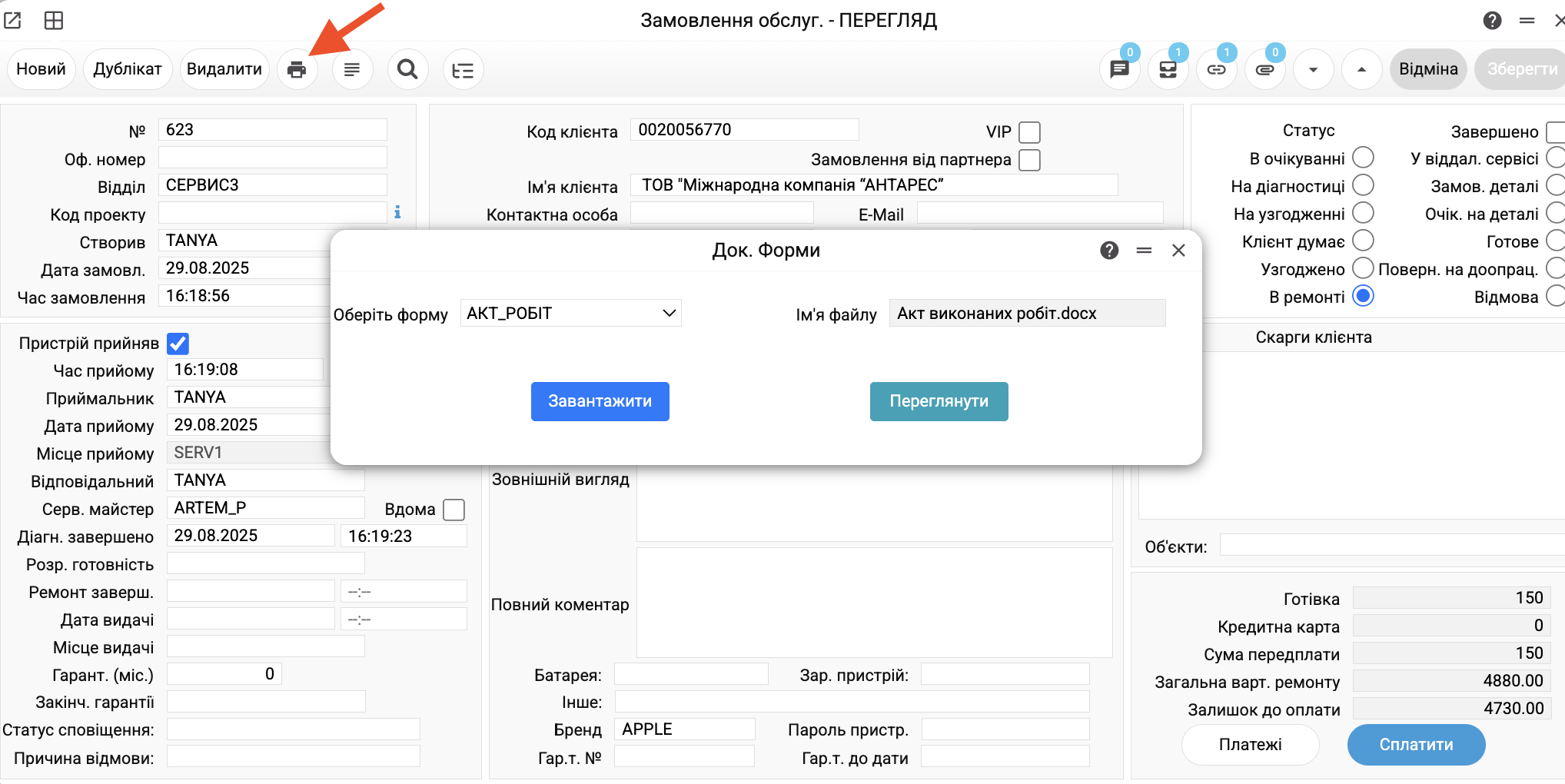
- 4) Select the form and the desired action for you "Download" or "Preview".
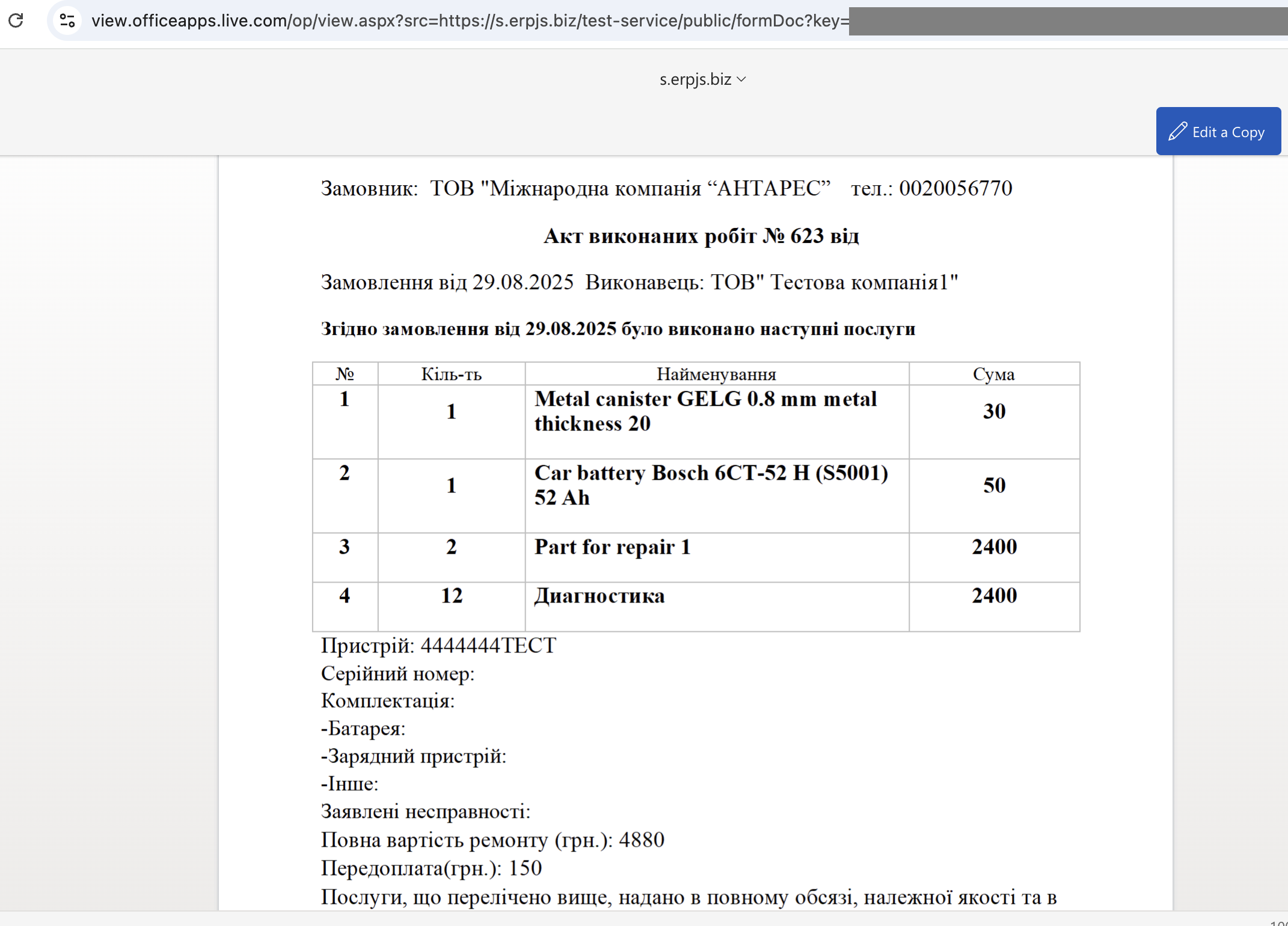
Result of the "Preview" action: a document for preview opened in a new tab.

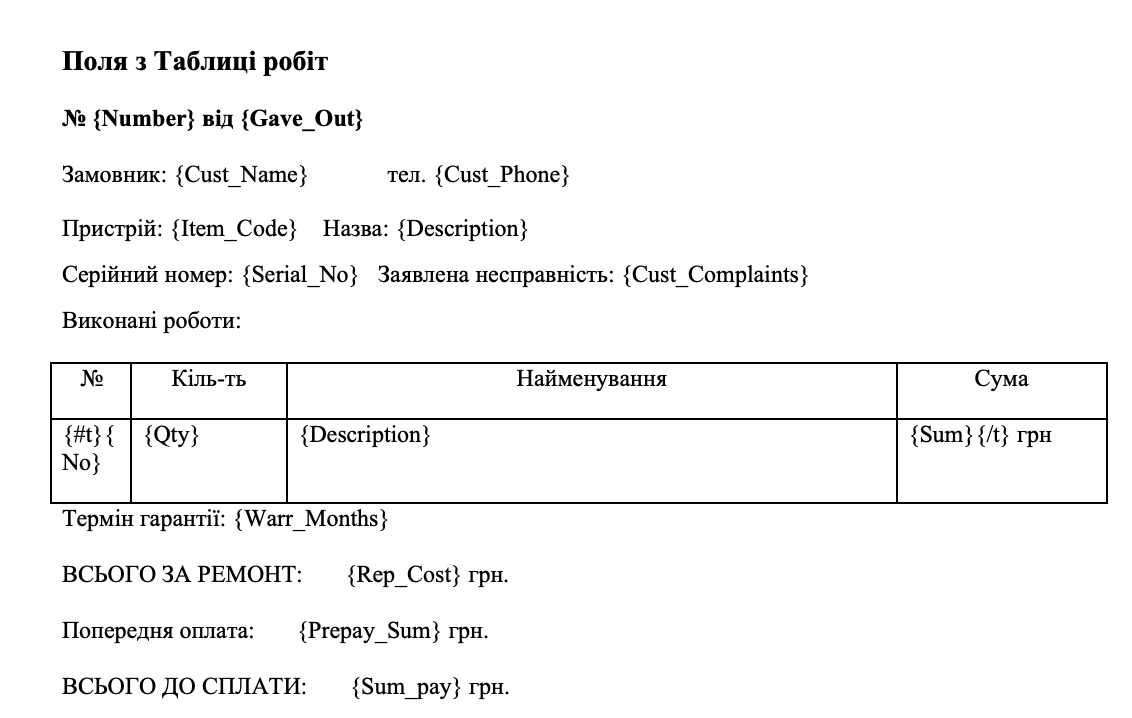
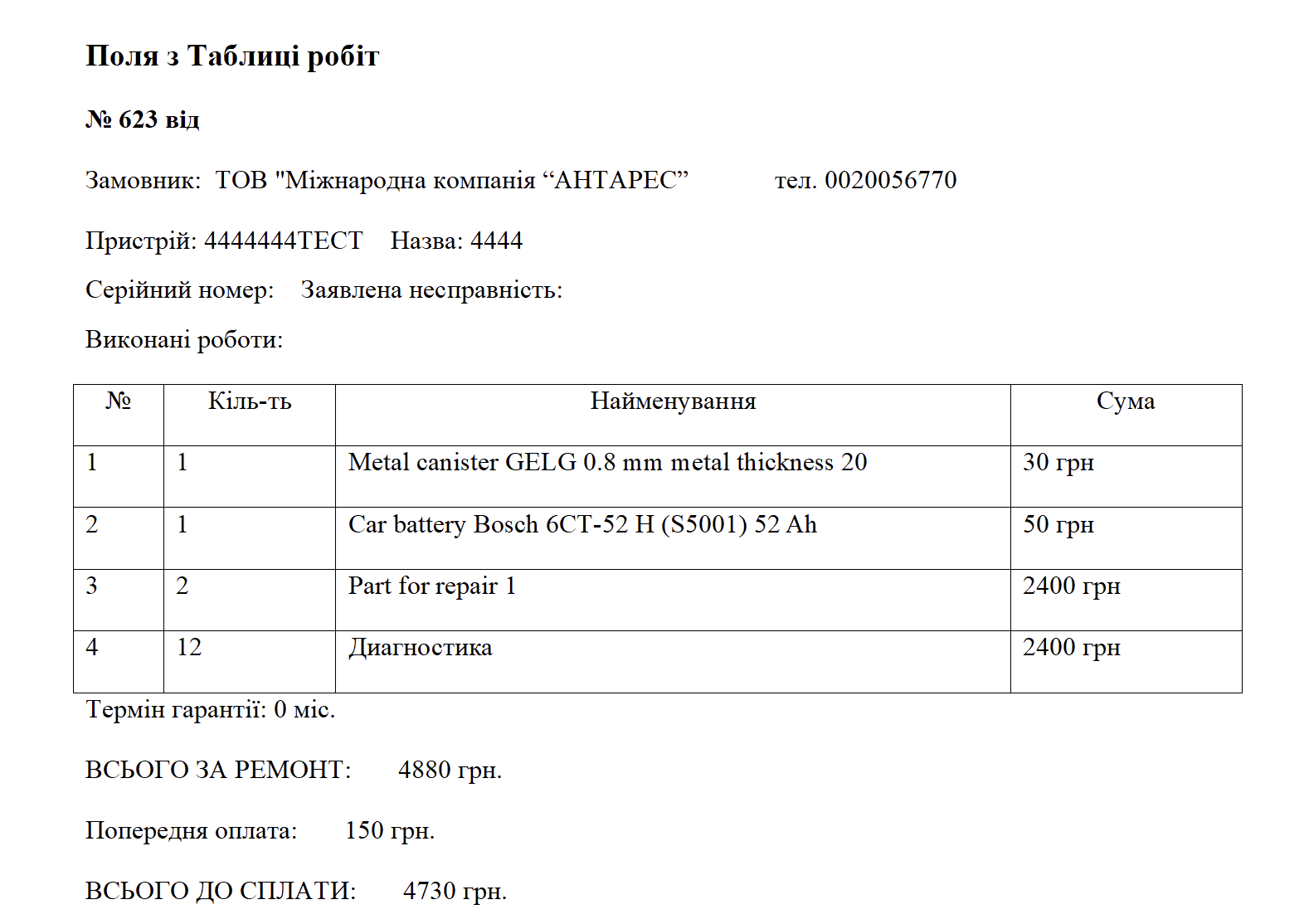
Example of outputting several tables. In the example, we will work with the WorkSheets register.
- Document for printing. The figure highlights the matrix names from the documentation for the WorkSheets register.
- Result
Algorithm for working with .xlsx format forms:
- 1) Create a document for printing in .xlsx format (Microsoft office excel formats). Fields from the register that you want to output, enter in the following format
${FieldFromRegister}. The list of fields for printing is given in the register documentation (to open the register doc, click the question mark in the upper right corner of the record window of the desired register). In the example, we will work with the Service Orders register.
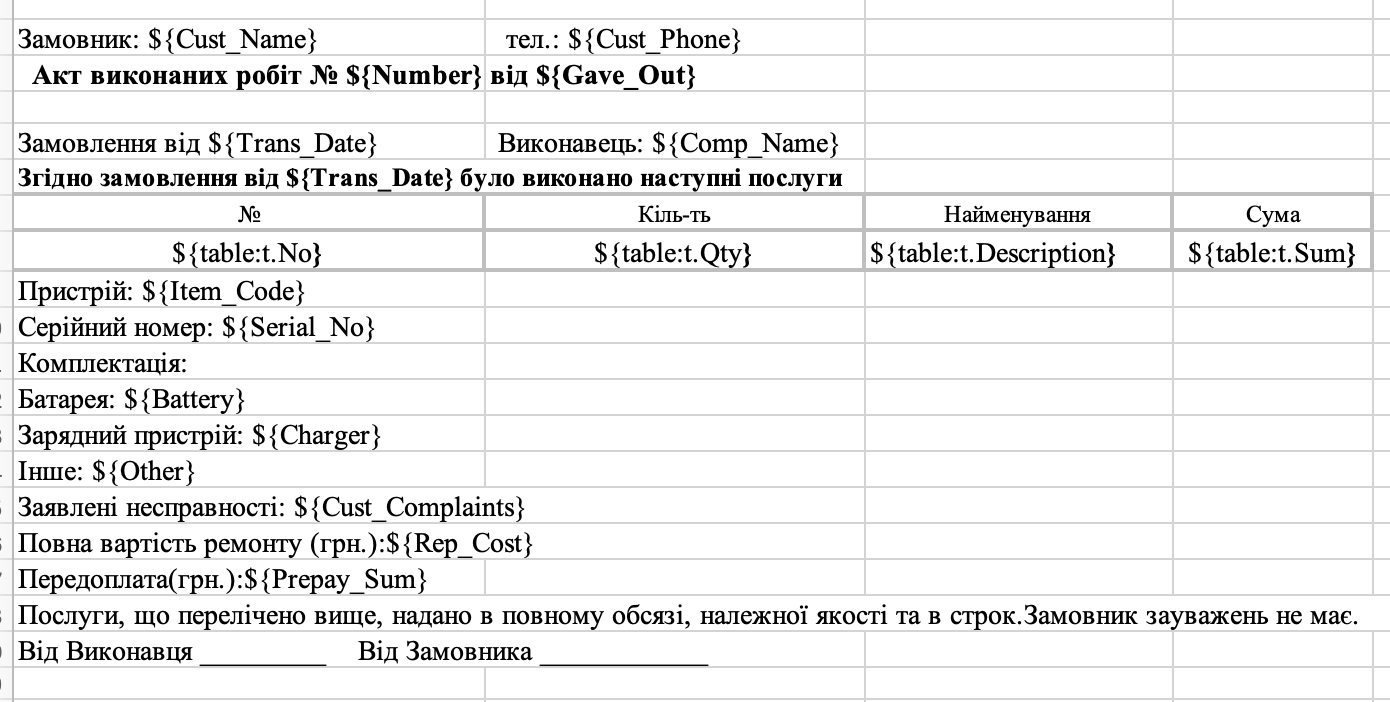
- 2) Upload the document to the system by selecting or dragging the desired file. Specify the register name on the basis of which the form will be generated. Specify the form name. Click the save button.
- 3) Open the register record on the basis of which the form will be generated and click the print icon.
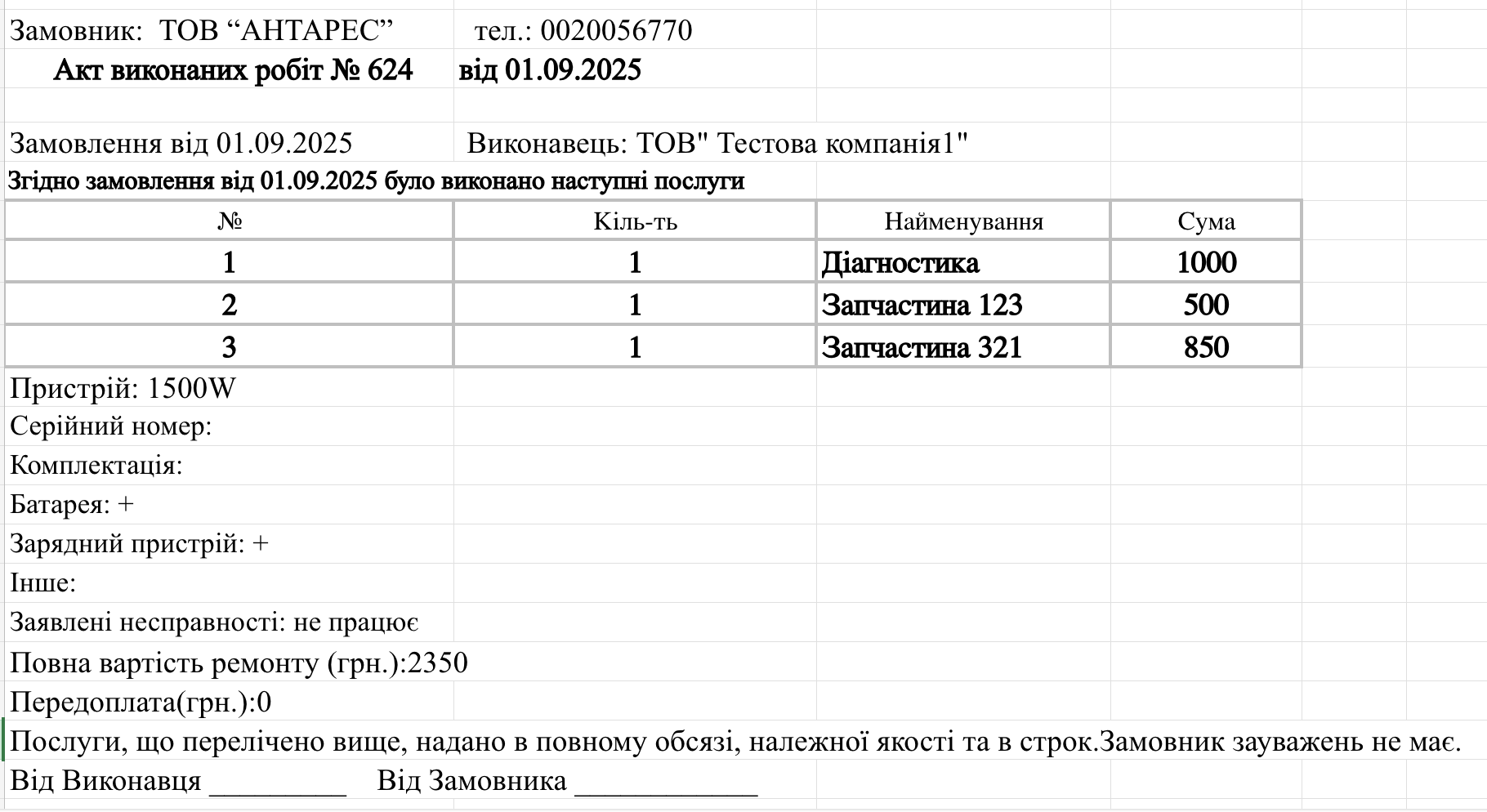
- 4) Select the form and the desired action for you "Download" or "Preview".
Typical situations
You pressed print, and a new Print Forms card opened. There is no form for this document that can be shown to you: the register has no forms, all are disabled, or the restrictions do not let them through. The card opens with the register already filled in — upload a template and save.
The form is in the register, but not in the print window. Check Disabled and the restriction fields. Language is compared with the language of the document itself (the language field in its header), not with the interface language: a form with Ukrainian will not show for an invoice in English. User, Department and Access Group are those of the person you signed in as.
The forms are in the wrong order in the print window. The order comes from the Print queue: open the form that should come first and raise its priority with the arrows.
A field was printed empty. In a Word template both a field without a value and a field with a typo in its name print empty. Compare the name with the "Print variables" section of the document's article — letter for letter, including case.
Preview does not open the document. Preview shows the document through Microsoft Office's online viewer, which fetches the file from your server. If the server is not reachable from the internet (a local installation), preview will not work — use Download or PDF.
"Invalid file type. Allowed types are: …". The file is not .docx or .xlsx — save the template in the right format and upload it again.
On saving — "The record already exists!" This register already has a form with that name — choose another one.