Stock Movement Report
A list of transfers between locations for a period — which documents there were, what travelled and how much. The answer to "how did this stock end up in this warehouse".
Where to find it: Modules → Stock → Reports → Stock Movement Report
Parameters
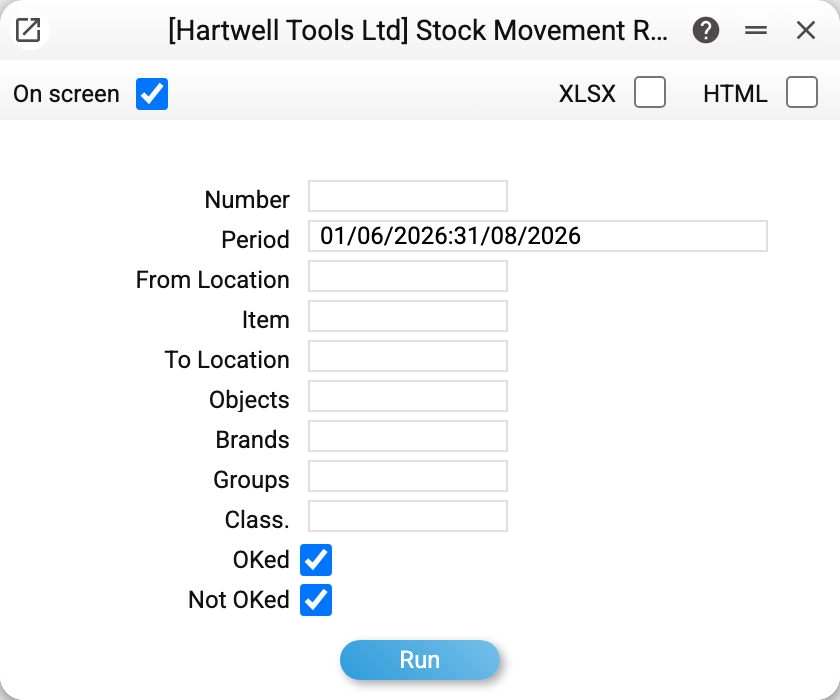
- Number — a single transfer. The period still applies: a transfer dated outside it will not be shown.
- Period — the frame, by transaction date.
- From Location, To Location — filter by the sending and the receiving location; both are visible in each transfer's header.
- OKed, Not OKed — which transfers to take: approved, drafts or (both ticked, the default) all; with neither ticked — all as well.
- Item, Brands, Groups, Class. — filters by the items in the rows.
- Objects — a row gets into the report if at least one of the filter's objects is in the «Objects» field of the movement header or in the row's own objects (several — comma-separated). Other rows of the same movement without that object stay out unless the header has it.
A worked example
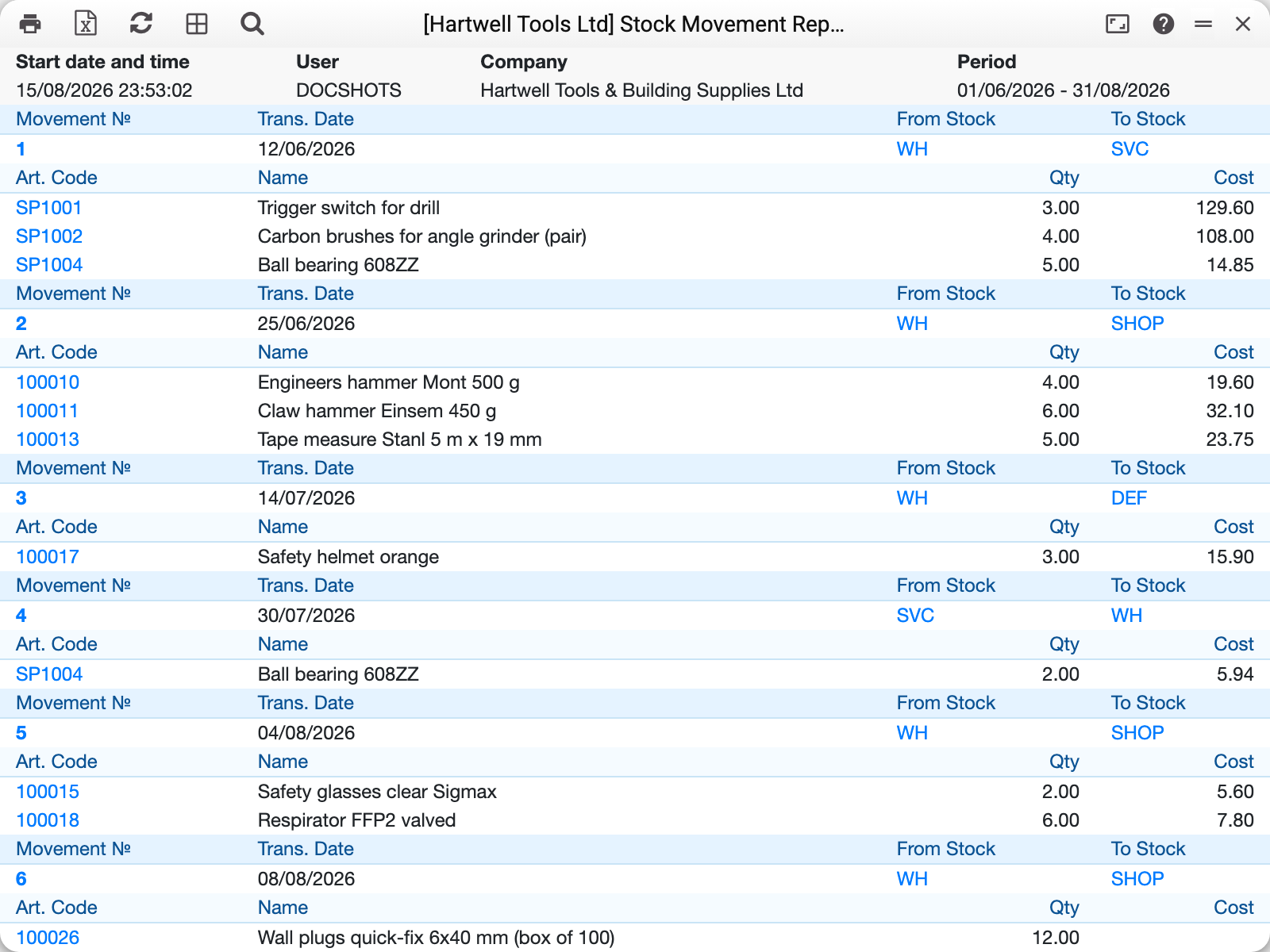
Summer 2026, several transfers. Each is shown as two blocks: a header with the number, the date and the direction, and beneath it the lines with the goods.
The usual routes are visible at a glance: from the main warehouse to the service centre, from the warehouse to the shop floor, and on from one to another. Each line carries a quantity and a cost (the cost is seen only by those whose role allows the «Show cost price» action), with a grand total for the period at the bottom.
A transfer out of an intermediate location shows the chain: stock first arrived there, then part of it moved on. The journal lets you follow that path without opening a single document.
Cost does not change here: a transfer does not make goods more expensive, it only carries their value from one location's account to another's. Where locations hold different accounts, that is exactly what the postings do.
How to use it
"Where did the spare parts go?" Filtering by source location shows everything that left it during the period.
Keeping an eye on service points. What was issued to a point is shown by the To Location filter set to that point; what should be there is in the location report for that point.
Before a stocktake. Transfers nobody approved are the commonest cause of discrepancies: the goods are physically gone while the books still show them at the old location.
Where to look next
- Stock movements — the document itself;
- Locations — what the stock travels between;
- Item history — every movement of one item, not just transfers;
- Location report — what is in a warehouse now.