Price list web view
A customer opens a quotation price list through a link and sees an ordinary web page. The table of goods and prices comes from the price list itself, while the page header — the title, the logo and your contact details — is set here. One window per company, shared by every price list.
Where to find it: Modules → Sales Orders → Settings → Price list web view
Menu: Modules → Sales Orders → Settings → Price list web view.
A worked example
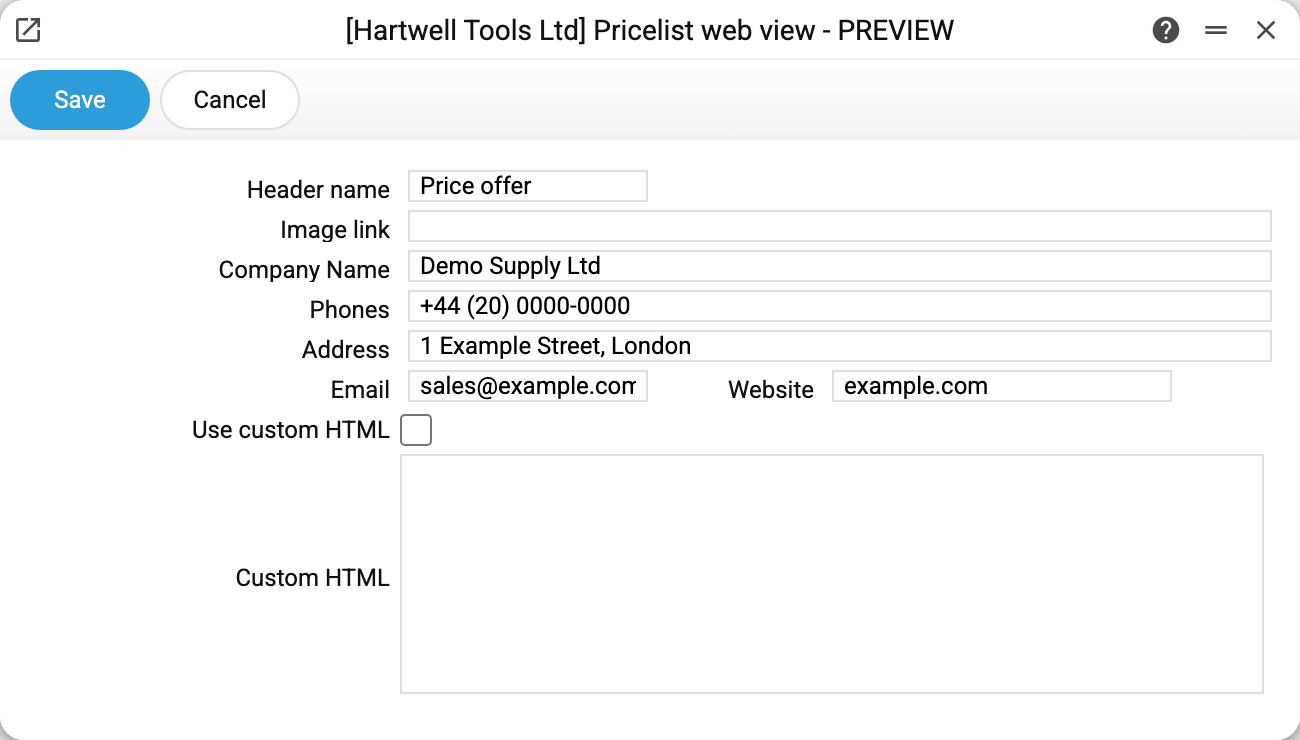
"Header name" is the large page title; here "Price offer". Next to it the system shows the validity date, the discount and the exchange rate whenever the price list defines them.
"Image link" is the logo. Enter a direct link to the file (the image has to be published somewhere), not a file name from your computer.
"Company Name", "Address", "Phones", "Email" form the contact block to the right of the title. Several phone numbers are separated by commas — each becomes its own line.
"Website" — the address may be entered with https:// or without it: the
system adds the protocol itself only when the field has none.
"Use custom HTML" switches to manual mode. With the box ticked every field above is ignored and the header becomes exactly what the "Custom HTML" field contains. That is for those who want their own markup; everyone else is better off leaving it clear.
If nothing is filled in — no title, no company name, no address or phones — the page still opens, but the header degrades to the words "COMMERCIAL OFFER".
Parameters
| Parameter | Description |
|---|---|
| Header name | The large title at the top of the page |
| Header background color | The page header background; empty — no colour. Not applied with custom HTML |
| Image link | A direct link to the logo file |
| Company Name | Company name in the contact block |
| Phones | Several numbers separated by commas, one per line |
| Address | Address in the contact block |
| Turns into a link on the page that opens the mail program | |
| Website | The site address; https:// is added when it is not typed in |
| Use custom HTML | Replaces the whole header with your own markup |
| Custom HTML | That markup; only used when the box above is ticked |
Typical situations
- An empty frame instead of the logo. The field holds something other than a direct image link, or the file is not reachable from outside — open that link in a private browser window and check.
- The website link does not work. The protocol is not the reason — the system
adds
https://itself when it is missing; check the address in "Website". - Fields changed but the page did not. Check the custom HTML box: with it on, the fields are not read at all.
- The header is just "Commercial offer". None of the four fields — title, company name, address, phones — is filled in.
- No header at all, not even that line. The setting does not exist in the database yet — it has never been saved (in a database with several companies, not in the main company either). Fill in the window and save it.
Nearby
- Quotation price lists — where the table comes from
- Price list settings — what happens to an order placed on this page