Birthday actions
A small housekeeping routine that puts birthday-greeting tasks into the calendar ahead of time — for this year and a few years after — so nobody forgets to send good wishes. The employee card creates this year's task by itself whenever it is saved; the service is there so the calendar also knows about the years that follow.
Where to find it: Modules → Human Resource Management → Maintenances → Birthday actions
For a single person the employee card's menu item "Tasks for birthdays" is handier: the window opens already filled in — the employee, 2 years, their date of birth, and their name as the task title.
A worked example
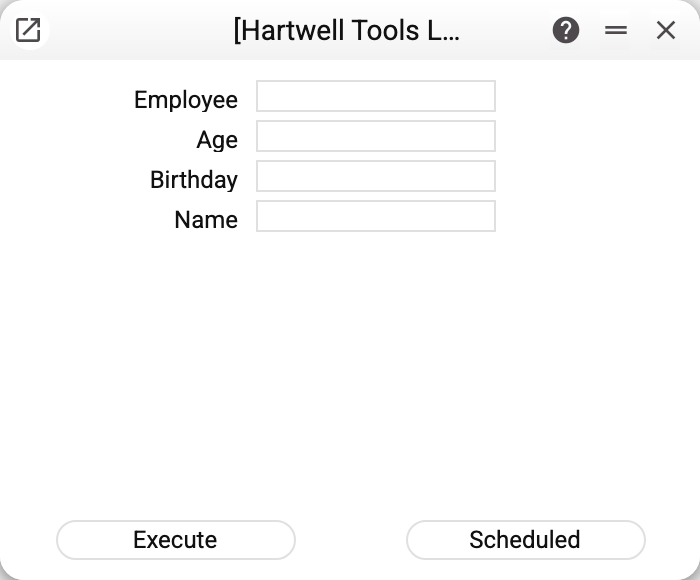
The window's fields:
- Employee — who the tasks are for. Left empty, it means every employee, each on their own date of birth from the card; anyone with no date of birth on file is skipped;
- Number of years (labelled "Age" in older versions) — how many years ahead, counting the current one, to create tasks for: 2 means this year's birthday (even if it has already passed) and next year's. It is not an age and does not pick out milestone birthdays. An empty field means 10 years — for a chosen employee and for everybody alike (before 30.10.2026 a chosen employee with the field empty got no tasks at all);
- Birthday — the chosen employee's date of birth; opened from the card's menu, it is filled in by itself. A chosen employee's tasks are put on exactly this date, not on the one from the card, so the field must be filled in: without it the service refuses with "Enter the date of birth!" (before 30.10.2026 the tasks landed on today's date). With no employee chosen the field is not used;
- Name — the title of the tasks created; left empty, the service titles each task with the employee's name followed by the word "birthday" in the interface language, as the card does for its own task (before 30.10.2026 the English word
birthdaywas used in every language).
Execute runs the service now; Scheduled puts it in the queue of recurring jobs.
The executor and author of the tasks created is whoever runs the service; on a schedule, whoever set the schedule up. The tasks are created already ticked "Completed".
Running it again
A task for the same day and the same employee is never created twice: the service first checks whether such a greeting already exists. So the run can be repeated — say once a year with "Number of years" set to 1–2, to keep the calendar extending itself.
The task is tied to a resource with the employee's code, like the task from their card: if that resource or action type does not exist yet, the service creates them.
The service only adds tasks (each linked to the employee card): it never changes or deletes existing ones, and there is no separate undo for a run.
Typical situations
The service ran but no new tasks appeared. Tasks for those days already exist — the service does not duplicate them. Or the employee has no date of birth on file: a run for everybody skips such people. After a run the window shows how many tasks were created (since 30.10.2026 also for a single employee), and after a run for everybody also for how many employees it failed, with the reason for each; a failure on one employee does not cancel the others' tasks. An employee code that does not exist is refused: "Employee code '…' is not found!".
Two tasks on one birthday. On save, the employee card takes this year's birthday task that the service has already put in place and creates no second one; its tasks from past years stay on their dates. Two tasks on one day may be left over from the time when the card moved its last-year task to the current year next to the service's task. Delete the extra one after unticking "Completed" first: a completed task cannot be deleted.
A milestone birthday is coming. There is no separate pick of milestones: a task goes on every birthday, and the age being reached shows from the date of birth on the card.
A new employee. This year's task appears by itself once the card is saved; for the following years, run the service from that employee's card menu.
Where to look next
- Employee — where the date of birth lives.
- Employee contract — the rest of a person's HR record.