Labels Defaults
Two settings that remove a daily decision: which template from Items Labels to use for an item label and which for a goods-receipt label.
Where to find it: Modules → Print Receipt → Settings → Labels Defaults
A worked example
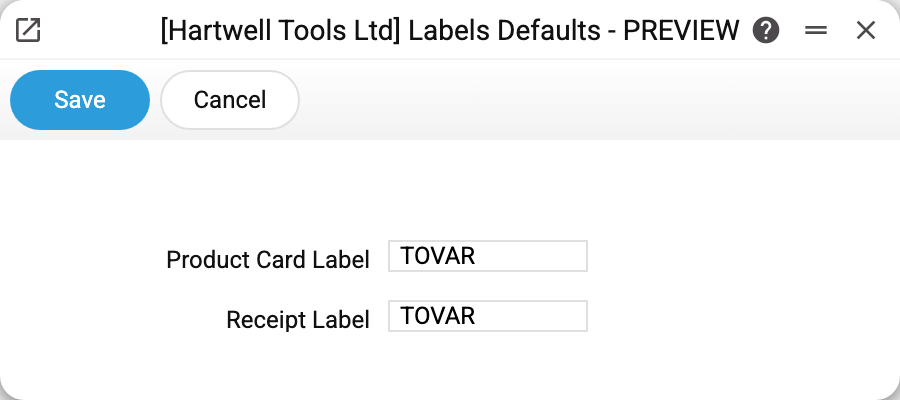
- Product Card Label — the label code that the "Print Labels" button on an item card puts into the print window;
- Receipt Label — the label code for the "Print Labels (Printer)" button on a goods receipt.
In the print window the suggested code can be replaced with another one — the setting only proposes it.
In the demo company both point at the TOVAR label — the ordinary case, where one label serves both scenarios.
Why two separate settings
Because the scenarios differ. From an item card you print one-offs, to re-tag a shelf. From a receipt you print a batch — labels for every line, and they often need the line's data: quantity, amount, serial number. Two settings let you keep two templates and stop choosing by hand every time.
Typical situations
The wrong label prints. Check which code sits on the relevant line — that is what the print button puts in. The item card has one exception: if "Custom label print form" is filled in the Labels Print Setting, the "Print Labels" button prints by that print form and this setting does not apply. On a goods receipt the other button, "Printing Labels", does not read this setting at all: it prints by the Labels Print Setting.
A new label is needed. Create the template in Items Labels first, then enter its code here.
The label is not found. The system looks the label up by code: if Items Labels has no such code, printing stops with a message that the label is not found and nothing was sent to print. Enter a valid code. The code is not checked when the setting is saved, so a typo shows up only at printing. A label whose code sits in this setting cannot be deleted — the refusal names Labels Defaults.
The print button opens no window and complains about the connection. This happens when the setting has never been saved: the message "Failed to read the "Labels Defaults" setting: the action was cancelled. Check the connection and access rights, then try again" appears although the connection is fine. Open the setting, enter the codes and save it. The "Print Labels" button on an item card reads the Labels Print Setting the same way first: if that one was never saved either, the message names it instead.
Where to look next
- Items Labels — where the templates themselves live.
- Labels Print Setting — size, font and what goes on the label.
- Print queue — where the job lands once the button is pressed.