Stocktaking comparison
What the count showed: how much the books said there was, how much was found on the shelves, and the difference between them. This is the view of a stocktake before the differences are turned into documents.
Where to find it: Modules → Stock → Reports → Stocktaking comparison
The service of the same name takes the same filters but creates write-offs and receipts. The report changes nothing — it is where you start.
Parameters
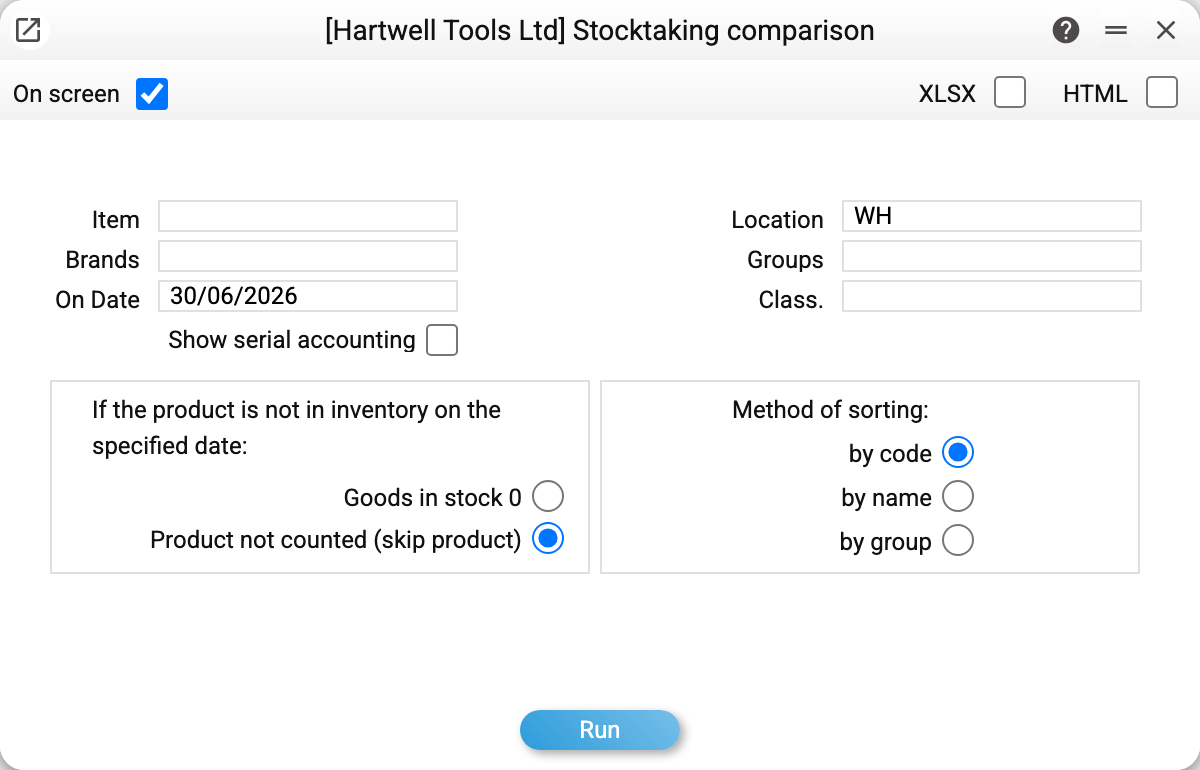
- Location and On Date — the key pair. ⚠️ The date must match the date of the approved stocktake exactly: the report looks for its trace in the item movements of that day, not "somewhere in the period". An empty date means today.
- Item, Brands, Groups, Class. — narrowing to part of the range.
- Show serial accounting — break the lines down by serial number.
- If the product is not in inventory on the specified date — what to do with an item the stocktake does not contain: Product not counted (skip product) — the default, only counted items appear; Goods in stock 0 — such an item enters the report too, as if the shelf held zero, and its whole book balance becomes a shortage.
- Method of sorting — by code (the default), by name or by group.
An unapproved stocktake does not appear here: while the document is a draft it produces no item movements, so there is nothing to compare.
A worked example
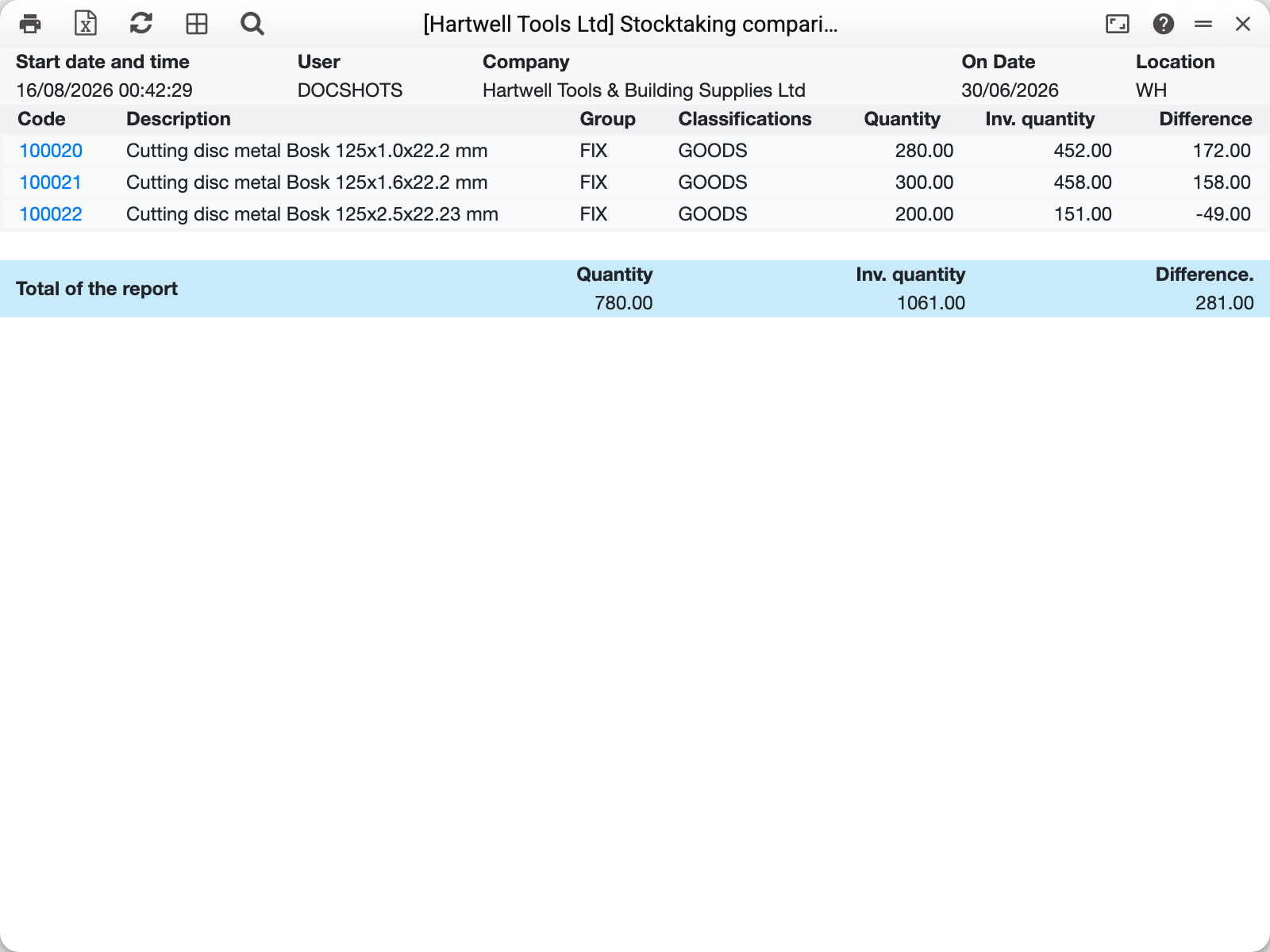
The main warehouse, on the date the stocktake was approved. The lines show the discrepancies: in some the books hold more than was found, in others the opposite.
In the report itself the columns are "Quantity" (the books — movements recorded before the stocktake), "Inv. quantity" and "Difference". A minus is a shortage: the books say more than the shelf. A plus is a surplus: the shelf holds more than the books.
The total at the bottom is a sum of differences in units, not in money; on its own it means little (one item's shortage cancels another's surplus) — read the lines, not the total.
The "Group" and "Classification" columns help spot a pattern: if the minuses cluster in one group, that is no longer chance but a reason to check how those goods are issued.
How to use it
Right after the count. The first look at the result: how many positions differ, and by how much.
Before booking the differences. With the same filters as the service, it shows which documents that service would create, before it runs.
Digging into causes. A non-zero difference on a particular item is a reason to open the item history and check that every movement was approved.
Where to look next
- Stocktake — the counting document;
- Stocktaking comparison (service) — turning differences into documents;
- Item history — why the difference arose;
- Location report — the book balance on a date.