Invoices
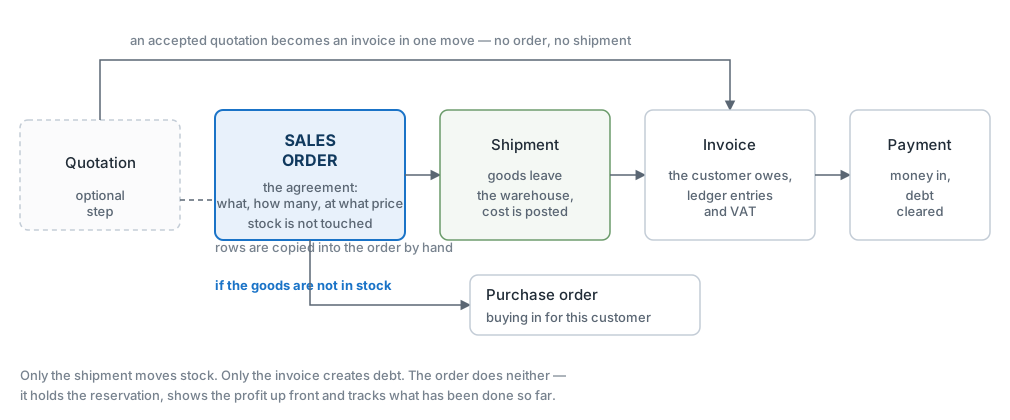
The goods have gone, but you have not asked for money yet — not in the books, at least. The invoice is the moment the deal turns into money: the customer owes you, the accounts get their entries, and the tax office gets its VAT.
Where to find it: Modules → Sales Ledger → Registers → Invoices
This is the closing document of a sale. The order agrees the deal, the shipment hands the goods over, and the invoice:
- creates the receivable — the amount the customer owes you;
- posts to the ledger: the customer's debt on the debit side, the sales income on the credit side, VAT on its own line;
- sets the due date, from which the invoice counts as overdue;
- becomes the basis for the tax document and for the payment.
As a rule it does not touch stock: the shipment has already changed the figures. The exception is an invoice with «Update warehouse» ticked (more on it below): such an invoice takes the goods off stock itself. And the other way round — without an invoice the goods would have left for nothing, as far as the books are concerned.
The register lives in the Sales Ledger module.
Where it sits
A worked example
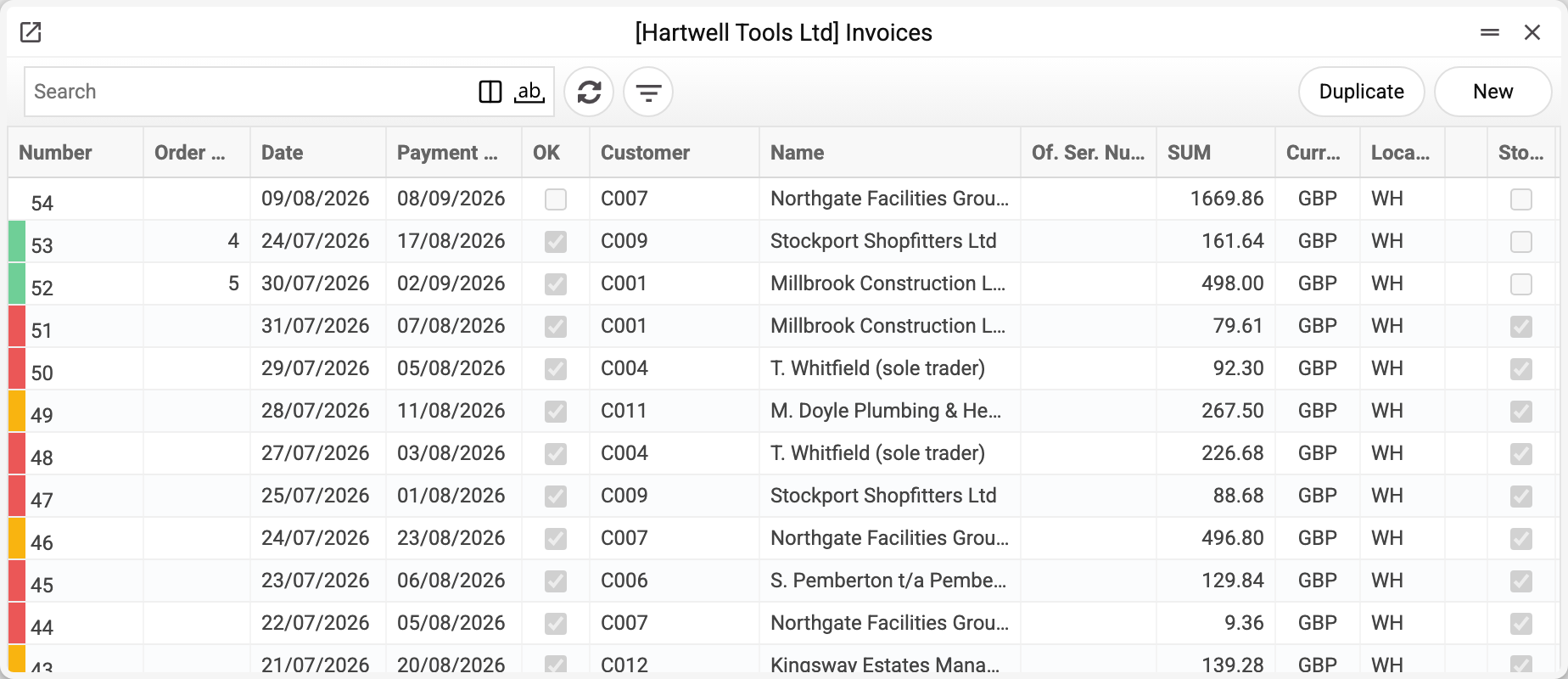
The coloured marker on the left of the number shows where the money stands: green — paid, yellow — awaiting payment, still within terms, red — past due and unpaid, grey — there is a debt, but the customer is closed (the Closed mark in their card). A row with no marker is an invoice that has not been approved yet. Green marks every approved invoice with no open debt — including a cash invoice, an invoice fully covered by a prepayment, and a credit note with «Cred. Inv» filled in (it reduces that invoice's debt and has none of its own).
The rule is the same for supplier invoices: the colour is worked out from the due date, not from the invoice date.
The helmets and glasses from order №4 left on shipment №2, and now they have to be billed.
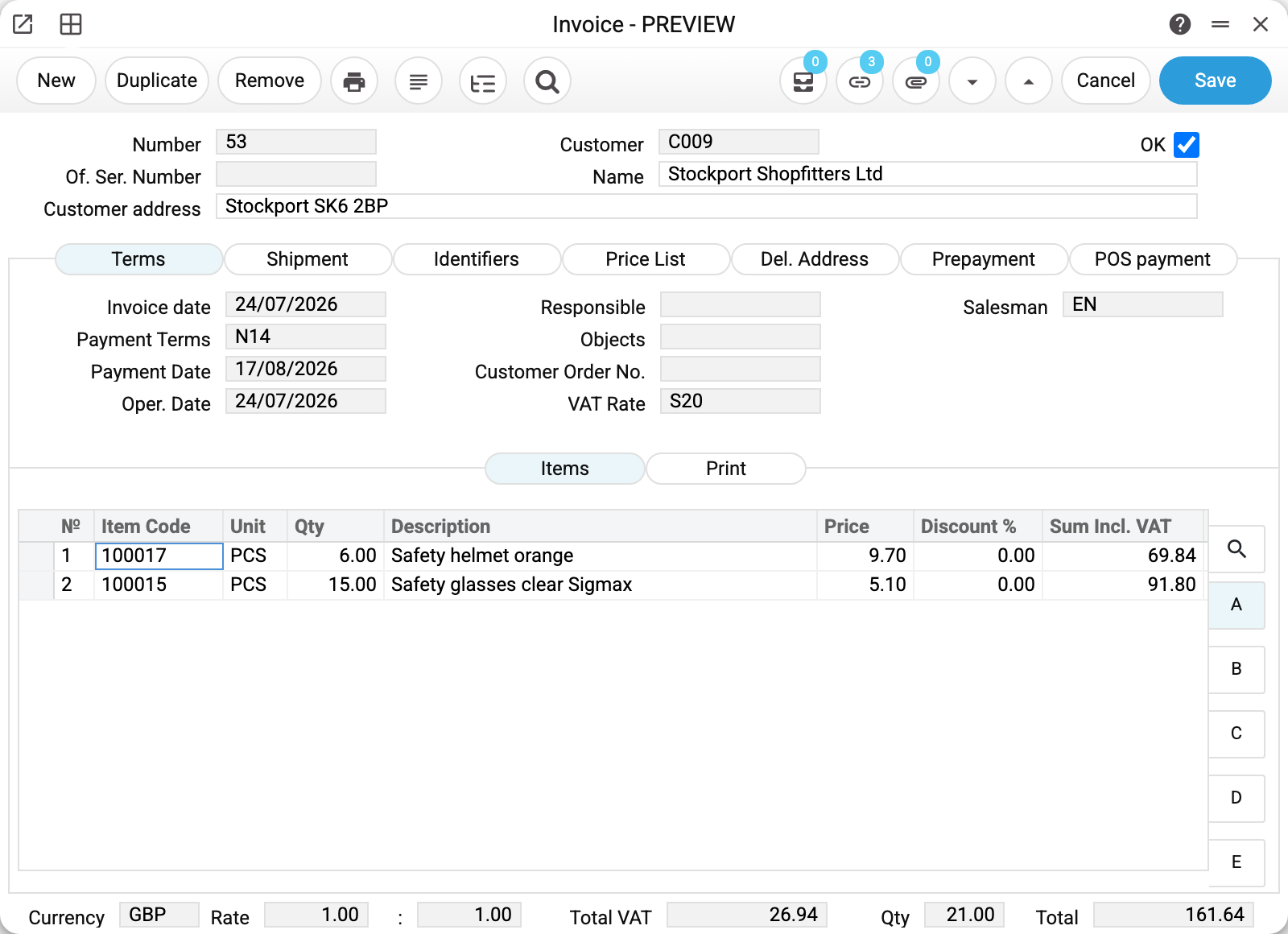
The important things in this header are three dates and one code.
«Invoice date» 24/07/2026 is when the invoice was raised. «Payment Terms» N14 came from the customer card, and «Pay Date» is worked out from them — this is the date that decides whether the invoice is overdue, not the invoice date and not the shipment date. The field can be corrected by hand when you agree something different with the customer.
«Oper. Date» is the date the ledger entries carry. It usually equals the invoice date, and differs when the paperwork is done later than the operation.
«VAT Rate» S20 decides the tax liability. Unlike the order, here it sits on the very first tab, next to the dates.
What the customer pays

Six helmets at 9.70 and fifteen pairs of glasses at 5.10. The «Sum Incl. VAT» column, as its name says, already carries the tax: 6 × 9.70 = 58.20, plus 20 % makes 69.84.
The quantities are not typed here — they came from the shipment, which is why they match what actually left the warehouse rather than what was ordered. Prices came the same way they did on the order: from the price list.
How much of that is yours

«FIFO» 5.30 is what one helmet cost you, and «FIFO by Line» 31.80 is the cost of the row. These figures are not calculated by the invoice — they were written by the shipment from the actual batches. If the invoice takes only part of a shipment row (the rest was invoiced by another invoice or returned), «FIFO by Line» is the cost of that part: quantity × FIFO; the same goes for reducing the quantity in a draft — the amount updates on save.
So the margin on this invoice can be read straight off: you are billing 134.70 before tax and the goods cost 73.80, which leaves 60.90.
Not everyone sees the cost: the «FIFO» and «FIFO by Line» columns are shown only to a role with the «Show cost price» action (off by default). Without it, sheet B keeps the item code, unit, quantity, description and serial number.
The tax, row by row

Sheet C breaks the tax down: 11.64 + 15.30 = 26.94, and the same figure appears in the totals under the rows. Every row carries the rate S20: a row takes its rate from the customer card, the item card, the item group or the general settings.
The totals close the document: «Qty» 21.00, «Total VAT» 26.94, «Total» 161.64 — the amount the customer owes and the amount the payment will clear.
What the document posts
The invoice is the document that turns shipped goods into money and into a debt. The transaction shows just that:
| Dr | Cr | Amount | What it is |
|---|---|---|---|
| 361 | 702 | 161.64 | the customer's debt and the revenue — the whole amount including tax |
| 702 | 6432 | 26.94 | the tax, taken back out of the revenue |
Read it in two steps: first the full invoice amount is put on the customer as a debt and written into income, then the VAT is taken out of the income and moved to the tax account. After the second row the income account holds 134.70 — revenue without tax — while 26.94 sits as a liability to the budget.
The cost is not here: the shipment wrote it off. The pair «invoice + shipment» is what produces the profit — 161.64 less tax less the cost. If the goods left on the invoice itself rather than on a shipment (the stock-update flag), a third pair of rows appears in the transaction — the write-off of the cost. The flag itself, and the location the goods leave from, sit on the «Shipment» tab:
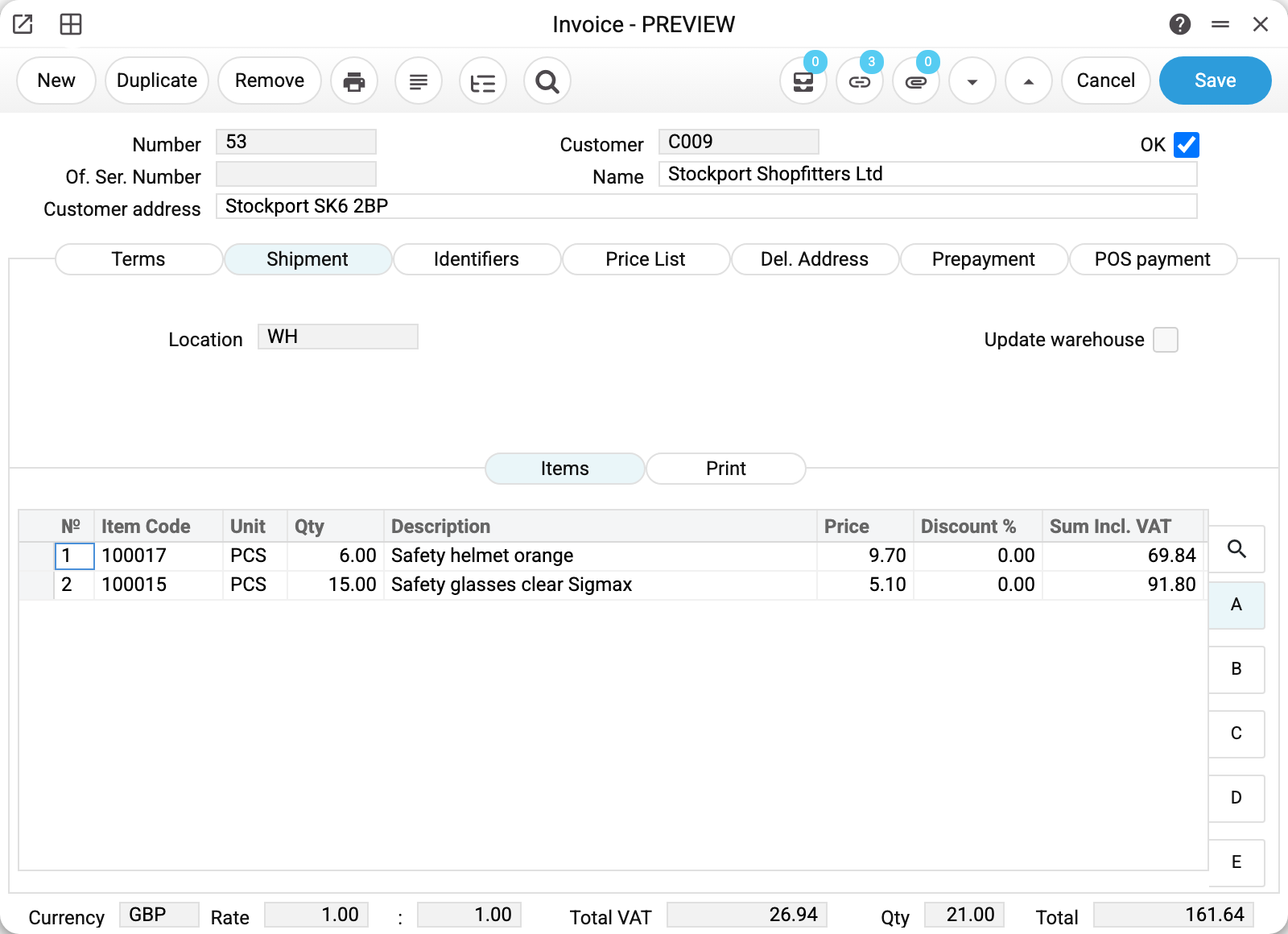
The same tab holds «Delivery Terms» and «Delivery Mode». The invoice takes them from the customer card as soon as the customer is chosen and carries them into print; if this invoice needs different ones, correct them here.
The invoice posts only if the «Inv. to Customers» box is ticked on the «Accounting» tab of the «Records from Subsystems» setting; without it the invoice is approved with no transaction and no warning. An invoice that moves stock itself («Update warehouse») also writes no item history without that box: the stock level changes, but the history gets no row.
Two more tabs: «POS payment» and «Print»
«POS payment» is usually not filled in by hand and only makes sense for an invoice born at the till. «Print» gets filled in two cases — see below.
«POS payment» — how the customer paid: «POS cash», «POS terminal», «POS other payment» and «POS cheque» hold the codes of the payment modes, with the amount for each next to them. A single purchase can be split between several of them: part in cash, part by card, say. It is this «mode + amount» pair that makes the invoice a till sale: the till builds the shift takings from it, and the terminal turnover is counted from it too. They are filled in by closing a receipt in the POS or by importing fiscal receipts.
«Print» — a read-only copy of the rows for the printed form. Usually empty, and then whatever is in the invoice rows gets printed. If something is here, this is what gets printed, and the invoice rows themselves stay locked meanwhile; the «Clear» button on the tab removes the copy.
Two things fill it: closing a receipt in the POS (so that a fiscal receipt reaches the paper exactly as it was rung up) and the «Create product bundles» menu item — when several rows are folded into one set.
A row with no item, description, quantity or amount does not count as a copy. Such an empty row appears in an invoice created through the API or MCP rather than in the window: the template of a new record puts one row into every table. The invoice is saved without it, and the invoice's own rows get printed.
The «Identifiers» tab
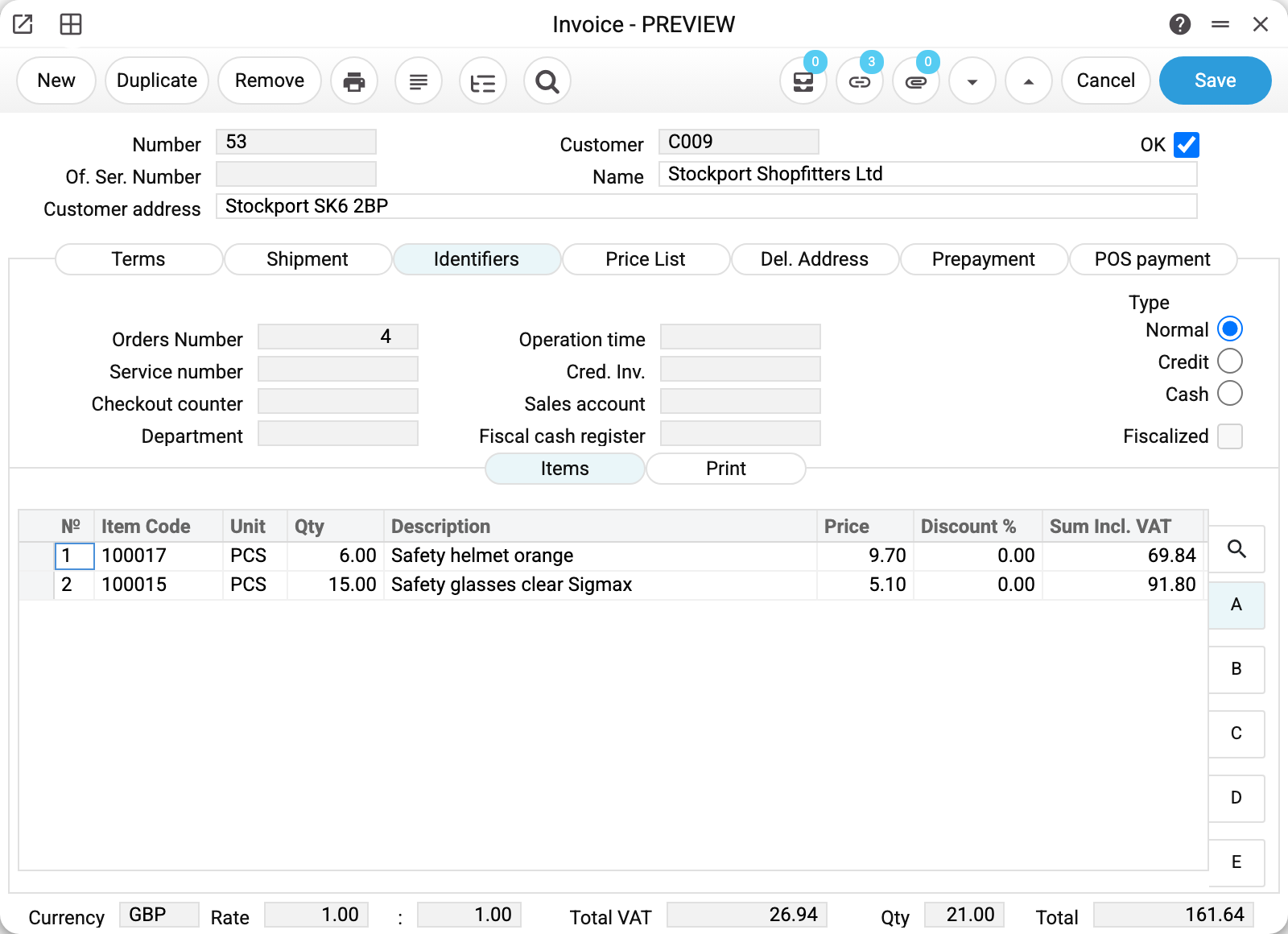
Where the invoice came from and what kind it is. Orders Number is the sales order the invoice was created from (4 here; the field is read-only). Next to it are the service order number, the checkout counter and department, and the operation time. Cred. Inv. is filled in on a credit note: it is the invoice the credit note reverses. The pick list shows approved invoices of this customer with their amount, and all approved ones while there is no customer yet; credit notes are not in it. An entered number brings that invoice's receivables account and, in the same currency, its rate: the credit note closes the debt at the invoice's rate. Sales account is the income account for this document only (how it is chosen when the field is empty is in «Where the accounts come from» below). Fiscal cash register and the Fiscalized flag belong to an invoice rung up through Vchasno.Kasa. The system sets the Type itself: normal, credit (a credit note) or cash.
The «Price List» tab
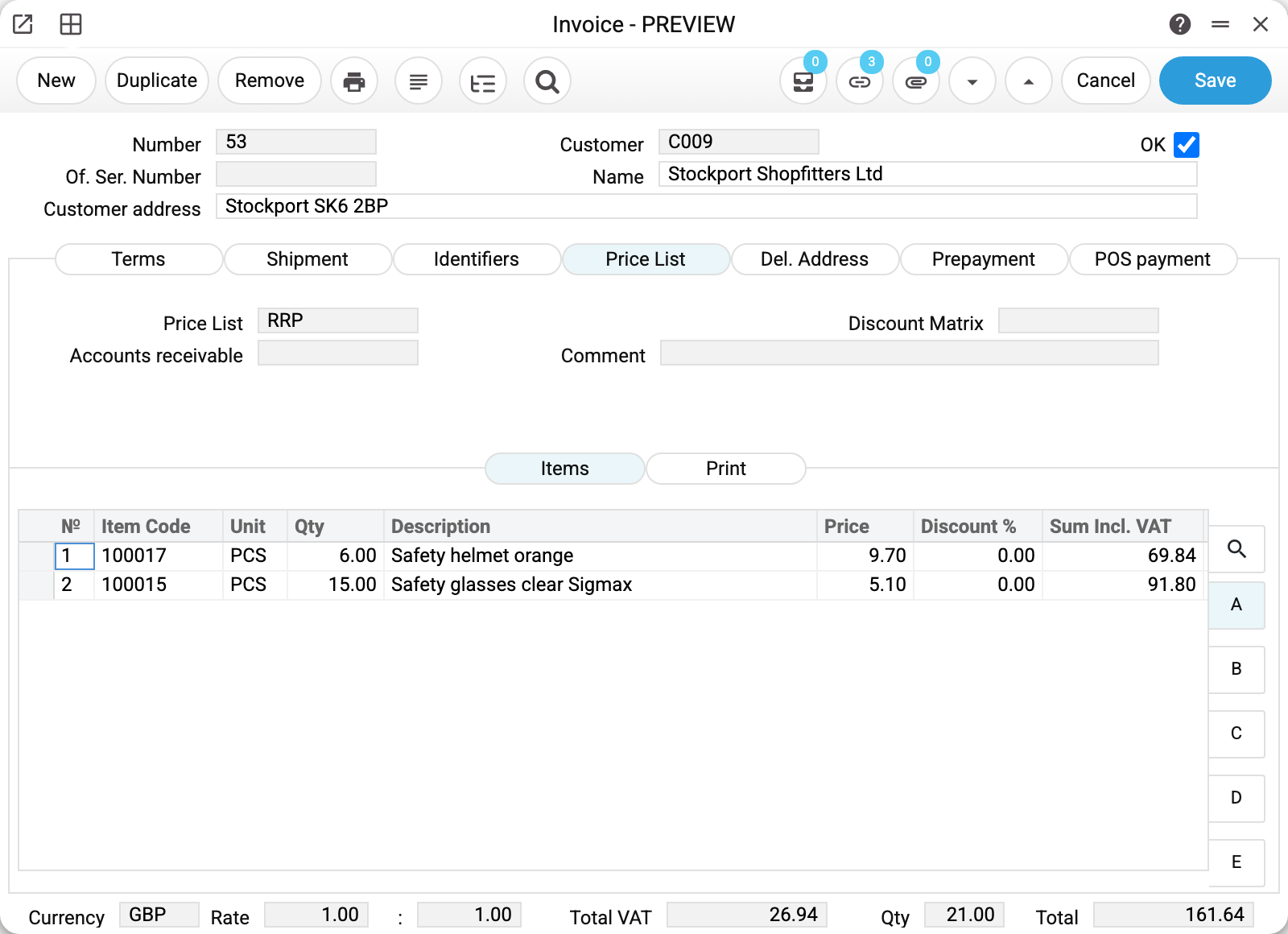
Where the row prices and discounts come from. The Price List (RRP here) and the Discount Matrix (empty here) are taken from the customer card, or from the customer's category when the card has none; a price list missing there too comes from the payment terms, and when the terms have none either, the invoice keeps the price list it already has (on a change of customer too); the user's default price list only fills an empty field: a new invoice gets it only when neither the customer card nor the customer's category has given a price list. Switch the invoice to payment terms with a different price list, and the invoice takes that price list and recalculates the row prices, including the ones corrected by hand. Terms without a price list remove the price list that came with the previous terms, and the prices become the item card prices; the customer's own price list stays. On a credit note the price list changes the same way, but the row prices do not. Accounts receivable is the debt account for this document only; when it is empty, the rule in the next section applies.
The «Del. Address» tab
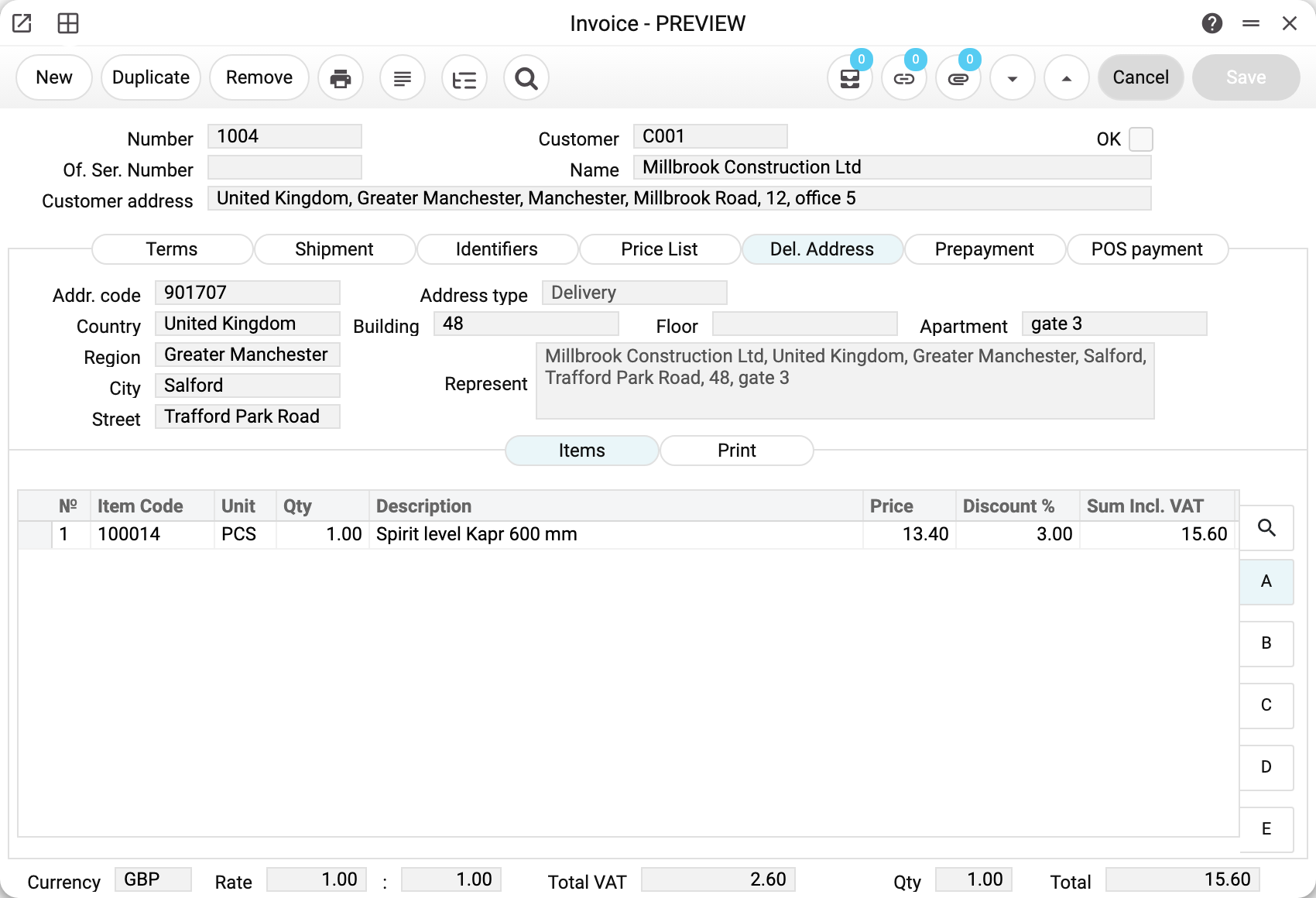
Where the goods go. The Addr. code is picked from the customer's address book — the list shows only this customer's addresses — and the choice fills the whole tab: the Address type, the fields Country, Region, City, Street, Building, Floor, Apartment and the Represent line that puts the address into one text. The customer's main delivery address comes in by itself as soon as the customer is chosen on the invoice, so a code is picked only when the goods go somewhere else.
Invoice No. 1004 carries address 901707, a regular address (in the address book it is of the «Other postal carrier» kind), so it is laid out field by field: United Kingdom, Greater Manchester, Salford, Trafford Park Road, building 48, «gate 3» as the apartment. An address of the «NP Api» kind — a Nova Poshta branch — fills only Represent (recipient, branch, phone), and country, city and street stay empty. On the printed form the Represent line is the Cust_Address variable — filled in both cases — while the street variable Del_Address is filled only for a regular address.
Where the accounts come from
This is the most variable point in the whole chain, and here is what it is made of.
- The receivable account (debit). First the settlement account field on the document itself, then the account from the customer category, and only then the general receivables account from the settings. That is why two identical invoices to different customers can land on different accounts: their categories differ.
- The revenue account (credit). If the invoice was created from a quotation, an order or a rental agreement and the source row names its own account, that row's revenue goes to that account — even when the document names a sales account. For the other rows the account is taken from the document if it names one. Otherwise each row's revenue goes to the «Revenue account» of its item group, or to the general sales account from the settings when the group has none, so one invoice can post revenue to several accounts.
- The tax account. Decided by the VAT code in the row, not by the company settings: every code carries its own liability account. That is why a row with a VAT amount but no VAT code (one that came in by import, say) will not be approved: the program refuses and highlights the row — pick the VAT rate in it.
- Cash payment. If the payment terms are of the cash type, the cash account of those terms is debited instead of the customer settlement account — no debt arises at all, the money counts as received straight away.
- A credit note turns the transaction around: the returns account is debited and the customer settlement account is credited. A sales account entered on the document outranks the returns account and the groups — as in a sale, the debit goes to it. A credit note takes it from the invoice it reverses, unless the Account Usage setting has the «Credit note to the return account, not the sales account of the invoice» checkbox on. Without one, rows whose item group has a «Revenue account» debit that account instead of the returns account. A row with its own account from the source row (it passes into the credit note from the invoice being reversed) debits that account — by the same rule as in a sale.
The general accounts these chains end with live in the «Account Usage» setting: the receivable account on the «Debtors» tab, field «Account Receivable»; the revenue account on the «Sales» tab, field «Sales Account».
How to work with it
1. Create it
From the shipment — «Create Invoice» — and the rows come across with the quantities that actually left. From the order, if you bill before delivery: this needs the «Invoice Before Delivery» tick on the order's «Del. Terms» tab, otherwise the invoice takes only services and goods already shipped. Or by hand, for a sale with no goods behind it: a service, a penalty, a re-billed cost.
2. Check the amount and the due date

The total has to match what the customer is expecting, and the due date has to match what you agreed. Both are worth checking now: after approval, editing is refused.
3. Set off a prepayment
If money came in advance, the «Prepayment» tab is where it is applied to this invoice. The amount due drops by whatever has already been paid.
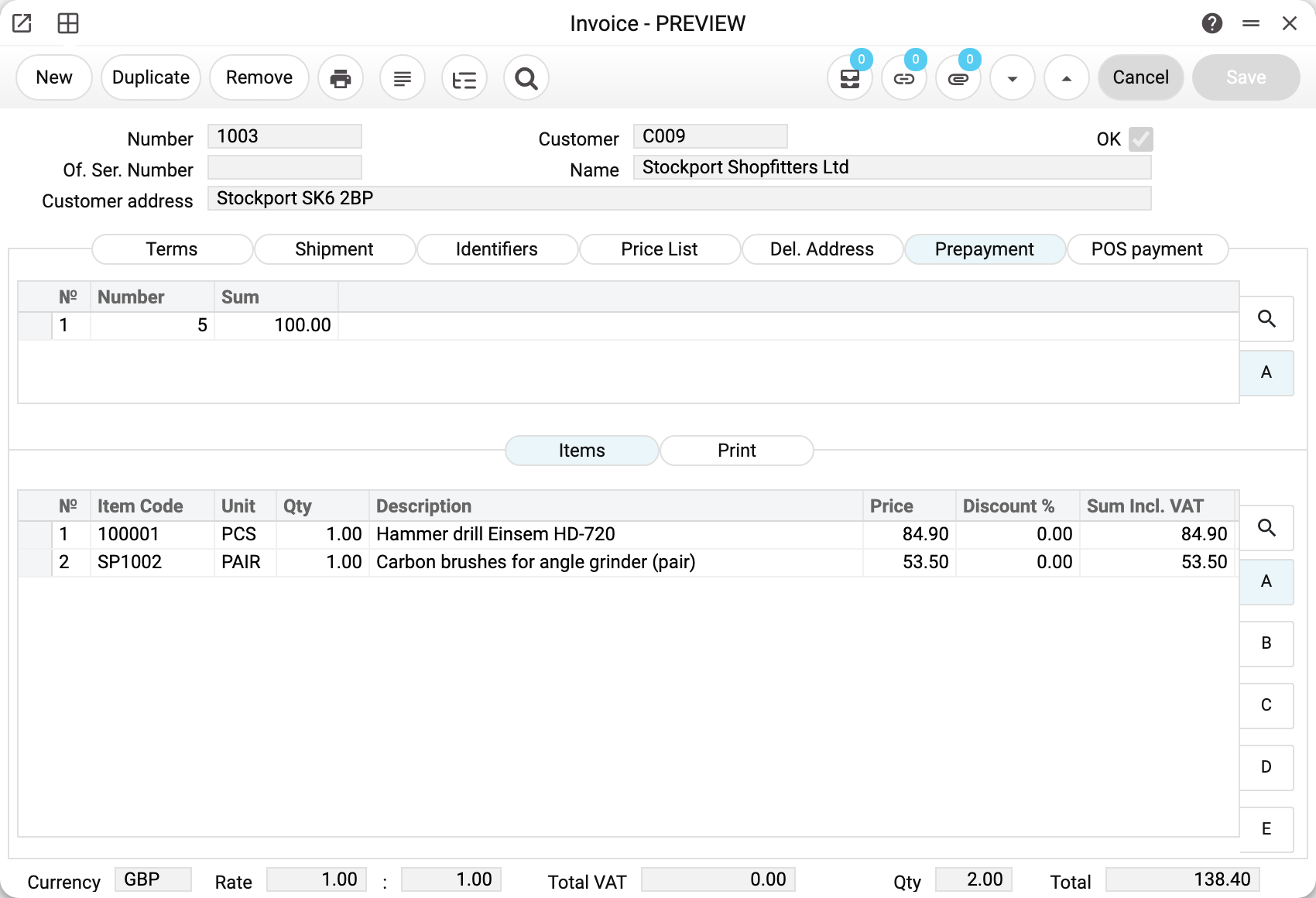
In the demo company, invoice №1003 to Stockport Shopfitters Ltd is for 138.40 GBP, and the tab holds prepayment №5 for 100.00. Once the invoice is approved, only the difference — 38.40 — stays open: that is what the customer still owes on it.
On a credit note this tab must stay empty. A draft with prepayment lines saves, but approval is refused: «You can't attach a prepayment to a credit invoice». Delete the tab's lines and approve again.
4. Approve
OK and save. The receivable appears, the ledger entries are made, and the invoice starts counting towards its due date.
5. Next — from the document menu
- «Create customer payment» — record the money when it arrives;
- «Open NL transaction» — the ledger entry that was made;
- «Invoice status» — what has happened to this invoice so far;
- «Create Credit Note» — reverse it when the sale falls through; only from an approved invoice — from a draft the system says «Please, make OK document!». The quantity of a stock item on a credit note is entered with a plus: a negative row is not posted. A credit note created from a return posts only while the return is approved: «Return from customer is not approved!»;
- «Create VAT invoice» — the tax document, where one is required.
How to be sure the document is right
- «Total» matches what the customer expects — and matches the shipment it was made from.
- «Pay Date» is the date you actually agreed, and the payment terms behind it are the customer's own.
- «VAT Rate» is filled in, and the tax on sheet C is not zero when it should not be.
- Cost on sheet B is filled in. Empty cost on an invoice made from a shipment means the goods went out without a proper batch behind them.
- After approval, «Open NL transaction» shows the entry: debt on one side, income and VAT on the other.
Print variables
Values available in this document's printed form templates. How to write a variable in a template — see Print Forms.
Header fields:
Main
| Variable | What it holds |
|---|---|
| No | Number |
| Of_Serial_No | Of. Ser. Number |
| Cust_Addr1 | Customer address |
| Cust_Code | Customer |
| Contact_Code | Customer (code) |
| Contact_Name | Customer (name) |
| Cust_Name | Name |
| Total_Qty | Qty |
| Currency | Currency |
| Inv_Rate | Rate |
Terms
| Variable | What it holds |
|---|---|
| Inv_Date | Invoice date |
| Pay_Terms | Payment Terms |
| Pay_Date | Payment Date |
| Trans_Date | Oper. Date |
| Responsible | Responsible |
| Objects | Objects |
| Cust_Ord_No | Customer Order No. |
| VAT | VAT Rate |
| Salesman | Salesman |
Shipment
| Variable | What it holds |
|---|---|
| Location | Warehouse |
Identifiers
| Variable | What it holds |
|---|---|
| Order_Nr | Orders Number |
| Serv_No | Service number |
Price List
| Variable | What it holds |
|---|---|
| Price_List | Price List |
| Disc_Matrix | Discount Matrix |
| Comment | Comment |
Del. Address
| Variable | What it holds |
|---|---|
| Del_Address | Street (Del. Address) |
| Cust_Address | Represent |
Other variables
| Variable | What it holds |
|---|---|
| Cust_Addr2 | Street (Customer) |
| Cust_Addr3 | Building |
| Cust_TaxNumber | Customer's tax number: from the invoice, or from the customer card if the invoice has none |
| Total_Sum | Document total |
| Sum_UA | Amount in words, Ukrainian |
| Sum_ENG | Amount in words, English |
| Sum_RU | Amount in words, Russian |
| Inv_Type | Type |
| Total_VAT | Total VAT |
| Total_w/o_VAT | Total without VAT |
| Salesman_Name | Salesperson's first and last name (the login if there is none) |
| QR_Etims | Kenya edition only. QR code of the KRA receipt — printed as an IMAGE (about 3 × 3 cm): a variable whose name starts with QR_ becomes a QR image |
| Etims_SCU_Date | Kenya edition only. Date and time of the KRA device (SCU) in the eTIMS receipt |
| Etims_SCU_ID | Kenya edition only. KRA device identifier (SCU ID) |
| Etims_CU_Invoice_No | Kenya edition only. KRA CU invoice number (SCU ID / CU number) |
| Etims_Internal_Data | Kenya edition only. Internal data of the KRA receipt |
| Etims_Signature | Kenya edition only. Signature of the KRA receipt |
| Etims_Note | Kenya edition only. A note while there is no KRA receipt: “eTIMS validation pending — the document will be validated later” or “Not validated by eTIMS”; empty once the receipt is there |
| Etims_Customer_PIN | Kenya edition only. The customer's KRA PIN the document went to eTIMS with (not the current one from the card); empty while there is no receipt |
Row fields:
| Variable | What it holds |
|---|---|
| MNo | Row position number |
| Objects | Objects |
| Item_Code | Product Code |
| Description | Name |
| Qty | Qty |
| Units | Unit |
| Price | Price |
| Discount | Discount |
| Sum_With_VAT | Amount including VAT |
| FIFO | FIFO |
| FIFO_line | FIFO by Line |
| Ser_No | Serial No. |
| VAT | VAT Rate |
| Sum_VAT | Amount VAT |
| Barcode | Item barcode |
| Price_With_VAT | Price including VAT |
| Sum_w/o_VAT | Amount excluding VAT |
| Unit_Name | Unit name |
The records the document refers to through its form fields (location, customer, currency…) also expose the rest of their variables — code and name are already listed in the tables above, the rest is described in the register's article:
- Customer — Contacts
- Exchange Rates (
System_rate) - Company details — name, addresses, bank accounts, officers, the printing user: Main Company
Common situations
The amount is wrong and the invoice is approved. It cannot be edited. Depending on what happened, either issue a credit note or correct it with a new document — the ledger entries and the receivable already stand behind this one. An invoice with cash-type payment terms is the exception: the system does not create a credit note from it and suggests a duplicate of the original invoice with negative quantities instead.
The customer paid less than the invoice. That is not a problem for the invoice: it stays partly paid, and the outstanding amount keeps showing in the debt reports.
The goods were billed but never shipped. That happens when the invoice was made from the order rather than from the shipment. Stock is untouched — the shipment still has to be done, and it is worth doing before the customer notices.
Money arrived before the invoice. Record it as a prepayment on the payment, then tie it to this invoice on the «Prepayment» tab.
The prices are not the ones on the order. The invoice takes its prices from the price list at the moment it is created. If the list has changed since the order was placed, the figures can differ — which is exactly why the total is worth comparing with the order before approval.
The date of a credit note was changed. The row prices stay as they are on the invoice the credit note corrects: the price list is not read again for the new date — a credit note mirrors the sale, not today's prices. If a price really has to be different, change it in the row by hand. The document type does not depend on the date: it changes only when you change the payment terms yourself. The exchange rate is taken from the invoice when the currency is the same; if the credit note is in another currency, it comes from the exchange rate register for the credit note's operation date.
The operation date was changed, and the total in the base currency changed with it. The invoice takes its exchange rate for the operation date: a new date brings the rate for that date, and the total in the base currency is recalculated with it. The row prices stay as they were. The rate stays only on a credit note that corrects an invoice in the same currency, and on an invoice created from an order: it keeps the rate it already has.
The rate in the header was corrected by hand. Row prices and amounts stay as they were, and the price list is not read again. Only the total in the base currency changes. A new row takes a price in the invoice currency as is; a price in another currency goes through the base one at the invoice rate.
A row from a shipment keeps its item. The window refuses with «The item of a row that came from a shipment cannot be changed!» and restores the previous code: the shipment has already taken this row's item out of stock. If you sold something else, delete the row and add a new one, or correct the shipment. The new row moves stock only with «Update warehouse» on; on an invoice from an order that checkbox is locked, so the item of such a row stays in stock until a separate shipment takes it out.
A credit note will not post: «Original invoice is not approved!». Approve the invoice it corrects first, with or without «Update warehouse».
The invoice currency was changed. Row prices and fixed-amount discounts («Fixed discount») are converted into the new currency: first into the base currency at the rate the invoice had, then into the new one at the invoice's new rate. If the item has a price on the price list or on its card, that price is then taken from there in the new currency; a credit note does not re-read prices.
The items came as a spreadsheet — a customer order or a price list. No need to type them row by row: copy the column of codes from Excel (with quantity and price, if needed) and paste it into "Item code" of the first row. How the paste behaves and what happens to a code that is not in the item register — see Pasting rows from Excel.
Field reference
Header
| Field | Where | Description |
|---|---|---|
| Number | always | Invoice number, assigned automatically |
| Of. Ser. Number | always | Official number, when your numbering towards the customer differs |
| Customer, Name | always | The customer and their name from the card |
| Customer address | always | The address the invoice is issued to |
| OK | always | Approval: creates the debt and posts to the ledger |
| Invoice date | Terms | The date the invoice was raised |
| Payment Terms | Terms | Decide the due date |
| Pay Date | Terms | When the money is due; the invoice is overdue after it |
| Oper. Date | Terms | The date the ledger entries carry; the exchange rate, row prices and discounts are taken for it too |
| Responsible, Objects | Terms | Who is responsible, and the analytical objects of the document |
| Customer Order No. | Terms | The customer's own reference |
| Salesman | Terms | The manager the sale is credited to |
| Project | Terms | The project the invoice was raised from; read-only — it cannot be changed in the invoice window |
| VAT Rate | Terms | The document's VAT code. Changed here, it goes down to the rows with an item and to new rows (until the customer or the price list is changed); otherwise a new row's rate comes from the customer card, the item card, its group or the general setting |
| Shipment | Shipment | The shipment behind the invoice, and the warehouse details |
| Orders Number, Service number | Identifiers | The sales order and the service order the invoice was created from |
| Checkout counter, Department, Operation time | Identifiers | Where and when the sale happened: POS counter, sales department, time |
| Cred. Inv. | Identifiers | On a credit note — the invoice it reverses |
| Sales account | Identifiers | The income account for this document, if it differs from the default |
| Fiscal cash register, Fiscalized | Identifiers | The Vchasno.Kasa register the invoice was rung up on, and the flag that it was |
| Type | Identifiers | Normal, credit or cash; set by the system |
| Price List | Price List | The price list the prices came from |
| Del. Address | Del. Address | Where the goods went |
| Prepayment | Prepayment | Advances applied to this invoice |
| POS payment | POS payment | Details of a payment taken at the till |
Item rows
| Field | Sheet | Description |
|---|---|---|
| Item Code, Description | all | Item code and name |
| Unit | all | Unit of measure |
| Qty | all | Quantity billed |
| Price | A | Unit price |
| Discount % | A | Discount on the row |
| Sum Incl. VAT | A | Row amount including tax |
| FIFO | B | Cost per unit, written by the shipment |
| FIFO by Line | B | Cost of the row |
| Serial No. | B | Serial numbers of the goods |
| Objects | C | Analytical objects of the row |
| VAT Rate, Amount VAT | C | Tax rate and tax amount of the row |
Document totals
| Field | Description |
|---|---|
| Currency, Rate | Currency of the invoice and its rate against the base one |
| Total VAT | Tax on the document |
| Qty | Total units billed |
| Total | What the customer owes |