Advance Reports Articles
A short reference of the reasons an employee spends company money: fuel, travel, office supplies. Each article is the expense account the amount on an expense claim line will be posted to.
Where to find it: Modules → Expenses → Registers → Advance Reports Articles
The idea is the same as with income/expense items in the cash module, only for a different document: there the item answered "where the money came from or what for", here it answers "what the employee spent it on".
A worked example
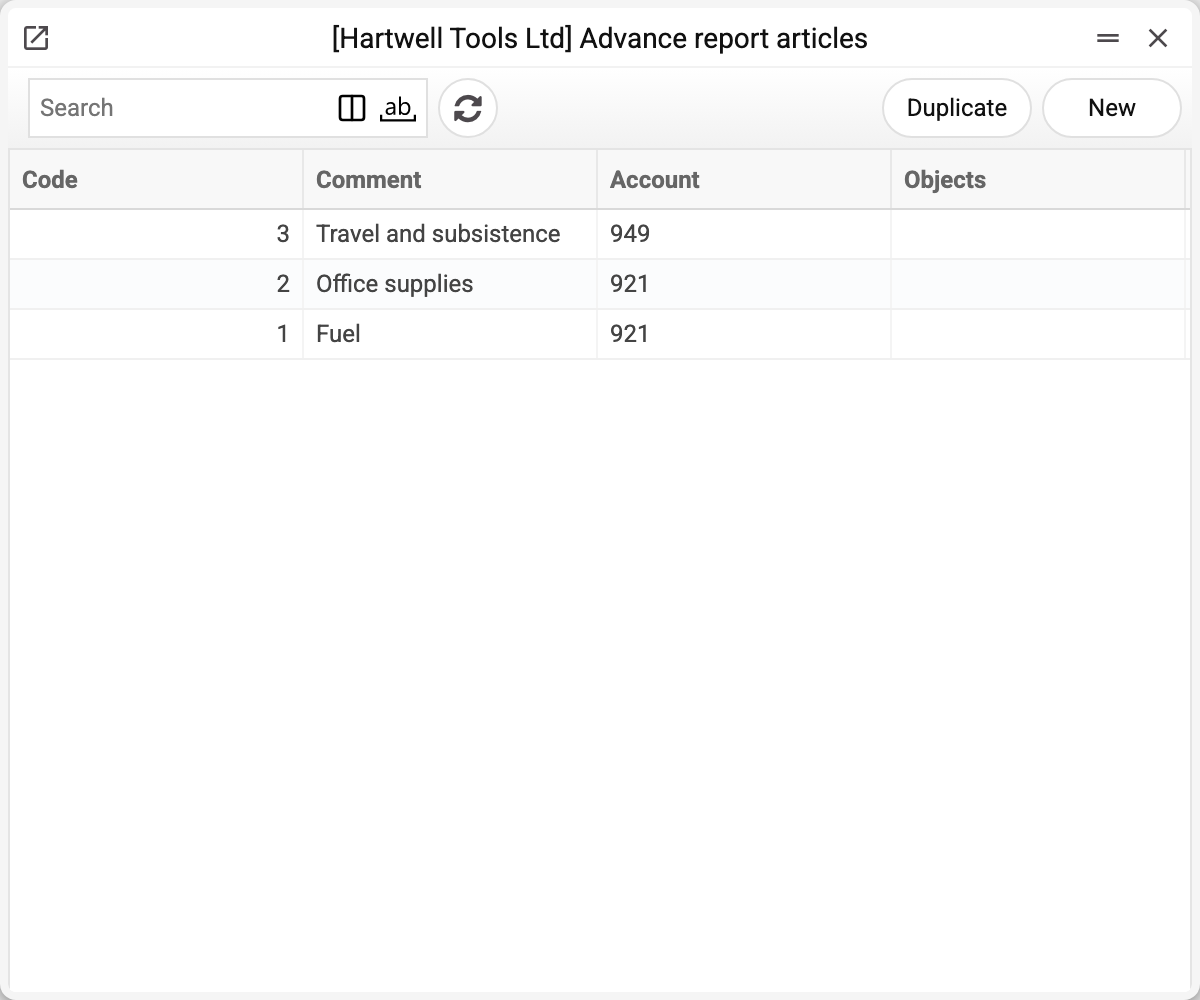
Three articles make up the whole set on the stand. Let us open "Travel and subsistence":
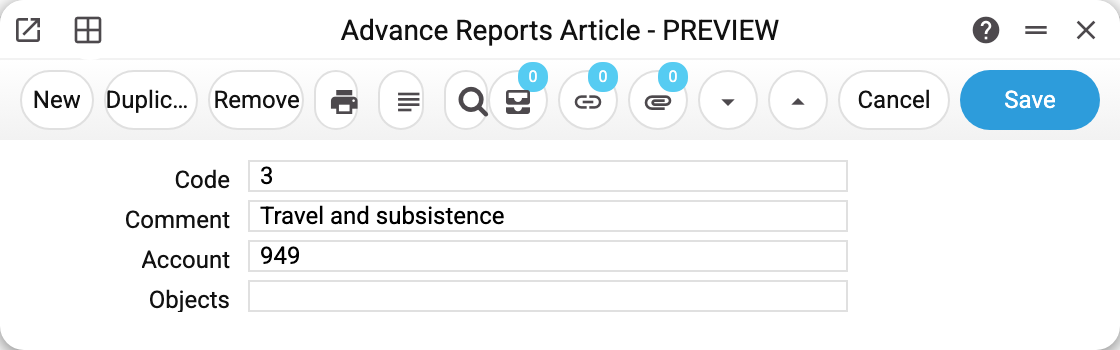
There are four fields, and only one of them has to be typed in:
- Code — proposed by the system as soon as a new card opens: one greater than the largest existing code. It can be overwritten before saving; once saved, the code no longer changes. This is what lands in an expense claim line — in the "Expense article" column on the "Expenses" tab.
- Account — the reason this reference exists. 949 "Other operating expenses" means travel costs will be posted to that expense account. It comes from the chart of accounts.
- Comment — the name of the article. It is copied from the account name but can be rewritten: two articles may share an account and differ in wording. That is the case on the stand — "Fuel" and "Office supplies" both point at 921 and differ only by name. Mind that every change of the article's account puts the account name back into the comment, so a name of your own has to be typed again afterwards.
- Objects — default analytics for lines carrying this article. Rarely filled in.
How it works in the document
An expense claim line holds the account and the article side by side. The article is the reference to this card, and the account is filled in from it. Picking the article overwrites the line's account, description and objects with the article's values — even when they are empty in the article, so whatever was typed in the line before is lost. Different lines of one claim may go to different accounts: in the example fuel went to 921 while travel went to 949.
When the claim is approved, every line produces a posting Dr the line's account / Cr the employee's advance account:
- the debit is the account standing in the line. The article only fills it in: change the line's account after picking the article, and the posting goes to the changed one;
- the credit is the employee's personal «Financial account» from the user settings; when it is empty — the general advance account from Account Usage, usually 372 "Settlements with accountable persons".
Common situations
Two articles sharing an account is fine. The split is not for the accountant but for people: reports then show how much went on fuel and how much on stationery, even though the expense account is the same.
The article cannot be found in the document. Check whether it exists at all: the reference is small and usually filled in once during setup. The "Expense article" column takes the article's code, a whole number: a code missing from the reference, like anything that is not a whole number (a sign and spaces around the digits are allowed: +1 is article 1), the line refuses with «Advance Reports Article "FUEL" is not set!».
The account needs changing. The account is copied into a claim line at the moment the article is picked in it. So editing the account on an article does not touch lines already filled: approved claims keep their postings to the old account, and unapproved ones keep the old account in the line until the article is picked in that line again.
An article cannot be deleted: «A record of «Advance Reports Articles» is used in: Advance Reports!» An article can be deleted only while its code is on no expense claim line — written as 001 or +1, it is still the same code. Deleted, the article would leave the claim with a code that leads nowhere, and that claim could no longer be saved. If you no longer use an article, keep it in the list and simply don't pick it in new claims.
Where to look next
- Expense claims — the document that uses the articles;
- Personnel payments — how the debt to the employee is settled;
- Income/expense items — the same principle for cash documents;
- Chart of accounts — where the article accounts lead.