Sales order types
A short register that answers one question: where did this order come from — the shop counter, the price list web page, a wholesale contract, a dropship deal. The type is set in the order with a single field and then lives in list filters and reports. It is the cheapest way to split sales by channel without creating separate warehouses, price lists or departments.
Where to find it: Modules → Sales Orders → Registers → Sales order types
Do not confuse it with the two neighbours in the same order window:
- Order Class (
fOrderClass) is a technical origin mark set by the system: an order pulled from Prom gets the classPROM, and the status feedback loop relies on it. Nobody fills this field by hand. - Department is the unit doing the selling (a field on the "Price List" tab); in the order itself only the print form reads it.
The type is your own classification, and the system makes no assumptions about its meaning.
A worked example
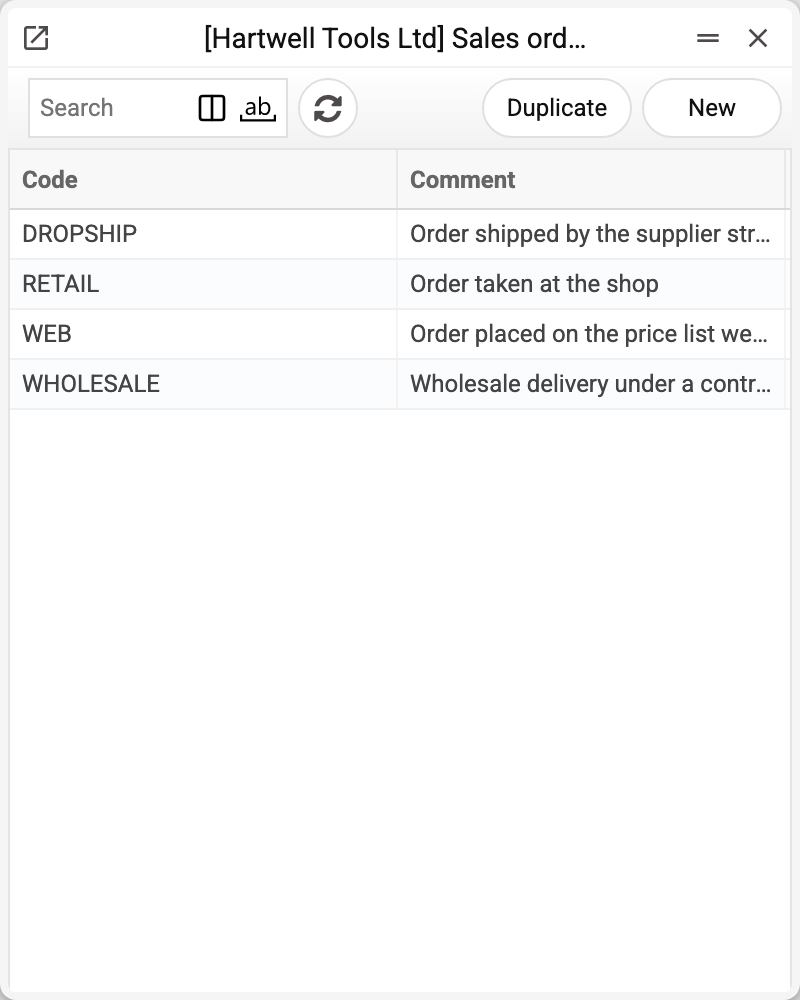
The demo company keeps four types: RETAIL, WEB, WHOLESALE, DROPSHIP. The card holds exactly two fields — the code and the comment:
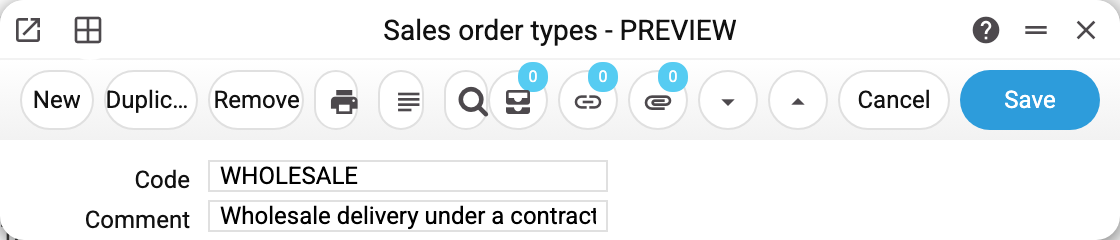
The code is what appears in the document and in the filter; the comment explains it to whoever picks a type from the list. There is nothing else in the register: no price list, no warehouse, no pricing rules. A type puts nothing into the order — it only labels it.
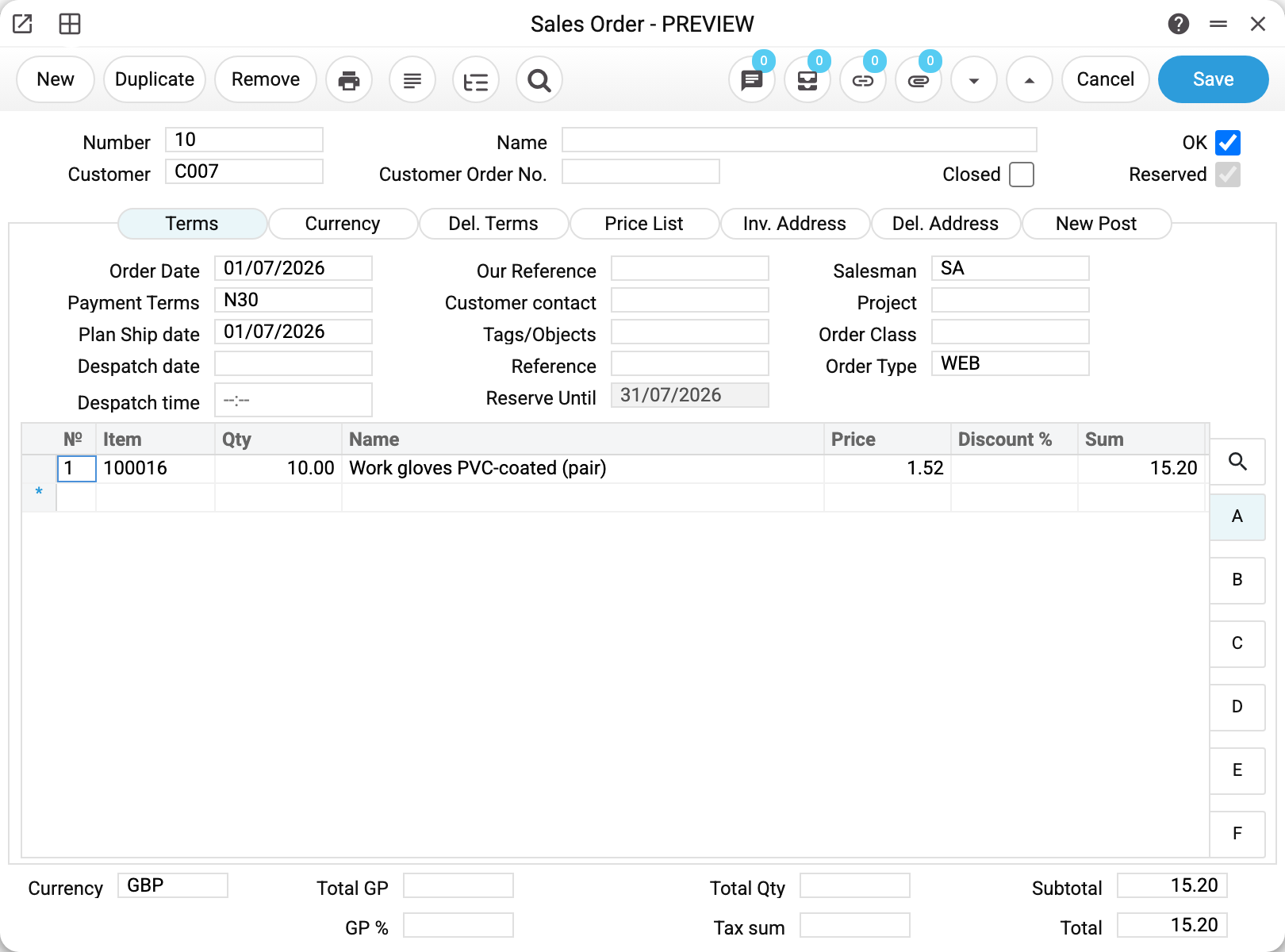
Here is the label inside the document itself: order No. 10 for work gloves carries Order Type WEB (the field sits on the "Terms" tab, third column):
Where the type is used
In the sales order. The "Order Type" field on the "Terms" tab. The value is picked from this register; a code that does not exist here cannot be typed in.
In the sales order settings. The "Require Order Class" checkbox (Sales order settings) makes the field mandatory: without a type the order will not save. The hint in the error points to the types register (Modules → Sales Orders → Registers → Sales order types), where types are created; the type itself is picked in the order — in the "Order Type" field on the "Terms" tab; the settings only switch the requirement on or off. While the checkbox is off, the field is optional.
In web orders. The price list settings hold two separate fields — a type for an ordinary web order and a type for dropship; an order from the site gets the matching type automatically. If the type is not set there while "Require Order Class" is on, the system substitutes whichever type it finds first in the register, and if the register is empty, the web order is not created at all. So the pair "checkbox on + empty price list setting" is best avoided.
Pick the type in the price list settings from the list, or type the code exactly as it is stored in the register. The fields do not convert input to upper case, while the register's codes are stored in capitals, so a type typed in lower case or with a typo is refused when the setting is saved: «Field "Sales order type" is not found!» (or "Sales order dropshipping type") on that field.
Parameters
| Field | What it does |
|---|---|
| Code | What appears in the document. Mandatory, unique within the company |
| Comment | The explanation shown in the picker |
Print variables
Values available in this document's printed form templates. How to write a variable in a template — see Print Forms.
Header fields:
| Variable | What it holds |
|---|---|
| SOrderT_No | Code |
| SOrderT_Comment | Comment |
Common situations
No type can be picked in the order. The register is empty — create at least one record. The picker takes values from here only.
The order refuses to save and asks for a type. "Require Order Class" is on in the sales order settings. Either pick a type or clear the checkbox.
Web orders carry the wrong type. Check the price list settings: the two type fields (ordinary order and dropship) are filled separately.
Web orders stopped being created. Check that the type in the price list settings matches the register's code letter for letter, case included, and that the register is not empty while "Require Order Class" is on.
A type needs renaming. Change the comment: the code of a saved type cannot be changed ("Can't change code") — it is stored in the orders themselves and in the price list settings. If you really need another code, create a new type, pick it in the price list settings and in new orders, and keep the old one in the register.
A type cannot be deleted: «A record of «Sales order types» is used in: Sales Orders!» A type can be deleted only while its code is on no order and not in the price list settings — then the refusal names the price list settings. Deleted, the type would leave its code in orders with nothing behind it: the type's code and comment would print blank, and web orders would keep getting a type that no longer exists. If you no longer need a type, keep it in the list and don't pick it in new orders; for web orders, first pick another type in the price list settings.