Password Configuration
One small window decides which passwords the system will accept and how often they have to be changed. The rules apply to every user at once — both when an administrator sets a password on the user card and when a person changes their own.
Where to find it: Modules → System → Settings → Password Configuration
The setting lives in the System module.
The window
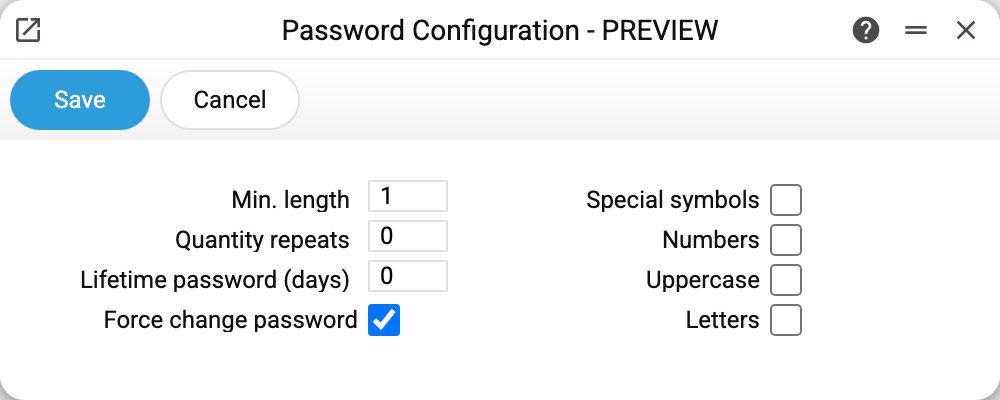
On the left — the numbers:
- «Min. length» — a shorter password will not be accepted.
- «Quantity repeats» — how many previous passwords cannot be used again when a person changes their own password (a password an administrator sets on the card is not checked against the history). The system keeps every user's password history: with a 2 here the two previous ones will not pass, with a 5 — the five previous ones; the current password never passes, whatever the value.
- «Lifetime password (days)» — after how many days a password goes stale. Zero — forever. When the lifetime runs out, the system itself stops the person at login and asks for a new password.
- «Force change password» — concerns passwords set by an administrator on the card. With this flag such a password works for exactly one login: the person enters — and must immediately set their own, unknown to the administrator. This way a password from the administrator's hands never stays permanent.
On the right — what the password must contain:
- «Letters» — at least one Latin letter;
- «Numbers» — at least one digit;
- «Uppercase» — at least one capital Latin letter;
- «Special symbols» — at least one of
!@#$%^&_*-+.
When the rules fire
The rules are checked at the moment a new password is set — no matter whether an administrator types it on the card or a person changes their own (the repeat history only in the second case). If the password does not meet the requirements, the system refuses and lists in the message all the requirements — the length and the contents, not only what is missing.
Existing passwords are not touched retroactively by a rule change: people feel a stricter policy at their next password change. The lifetime, however, is checked at every login — an expired password has to be replaced right away.
A sensible starting point
For a typical firm this combination works well: length 8, «Letters» + «Numbers» + «Uppercase», lifetime 90 days, 5 repeats, «Force change password» on. Go stricter for those who work with the system outside the office.
Common situations
«The system does not accept the password». The refusal message lists all the requirements — the length and the contents. Most often a capital letter or a special symbol is missing.
«Login demands a password change». Two reasons: either it is the first login after an administrator set the password (the «Force change password» flag), or the lifetime ran out. In both cases set a new password that meets the rules and sign in with it once more.
«I changed my password and the system signed me out». This is by design: a new password closes all your sessions — in this tab, in other tabs and on other computers — just like a password an administrator sets on the card. If someone had spied the old password, their sign-in stops working after the change too. The sign-in screen shows «Password changed. Sign in with the new password» — sign in with the new password.
«I want my old password back». Not possible while it is within «Quantity repeats»: the system checks the new password against the history and refuses.
A person forgot the password. That is not here: a new password is set by an administrator on the user card — and with «Force change password» on, the temporary password gets replaced by the person's own at the very first login.