ERPJS
A modular business management system: purchasing, stock, sales, money, production, retail, people. Documents travel freely between modules — a shipment knows its invoice, an invoice knows its payment, and the trace of every operation lands in the nominal ledger.
This documentation is built the same way: every module has an overview page — a route through the work rather than a list of fields. Start there and follow the links to the articles on individual documents, references and reports.
Where a new database starts
- System — the company, its details, the document number series.
- Nominal ledger — the chart of accounts and the setting that tells documents where to post.
- Stock — units of measure, locations, item cards.
- CRM — contacts: customers and suppliers live in one reference.
- Prices — the price lists and discounts documents take their amounts from.
After that comes the module for the work the system was bought for.
Where to go with your task
| You need | Where |
|---|---|
| sell goods and issue an invoice | Sales orders → Sales ledger |
| buy goods and settle with a supplier | Purchase orders → Purchase ledger |
| know what is on the shelves | Stock |
| find out whether you made money | Nominal ledger |
| handle cash outside invoices | Cash book |
| trade at the counter | POS + Checkbox or Vchasno.Kasa |
| make a product out of materials | Production |
| repair customers' equipment | Service orders |
| hire equipment out | Rental |
| run long jobs against a budget | Project management |
| calculate the payroll | Human resource management |
| give out an advance | Expenses |
| account for vehicles and equipment | Fixed assets |
| sell on marketplaces | Prom · Rozetka |
| ship parcels | Nova Poshta |
| hand out work and lose no tasks | CRM |
| close a period and forbid edits | System |
| work out why something does not add up | Database maintenance |
| see in the morning where work has piled up | Dashboard |
| keep the books with phrases in Claude or ChatGPT | Connecting Claude and ChatGPT (MCP) |
All modules
Sales and purchasing: Sales orders · Sales ledger · Purchase orders · Purchase ledger · Prices
Stock and production: Stock · Production · Rental
Money: Nominal ledger · Cash book · Expenses · Fixed assets
People and work: CRM · Project management · Service orders · Human resource management · Telephony
Retail: POS · Offline · Print receipt · Checkbox · Vchasno.Kasa
Integrations: Nova Poshta · Prom · Rozetka · Claude and ChatGPT (MCP)
Administration: System · Database maintenance
ERPJS: Interface
Main interface elements
Main window
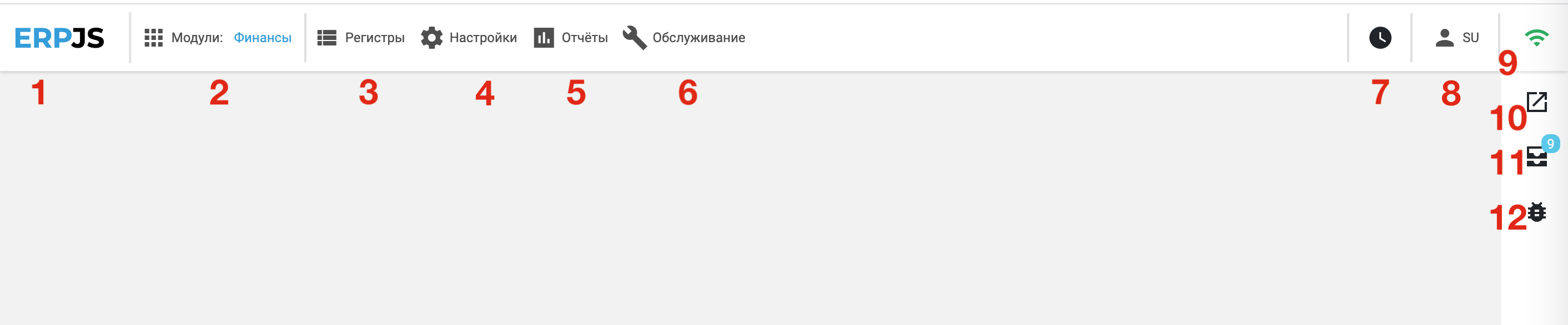
- 1 — Logo. Links to the ERPJS system documentation.
- 2 — Active module selection button. Depending on the user's access rights, the dropdown list shows available modules for navigation. The current active module is displayed to the right of the button.
- 3 — Register selection button. Depending on the selected module and user's access rights, the list shows available registers.
- 4 — Settings selection button. Depending on the selected module and user's access rights, the list shows available settings.
- 5 — Reports selection button. The list depends on the selected module and user's access rights.
- 6 — Procedures selection button. The list depends on the selected module and user's access rights.
- 7 — Workflow manager button.
- 8 — Login management button. Shows the current user login. The dropdown menu provides password change and logout options.
- 9 — Server connection status icon.
- 10 — Shortcuts menu button. By adding document links, you can quickly navigate to selected documents or windows.
- 11 — User task list button.
- 12 — Developer feedback button. Use it to send a bug report.
Register — list view
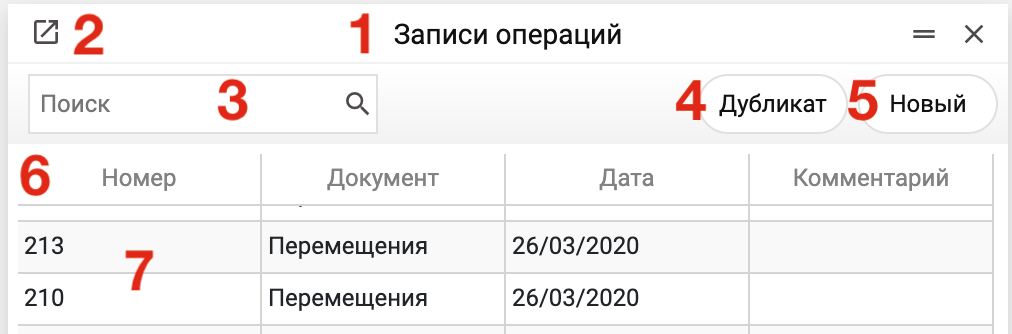
- 1 — Register name.
- 2 — Button to add the window to the shortcuts menu for quick access. A link to this window will appear in the shortcuts menu in the main window (see item 10 of the main window).
- 3 — Full-text search field for register records. The search does not include matrix field contents.
- 4 — Duplicate button creates a copy of the selected record. Clicking the button opens a record view window with data from the selected record. To save the data to the database, you need to save the opened record. When duplicating, some fields that cannot be logically duplicated are cleared or recalculated.
- 5 — Button to create a new record in the register.
- 6 — Record list header. Can be resized by dragging. Clicking a column name sorts the table by that column.
- 7 — Existing records in the register. May be limited by access rights or other filters. To open a record, select it and double-click or press Enter.
Register — record view
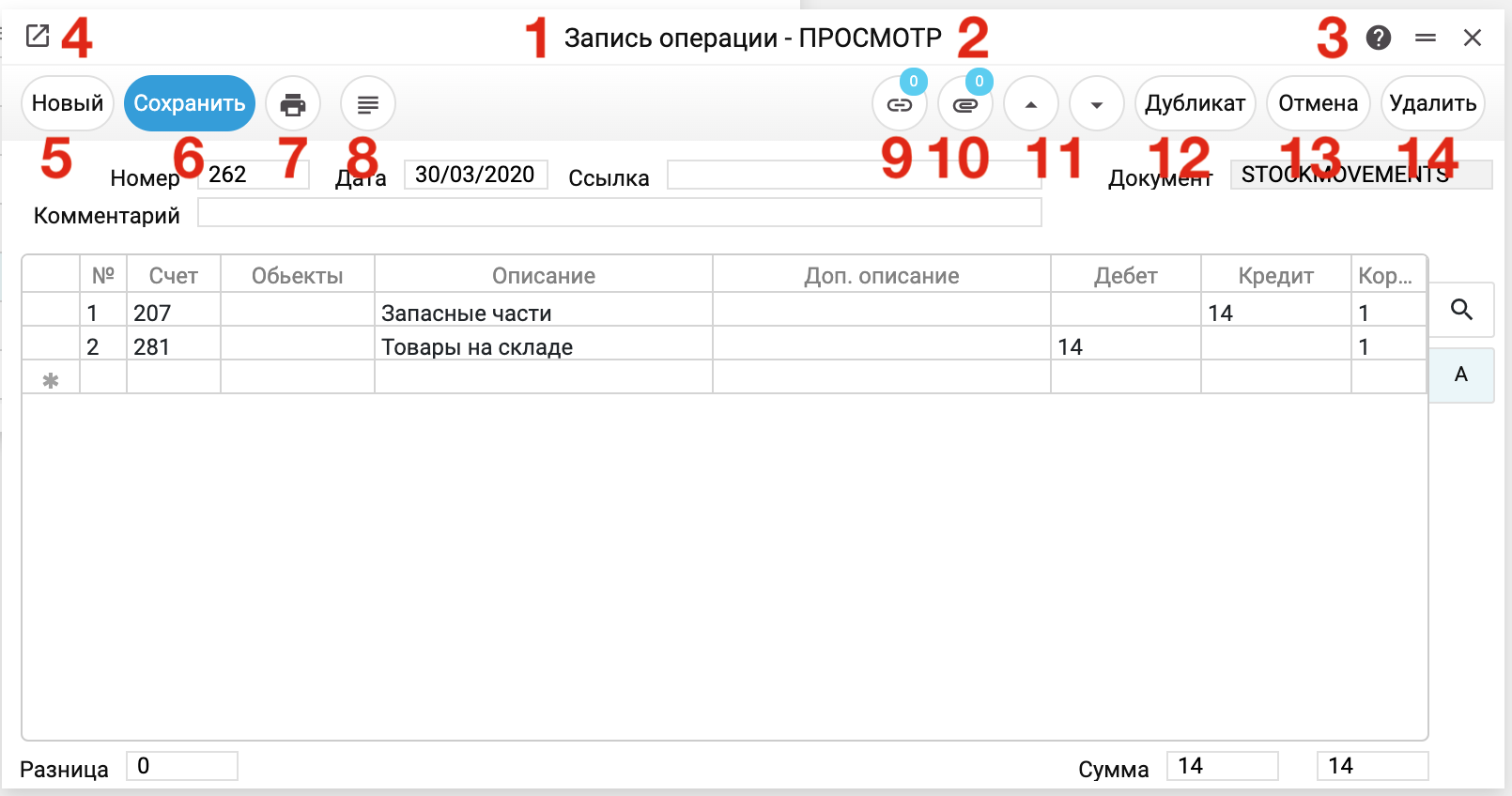
- 1 — Register name of the opened record.
- 2 — Record editing state. VIEW — the record is open for viewing. EDITING — data in the opened record has been changed and needs to be saved to the database. A record in editing mode is locked for other users. DUPLICATED — window state when creating a new record by copying an existing one. NEW — record status when creating a new record before the first save.
- 3 — Help button for the current document.
- 4 — Button to add the window to the shortcuts menu for quick access. A link to this window will appear in the shortcuts menu in the main window (see item 10 of the main window).
- 5 — Button to create a new record in the current register. First, the window state must be set to VIEW by saving or canceling changes.
- 6 — Save button — to save changes.
- 7 — Document print button. Active if a print procedure is available for the document.
- 8 — Procedures menu for the current register's records. An individual list for each window.
- 9 — Related documents list. Some records can be logically linked to other records. You can view these links using this button. You can also create links manually by dragging the button icon onto the same icon of another open record.
- 10 — Uploaded files list. External documents (PDFs, images, other files) can be attached to any record in the system.
- 11 — Register record navigation buttons. Clicking the button navigates to the next or previous record in the register.
- 12 — Duplicate button creates a copy of the open record. Clicking the button copies the current record data into a new one. To save the data to the database, you need to save the new record. When duplicating, some fields that cannot be logically duplicated are cleared or recalculated.
- 13 — Cancel changes button.
- 14 — Delete record button. With a deletion confirmation prompt.
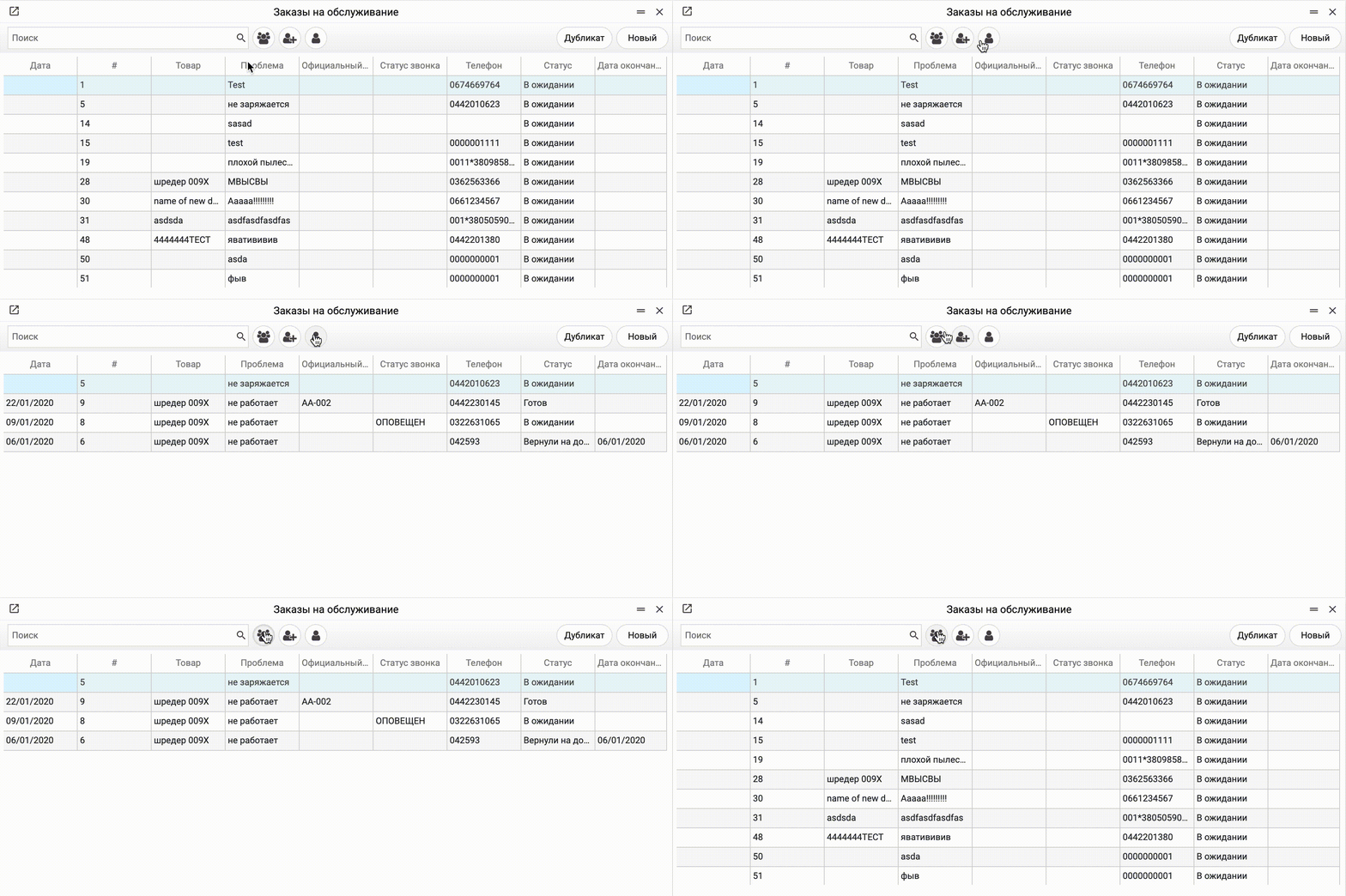
Some list windows may have group filter buttons. Users can filter records by their own, group, or all records.
Main elements for interacting with a record
-
Dropdown menu for selecting records in basic input fields.
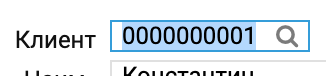 Main record fields that imply selecting an identifier of a related record (such as item code, customer code, etc.) have a dropdown list system for searching and selecting the desired value. When activating such a field, a magnifying glass icon appears — clicking it opens a list of records from the register whose data should be entered in this field. Double-clicking the desired record fills in the value. This window can also be called by double-pressing the Ctrl key. If part of a code is already typed in the field, it becomes the list's search text; if the list is closed without a selection, the field keeps its previous value.
-
Dropdown menu for selecting records in a matrix field.
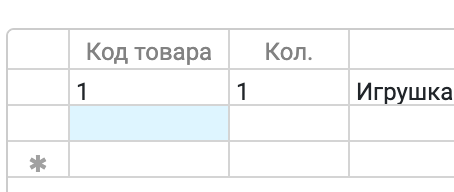
Many matrix fields are also linked to other registers and support dropdown search and selection menus. The menu opens by double-pressing the Ctrl key or by the magnifying glass icon that appears in the cell while typing. If part of a code is already typed in the cell, it becomes the list's search text, and the selected record replaces the typed text in the same matrix row. If the list is closed without a selection, the cell keeps its previous value.
- Quick navigation to a related record from a field that supports the dropdown record selection window. If the field contains data, pressing the F1 key while the field is active opens the related record (if a record view window exists for this record and the user has viewing permissions).
Working with the document matrix
Some documents contain an element called a matrix. A matrix is an infinite table within a record with a defined set of columns. For example, a list of items in a sales document.
-
Row sorting. By default, when opening a record, matrix rows are sorted in the order they were added to the document. To sort data for viewing in a different order, click the matrix field name once or twice. The data will be sorted by that field.

-
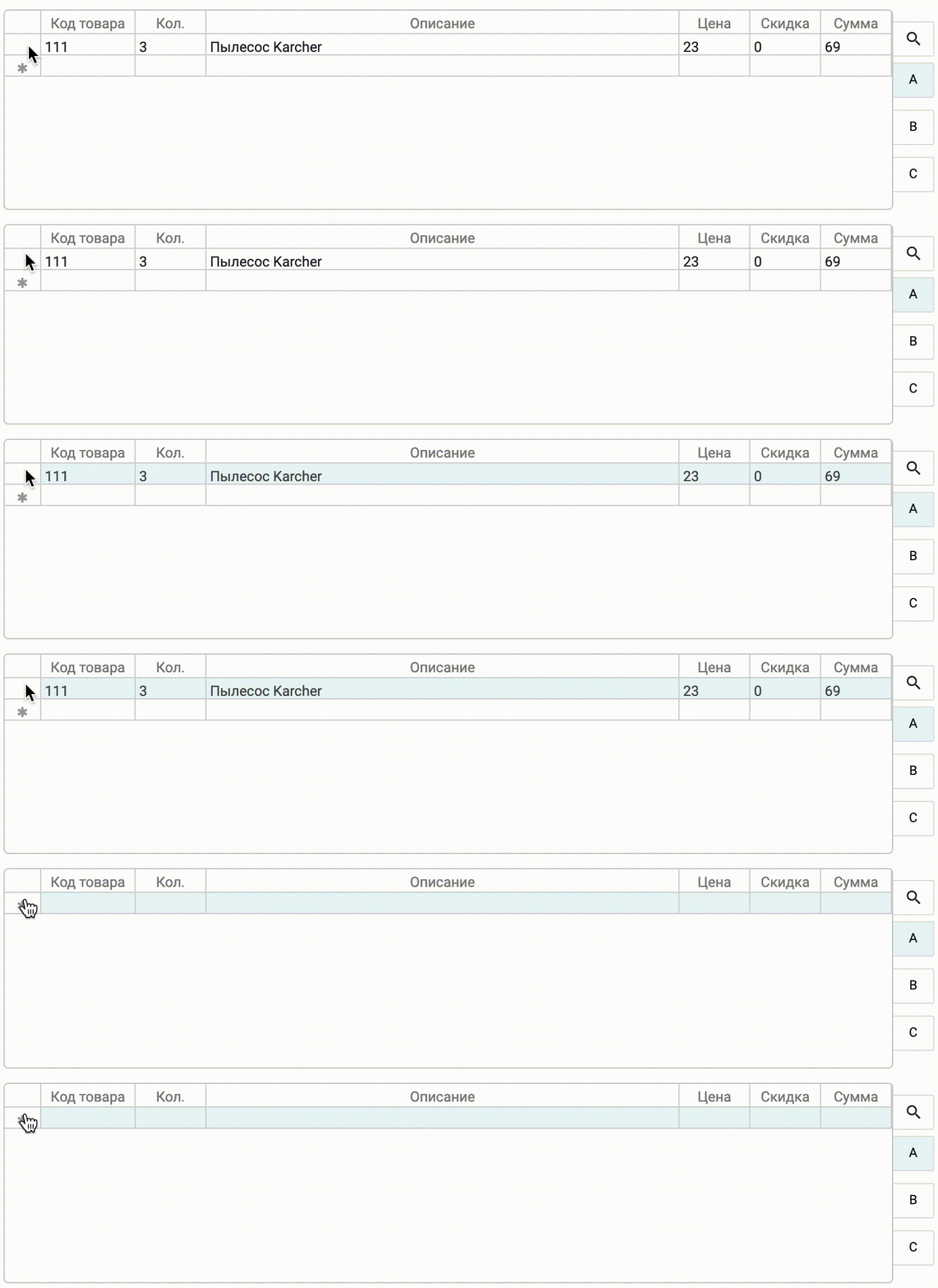
Deleting a matrix row. To delete a row in the matrix, click the empty cell at the beginning of the row. The entire row will be highlighted. Then press the Backspace (Delete) key.
-
Inserting a row in the middle of the list. To add a new row, select the row that should be pushed down. Then press Ctrl+Enter (Control+Return). The rows, including the selected one, will shift down.

-
Searching data in the matrix. If you need to find a row containing specific data, use the matrix search. Click the magnifying glass button in the upper right corner of the matrix and enter the search text in the field that appears.

System structure
ERPJS has a modular navigation structure. All documents, settings, and reports are logically located in their corresponding modules.
A module is logically divided into the following elements:
- Register — documents in the system. A single register can contain many records of the same type.
- Setting — a single-instance document in the database responsible for various technical or business process settings.
- Reports — procedures for generating reports.
- Maintenance — procedures for performing data maintenance operations.