Returns Report
The question this report answers: what customers returned to stock during a period, how much of it, and at what cost. It lists returns row by row — with the quantity and cost of each item.
Where to find it: Modules → Stock → Reports → Returns Report
!!! note "The amounts are cost, not the sales price" A return row has no price: only the value the goods come back to stock with. So the report shows cost — in the base currency and only to users with the «Show cost price» right. The money given back to the customer is in the credit note, not here.
Worked example
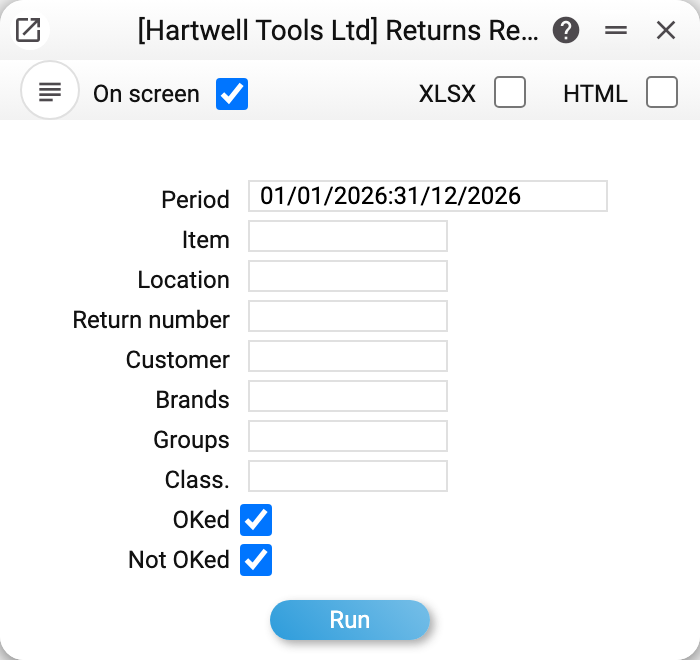
The report selects returns by period — by the return date. The other fields narrow the selection: item, location, return number, customer, brands, groups and classification; the OKed and Not OKed ticks choose which returns to take: approved, not approved or all (both are ticked by default).
In the demo company there are five returns in 2026, Nos. 1–5; No. 5 is not approved yet. All of them are in one table, document after document: a header row (number, date, location, customer, its name and the shipment the return was made from), and under it the document rows: item code, name, quantity, unit cost and row cost. The number, location, customer, shipment and item code are links that open the corresponding card. The layout is the same as in the goods receipts report, the shipments report and the stock movement report, and like them the report can be exported to Excel.
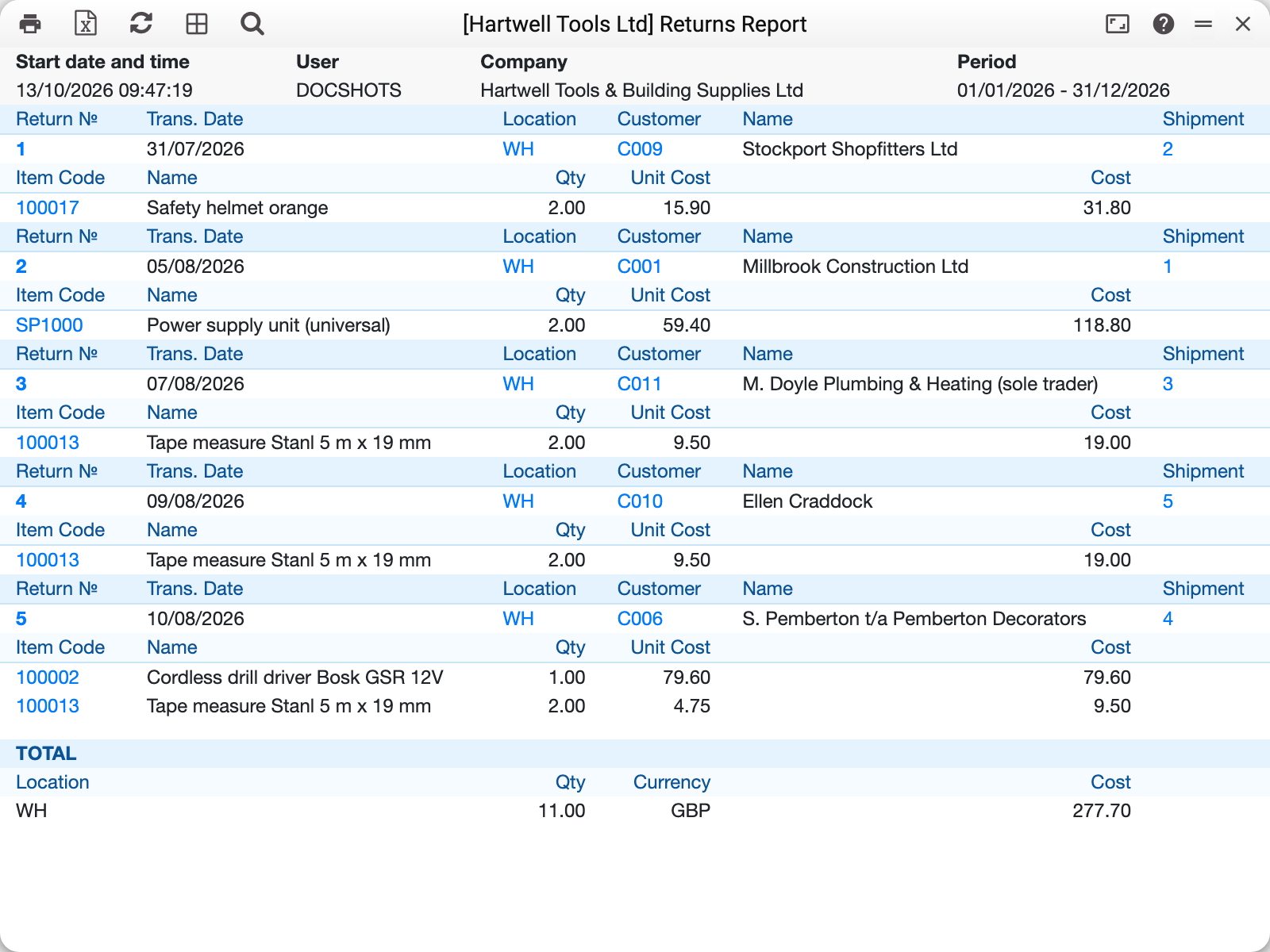
Documents are ordered by number. At the end there is a «TOTAL» block: a row per location with the returned quantity and cost in the base currency.
Where the cost comes from
- An approved return — the cost at which the goods actually went into stock: accounting recorded it on approval, and the return posting is made from it. For an ordinary row it is the same as in the document; for a set it is the sum of the costs of its components, which went into stock separately (the set row itself may keep a zero cost).
- A return not approved yet — the cost from the document row: what will go into stock if the return is approved now.
- Unit cost — the row cost divided by the quantity.
How the filters work
- Location, return number, customer — exact match with the header fields;
- Brands, groups, classification — accept several values separated by commas; an item matches if it has at least one of them;
- Item, brands, groups, classification apply to ROWS: a return is listed if at least one of its rows matches, and only those rows are shown — the «TOTAL» counts only them too.
Typical situations
There are no cost columns. Your role lacks the «Show cost price» right — the report shows only quantities. In the Excel file these columns are still there, but empty.
The return is listed, but stock has not moved. It is not approved: the report shows unapproved returns while Not OKed is ticked. Untick it to see only what is already in stock.
The return cost differs from the shipment. The report shows the cost of the return, not of the shipment: an unapproved one is taken from the document row, an approved one from what accounting recorded.
Where to look next
- Returns — the document itself.
- Returns To Supplier Report — the same for returns to suppliers.
- Shipments Report — what went out to customers.