Agreements
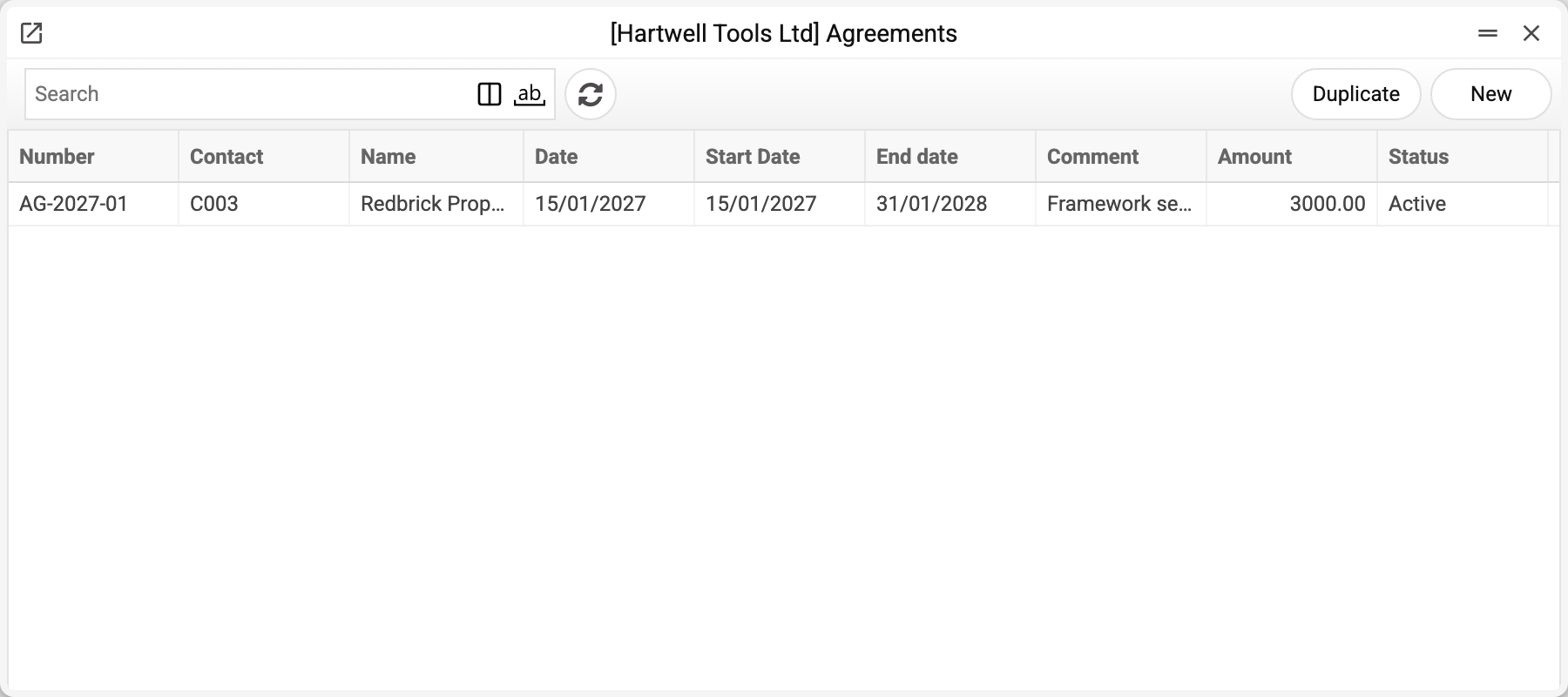
A filing-cabinet register: it stores the agreements with your partners — number, validity period, the person responsible, the amount and a status. There is no automation behind it: an agreement bills nothing, moves no stock and posts nothing. Its job is to keep the deal on record, searchable and with a clear status.
Where to find it: Modules → Purchase Orders (also in modules: Sales Orders) → Registers → Agreements
When the system should issue invoices on a schedule by itself, that is the neighbouring contracts register. The split is simple: an agreement is the memory of a deal, a contract is the billing machine.
The register appears in two modules at once — Sales Orders and Purchase Orders: agreements exist with customers and with suppliers alike, and the card has a type switch for that.
A worked example
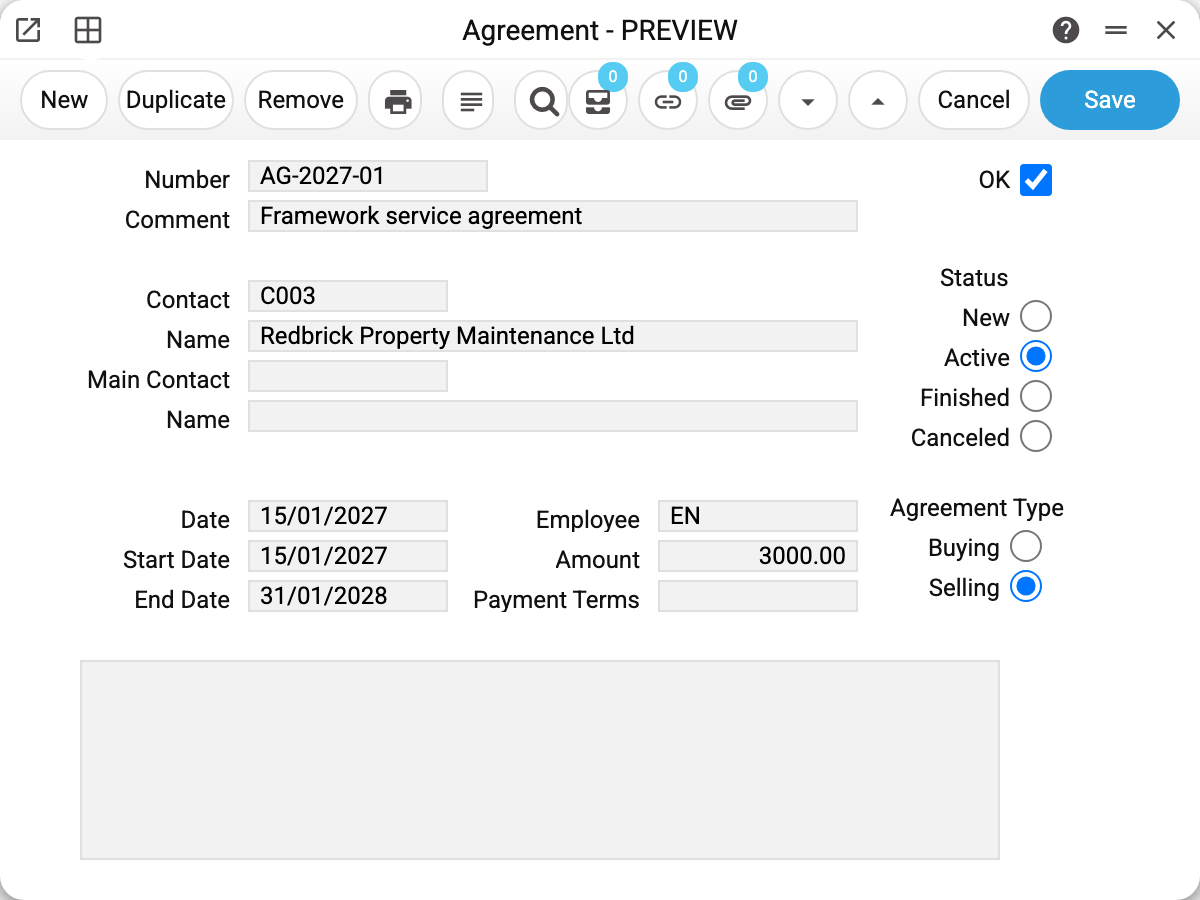
Agreement AG-2027-01 with Redbrick Property Maintenance — a framework service agreement.
- "Number" — your agreement number, also shown in the list.
- "Contact" — the partner from the register; the name fills in by itself.
- "Date" — when the agreement was signed; "Start Date" and "End Date" frame its validity.
- "Employee" — the person responsible.
- "Amount" — the total value. Informational: the system computes nothing from it, but it shows the scale of the deal at a glance.
- Type — buying or selling: an agreement with a supplier or with a customer. Pick a contact marked as "Customer" in its card in "Contact", and the type switches to "Selling" by itself. The system never switches it back to "Buying", even if the contact is changed later: for a supplier agreement, set the type yourself.
- Status — New, Active, Finished or Canceled. A manual mark: you change it, the system does not.
- "OK" — approval: the agreement's fields become read-only. The status and the flag itself stay open — the status can be changed on an approved agreement, and OK can be cleared. OK does not protect against deletion: an approved agreement is deleted just like an unapproved one.
The text of the agreement goes into the large field at the bottom of the card, and a scan of the signed document is best attached via the paper clip. The system refuses to remove an agreement that has an attached file (the refusal names the attachments): take the file off first.
Typical situations
- The agreement has expired but still shows "Active". The status is manual — set "Finished" yourself: the system does not switch it by dates.
- Invoices should be created under the agreement automatically. Wrong register: set up a contract with the subject in its lines and a billing period.
- One agreement for both buying and selling. Not possible — the type is single. Create two cards.
Nearby
Print variables
Values available in this document's printed form templates. How to write a variable in a template — see Print Forms.
Header fields:
| Variable | What it holds |
|---|---|
| Agre_OK | OK |
| Agre_No | Number |
| Agre_Comm | Comment |
| Contact_Code | Contact (code) |
| Contact_Name | Contact (name) |
| Agre_CName | Name |
| Agre_CMain | Main Contact |
| Agre_CMainName | Name (Main Contact) |
| Agre_Status | Status |
| Agre_TransDate | Date |
| Agre_StartDate | Start Date |
| Agre_EndDate | End Date |
| Agre_Emp_No | Employee |
| Agre_Ammount | Amount |
| Agre_TermsOfPay | Payment Terms |
| Agre_Type | Agreement Type |
| Agre_Text | Text |
| Agre_Emp_Email | Responsible person's e-mail |
| Agre_Emp_FName | Responsible person's first name |
| Agre_Emp_LName | Responsible person's last name |
The records the document refers to through its form fields (location, customer, currency…) also expose the rest of their variables — code and name are already listed in the tables above, the rest is described in the register's article:
- Contact — Contacts