Rental settings
Four switches that shape how the rental module behaves: whether readings on the acts become usage records, whether transfers created from a goods receipt post at once, which document a service check raises, and how equipment appears in the booking calendar.
Where to find it: Modules → Rental → Settings → Rental settings
A worked example
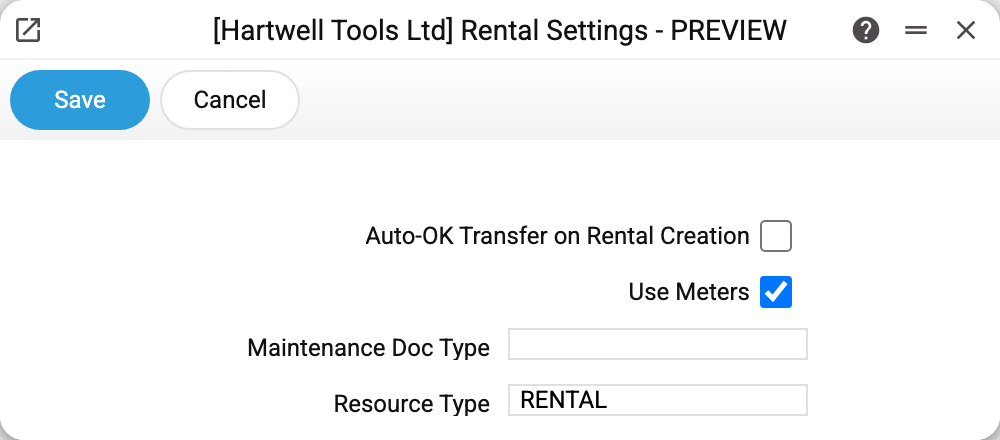
In the demo company:
- Auto-OK Transfer on Rental Creation — cleared;
- Use Meters — ticked;
- Maintenance Doc Type — empty (no documents are created);
- Resource Type —
RENTAL.
What each field does
Use Meters. The reading column on issue and return acts is always there, whatever the tick. The switch decides something else: whether those readings become usage records — a record appears for an act row with a non-zero reading — and whether the maintenance check compares usage with the meter interval. Switch it off and the readings stay on the acts, but no usage records are written.
Resource Type is the code from the resource-types register under which hire equipment enters the booking calendar. With the field filled, a rental item creates its resource as soon as the card is created. While the field is empty, the card creates no resource, yet the equipment still reaches the calendar: when the unit is first posted on a rental agreement, the system creates the resource itself with the type RENTAL (and the type in the register, if missing). The sync routine fills in missing resources by the same rule; it also moves resources created earlier to the current type, so a changed type reaches the equipment already in place.
Pick a type that only hire equipment carries. A posted agreement appends the unit to every resource accounting list that already has a row of that type, and the sync routine removes from the RENTAL list the rows of that type with no active rental item behind them. A type shared with other resources mixes them up with the hire fleet.
Maintenance Doc Type decides what the maintenance check raises for a unit that is due: a service order, a worksheet, or nothing at all — with "Do not create" the routine only flags the unit and adds a task, and the document is entered by a person.
The document is not always created: both a service order and a worksheet are issued to a customer, and the routine takes that customer from the active rental agreement. A free unit has no agreement, so it only gets the status and the task. A worksheet also needs the warehouse on the unit card. A service order needs the service item code or the item code on the unit card; if that device is not in the service items register yet, the system creates it — but demands a manufacturer from the Brands register. On top of that, the order has to pass the Service Order Required Fields setting: if it marks a field the routine cannot fill, the order is not created. The routine reports how many units were skipped and why.
Auto-OK Transfer on Rental Creation concerns only the pool transfers the system creates itself when it makes rental items from a goods receipt: with the tick, such a transfer is posted at once. That creation of items from a goods receipt is currently not called anywhere in the interface, so in practice the switch changes nothing. It never posts transfers created by hand — those are posted with the "OK" tick on the document itself.
Typical situations
Equipment is missing from the calendar. With "Resource Type" empty, the unit card creates no resource: it appears with the first posted rental agreement for that unit or after the sync routine has run.
Usage is not counted. Either "Use Meters" is cleared, or the reading on the act row is zero or empty: a usage record appears only for a non-zero reading. The meter type on the item card makes no difference here.
The maintenance routine raised no service order. Check "Maintenance Doc Type" first: with an empty value the routine is not supposed to create anything. If a type is selected and the document is still missing, the routine names the reason in its report — most often the unit is free (no agreement, hence no customer), its card has no manufacturer, or, for a worksheet, no warehouse.
Where to look next
- Rental items — the cards these switches act on.
- Condition types — the module's other setting.
- Rental routines — what the automation can finish for you.