Add Costs
An imported consignment does not enter stock at the price it was bought for. Duty, excise, freight and the broker's fee are added to the supplier's price — and all of those amounts belong to the shipment as a whole, not to any single box. For every item to land in stock at its true cost, the shipment's costs have to be spread over the goods.
Where to find it: Modules → Stock → Registers → Add Costs
Add Costs is the document that does this. It takes in the supplier's invoice, the paper customs declaration and the invoices for services, and produces two things:
- a Goods Receipt — the goods in stock at their full landed cost;
- a customs charges invoice — what is owed to customs, and the VAT paid on import.
The document lives in the Stock module. It is only ever created from an approved Purchase Order; the «New» button is not available in Add Costs — without an order there would be nothing to link the goods to and no exchange rate to calculate from.
Video walkthrough: Import and customs in ERPJS step by step — duty, freight, levies and the real cost of every item.
What turns into what
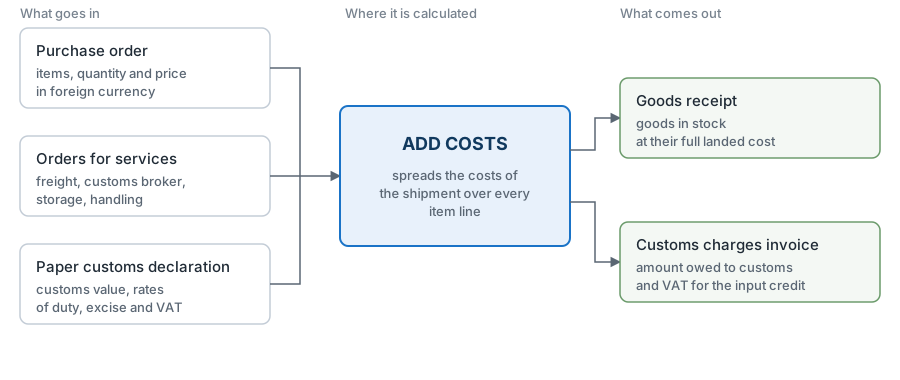
The sequence is this: first the order for the goods appears in the system, then the orders for the services that deliver them, and only after the goods have cleared customs and the paper declaration is in hand is the Add Costs document created. It receives nothing into stock and pays no one: its job is to calculate correctly. The Goods Receipt puts the goods into stock, and the customs charges invoice handles the settlement with customs; both are created from the Add Costs menu once it has been approved.
What the cost price is made of
| Component | Where it comes from | Included in the cost price |
|---|---|---|
| Invoice value | price from the Purchase Order × exchange rate | yes |
| Customs duty | rate by CN code × customs value | yes |
| Excise duty | rate × customs value, for excisable goods | yes |
| Additional costs | orders to service providers, amounts excluding VAT | yes |
| VAT paid at customs | (customs value + duty + excise) × VAT rate | no — it goes to the input tax credit |
Import VAT is paid by VAT-registered and non-registered companies alike, but they do different things with it. A VAT-registered company claims it as input tax credit, so it does not enter the price of the goods — that is exactly what the customs charges invoice is for. If the company is not registered for VAT, there is nothing to offset the tax against, and it lands in the cost price together with the duty.
The resulting formula for a single line:
Unit cost = price in currency × rate + (duty + excise + additional costs allocated to the line) ÷ quantity
The customs value is not the same thing as the invoice value. The invoice value is what was paid to the supplier. The customs value is the base customs uses to assess its charges; it is taken from the paper declaration and is usually higher than the invoice value, because it includes carriage up to the border. The system neither calculates nor prefills it: a person types it in, copying from the declaration.
A worked example
What follows is a real document from the demonstration stand: a consignment of tools from Poland. First the document as a whole, then step by step.
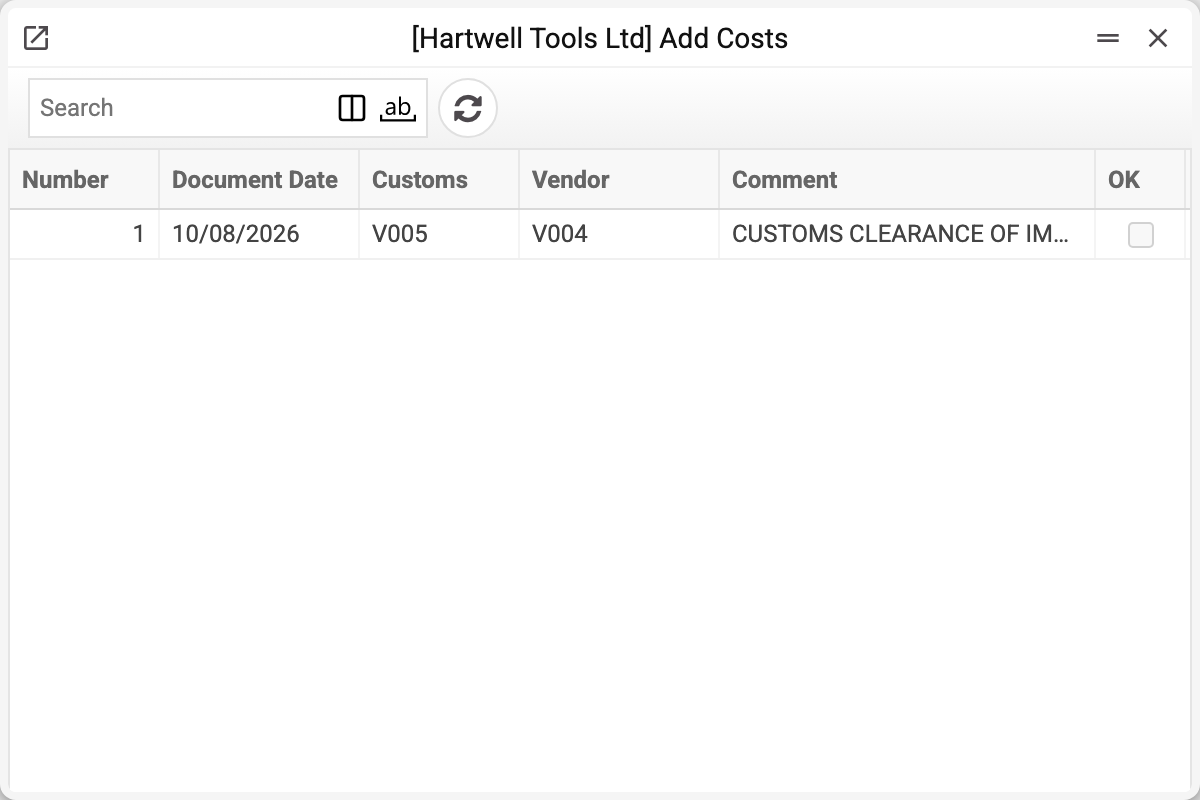
The journal shows the document number and date, the customs, the vendor, the comment and the OK tick. We take apart the document for a consignment from Poland.
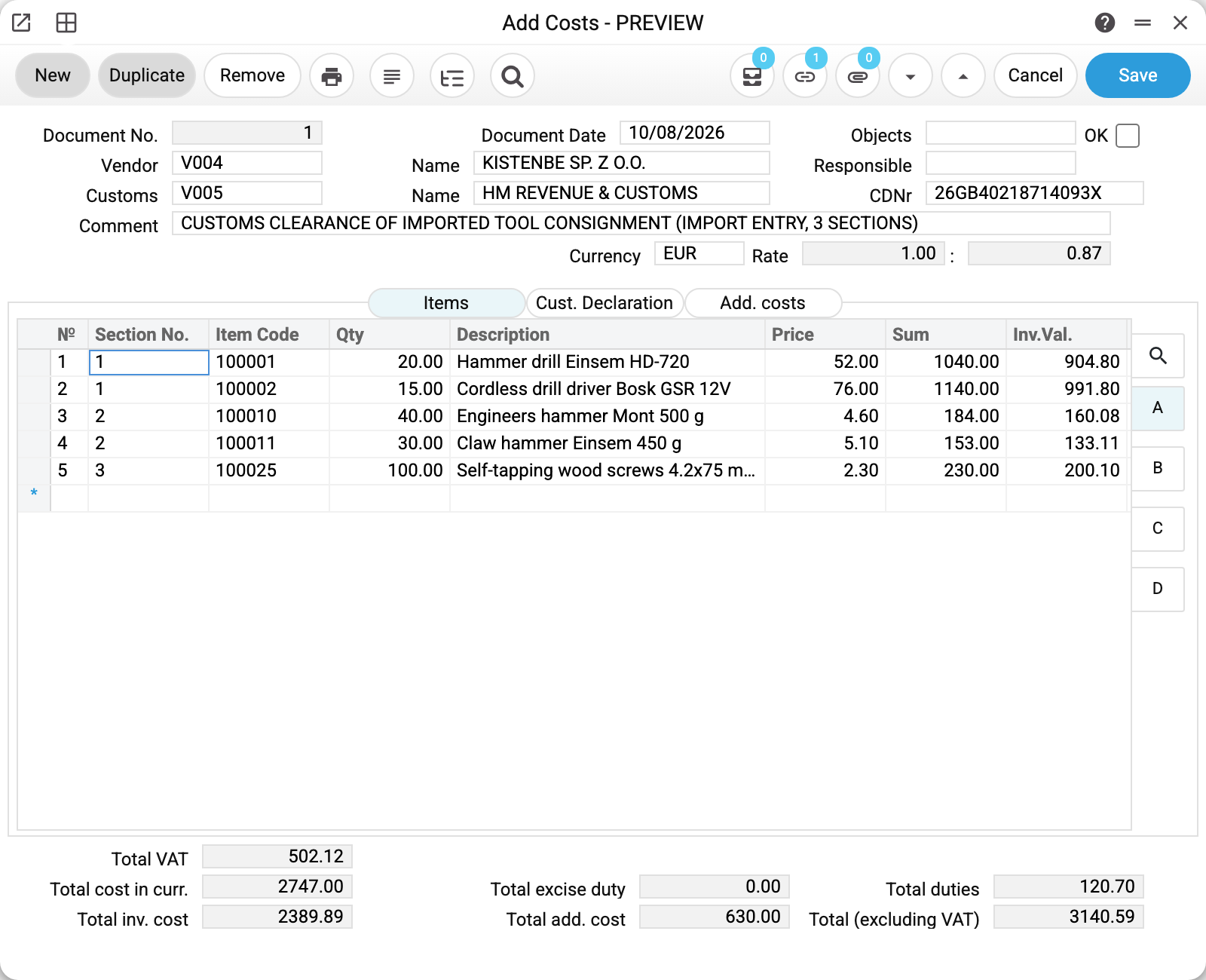
The header carries everything that drives the calculation: the vendor, the currency EUR, the rate 0.87, and the number of the paper declaration. Below it are three tabs, one per source of data, and the totals at the bottom.
Step 1. What was bought
Tab «Items», sheet A. Five lines came across from the Purchase Order together with their quantities and prices in euro.
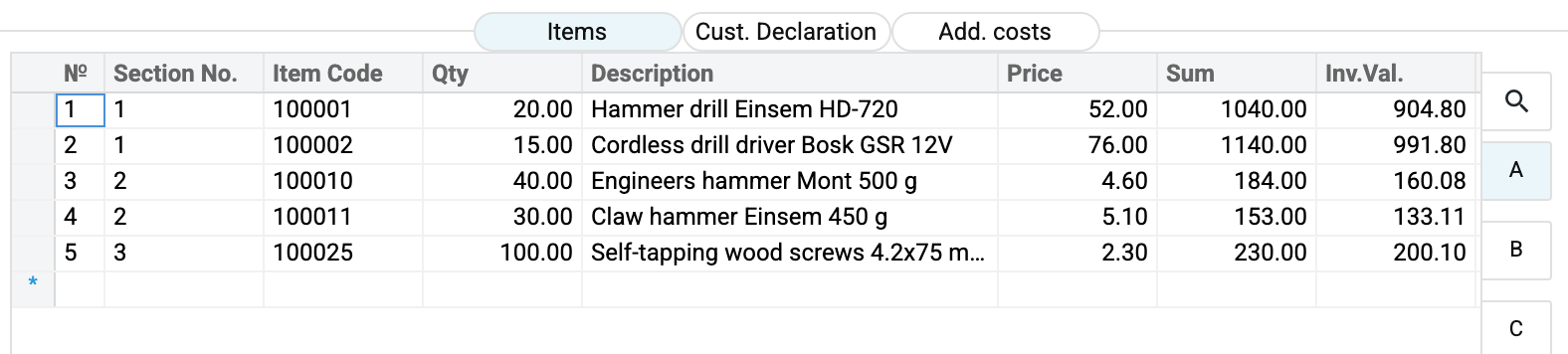
The last column, «Inv.Val.», is the line total converted at the document's rate: «Sum» 1,040 EUR × 0.87 = 904.80. The total across all five lines, 2,389.89, becomes the base for every allocation that follows.
The «Section No.» column is already filled in: the system has assigned the goods to declaration sections using the CN code from each item card. The drill and the screwdriver went into the first section, the hammers into the second, the screws into the third.
Step 2. How customs split the consignment
Tab «Cust. Declaration». Customs assesses its charges not per item but per section of the declaration: goods sharing a CN code form one line with its own rate. This consignment produced three sections — power tools, hammers and screws.

From the paper declaration a person copies the «Customs value» and, where needed, the percentages. The system works out the rest on its own:
- «Charged duty» = customs value × duty %. First section: 1,896.60 × 5 % = 94.83.
- «Charged VAT» = (customs value + duty + excise) × VAT %. First section: (1,896.60 + 94.83) × 20 % = 398.29.
The sections carry different rates — 5 %, 2 % and 10 % — which is why the charges have to be split among the goods inside each section separately, rather than across the whole consignment at once.
In this example the customs value of each section matched the invoice value: carriage to the border was included in the supplier's price, so there was nothing to add to the base. Where the carriage is paid for separately, the customs value will be higher — all the more reason to copy it from the paper declaration.
Step 3. What the delivery cost
Tab «Add. costs». This is where the orders to service providers linked to this consignment are picked up: order 3 for the carrier, order 4 for the customs broker.

«Ord. (w/o VAT)» is filled in automatically: 480 and 150, that is 630 together. The «Method of distribution of the sum» column is set to «Cost» — the system puts it in itself when the order is chosen; the expenses will fall on the goods in proportion to their value. The other option, «Quantity», splits the sum evenly across every unit; that is how it is done when the value of a thing has no bearing on what it costs to move it.
Step 4. How all of it landed on the goods
Back to the «Items» tab. Sheet B shows how much duty and excise each line took.
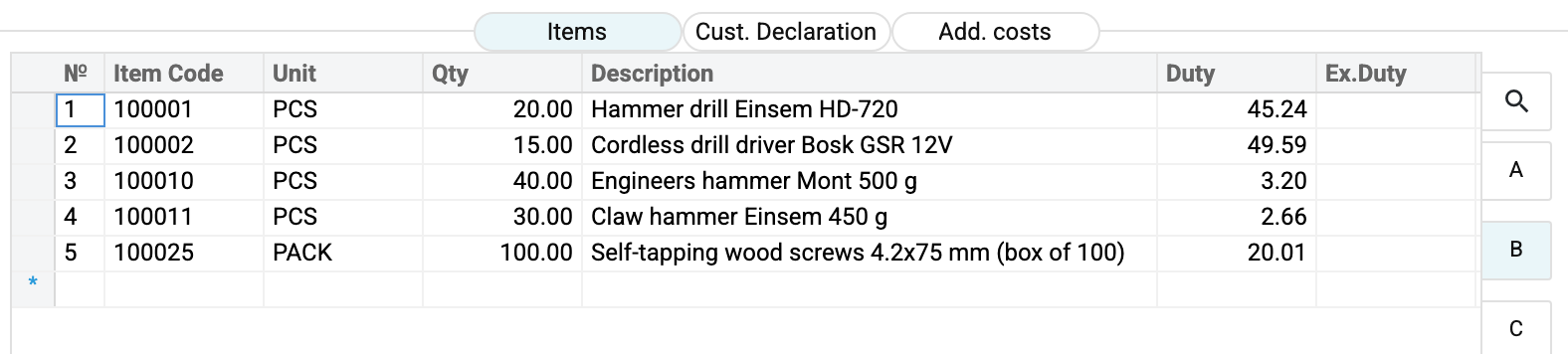
Within a section a charge is split in proportion to the invoice value of the line. The drill and the drill driver brought 904.80 and 991.80 into the first section's 1,896.60, so its duty of 94.83 was split in the same proportion: 45.24 and 49.59. The screws are alone in the third section, and all of its duty, 20.01, went to them.
Sheet C holds the VAT and the additional costs.
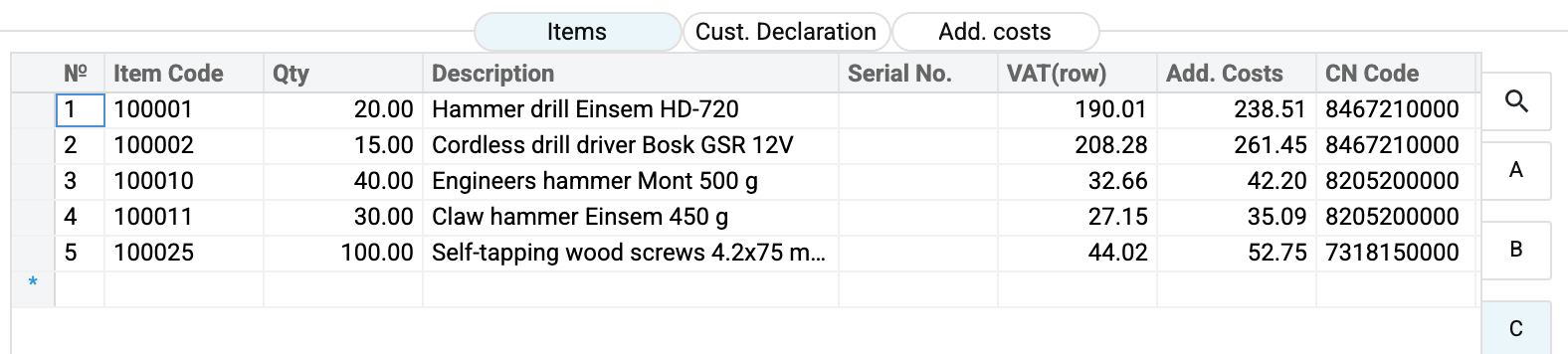
Delivery is split differently: not inside a section but across the whole consignment at once. The drills account for 904.80 of 2,389.89, that is 37.9 %, and they received exactly that share of the 630 spent on freight and the broker — 238.51.
No cents are lost in the division: the system adds the rounding remainder to the line with the largest quantity (among the lines where that amount is not zero), so that the total per item matches the document total down to the cent.
Step 5. What the document's totals say
The lower part of the record is where the whole job is checked.

They read like this: to the invoice value of 2,389.89 were added duty of 120.70 and additional costs of 630.00, giving «Total (excluding VAT)» of 3,140.59. That is the full landed cost of the consignment, and that is the amount which will go into the Goods Receipt. Excise is nil: there were no excisable goods in the shipment. «Total VAT» of 502.12 stands apart from that sum — it goes into the customs charges invoice.
The consignment ended up 31.4 % dearer than the supplier's price — and that difference now sits inside the price of every drill and every screw rather than in one common pot.
A customs clearance posts nothing
Nothing appears in the Transactions register after it, and that is not an omission. Customs clearance is a calculation document: it moves neither stock nor money, it only spreads amounts across the positions of a consignment yet to arrive.
Two other documents put all of it into the books:
- the goods receipt takes the finished cost and, once it is approved, puts the goods on the location. Duty, excise and additional costs do not travel in it as separate amounts — they are already inside the cost of its rows. So the receipt posts the whole row amount: debit the stock account, credit the account from the «A/C» column of the Purchase Order row, or, where that is empty, «Purch. Control Account» from the Account Usage setting;
- the customs expenses invoice creates the liability to customs: duty and excise to the «Control account» of the customs card, VAT to the «VAT Account» of the declaration sections.
The practical consequence: if an amount landed on the wrong account, the mistake is not in the clearance but in the «A/C» column of the order rows (or in «Purch. Control Account»), in the «Control account» of the customs card and in the «VAT Account» of the sections.
How the work goes
1. Before the customs clearance: orders for services
While the goods are in transit, a separate order is raised for each provider — the carrier, the broker, the temporary storage warehouse. This is done from the order for the goods, with the menu command «Create order for add. serv. in CC»: that is how the system remembers which consignment the costs belong to. An order for services created on its own will not appear in the clearance's selection list; pick the number from that list rather than typing it in.
2. Create the customs clearance document
In the register of purchase orders find the order whose goods have cleared customs and choose «Create customs clearance» from the document menu. The order has to be approved — otherwise the system answers «Please, make OK document!»; if there is nothing left to clear, «All goods are cleared». The vendor, currency, exchange rate and all the order's goods not yet cleared are carried over into the new document. In an import order enter prices without VAT — otherwise VAT ends up in the invoice value.
3. Bring the list of goods in line with reality
Add Costs describes what was actually cleared. If only part of the consignment arrived, the surplus lines have to be deleted and the incomplete ones corrected. The remainder can be cleared later: the system remembers how much of each order line has already been entered in clearance documents — approved or not — and will offer only the rest in the next Add Costs document created from the same order. Do not change the item code here: the goods receipt takes the item from the order line, so if different goods arrived, correct the order.
While you are here, check the «Section No.» column. A zero means the item has no CN code, and such an item will not fall into any section of the declaration. Check the «Cust. Declaration» tab as well: there should be no section with an empty «CN Code». The code is set on the item card; it can also be entered in the clearance document itself, on sheet C of the «Items» tab, and saving the clearance writes that code into the item card.
4. Fill in the «Cust. Declaration» tab
The system assembles the sections itself, from the CN codes on the item cards. A person copies from the paper declaration what the system cannot know:
- the customs value of each section;
- the duty percentage, where it differs from the one prefilled (the rate comes from the CN code card according to the type of rate, and the type from the vendor card);
- the excise percentage on sheet B — for excisable goods only;
- the VAT percentage, where it differs from the usual one. It is set by the «Duty rate code» column: despite the name, this is a VAT rate code from the rates reference, and the chosen code puts in its own «% VAT». A code that is not in the reference is refused — for example, «VAT code '20' is not found».
Instead of a percentage you can also type the amount itself — «Charged duty», «Charged VAT», «Charged Excise tax» — and the percentage is recalculated. The amounts are recalculated as soon as a value is entered — both per section and per item. «VAT Account» is prefilled from the «VAT Invoice in Customs Clearance» field of the Items Receipts Currency Rate setting, or 6442 when that field is empty.
If items sharing a CN code have different VAT rates, the system warns «Different VAT rate codes in product cards! Check VAT percentages (VMD tab).» when the clearance is created and sets «% VAT» of that section to zero — enter the right one. If you change the «CN Code» of a section, check its «% VAT» against the declaration.
5. Pick up the additional costs
On the «Add. costs» tab, select the next order for services in each row. The amount excluding VAT and the «Cost» method are filled in automatically; switch the method to «Quantity» if needed. Every order linked to this consignment has to be entered, except those already in another approved clearance — otherwise the document will not be approved. An order for services may be split between several clearances, but only within its amount: if the rows of that order in approved documents and in this one together exceed the order amount excluding VAT, the document will not be approved — the system answers «Service provider order …: … is already in other posted documents and … in this one, more than the order amount …» and suggests reducing the amount in the row or returning the other document to a draft. This way a cost cannot land in the cost price twice.
Methods can be mixed across rows: each cost row is split by its own method, and an item's share is the sum of its shares from the «Cost» rows and from the «Quantity» rows. Costs are recalculated the same way after a row is deleted on the «Items» or «Add. costs» tab.
6. Check and approve
Fill in «Customs» in the header (the counterparty the invoice will go to) and the declaration number, reconcile the totals against the paper declaration, tick OK and save. Without the customs a document with duty, excise or VAT will not be approved — «Field "Customs (record Contacts)" is required!». Once approved, the matrices are closed for editing.
7. Create the follow-on documents
From the Add Costs menu:
- «Create incoming» — a goods receipt at the calculated cost price; the goods enter stock once the receipt is approved. If everything on the order has already been received, the system answers «All goods received»;
- «Create customs clearance invoice» — a vendor invoice on the customs counterparty for the duty, excise and VAT. It is created once per clearance; the customs card must have its «Control account» filled in, otherwise the system refuses: «The control account should be indicated in the card of the customs counterparty ("Nominal Ledger" tab)».
Invoices for the carrier and the broker are created separately, from their own orders for services.
How to be sure the document is right
- There is not a single zero in the «Section No.» column.
- «Total duties», «Total excise duty» and «Total VAT» match the paper declaration to the cent. If they do not, either a customs value or a rate in one of the sections is off.
- «Total add. cost» equals the sum of every invoice for delivering and clearing the consignment.
- «Total (excluding VAT)» is what the consignment actually cost. Compare it with what you expected.
- Once the goods receipt is created, its amount matches «Total (excluding VAT)»; it is lower only if part of the order's goods was received earlier — then the receipt takes just the rest. If the system says «Check incoming prices», some line has a zero price.
The progress of the whole consignment is shown by the «Customs clearance status report», called from the document menu.
Common situations
Only part of the consignment arrived. Draw up the clearance for what was actually cleared and delete the surplus lines. When the rest arrives, create a second clearance document from the same order: only what has not been processed before will be carried into it.
The invoice for the services has not arrived yet. The clearance still cannot be approved until every order for services on this consignment has been entered — the system will answer «Add all orders to service providers to the table of additional costs». Raise an order for the service with the expected amount: the order is the basis, and the invoice will follow later. Orders already entered in another approved clearance of this consignment need not be entered again. «Create incoming» gives the same answer if an order for services appeared after approval.
«Item is not attached to any customs declaration section». Either the item has no CN code, or the declaration has no section with that code. Check sheet C of the «Items» tab and the «Cust. Declaration» tab.
The document has to be corrected after approval. The tick can only be removed by a user with the «Can remove OK» right, and only while nothing has been created from the clearance. If a goods receipt or an invoice already exists, the system will refuse — «There is generated Incomes» or «There is generated invoices»: delete them first. An approved clearance cannot be deleted — «You cannot delete a confirmed customs costs!».
Serialised goods. «Create customs clearance» puts a serialised item on a separate line for every unit. Serial numbers can be entered on sheet C of the «Items» tab, and they will then carry over into the goods receipt. They can equally be left out: they can still be filled in on the receipt itself. Serialised goods can be cleared in parts too: the next «Create customs clearance» offers only the units that are not yet in any clearance.
Where the exchange rate comes from. When the clearance is created — from the «Exchange Rate in Income» switch of the Items Receipts Currency Rate setting in the Stock module: «From Vendor Order» — the order's rate; «From Income» — the rate on the document date; «Value Including Prepayments» — a rate that takes account of prepayments already made against that order. The «Rate» field is read-only in the window: the rate is refreshed when you change «Document Date» (except with «From Vendor Order») or «Currency» (then the rate on the document date is taken), and the invoice values and every calculation are recomputed. With the last two options the goods receipt created from the clearance gets its rate and date.
The company is not registered for VAT. Import VAT is then included in the cost price of the goods, and the goods receipt will exceed «Total (excluding VAT)» by exactly «Total VAT». The customs charges invoice still posts VAT to the «VAT Account» of the sections — agree that account with your accountant so that VAT does not end up both in the cost price and in the input tax credit.
Field reference
Header
| Field | Description |
|---|---|
| Document No. | Number of the clearance document, assigned automatically |
| Document Date | Date of the document |
| Comment | Free text |
| Vendor | Supplier of the goods, carried over from the order |
| Customs | The counterparty the customs charges invoice will be issued to |
| Objects | Analytical objects, passed on to the goods receipt |
| Responsible | The user responsible for the document; chosen by hand |
| CDNr | Number of the paper declaration |
| Currency | Purchase currency, carried over from the order |
| Rate | Rate against the base currency, read-only; the prefill rule is under «Where the exchange rate comes from» above |
| OK | Approval flag |
Tab «Items»
| Field | Sheet | Description |
|---|---|---|
| Section No. | A | The declaration section the item belongs to, assigned by CN code. 0 — not attached |
| Item Code | A | Code from the purchase order |
| Qty | A | Quantity actually cleared |
| Description | A | Name of the item |
| Price | A | Purchase price in currency, from the order |
| Sum | A | Line total in currency |
| Inv.Val. | A | Line total in the base currency at the document's rate |
| Unit | B | Unit of measure from the order line |
| Duty | B | Duty allocated to the line |
| Ex.Duty | B | Excise allocated to the line |
| Serial No. | C | Serial number of the unit, carried over to the goods receipt |
| VAT(row) | C | VAT allocated to the line |
| Add. Costs | C | Share of freight, brokerage and other services |
| CN Code | C | CN code of the item; written into the item card on save |
Tab «Cust. Declaration»
| Field | Sheet | Description |
|---|---|---|
| Section No. | A | Number of the declaration section |
| CN Code | A | CN code of the section |
| Customs value | A | Base for assessing the charges, entered from the paper declaration |
| Type of duty rate | A | Full, privileged or preferential; prefilled from the vendor card |
| Duty, % | A | Rate from the CN code card, or entered by hand |
| Charged duty | A | Customs value × duty %; the amount can be typed in and the percentage is recalculated |
| Duty rate code | A | Despite the name — a VAT rate code from the rates reference; sets «% VAT» |
| % VAT | A | VAT rate of the section |
| Charged VAT | A | (Customs value + duty + excise) × VAT % |
| VAT Account | A | VAT account on the customs charges invoice; prefilled from «VAT Invoice in Customs Clearance», empty — 6442 |
| % Excise Tax | B | Excise rate for excisable goods |
| Charged Excise tax | B | Customs value × excise % |
Tab «Add. costs»
| Field | Sheet | Description |
|---|---|---|
| Serv. Provider | A | Provider of the service, prefilled from the chosen order |
| Order to Vendor | A | The order for services linked to this consignment |
| Ord. (w/o VAT) | A | Value of the services excluding VAT, in the base currency |
| Method of distribution of the sum | A | «Cost» (put in automatically) or «Quantity» |
| Calculations account with counterparties | B | For reference: the settlement account from the provider's card |
| Inventory control account | B | For reference: the «Control account» from the provider's card |
Document totals
| Field | Description |
|---|---|
| Total cost in curr. | Value of the goods in the purchase currency |
| Total inv. cost | The same in the base currency at the document's rate |
| Total duties | Duty across all sections |
| Total excise duty | Excise across all sections |
| Total VAT | VAT across all sections |
| Total add. cost | Sum of all additional costs |
| Total (excluding VAT) | Full landed cost of the consignment |