Bonus Report
The raw material for sales commission. The report gathers invoices together with the date each one became fully paid, the responsible salesmen and the cost of goods sold — everything a bonus is usually calculated from: "sold it — money arrived — pay the percentage".
Where to find it: Modules → Sales Orders → Reports → Bonus Report
Two things to know before the first run:
- The result lives in Excel only. The "On screen" checkbox shows just the phrase "Output report to excel" — by design, not by accident: the report is meant for further processing in a spreadsheet. Tick XLSX and open the file. How the output checkboxes work — in How to run a report.
- The report looks at the salesman twice. An invoice has its own "Salesman", and the sales order behind it has its own. The fields "Sales Order seller" (order manager) and "Invoice seller" filter independently — you can find invoices issued by one person for orders managed by another.
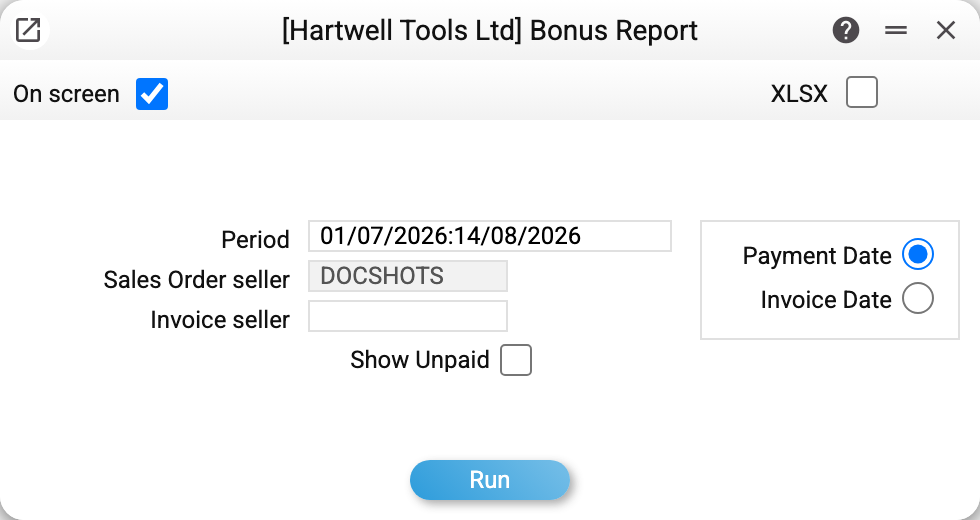
A worked example
In the frame above the report is set to count bonuses for 1 July – 14 August: the file will contain invoices that became fully paid within these days. The switch to the right of the fields decides which date matters:
- Payment Date (default): the report takes invoices that became fully paid within the period. The invoice itself may be a year old — if the last penny of the debt was closed this month, the bonus belongs to this month. The "Payment Date" column is the day the debt reached zero.
- Invoice Date: invoices issued within the period, regardless of payment. For each one the report still finds the full-payment date if it already happened.
The "Show Unpaid" checkbox adds invoices without full payment — their "Payment Date" column stays empty. Without it such invoices are dropped (in the "Invoice Date" mode this is easy to miss: an issued but unpaid invoice will simply not appear). Unapproved invoices never get into the report, in either mode and even with the checkbox: the bonus base is approved invoices only.
Credit notes are tracked as well. An invoice whose debt a credit note closed counts as paid. A credit note against an invoice counts as paid once that invoice's debt is closed — not earlier than the note's own date; a credit note without an invoice — from the date it was posted.
What is in the Excel file
Each invoice is a block of item lines (if the order was shipped with serial numbers — one line per serial number; the number itself is not printed):
- pay date, invoice number and date, customer;
- order number, order salesman and invoice salesman — both, so the bonus can be split;
- item, group, quantity, price and sales amount net of VAT, cost price and gross profit (columns "GP" and "GP %"; "GP %" is a number Excel sums and sorts).
Price, amount, cost and profit columns are visible only to roles with the "Show cost price" action — same as in the sales reports.
The "Show report on all bonuses" permission
The "Show report on all bonuses" action (code allBonusReport) is allowed by default: a role without a row for it sees anyone's bonuses. For a manager to see only their own, deny the action in their role explicitly — an action row with denyAll. Then the "Sales Order seller" field is locked to the current user, and the server substitutes their login whatever the request sends.
Common situations
The on-screen report is "empty". It never renders on screen — Excel only (see above).
An invoice exists but is missing from the report. In the "Payment Date" mode it is not fully paid yet (or was paid in another period). Switch to "Invoice Date" and tick "Show Unpaid" to see the full picture. An unapproved invoice will not appear even then — approve it first.
Amounts differ from the invoice. The report normalises prices to "net of VAT, base currency", so the numbers differ from the document. For revenue reconciliation use the Sales Report Detail; keep the bonus report for payment dates and the order-to-salesman link.