Users
Everyone who logs into the system does it through their card in the «Users» register. The card answers three questions: how the person gets in (login and password), what they are allowed to do (role and access) and what the system fills in for them on documents (location, price list, default client).
Where to find it: Modules → System → Registers → Users
The register lives in the System module. How the role, the default access and the companies work together is a separate article — «Access rights»; this one is about the card itself and the everyday situations around it.
A user is one per system, across all companies: which firms they can enter is decided by the «Companies» tab of their card, not by separate accounts.
A worked example
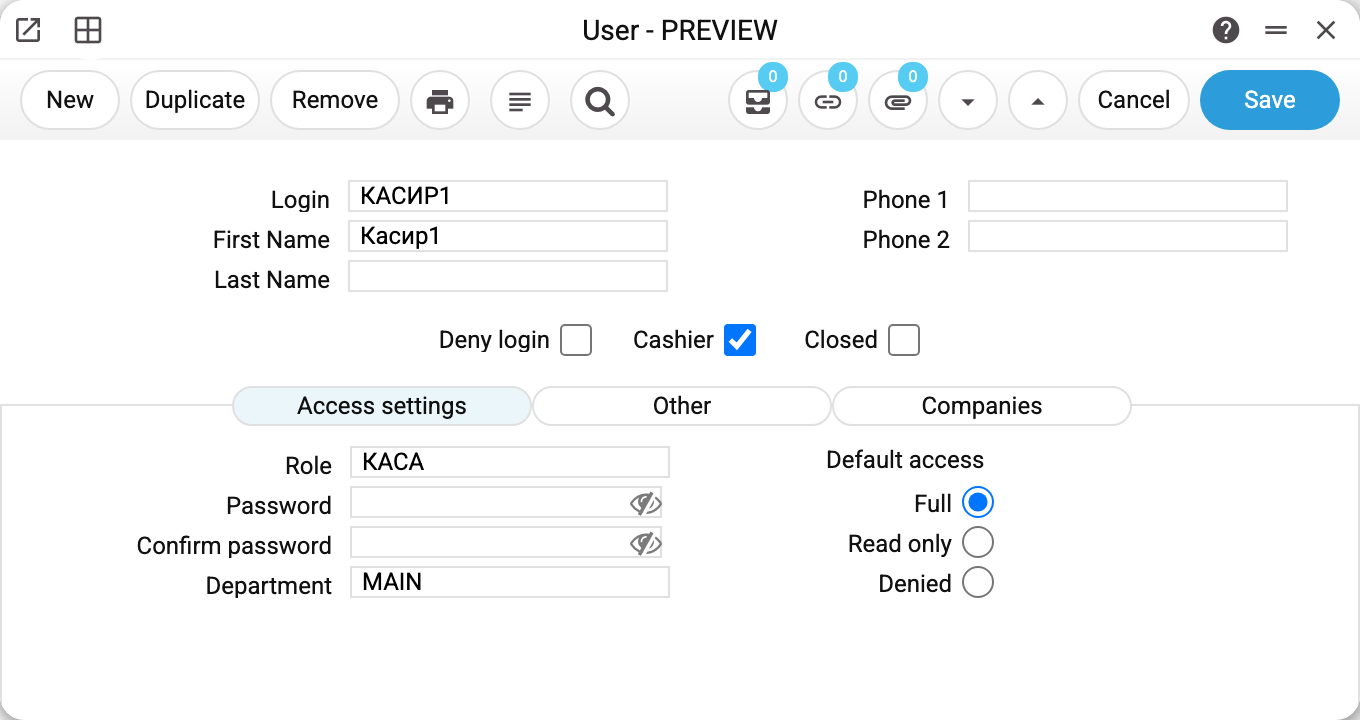
The frame shows a till cashier.
«Login» is the entry key: it is typed on the login screen and it signs the user's actions in the system. «First Name» and «Last Name» are what colleagues and customers see: documents, tasks and printed forms show the name, not the login.
The flags in the middle of the card are different things:
- «Deny login» — a temporary lock: the person cannot enter but stays «alive» in the reference data and can be named as responsible on documents. For a cashier the lock closes only the back office: they can still work at the till — this is by design, and such a cashier takes no licence seat. If the till was open at the moment of the lock, the cashier simply signs in to it again. To stop a cashier at the till as well, set «Closed»;
- «Cashier» — a POS flag: without it the till will not accept the user;
- «Closed» — the archive for those who left: login is closed for good, the document history is preserved;
- «Dashboard» — turns the tile dashboard on for the person; off by default.
Both blocking flags end all of the person's sessions at once — in the windows, at the till and over the API — and free a licence seat: the user limit counts only the alive ones, neither closed nor denied. A new password, a different «Role» and a different «Default access» end the sessions at once as well — whether set in the card or by an import file — and so do a different role or «Access level» on the «Companies» tab and a company added or removed there. To end the sessions without changing the card, use «Force logout» in the card menu. The person's next action gets the refusal «Your session has ended: your login, password or access was changed, or an administrator ended your sessions. Sign in again.»
The «Access settings» tab
Both permission levers live here: «Role» (КАСА for the cashier) and the «Default access» switch. The short rule: the role answers first, the default access is the background for whatever the role is silent about. The details, with role examples, are in «Access rights».
The password with its confirmation is set here too. The password requirements — length, mandatory digits or symbols, lifetime — are defined by the «Password Configuration» setting in the System module: when the lifetime runs out, the system itself asks the person to change the password at login. The till login does not check the lifetime: a cashier with an old password gets into the till — the change is requested at their next login to the regular windows.
«Department» is mandatory for the till's own account (the one the till signs in with; without a department the sign-in is refused with «User must have a department») — it tells the till which point it belongs to. A cashier does not need a department to sign in to the till.
«Till PIN» with its confirmation is a manager's separate code for approving a price or discount change at the till (Manager approval at the till): 6 to 12 digits, not a single repeated digit (111111) or consecutive digits (123456, 654321), and never equal to the login password — the till does not accept the login password, so a PIN seen at the till does not open the back office. Like the password, only its hash is stored: nobody can see the PIN afterwards.
The «Other» tab — what the system fills in for the person
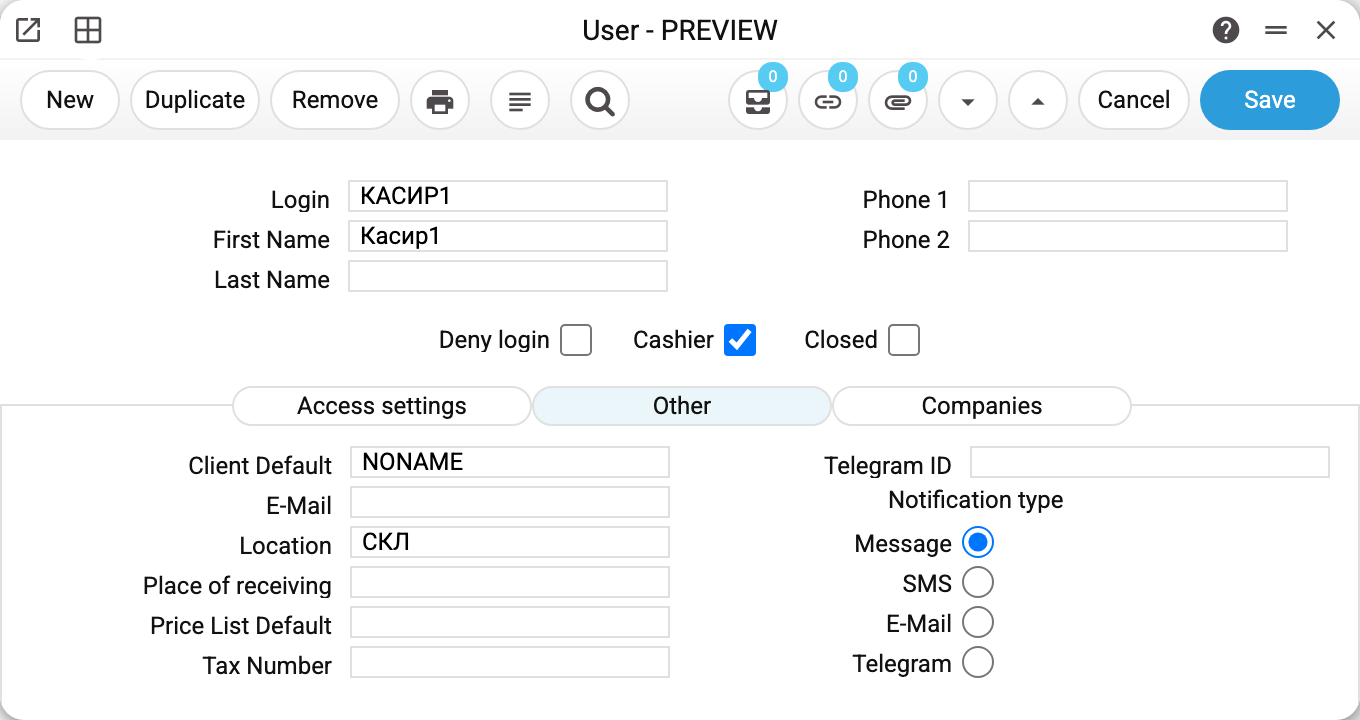
These fields save clicks: the system puts their values into the user's new documents automatically.
- «Client by default» — for the cashier it is CASH «Cash sale customer», the anonymous retail buyer: a till receipt does not ask who came in. For a manager serving one big customer it can be that customer.
- «Location» — which warehouse this person's documents will use. A till receipt is the exception: closing it puts in the warehouse of the TILL's card (the account the till signs in with), so a sale is written off from the point's warehouse, not the cashier's.
- «Place of receiving» — the same thing for service orders.
- «Price list by default» — which price list this user's invoices take their prices from.
- «Tax Number» — the person's tax number, needed where they appear on tax documents.
On the right — «Notification type»: how to deliver system messages to the person (internal message, SMS, e-mail or Telegram; Telegram needs the ID filled in).
The «Companies» tab
When there are several firms in the database: which companies the person can enter, where they land after login and what role they carry in each firm. Covered with a frame in «Access rights».
How to work with it
1. Create the card
Login, first and last name, password. The fastest start for a typical position is the «Duplicate» button on a similar user's card: the rights and the defaults get copied, and only the login, the name and the password remain to change (how the button works: Duplicating a document: what is copied and what is not).
2. Grant the rights
A role plus the default access — following the recipes in «Access rights». With several firms — fill in the «Companies» tab.
3. Fill in the defaults
Location, price list, default client — everything the person would otherwise pick by hand on every document. For a cashier the «Cashier» flag is a must; for the till's card — the department and the location.
4. Check with their eyes
Log in under the new login and look: the right modules in the menu, the right warehouse on documents, the right prices on invoices.
Common situations
The person forgot the password. A new password is set right on the card — by those who have the right to edit users. The old password is shown to no one.
A manager forgot the till PIN. Same as the password: a new PIN is set on the card, in the «Till PIN» fields. A new password cannot be made equal to the current PIN either.
An employee has left. The «Closed» flag. There is no need to delete the card — and while documents or settings of any company in the database refer to it, the system will not let you: it answers where the login is used, for example «A record of «User» is used in: Actions!», and on a second line advises closing the user. The history of their documents rests on the card, and the licence seat frees up by itself. Only a card created by mistake, which nothing refers to yet, can be deleted.
«Users limit exceeded!» when creating a document. The licence counts alive users: when there are more of them than allowed, the system does not let you create records (other than users themselves) and advises closing the extra ones. Close the ones who no longer work and the seat appears.
The person logged in and the menu is almost empty. That is permissions, not the card: look at the role and the default access. The typical complaints are sorted out in «Access rights».
Documents are signed CASHIER2 and you want a surname. Documents show the name from the card — fill in «First Name» and «Last Name» and the signatures become human.
The cashier cannot work with the till. Check the trio: the «Cashier» flag on the cashier's card, and on the till's card the «Department» filled in and the location («Other» tab): every receipt is written off from it.
You need to connect ERPJS to Claude or ChatGPT. Create a separate user for the assistant — one login cannot work in the system and via MCP at the same time. In its card, the menu item "Generate MCP token" (needs the right to edit users) shows the token only once — copy it right away. Generating again revokes the previous token, and "Force logout" cuts an already open connection at once. Step by step — in the article Connecting Claude and ChatGPT (MCP).
Field reference
| Field | Description |
|---|---|
| Login | The entry key; it signs the user's actions in the system |
| First Name, Last Name | What documents and tasks show |
| Phone 1, Phone 2 | The person's contacts |
| Deny login | A temporary lock: no login, the person stays in the reference data; a cashier works only at the till |
| Cashier | The POS flag |
| Closed | The archive: an employee who left, the history preserved |
| Dashboard | Turns the tile dashboard on for the person; off by default |
| Role | The position's set of rights — the «Roles» register |
| Default access | The permission background: Full / Read only / Denied |
| Password, Confirm password | Set and changed here; the requirements live in «Password Configuration» |
| Till PIN, Confirm till PIN | A manager's code for approvals at the till: 6–12 digits, not the login password; see POS settings |
| Department | The till point; mandatory for the till's account |
| Client by default | Filled in as the client on new documents (the cashier's is the retail CASH) |
| Location | The warehouse of the user's new documents; a till receipt takes the till card's warehouse |
| Place of receiving | The default for service orders |
| Price list by default | Where invoice prices come from |
| Tax Number | The person's tax number |
| Telegram ID, Notification type | The channel for system messages |
| The «Companies» tab | Which firms, which role and level in each — «Access rights» |