Service Item Status Report
What customer equipment is physically in the workshop right now, and where. The report walks the receiving locations and lists every unit with a non-zero balance: model, tracking serial number and location. It is an "inventory of other people's property": for each model you see how many of its units we are holding and at which location.
Where to find it: Modules → Service Orders → Reports → Service Item Status Report
The report lives in the Reports menu of the Service Orders module.
A worked example
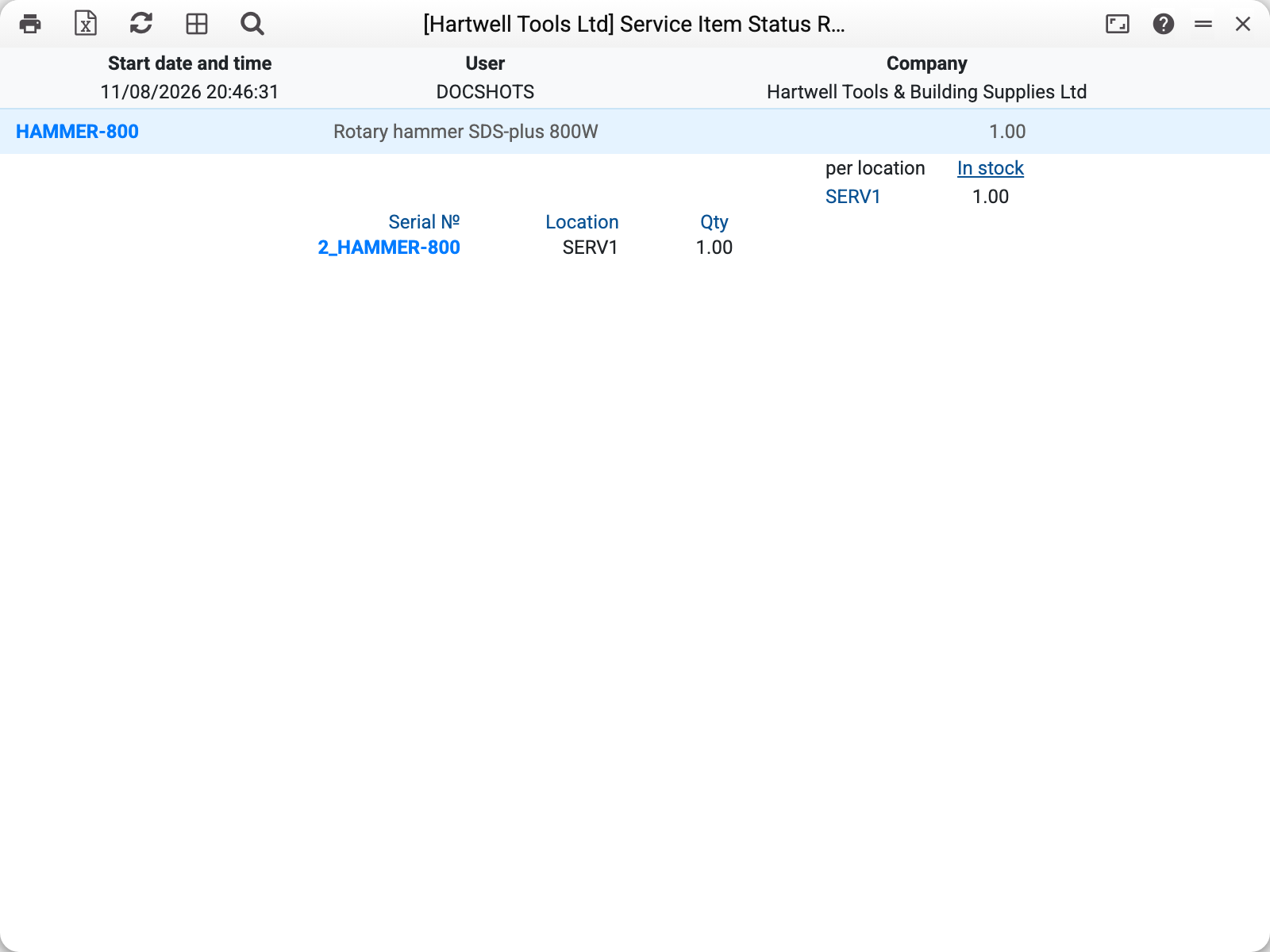
The report is grouped by model. The model line carries the code, the name and the number of its units on hand (there is no grand total across models); below it — how many sit at each location, and the units themselves. The tracking serial number is built as "order number_device code", so 2_HAMMER-800 is the rotary hammer received with order No. 2. Both are links: the code opens the device card, the serial number opens the order.
A device appears here when the "Device accepted" checkbox is set on the service order, and disappears after the "Gave out" or "Gave w/o paym." checkbox. Once the drill of order No. 1 was handed back to the customer, it left this list.
The "Service Item code" field narrows the report to one model. The device card's menu item "Service Item Status" does the same: it opens the report for that code straight away.
Common situations
The device was returned long ago but still shows up. The order was closed without the give-out checkbox — the balance on the receiving location is still hanging. Find the order by the tracking serial number and complete the give-out.
A device in repair is missing here. It has not been received with the checkbox yet — the order exists, but no stock movement was made. Or it is in transit between locations: the service stock movement is marked "Sent" but not yet received — until then the device is at no location.
The report is empty. The report has no check before running: a code that is not among the devices gives an empty report without a message — check the code on the device card. The window converts the code to capitals but compares it exactly, so a device whose code has lowercase letters is not found by code — neither from the field nor from the card's "Service Item Status" menu item. Such a device shows up in the report without the filter.
A device under someone else's name. The same code can sit on several cards (different brands). Then the report shows all units with that code under the first of the cards, with its name; the other cards are absent from the report.
Parameters
| Parameter | What it does |
|---|---|
| Service Item code | Show one model only; empty — all |