Prices
The numbers themselves live here: one row per «price list + item» pair. When a document looks for a price, it looks exactly here — the price list only says which row to look in and what the number means (with or without VAT, in which currency).
Where to find it: Modules → Prices → Registers → Prices
The register lives in the Prices module.
A worked example
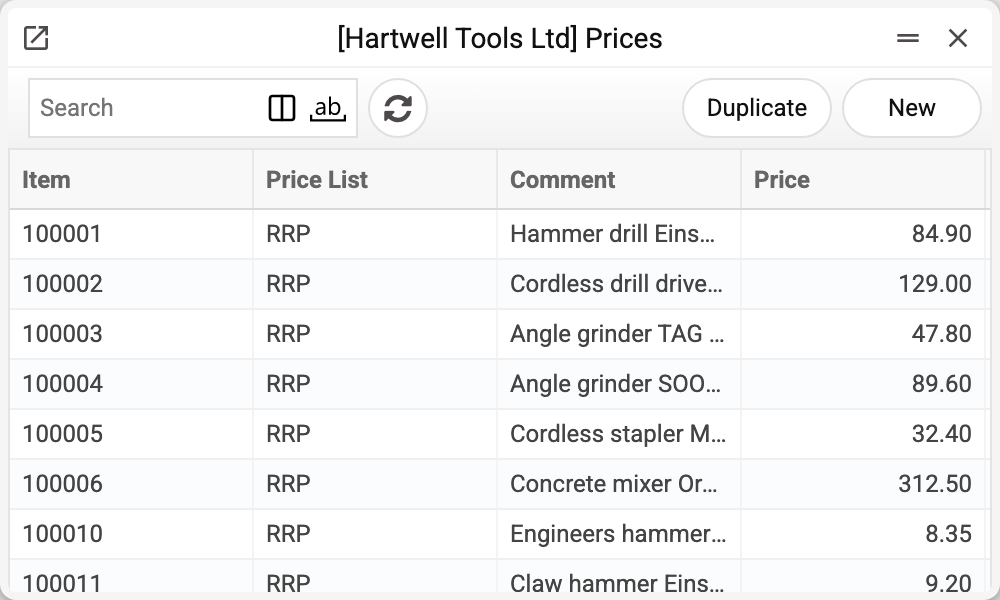
Every row is three main things: «Item», «Price List» and «Price». The safety helmet in the RRP list is 9.70 — a net price in GBP, because that is what the RRP list's VAT switch and currency say.
The same item can have any number of rows — one per price list: one price in the retail list, another in the wholesale one, a third in the promo one. And when there is no row for some list, documents take the base price from the item card — that is the normal fallback, not an error.
How a document finds the price
A document looks for the price when the item is entered into a row. The document's price list comes from the customer card, the customer's category or the payment terms — the details are in «Sales Orders» and «Invoices». Then the search goes step by step, for the document date (in Invoices — for the operation date, and without it — for the invoice date):
- Promo price lists — those whose «Replaces» field names the document's price list and whose «Period» covers the document date. The price is taken from the first one that has a row for the item; the list with the longer «Period» goes first, then the one that started earlier, then by code (details).
- The document's own price list — if the document date falls within its «Period»; an empty «Period» sets no limit. If the document's price list itself replaces another one, it too works as a promo: only within its own «Period», and beyond that the search continues with the same steps from the list it replaces. A price list with «Replaces» filled in and an empty «Period» never applies: its rows in «Prices» are never taken.
- The item card. No row for the item anywhere — the base price from the card is taken.
A price of 0 in a «Prices» row is still a price: the document takes 0, not the card price. If there is no price anywhere and the card says 0, a new row gets 0, while re-reading prices (see below) keeps the price already in the row.
How to work with it
A new price is a simple row: price list, item, number. Mass changes are convenient through «Duplicate» of an existing row or an import. «Prices» rows are also created and updated by the «Calculate Prices for Items» maintenance — from the formulas in the price list matrix. A price that must stay outside the formula (agreed or manual) is marked in the price window with the «Do Not Recalculate» checkbox: the maintenance will not change it, and the checkbox can be cleared at any time. The fastest check is a live document: put the item into a test order for a customer with this price list and see which price gets pulled in.
Common situations
The price was changed but documents show the old one. As it should be: a document takes the price when the item is entered into a row and keeps it. The new price goes into rows entered after the change. To re-read the prices of rows already entered, change the document's price list; changing the currency, the «Discount Matrix» field, the customer or the payment terms may re-read them too — the document articles say when. All rows are re-read, prices corrected by hand included. Changing the document date does not re-read prices, even if a different promo applies on the new date.
One price for all price lists. A row per list is still needed — or leave the item without rows at all, and everyone takes the base price from the card.
Is the number here with or without tax? That is decided not by «Prices» but by the VAT switch of the price list set in the document; if the document has no price list, by the invoice settings. The switch applies to every price in the document, wherever it came from — a promo list or the item card. So give a promo list the same VAT switch as the main one, otherwise its numbers will be read differently.
Field reference
| Field | Description |
|---|---|
| Item | The item or service code |
| Price List | Which price list the price belongs to |
| Comment | The item name — pulled in for convenience |
| Price | The number in the list's currency; with or without VAT — the document's price list decides |
| Do Not Recalculate | A manual price: the «Calculate Prices for Items» maintenance does not overwrite it |