Migrate order print templates to new tags
A one-off maintenance for the print templates of Sales Orders: it rewrites old tags to new ones in saved templates.
Where to find it: Modules → System → Maintenances → Migrate order print templates to new tags
A worked example
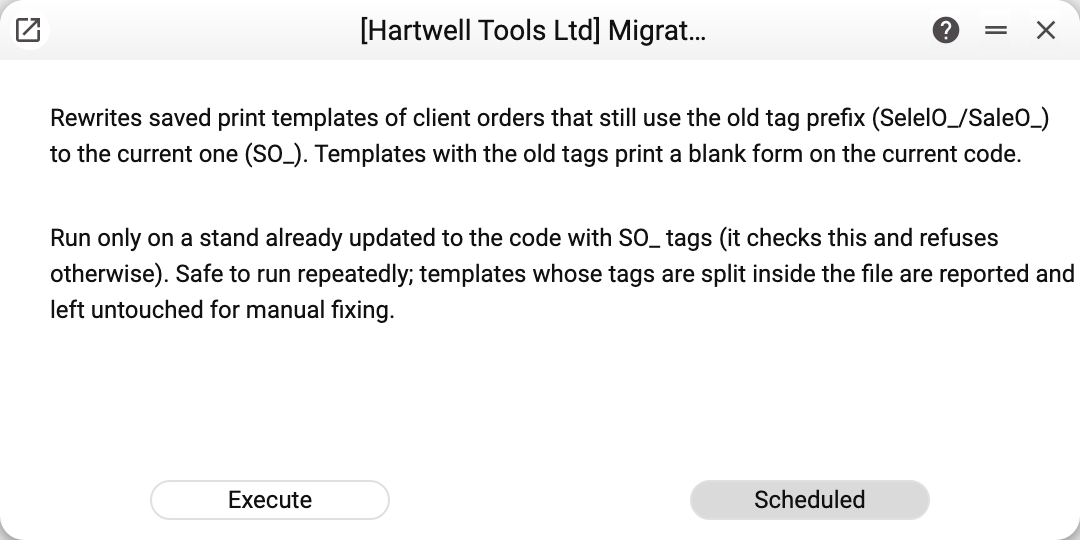
The window briefly says what the sections below say and has one working button, «Execute»; «Scheduled» is inactive. The window text calls them print templates of client orders — these are the same Sales Orders.
Why
On 19.08.2026 the print tags of Sales Orders were renamed: the SelelO_ prefix (and SaleO_) became SO_ — for example, {SelelO_No} is now {SO_No}. A template saved in Print Forms with the old tags prints a blank form on the new version: the fields it expects no longer exist under those names.
The maintenance changes only the tag prefix in saved templates. The rest of the template — text, formatting, tables — stays as it was. Only enabled templates are taken: a template ticked "Disabled" is left alone — if it has old tags, run the maintenance again after enabling it.
When to run it
Only on a database already updated to the version with SO_ tags. The maintenance checks this itself: on the old version it rewrites nothing — otherwise a rewritten template would print blank there instead — and shows the warning "The print tags in the code are still the old ones — no template was rewritten; update the stand first". Running it again is safe: a template without old tags is skipped. Scheduling is disabled for it.
Each template is saved separately: if a run breaks off halfway, the templates already rewritten stay rewritten, and the next run skips them. The maintenance cannot undo the change: a rewritten template is saved as a new file and the old file is deleted. If you need a way back, keep copies of your templates before running it.
What can happen to a Word template
Word sometimes splits a tag inside the file into pieces: {Selel in one place of the markup and O_No} in another — usually because of different letter formatting. The maintenance does not see such a tag as a whole.
To avoid leaving a half-migrated form (some fields new, some old), a template with at least one split tag is not changed; the maintenance names it in the run summary as needing a manual fix: open it in Word, retype the tag in one piece and upload the template again. In Excel templates this is rarer — a cell's text is usually stored in one piece — but they get the same check.
How to tell it worked
After the run the window shows how many templates were rewritten out of all those checked, and a separate line for each template it could not handle: the template file is unavailable, its tags are split, or the file is not a docx/xlsx yet has old tags. The first 10 such templates are named; the rest are counted in one line "...and … more". If there are such lines, an orange triangle replaces the green tick. More detail, including how many templates had no old tags, is in the server log. Then print a sales order with your template: the fields are filled in.
Where to look next
- Print Forms — where print templates live.
- Sales Orders — the document these templates print.
- System — all maintenances of the module.