Cash In
The document that records money received outside of a customer invoice: an unspent advance returned, an owner's contribution, money returned by an accountable person, cash drawn from the bank into the till. Invoice payments do not belong here — they are entered as customer payments.
Where to find it: Modules → Cash Book → Registers → Cash In
Until the document is approved it is a draft. The money "arrives" the moment you tick OK: the system creates the postings and the cash balance goes up. If an approval rule applies to cash receipts, the document has to be approved first — see "Common situations".
A worked example
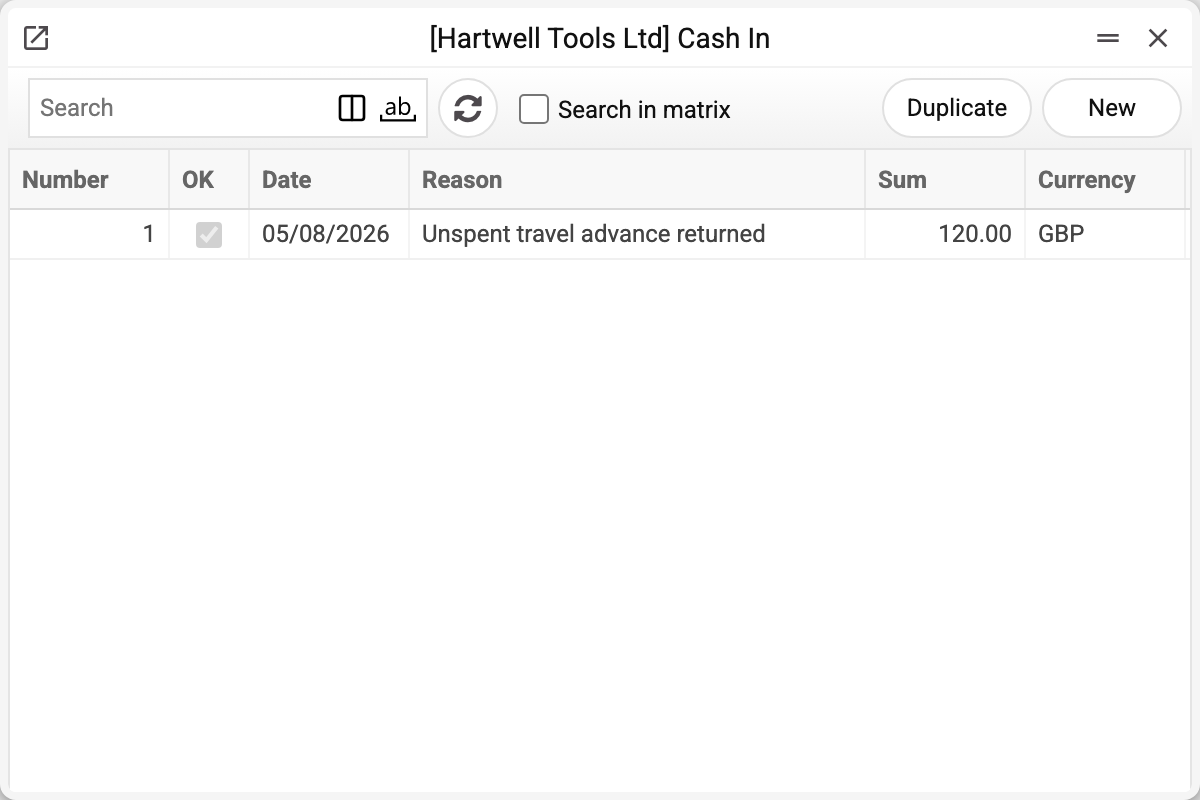
The list shows the number, the OK flag, the date, the reason (comment), the amount and the currency. Let us open receipt No. 1 of 05/08/2026:
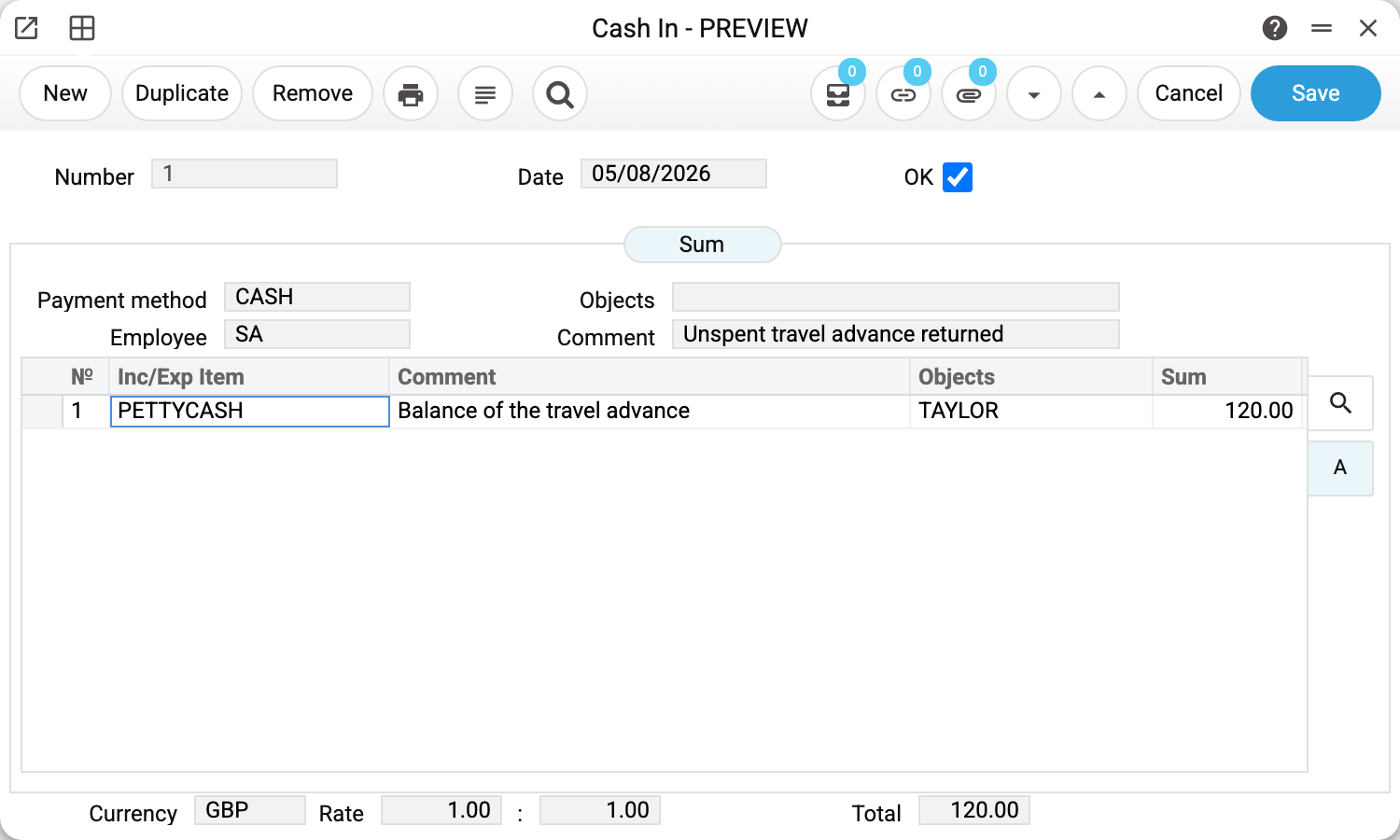
An employee returned the balance of a travel advance — GBP 120.00 in cash.
The header holds four things:
- Payment method — CASH. It decides where the money lands: every code in payment methods carries an account (301 — cash on hand, 311 — bank, card terminal). The field is mandatory. The chosen payment method fills in its own currency (with the rate for the document date) and adds its own objects to the header "Objects" — if they are set in it.
- Employee — who entered the receipt. When you work through the window the current user's login is filled in; you can pick another employee from the list.
- Objects — analytics for the whole document. They are merged with the row objects and carried into the postings.
- Comment — the reason. It is what you see in the list and in the cash in journal, so write it for a reader, not for yourself.
Under the date is the Planned payment field. The system fills it in when the receipt was created from a planned payment — in the payment calendar or from the menu of the payment itself; the field cannot be edited by hand. A saved receipt is linked to the planned payment: the link shows under the chain button in both. A duplicate of the document does not carry the number.
The table holds the receipt rows:
| Inc/Exp Item | Comment | Objects | Sum |
|---|---|---|---|
| PETTYCASH | Balance of the travel advance | TAYLOR | 120.00 |
The item is both the reason for the receipt and the account the amount will be posted to (see income/expense items). The chosen item fills in the row comment and objects from its card. The object refines the analytics — here, which employee returned the money. There can be as many rows as you need, each with its own item and amount.
At the bottom are the currency and the rate. In a document in the company's own currency they are ones; the rate starts to matter when money arrives in a foreign currency. The total is calculated by the system from the rows.
What approval does
Ticking OK creates a ledger transaction. For our receipt it looks like this:
| Account | Dr | Cr |
|---|---|---|
| 301 Cash on hand in national currency | 120.00 | |
| 372 Settlements with accountable persons | 120.00 |
The logic is simple: debit is the payment method account, credit is the item account. The money came into the till and the employee's advance debt was cleared.
Row objects, together with the header objects, are carried into both sides of the posting. If a row says TAYLOR, TAYLOR appears in the debit and in the credit — that way the analytics survives when the turnover is analysed. The exception is the object mask: if it allows only certain object types on an account, the system strips the others from that side of the posting.
The same holds for multi-row documents: each row produces its own pair of postings, with the cash account repeated in every pair. A row with a negative sum is a refund from the till: its debit and credit swap places, so the till moves by the sum of the rows with their signs.
Clearing the OK flag reverses the postings. Only a user with the "Can remove OK" right can clear it (see how to reopen a document for editing). In an approved document only the header "Comment" can be changed: edit it and save, no need to clear OK. Anything else: clear OK, fix, tick OK again.
Print variables
Values available in this document's printed form templates. How to write a variable in a template — see Print Forms.
Header fields:
| Variable | What it holds |
|---|---|
| CashIn_OK | OK |
| CashIn_Number | Number |
| CashIn_Date | Date |
| CashIn_PaymentMethod | Payment method |
| CashIn_Objects | Objects |
| CashIn_Comment | Comment |
| CashIn_Employee | Employee |
| CashIn_Total | Total |
| CashIn_CurrencyCode | Currency |
| CashIn_RateFrom | Rate |
| CashIn_RateTo | : |
Row fields:
| Variable | What it holds |
|---|---|
| MNo | Row position number |
| MComment | Comment |
| MCorspCode | Inc/Exp Item |
| MSum | Sum |
| MObjects | Objects |
Common situations
"Select the payment mode" — the payment method in the header is empty. Without it the system does not know which till received the money.
«Enter an object with type …» on approval — object control is configured for one of the posting's accounts, and there is no object of that type either in the row or in the header. An error on the row "Objects" means the item's account requires the type; on the header "Objects" field — the payment method account (till or bank). Enter an object of the required type in the row or in the header.
You ticked OK, but the document stayed a draft with "Confirmation request sent!". An approval rule applies to cash receipts: the system cleared OK, saved the document as a draft and raised a task for the approver. The document can be posted once the approver has approved it.
The document is approved but there are no postings. Check the transaction control settings: creating ledger entries for cash receipts is switched on there by a separate flag.
The receipt is missing from the cash book. The cash book is built from postings, not documents: an unapproved receipt never reaches it.
Money arrived at the till but there is no receipt document. That is normal: the till is also fed by other documents — customer payments, retail sales. A cash receipt is for money that has no invoice behind it.
Where to look next
- Cash Out — the mirror document;
- Income/expense items — where the row accounts come from;
- Cash In Journal — every receipt for a period, with its rows;
- Cash book — the cash balance and every movement, whatever document produced it;
- Payment Methods — which tills and accounts the company has.