Budgets
Income and expense plans per account: how much should pass through an account over a period, broken down by sub-period (usually by month). One record covers one account, one budget class and one period with its sub-period breakdown. Budgets do nothing on their own — they come alive in the financial report builder: the "Budget" comparison mode puts the plan next to actuals and shows the completion percentage.
Where to find it: Modules → Nominal Ledger → Registers → Budgets
Walkthrough
The annual revenue budget (account 702) for 2026 in the demo database:
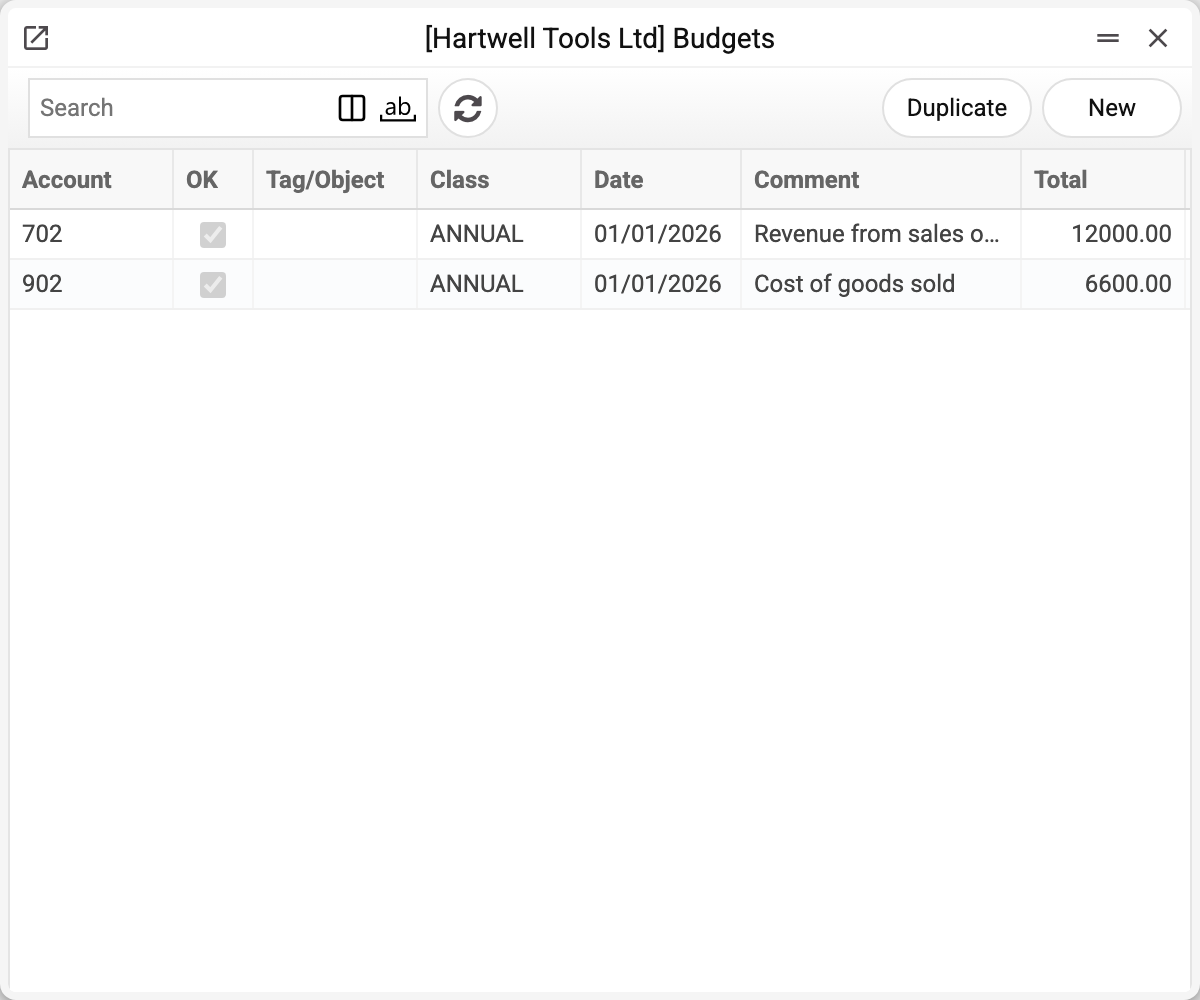
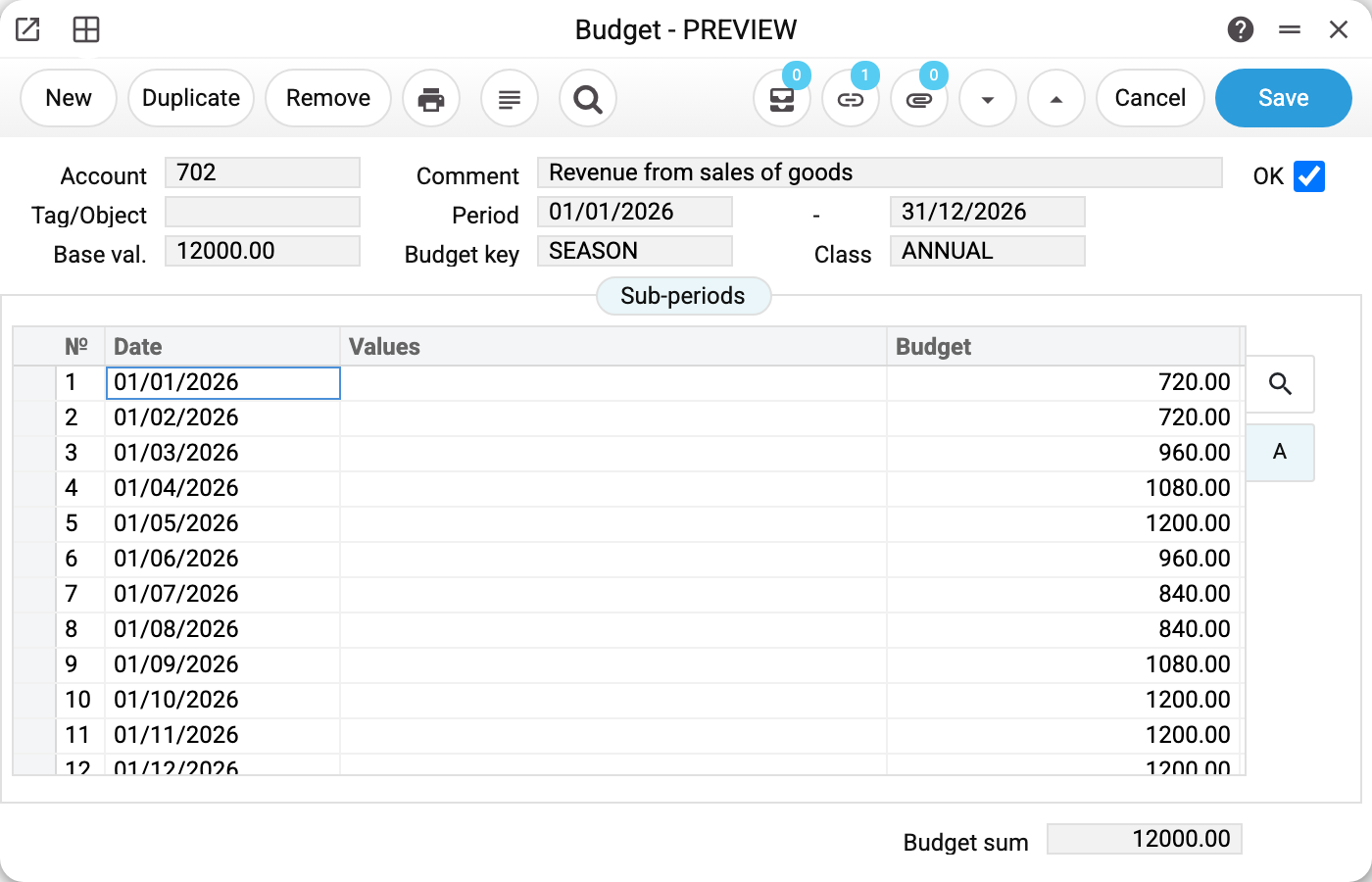
- Header: account 702, class ANNUAL, period 01/01/2026 – 31/12/2026, base value 12,000 and key SEASON.
- The "Sub-periods" tab holds twelve rows, one per month: January 720, May 1,200, December 1,200. The breakdown was computed by the budget key: base value × month share. "Budget sum" at the bottom totals the rows.
- The OK flag is set: the budget is approved, locked from editing (only the comment stays editable) — and that is exactly why reports can see it.
And here is the budget inside a report — the builder for 2026 with the "Budget" switch and class ANNUAL:
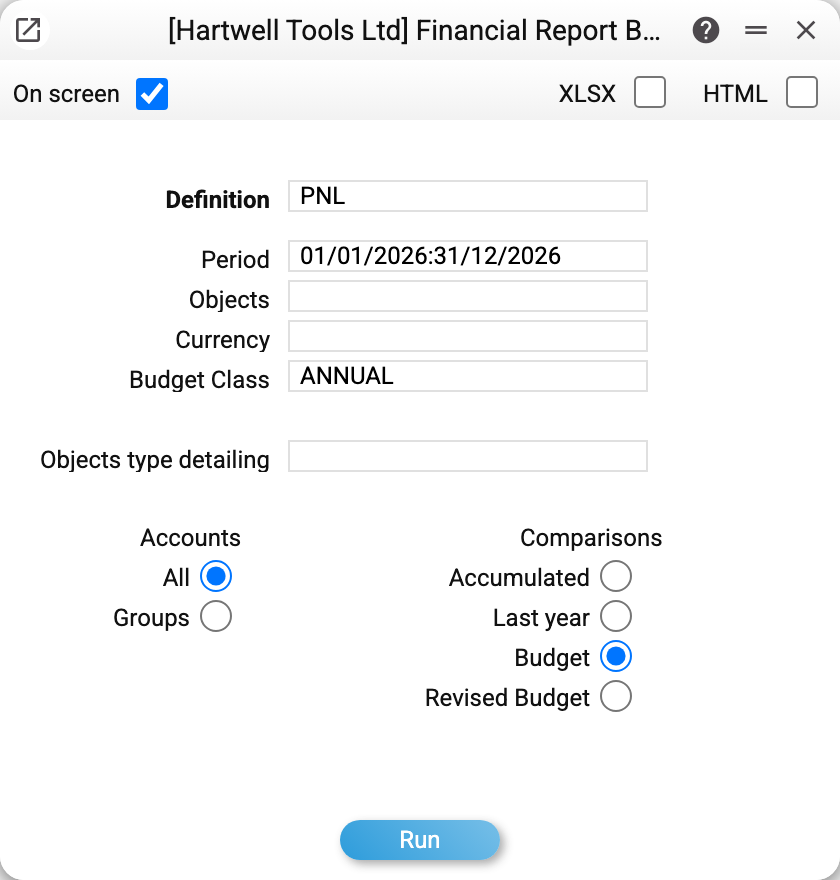
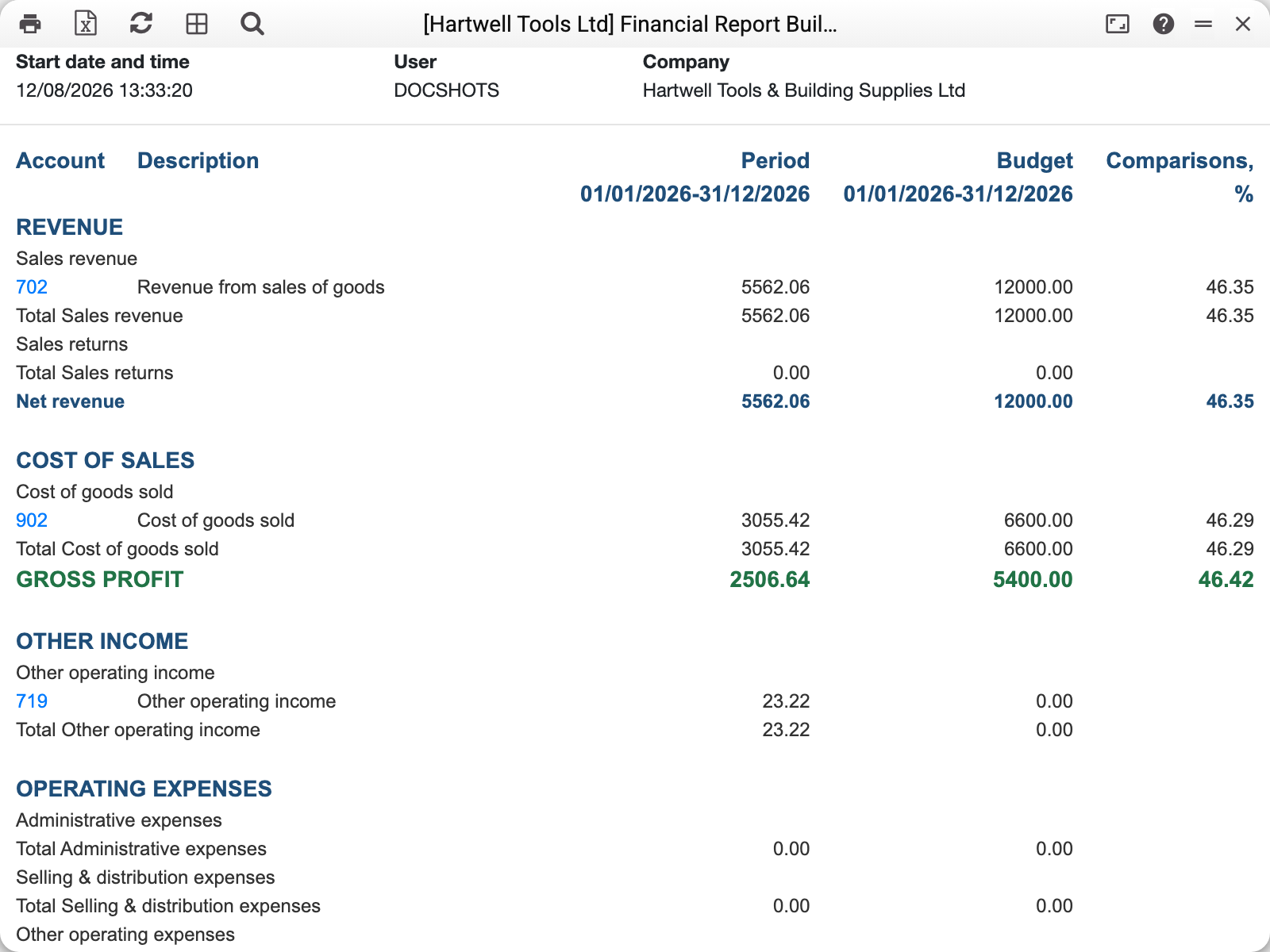
Row 702: actual 5,562.06, budget 12,000.00, completion 46.35% — the demo year is not over yet.
How a budget reaches the report
The comparison column reads sub-period rows of approved budgets, matching three conditions at once:
- the report row's account = the budget's account;
- the report's Budget Class field = the budget's class, literally: an empty field in the report means "budgets with no class", not "any class";
- the sub-period date falls inside the report period — so a half-year report shows the sum of six monthly rows, not half of the annual total.
If the report's "Objects" field is empty, the column takes the account's budgets for all objects together with the budget with no object: an overall account budget and department budgets for the same account and class add up there. Keep such plans apart with different classes.
A budget without the OK flag does not exist for reports. Enter amounts as positive numbers for both income and expenses: the side of each row is decided by the report definition (Active/Passive), not by the budget's sign.
Fields
| Field | Purpose |
|---|---|
| Account | Account from the Chart of Accounts; cannot be changed after saving |
| Comment | Account name, filled in automatically |
| OK | Approval: the budget becomes visible to reports and locked from edits — only the comment stays open |
| Tag/Object | Optional: a budget for a specific object — a separate plan per department or line of business |
| Period | Budget boundaries; every sub-period date must fall inside |
| Base val. | The total amount the key distributes |
| Budget key | Distribution key that spreads the base value across sub-periods |
| Class | Budget class — reports use it to pick which plan to compare |
| Sub-periods: Date, Values, Budget | Row date, manual adjustment (added on recalculation) and row amount |
| Budget sum | Total of the rows, read-only |
Card menu operations:
- Fill sub-periods — splits the period into equal chunks, one per key row, and computes each amount; the existing sub-period rows, together with the corrections in the "Values" column, are replaced by new ones. Dates can be edited afterwards — in the example above they are aligned to the first day of each month.
- Recalculate — recomputes amounts by the key over the existing dates: the first budget row takes the share of the first key row, the second the second, so there must be as many rows as the key has. The "Values" column is added to the matching row.
- Create revised budget — a mid-year plan revision: Revised Budgets. Only works on an approved budget.
Common situations
The budget column in the report is empty. Three usual causes, in order of frequency: the budget is not approved (no OK); the class in the report parameters does not match the budget's class (empty ≠ any); the report period does not cover the sub-period dates.
"A period intersects from a period of another budget". Only one approved budget may exist per account + class + object combination in a period. Need an alternative scenario — create it under a different class.
Need to adjust the plan mid-year. An approved budget cannot be edited (except its comment), and clearing OK just to edit is a bad idea — the historical plan disappears. The proper way is a revised budget: the original stays, and reports can compare against either.
"Approved budget cannot be deleted!" Only a budget without the OK flag can be deleted: clear the flag, save — then delete.
Quarterly budget, monthly report. Works: only sub-periods whose dates fall inside the report period are counted. But if the whole quarter sits in a single row dated the 1st — a monthly report shows either the full amount or nothing. The finer the sub-periods, the more precise the comparison.