Asset Commissioning
The service that puts a fixed asset on the balance sheet. Before it runs, the card is just a catalog entry: the purchase money sits on the capital investment account. The service posts "from capital investments to the type's balance account", stamps the "Used with" date on the card — and from that moment the object can be depreciated.
Where to find it: Modules → Fixed Assets → Maintenances → Asset Commissioning
Walkthrough
The "Maintenances" menu of the Fixed Assets module:
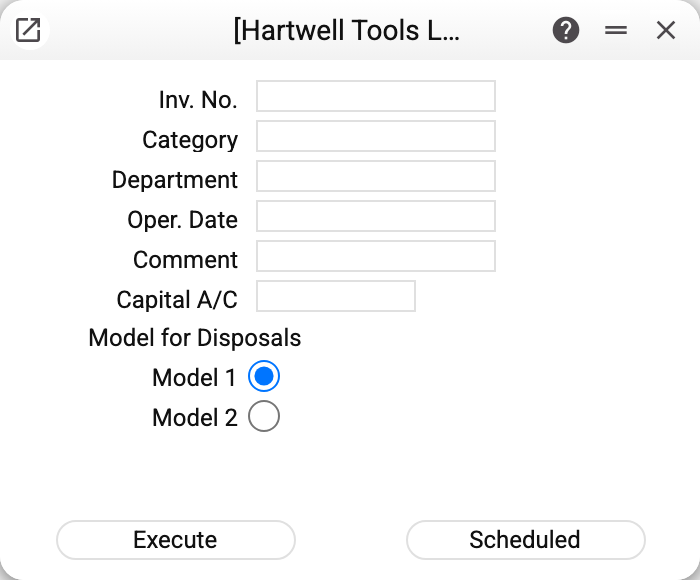
The window's fields:
| Field | What it does |
|---|---|
| Inv. No. | One object; empty — all uncommissioned |
| Category / Department | Without an inventory number — commission a whole category or department at once. With a number they do not filter: the category is ignored, and the department is written into the card if the card has none |
| Oper. Date | The posting date and the "Used with" date |
| Comment | Text for the created posting |
| Capital A/C | Which account to credit; empty — the account from the Assets Setting (152 in the demo) |
| Model for Disposals | "Model 1" or "Model 2" — which model to commission under (default — from the Assets Setting). Without a model the service refuses: "Specify the depreciation model: 1 or 2!" |
The "Execute" button is a one-off run; "Scheduled" defers it to a date/recurrence. A schedule does not reuse the window's date: each run takes its own day as the operation date — and therefore as the "Used with" date.
For the demo vehicle 20_1 the service posted Dr 105 Cr 152 for 250,000 (balance account 105 comes from the VEHICLE type) and stamped "Used with" 31/01/2024 — visible on the card's "Models" tab.
What exactly happens
- The service collects objects by the filter that have no commissioning posting of the chosen model yet.
- For each — a posting into Transactions: Dr the chosen model's main account from the type, Cr the capital investment account, amount = value × quantity (the service treats an empty or zero quantity as 1 and writes it into the card that way). Model 1's posting is "Assets Expl", model 2's is "Assets Expl 2".
- The card receives the chosen model's "Used with" date = the operation date (on the "Models" tab, in that model's column) and that model's residual value; the asset history gets a commissioning entry.
The models are independent: each has its own commissioning date, residual value and posting. Model 2 can be commissioned after model 1 — even with a different date.
A repeated run cannot double an object: the service will not create a second commissioning posting of the same model for the same object. An object whose card already has this model's "Used with" date also counts as commissioned, even without a commissioning posting (for example, after a data migration): otherwise the charged depreciation would be overwritten by the full cost. To commission such a card anew, clear the date in the card first. With an inventory number it refuses with "Fixed asset have already been commissioned!"; without one such cards are simply skipped, and the run ends with the summary "Commissioned: N, already commissioned earlier: M, errors: K" listing the cards that failed and why — one card's error does not stop the others.
An operation date inside a period closed in «Closing changes» by the "Assets Expl" row (or by the general date when that row is empty) is refused with "Period closed!".
Common situations
"Execute" finished but there is no posting. Check the run summary: most often the object is already commissioned under the chosen model ("already commissioned earlier"). The "Closed" flag has nothing to do with it: the service does not check it and commissions a closed card too. The runner-up: that model's main account is missing on the asset type.
The credit went to the wrong account. Selection order: the window's "Capital A/C" field → the Assets Setting. The window field overrides the setting.
Commissioned with the wrong date. There is a reverse service, "Delete asset commissioning" — it removes the chosen model's posting and clears its date; then commission again with the right date.