Stock Movements
The goods are in the company, but not where they are needed. A stock movement is the only document that carries them from one location to another.
Where to find it: Modules → Stock → Registers → Stock Movements
It neither sells nor buys: the total quantity in the company does not change, no money moves, nobody owes anything afterwards. Exactly one thing changes — where the goods are held. So the document answers three questions:
- which location holds the goods — the balance leaves one location and appears in another;
- what they cost — the cost travels with the goods instead of being assigned again. A batch bought at 19.60 stays a batch at 19.60 in the new location;
- from which day — the document date, not the day somebody got round to typing it in.
The document lives in the Stock module. It is created by hand or from an internal order — a request "bring these items from that location to this one": the "Create stock movement" menu item in the order window fills in the locations and the rows for the remainder of what was ordered.
What approval does
- decreases the balance in the location from «From Location»;
- increases the balance in the location from «To Location»;
- carries the batches over by FIFO — in the new location the goods sit in the same batches at the same cost they left with;
- posts a transaction between the stock accounts. Not always: transaction generation for movements can be switched off in the «Records from Subsystems» setting, and there is nothing to post when the batches came in at zero cost.
A worked example
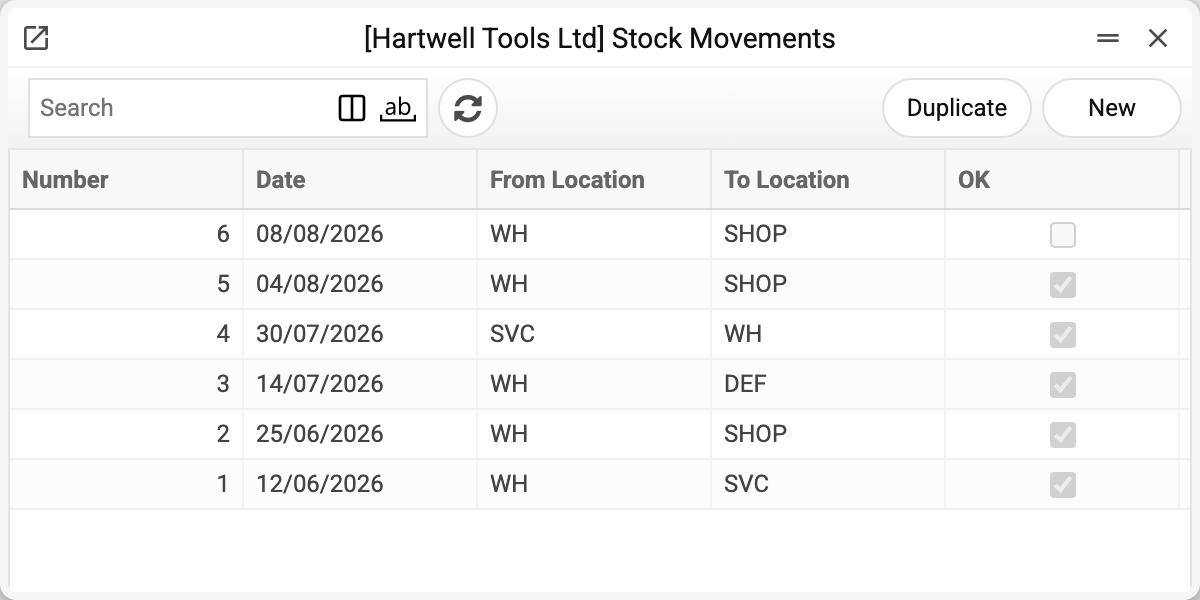
The journal shows the direction of every operation at a glance: "From location" → "To location", the date and the OK tick. A row without the tick is a draft: the goods still sit at the sending warehouse and no balance has moved.
The shop floor needs hand tools, so part of the stock leaves the main warehouse.
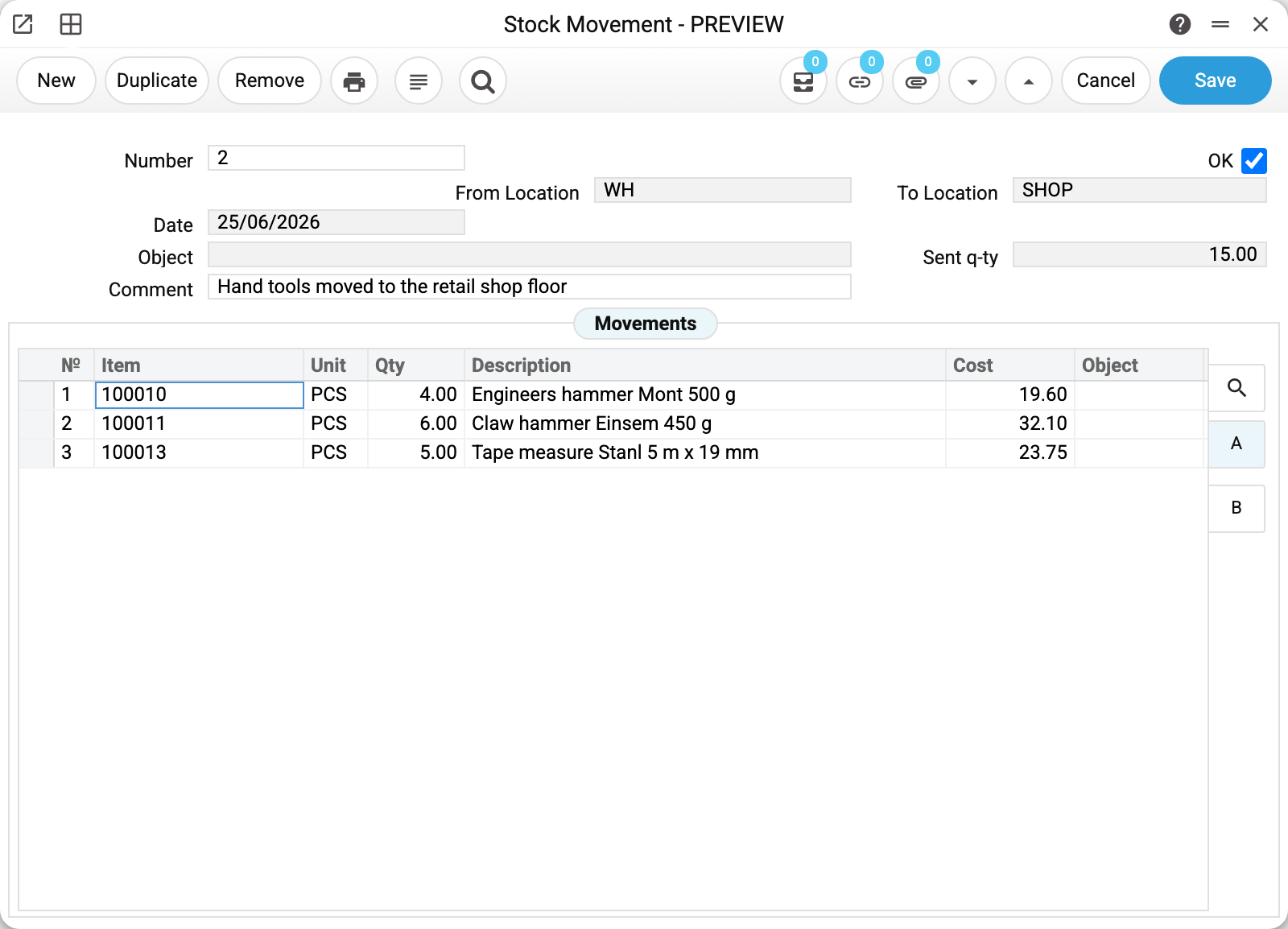
The header is short, and every field in it decides something:
- «From Location» WH and «To Location» SHOP — where the goods left and where they arrived. Both locations must exist in the Locations register: you cannot type a free-text name here;
- «Date» 25/06/2026 — the day the goods start counting in the new location. This is the day of the actual handover, not the day of the paperwork;
- «Sent q-ty» 15.00 — the sum of the line quantities: four engineers hammers, six claw hammers and five tape measures. The field is calculated, not typed;
- «Comment» — the only place where the reason survives. Six months later «Hand tools moved to the retail shop floor» explains the document; an empty comment explains nothing.
Lines
- «Item» and «Description» — the code and the name, pulled from the item card;
- «Qty» and «Unit» — how many units travel;
- «Cost» 19.60 — this is where people slip. It is the cost of the whole line, not the price of one unit: four hammers at 4.90. In a goods receipt the column carries the same name but means the unit cost. When you reconcile the two documents over one batch, look here first;
- «Serial No.» — for serial-tracked items the numbers go into the line, and it is those exact units that arrive at the new location.
What changed after approval
Warehouse WH is four hammers, six hammers and five tape measures lighter; the shop floor is exactly that much heavier. The cost did not move: if a hammer is sold from the shop tomorrow, the shipment will show the same 4.90 that the goods receipt put on it. The total value of the company's stock did not change either — the goods simply relocated.
What the document posts
The goods moved and no money did, so the transaction only shifts value from one stock account to another: the stock account of the receiving location is debited, the stock account of the sending location is credited. You can see it in the Transactions register under the document number:
| Dr | Cr | Amount | For what |
|---|---|---|---|
| 201 | 201 | 19.60 | four engineers hammers |
| 201 | 201 | 32.10 | six claw hammers |
| 201 | 201 | 14.25 | three tape measures, first batch |
| 201 | 201 | 9.50 | two tape measures, second batch |
There are as many rows as there are batches, not as there are lines: the five tape measures came onto the warehouse in two deliveries, so they leave in two rows. The total 75.45 equals the value of everything moved, and it is the same on both sides — the company's stock is worth what it was worth.
Where the accounts come from
Both sides here resolved to 201 «Raw materials and supplies», but that is not an attribute of the movement. The document stores no accounts and does not ask you for them — it looks them up at the moment of approval, separately for every line, in this order:
- the item card — if it names an account, that one is used;
- the item group — asked only if the card is empty;
- the location card — if the group is empty too;
- the general account settings — the last link, if nothing above names an account.
The last link is the general setting «Account Usage», the «Stock» tab, the «Cost Items Acc.» field. It is rarely reached: usually an account is named higher up the chain. But if the item is new and no account is set anywhere, the document still posts — the whole value simply goes to the general stock account, and you find out from the reports.
Three consequences are worth remembering. The debit and the credit differ only when the location decides the account: neither the item card nor its group names one, and the two locations have different accounts. If the item card or its group names an account, it is used on both sides and the transaction runs inside that one account whatever the locations are; the same happens when both locations resolve to the same account, as here. The difference then shows up in the analytical objects rather than in the balance. And two movements that look identical can post differently, if they carry different items or if the accounts on the cards were changed between the two approvals.
How to work with it
1. Create the document
Stock module → «Stock Movements» register → «New».
2. Set the locations and the date
«From Location», «To Location» and «Date» — the document will not save without them. Check that the locations are not swapped: that mistake surfaces when the goods cannot be found where they are expected.
3. Fill in the lines
Item and quantity. The cost is taken from the batches of the source location — you do not type it in.
Enter the code of a set and, once the quantity is in, the system replaces the line with its components: it is the items that move, not the set. The components are marked "↳" before the code; the set code in the "Set" column is visible only when the box that shows this column is ticked in the items setting.
4. Approve
OK and save. The balances have moved, the transaction is posted.
How to be sure the document is right
- The locations in the header are not swapped: «From Location» is where the goods actually left.
- Only what physically lies in the source location is moved. Check the balance before approving.
- «Sent q-ty» matches what was actually handed over.
- The date is the day of the handover, not the day of the paperwork.
- The comment explains why, instead of repeating the location names.
- Serial-tracked items carry their numbers in the lines.
Print variables
Values available in this document's printed form templates. How to write a variable in a template — see Print Forms.
Header fields:
| Variable | What it holds |
|---|---|
| Ok | OK |
| Number | Number |
| Trans_Date | Date |
| From_Objects | Source warehouse objects |
| To_Objects | Destination warehouse objects |
| Objects | Object |
| Comment | Comment |
| Total_Sent_Qty | Sent q-ty |
| From_Code | Source warehouse code |
| From_Acc | Source warehouse account |
| From_Name | Source warehouse name |
| To_Code | Destination warehouse code |
| To_Acc | Destination warehouse account |
| To_Name | Destination warehouse name |
| Total_Ord_Qty | Ordered quantity |
| Total_Qty | Total Qty |
Row fields:
| Variable | What it holds |
|---|---|
| No | Row position number |
| Item_Code | Item |
| Qty | Qty |
| MObjects | Object |
| Description | Description |
| Cost | Cost |
| Serial_No | Serial No. |
| Unit | Unit |
| Unit_Name | Unit name |
The records the document refers to through its form fields (location, customer, currency…) also expose the rest of their variables — code and name are already listed in the tables above, the rest is described in the register's article:
- Company details — name, addresses, bank accounts, officers, the printing user: Main Company
Common situations
Wrong location, and the document is already approved. You cannot simply clear OK: stock documents are not un-approvable by default, it takes a separate permission granted by the administrator. The usual way out is a movement back and then the correct one. Both operations stay in the books, which is more honest than rewriting a document after the fact.
No transaction after approval. That is by design in two cases: either the «Stock Movements» box is cleared on the «Logistics» tab of the «Records from Subsystems» setting (the document is then approved with no transaction and no warning), or there was nothing to post — the batches entered stock at zero cost. The second usually means the zero cost was already in the goods receipt, and that is where to look.
The goods have to go to another company, not another location. A movement cannot do that: it lives inside one company. Between companies this is a sale and a purchase, with documents on both sides.
Part of the batch travels, part stays. A normal case: the line carries the quantity that actually travels. The rest of the batch stays in the old location at its own cost.
Field reference
Header
| Field | Description |
|---|---|
| Number | Document number, assigned automatically |
| Date | The day the goods start counting in the new location |
| From Location | Source location |
| To Location | Destination location |
| Object | Analytical objects of the document |
| Sent q-ty | Sum of the line quantities, calculated by the system |
| Comment | Why the goods were moved |
| OK | Approval: moves the balances and posts the transaction |
Item lines
| Field | Description |
|---|---|
| Item, Description | Code and name of the position |
| Qty, Unit | How many units are moved |
| Cost | Cost of the whole line, taken from the batches of the source location |
| Serial No. | Serial numbers for individually tracked items |
| Object | Analytics of the line |