Price List Report
The printable face of a price list: items with their prices, ready to show a customer or to check after a recalculation.
Where to find it: Modules → Prices → Reports → Price List Report
A worked example
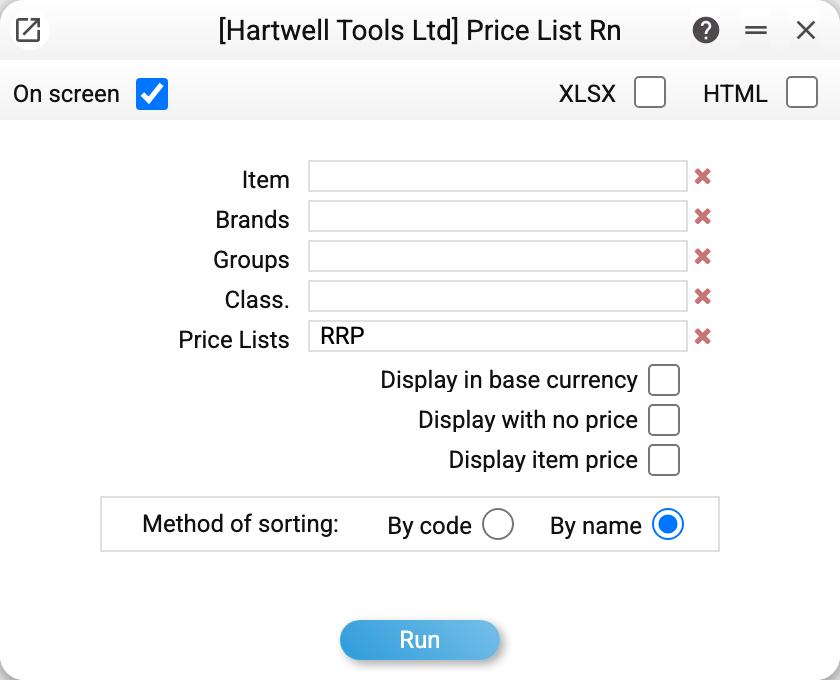
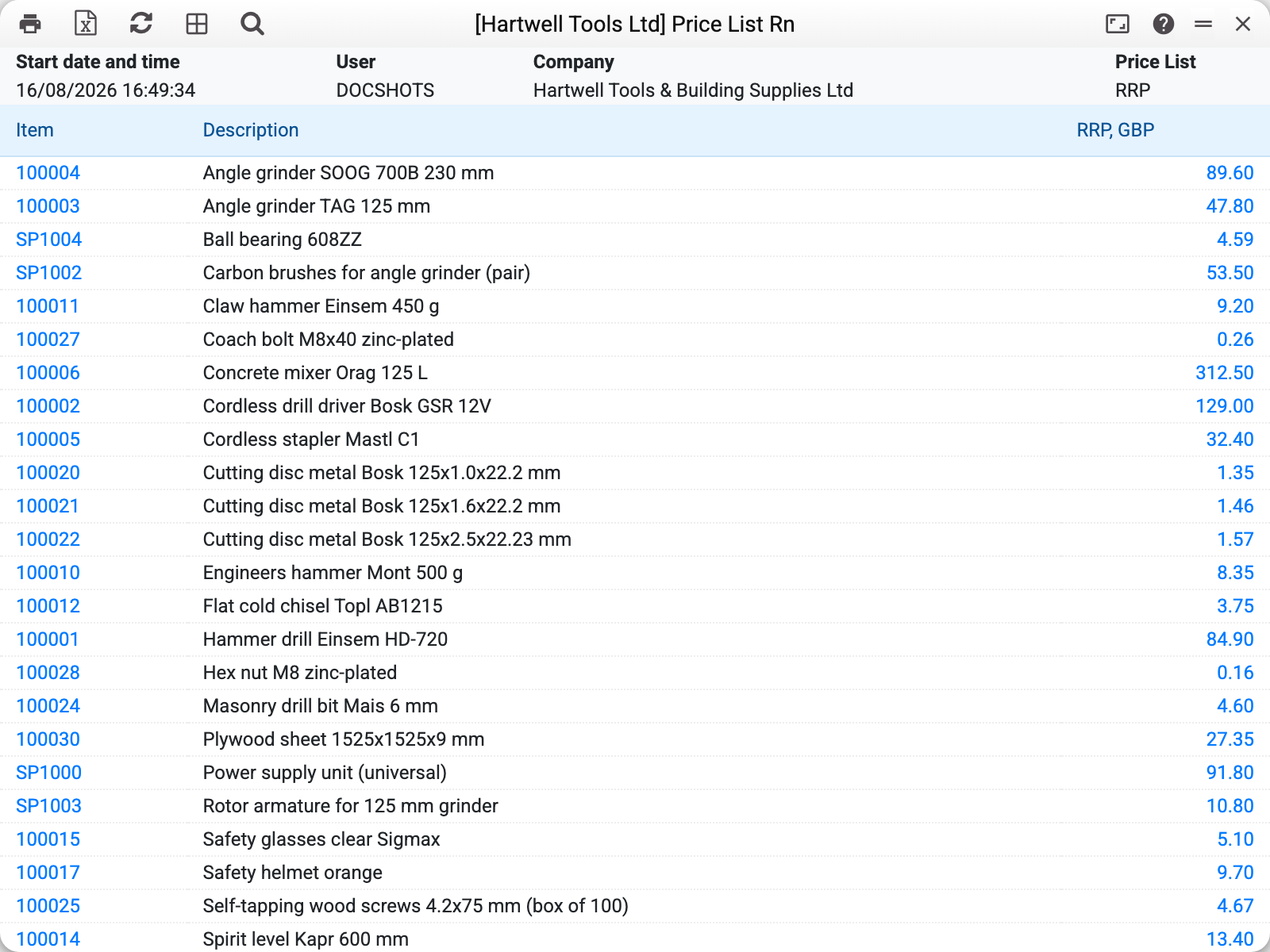
The parameters offer five ways to narrow the selection: a specific item, a brand, an item group, a classification and a price list. Empty fields mean the whole list. Three checkboxes control the content: convert prices to the base currency, show items with no price, add the item's own price column. The switch at the bottom sets the row order — by code or by name.
The common case is picking one price list and printing it for a customer or a sales point.
Why you run it after recalculating prices
The price calculation service works silently: it updates thousands of rows and shows nothing of the outcome. This report is how you see the result with your own eyes before the list goes out. The most useful rows are the extremes — cheapest and dearest — because that is where a formula error shows immediately.
Typical situations
An item is missing from the report. It has no price in this list and "Display with no price" is off — check the item's price group and the list's rows, or tick the box.
A price is not what you expected. Look at the price-list formula: rounding and the second addition are applied after the percentage.
A price list is needed for a mailing. Export the report to a spreadsheet with the export button.
Where to look next
- Price lists — the structure of a price list.
- Price calculation — the service that fills these prices in.