Printing a document
A customer invoice, a delivery note, a work certificate, a warranty card — all of them are printed the same way: open the document and click the printer button. The system builds a ready file from a template, and from there you save it, open it as PDF, or send it to a printer the usual way.
There is no separate "Print" menu item, and documents cannot be printed from the list either. You print the open record — one document at a time.
Where the button is
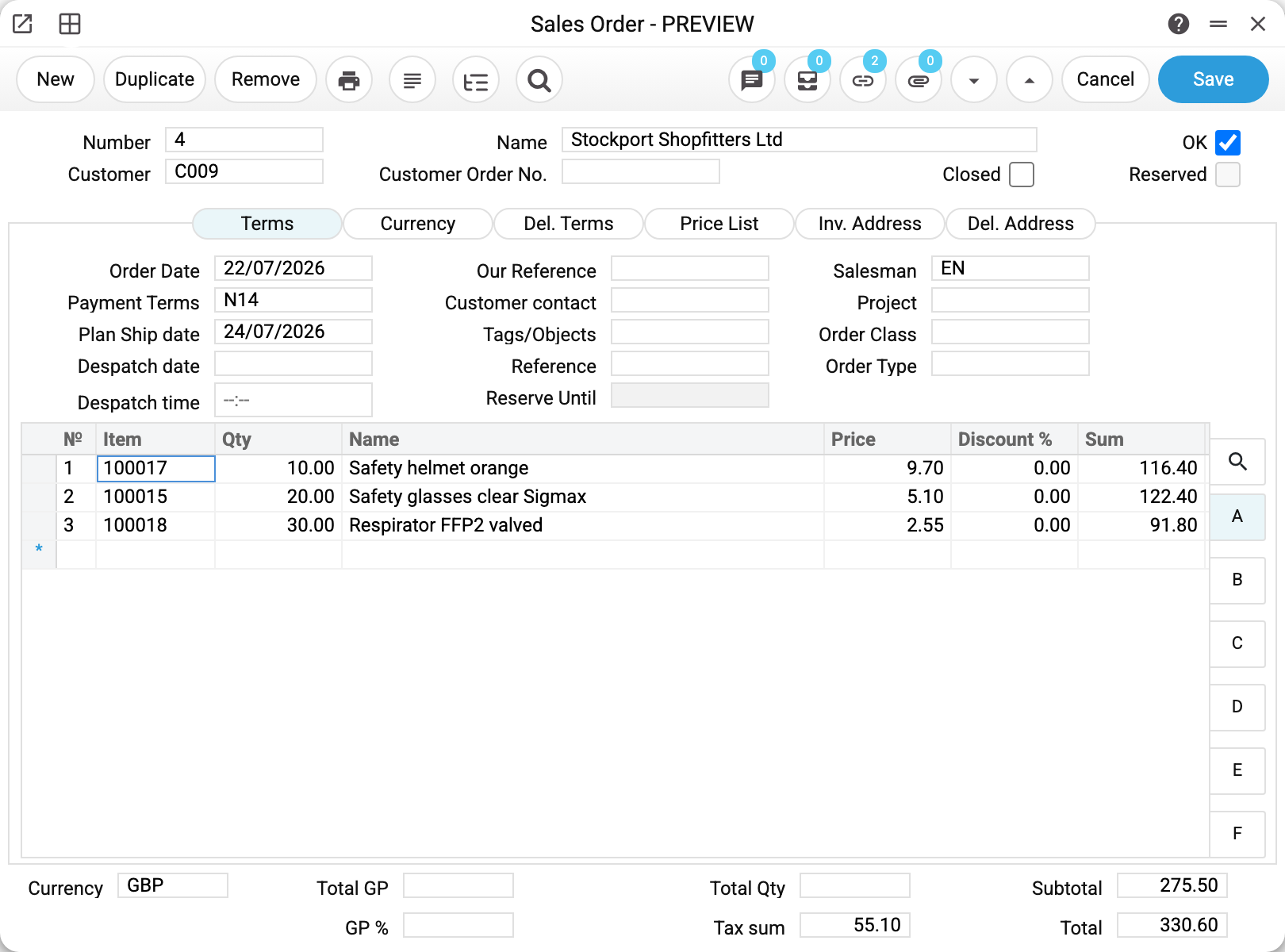
The printer button sits in the record header, fourth from the left — after "New", "Duplicate" and "Delete". It works both for a draft and for an approved document: printing changes nothing in the data, so OK is not required for it.
The form selection window
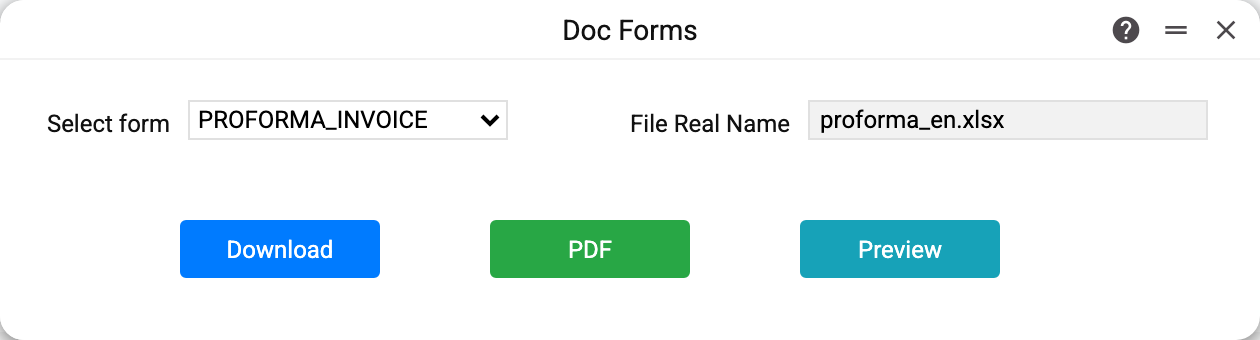
Clicking the button opens a small "Print Forms" window. It contains:
- "Select form" — the list of forms created for this document type. The first one in the list is already selected; the order comes from the form's priority — a number with up and down arrows in its record.
- "File Real Name" — the name of the template file the document will be built from. The field is read-only; the extension tells you what you will get — an Excel sheet or a Word document.
- Three buttons at the bottom.
"Download" — the file is saved to your computer in the same format as the template: .xlsx for Excel, .docx for Word. The system builds the file name itself from the form name, the register name and the document number — for example PROFORMA_INVOICE_Sales Orders_1.xlsx. Choose this when the document has to be edited by hand before it goes to the customer.
"PDF" — the same document, but straight to PDF in a new browser tab. From there you print it with the usual keyboard shortcut or save it. This is the normal path when nothing needs editing.
"Preview" — a preview in the Microsoft online viewer. The viewer is an external service: to display the document it downloads the file from your server. If the system runs inside a local network and is not reachable from outside, the button will open a blank page — that is not a fault but a consequence of the closed access. Use "PDF" instead.
Where the forms come from
A print template is not part of the program but a record in the Print Forms register of the System module. One template — one record: a Word or Excel file with variables such as {Number} or ${Customer} written into it, which the system fills with the document data. Which variables a particular document offers is listed in its own article, section "Print variables".
A form is bound to a register: a form for a sales order will not appear in an invoice. Beyond the register, the form record decides who exactly will see it:
| Form field | Who sees the form |
|---|---|
| "User" | this user only; empty — everyone |
| "Department" | this department only; empty — everyone |
| "Access Group" | this role only; empty — everyone |
| "Language" | documents with this language; empty — any |
| "Disabled" | the form is shown to nobody |
So it is perfectly normal for two employees to see different lists of forms: the salesperson has their own blank, the accountant has theirs.
If there are no forms
The first attempt to print almost always runs into this: nobody has created a template for this document yet. The system does not say "no forms" — it offers to create one right away and opens an empty "Print Forms" record with the "Register" field already filled in. That is convenient for an administrator, but confusing for a regular user: they clicked "print" and got an unfamiliar setup window.
An employee without the right to create records will see a message instead:
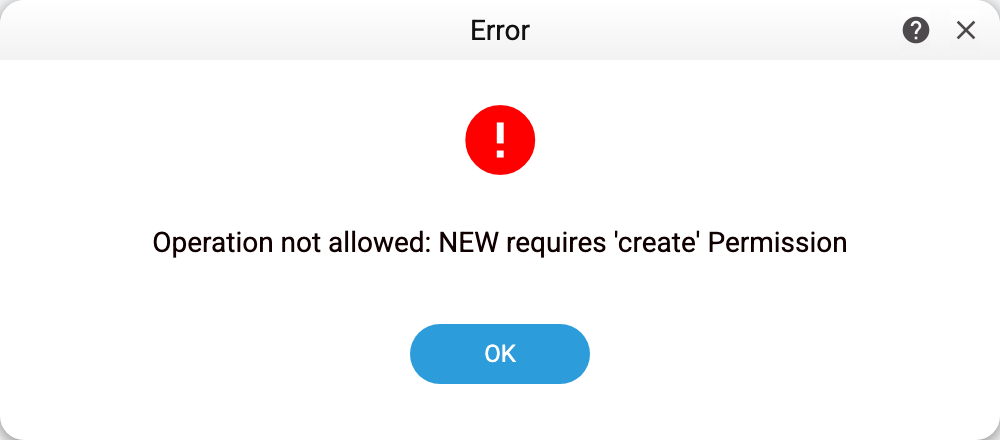
It reads as follows: "there are no forms for this document, and you are not allowed to create one". Nothing needs to be configured or searched for — ask the administrator to upload a template; access rights have nothing to do with it.
The second message of the same family is "The print form is not set up! To customize the print form for this document, please contact your administrator". That one means something different: a form is selected, but no set of print variables is described for this document type, so there is nothing to substitute into the template. That is developer work, not a setting.
Which language the document is printed in
The print language is set by the template itself: the words "Invoice", "Total", "Signature" live inside the Word or Excel file and the system does not translate them. If you need a Ukrainian blank, you need a Ukrainian template as a separate record in Print Forms.
When there are several blanks, they are told apart by the "Language" field in the form record: the system shows the forms whose language matches the "Language" field of the document itself, plus all forms with no language specified. That way one customer gets a Ukrainian printout and another an English one, without switching the interface.
The interface language has no effect on printing at all. An English interface with a list of Ukrainian templates is a normal sight if the blanks were created in Ukrainian.
What is printed elsewhere
- Reports — from the report window: the result is exported to Excel with its own button, there is no printer button there.
- Till receipts — the strip is printed by the receipt printer from its own template: Sales Orders Receipts, Printers, Print queue. It has nothing to do with the invoice on paper.
- Labels and price tags — from the item record, using an item label template: those are printed in batches, not per document.
- Nova Poshta waybills — with their own button in the delivery document, see Shipping with Nova Poshta.
Common situations
"I clicked print and a window with fields and a save button appeared." That is a new print form record: no templates exist for the document yet. Close the window and ask the administrator to create a form.
"We printed yesterday, but today an empty form record opens instead of the form choice." No form is left for you: it may have been disabled ("Disabled" in its record) or restricted to a particular user, department or role — then nobody else sees it. A single form out of several disappears the same way.
"The file downloaded but contains field names in braces instead of data." The template was built with an error: the variable names do not match those the document provides. The correct list is in the document's own article, section "Print variables".
"The PDF opened as a blank tab." The browser blocked the pop-up — allow new tabs for the system address.
"I need to print twenty invoices at once." There is no such option: printing goes one document at a time. For bulk work use reports (Excel export) or labels — batch printing is provided there.