Purchase Orders
The goods you sell have to be bought first. A purchase order records what you ordered, at what price and to which warehouse it is coming.
Where to find it: Modules → Purchase Orders → Registers → Purchase Orders
By itself it changes nothing: no stock is added, no debt to the supplier appears, there are no ledger entries. But it does three things no other purchasing document does:
- it shows goods on their way — the quantity ordered from suppliers is kept separately from the quantity on hand: the item card's status report (item card menu) shows the two side by side. That figure is what tells you the goods are already coming and need not be ordered twice;
- it holds the agreed price — the one you agreed with the supplier, not the one in the catalogue;
- it keeps score — every line shows separately how much has arrived and how much has gone onto supplier invoices.
Do not confuse it with a supplier invoice: that one creates your debt and ledger entries; this one is an agreement that has changed nothing yet. And not with a goods receipt either: stock is moved by the receipt, not by the order.
The register lives in the Purchase Orders module.
Where it sits
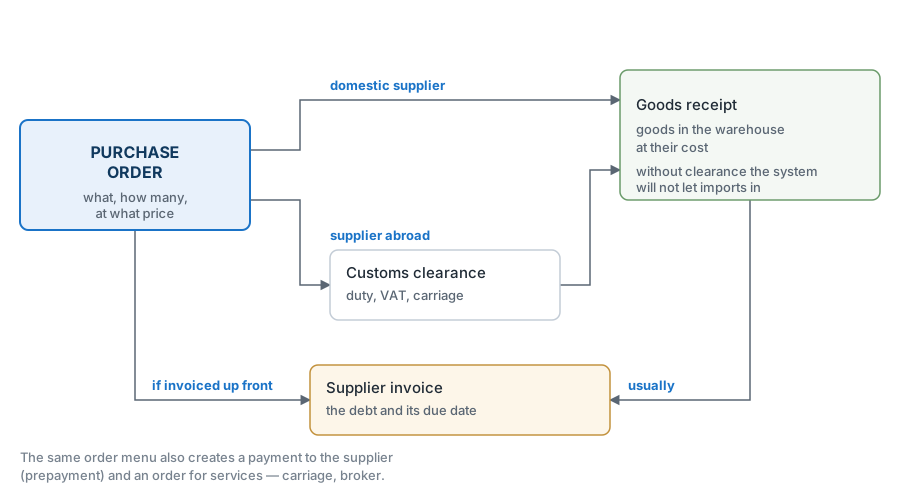
From here there are two roads. With a domestic supplier the goods arrive on a goods receipt straight into the warehouse. With an import, customs clearance stands in between: duty, excise and carriage (and, for a company that is not a VAT payer, the import VAT) land on the batch first, and only then do the goods enter stock at their full cost.
A supplier invoice is usually raised from the goods receipt: the goods arrive, the paperwork follows. But when the supplier invoices up front, before despatch, it is created straight from the order. The same menu also creates a payment to the supplier (prepayment) and an order for services — carriage or a broker.
Where the numbers come from
| What | Where it comes from |
|---|---|
| Price | From the item card, from «Cost in base currency» — what this item cost you last time, converted at the order's exchange rate. If the card is empty (you are buying it for the first time), no price is filled in at all — type it yourself. And it can always be overwritten: what you agreed with the supplier beats history |
| VAT rate | The «VAT Rate» field in the header, from where it goes down to the rows |
| Payment terms | From the supplier card; the due date on the future invoice is worked out from them |
| Freight | The carriage cost, which you enter yourself. The system spreads it over the lines in proportion to quantity × price without VAT, and it shows separately in the totals — «Total with freight». Change a line's quantity, price or item later, and the freight is spread again while its total stays the same. The exception is an order with anything already received or invoiced: the line shares stay as they are, and the header freight becomes the sum of the lines |
| Cost | Not here yet. It appears on the goods receipt: price plus the freight and additional costs spread over the batch |
The columns here are labelled more honestly than on the sales side: «Pr. W/O VAT» and «Sum Incl. VAT» — you can see at once what to compare with what. The row amount is quantity × price plus tax on top.
A worked example
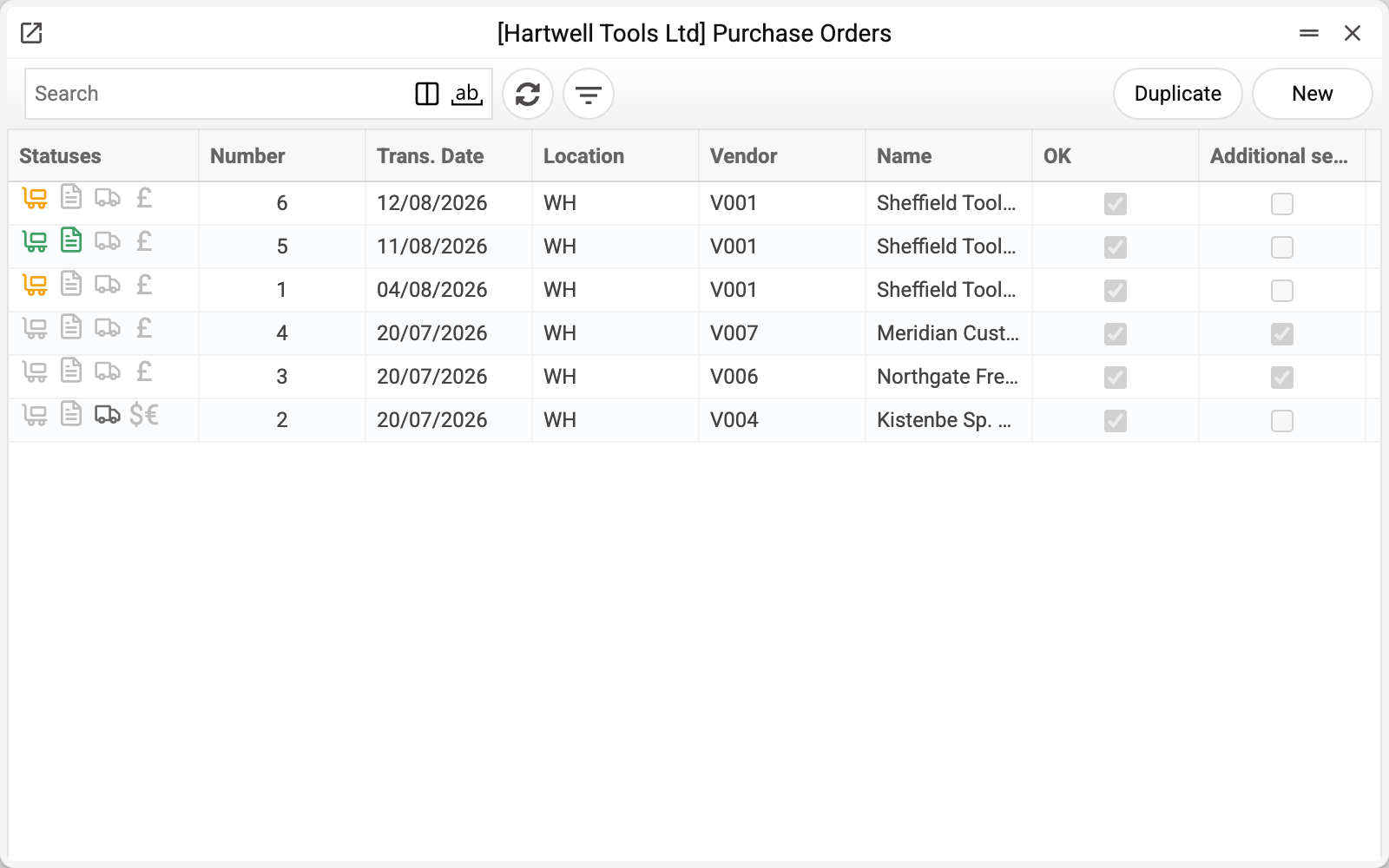
The "Statuses" column answers "what has happened to this order so far". Four icons: the trolley is the goods receipt, the sheet is the vendor invoice, the lorry is additional costs, the currency symbol is the payment. Light grey means "no such document", dark grey — "exists but not approved", orange — "partly", green — "fully closed".
The icons are the same as in sales orders, but here the lorry stands for additional costs rather than a carrier's waybill: in purchasing what matters is whether delivery made it into the cost price.
Sheffield Tool Distribution Ltd supplies power tools. We are ordering drills and drill drivers into warehouse WH.
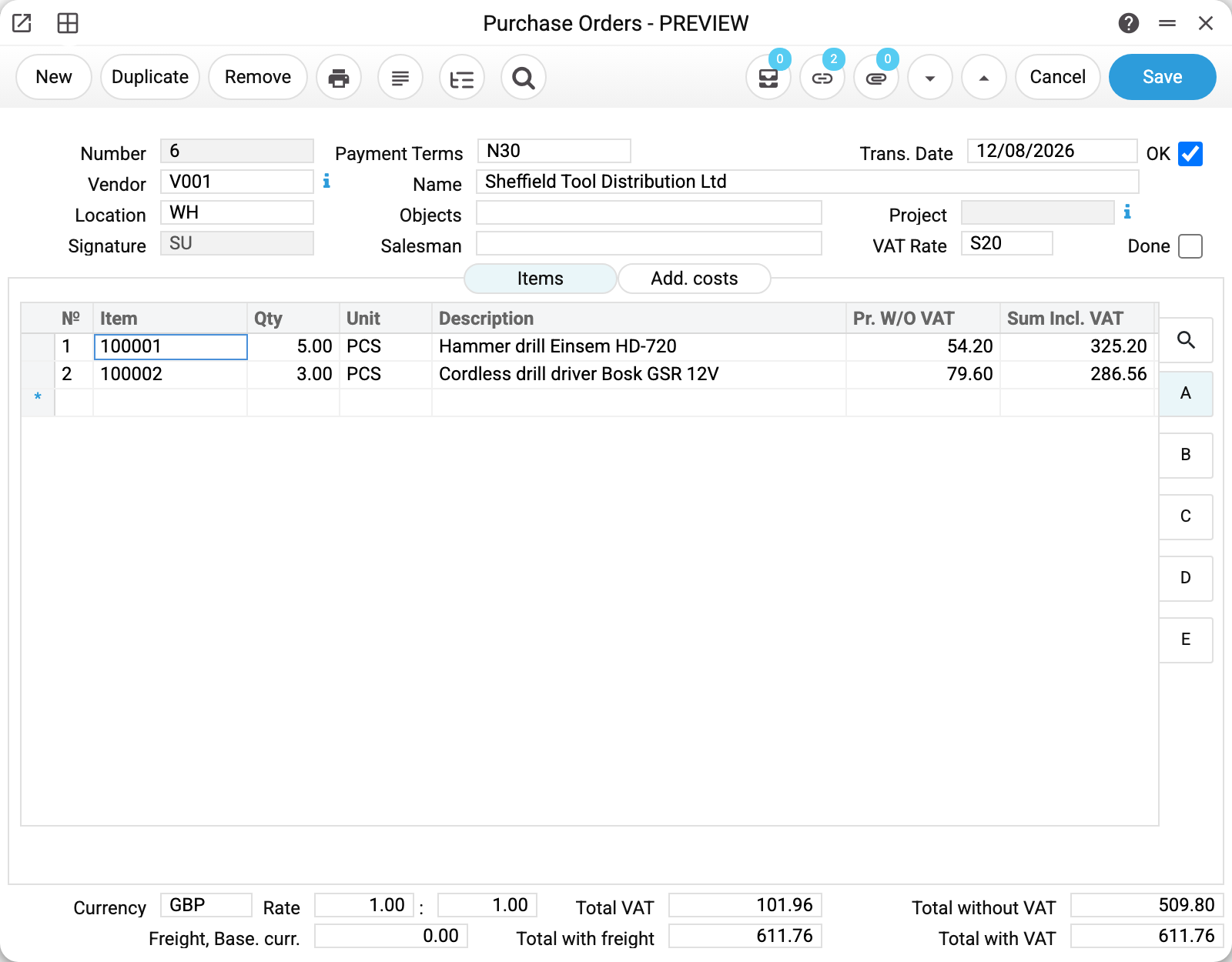
The header holds everything that applies to the deal as a whole:
- «Vendor» V001 pulls the name, the currency, the payment terms and the prices;
- «Location» WH — where the goods will go. This field matters more than it looks: it decides which warehouse the batch lands in and where to look for it later;
- «Payment Terms» N30 — payable thirty days after the invoice;
- «VAT Rate» S20 — the tax in the rows is worked out from it;
- «Trans. Date» 12/08/2026 — the date of the agreement itself.
Two boxes on the right. «OK» approves the order. «Done» is ticked when the order will not be worked on any further — it drops out of the open list.
The rows

Two rows: 5 hammer drills at 54.20 and 3 drill drivers at 79.60. Add up the first one: 5 × 54.20 = 271.00, while the «Sum Incl. VAT» column says 325.20 — the difference is the tax added on top.

Sheet B holds each row's tax: 54.20 for the drills (20% of 271.00) and 47.76 for the drill drivers.
Four totals sit at the bottom: «Total without VAT» 509.80, «Total VAT» 101.96, «Total with VAT» 611.76, and separately «Total with freight». The last one equals the previous because carriage was not costed on this order; had there been freight, it would show here and later spread into the cost of the goods.
What has been done so far
Only the drills arrived. Here is how that reads:

The drill row shows fives, the drivers show zeros. Three columns, three different states:
- «Vend.1» — how much has been written onto goods receipts including unapproved ones. The goods are on a document, but they may not be in stock yet;
- «Vend.2» — how much actually arrived, from approved documents only;
- «Inv» — how much has gone onto supplier invoices.
The gap between the first two answers «the supplier says it shipped, but the warehouse has nothing»: the receipt exists but has not been approved.
Next to them sit «Clear.1» and «Clear.2»: for imports they show how much of the row has been through customs clearance.
The order stays open while any row has received less than ordered. The next receipt made from it will offer what has not yet been written onto any receipt, unapproved ones included: ordered minus «Vend.1», here the three drill drivers. If the whole remainder is already on a draft receipt, no new one is created — approve or delete the draft.
Where these drills went
The purchasing chain does not end in itself, and on this example you can follow it right through:
- Order №6 — 5 drills agreed at 54.20 and 3 drill drivers at 79.60;
- Goods receipt №8 — only the drills arrived and entered warehouse WH at a cost of 54.20 each;
- Supplier invoice №8 — a debt of 325.20 appeared for what arrived, due in thirty days;
- and from there the same drills go out to a customer on a shipment, where the cost column carries that same figure.
So the number you bought at survives all the way to the profit report without being retyped once. Which is exactly why the price on an order should be the real one, not an estimate.
An order posts nothing
Nothing appears in the Transactions register once an order is approved. That is not a gap: an order is an intention, not a fact. Nothing has arrived, nobody owes anybody yet, and there is nothing to record.
The first transaction of this chain belongs to the goods receipt, which puts the goods on the location. The liability to the supplier is created by the vendor invoice. So an order tells you nothing about the state of the settlements — it lives in the order reports, not in the ledger.
How to work with it
1. Pick the supplier
The supplier code pulls the name, the currency, the payment terms and the prices. If the supplier is new, the card has to be created first: an order against a code that does not exist will not save.
2. Check the location and the VAT rate
«Location» decides where the goods land, «VAT Rate» decides the tax in the rows. Both are in the header, both fill themselves in, and both are worth a look.
3. Enter the rows
The item code pulls the name and the price; you type the quantity. The price comes from the last receipt, so check it separately: if the supplier has changed terms, the document will carry the old figure until you correct it.
The item is not in the directory yet — all you have is the supplier's article? A row with such a code can be entered and the order saved as a draft; you type the name and the price yourself. The order cannot be posted until you create the item card, and until then the row is not counted in the quantity ordered from suppliers.
4. Approve
OK and save. The quantity ordered from suppliers in the item status report goes up immediately (an unapproved order is not counted), and the next documents can be built from the order.
5. Next — from the document menu
- «Create incoming» — when the goods arrive;
- «Create vendor invoice» — when the invoice arrives;
- «Create vendor payment» — a prepayment, if you pay up front;
- «Create customs clearance» — for imports;
- «PurchaseOrders status» — what has been done so far;
- «Open NL Transaction» — the ledger entry, if the document made one.
How to be sure the document is right
- «Total with VAT» matches the figure the supplier quoted.
- «Location» is the warehouse the goods will really arrive at.
- «VAT Rate» is filled in. An empty one leaves zeros in the tax, and the document still saves.
- The prices in the rows are the ones you agreed, not «whatever was in the catalogue».
- If carriage is paid separately, the freight is entered — otherwise the cost will come out too low.
Print variables
Values available in this document's printed form templates. How to write a variable in a template — see Print Forms.
Header fields:
| Variable | What it holds |
|---|---|
| Number | Number |
| Vendor | Vendor |
| Location | Warehouse |
| Trans_Date | Trans. Date |
| Pay_Terms | Payment Terms |
| Vendor_Name | Name |
| Objects | Objects |
| Project | Project |
| VAT | VAT Rate |
| Salesman | Salesman |
| Sum_With_VAT | Amount including VAT |
| Currency | Currency |
| Inv_Rate | Rate |
| Sum_UA | Amount in words, Ukrainian |
| Sum_ENG | Amount in words, English |
| Total_VAT | Total VAT |
| Total_w/o_VAT | Total without VAT |
| Freight_Base_Curr | Freight, Base. curr. |
| Total_With_Freight | Total with freight |
Row fields:
| Variable | What it holds |
|---|---|
| No | Row position number |
| Item_Code | Item |
| Qty | Qty |
| Units | Unit |
| Description | Description |
| Price_w/o_VAT | Pr. W/O VAT |
| Price_With_VAT | Price including VAT |
| Sum_With_VAT | Amount including VAT |
| VAT | VAT Rate |
| Sum_VAT | VAT Sum |
| Cost_Acc | A/C |
| Objects | Object |
| Freight | Freight |
| Unit_Name | Unit name |
The records the document refers to through its form fields (location, customer, currency…) also expose the rest of their variables — code and name are already listed in the tables above, the rest is described in the register's article:
- Exchange Rates (
System_rate) - Company details — name, addresses, bank accounts, officers, the printing user: Main Company
Common situations
Part of the order arrived. That is the normal course: make a receipt for what came. The order stays open for the difference, and the next receipt will offer the remainder.
The supplier raised the price after the order. Correct the price in the receipt row before approving the receipt — the cost is recalculated, and the right one lands in stock. The order is no use for this: an approved order's price cannot be changed, and a receipt made from it keeps its own copy of the price. Once the receipt is approved, the price is no longer the order's business.
The order is part-done and will not be finished. Tick «Done» — it leaves the open list, and its unreceived remainder drops out of the quantity ordered from suppliers in the item status report: the rest is no longer expected. Untick it and the remainder comes back.
Reducing the quantity after part of it arrived. A row cannot go below the quantity already received: "The quantity cannot be less than what was received!" (the same below the quantity the supplier has already invoiced). Both rules watch the reduction itself: if more has already been received or invoiced than ordered, the order still saves — the rules only fire when the row's quantity is reduced. A negative quantity is not accepted at all — "The quantity cannot be negative"; sending goods back to the supplier is a separate document — Returns To Vendor.
The goods are imported. If the supplier's contact card has «Non-resident» on the «Conditions» tab, «Create incoming» on the order refuses: "Vendor is non-resident! Create custom clearance before incoming, please!". Create the customs clearance from the order («Create customs clearance») and the goods receipt from the posted clearance: then the duty (and, for a company that is not a VAT payer, the import VAT) lands in the cost. The sign is the supplier's residency, not the order currency; a goods receipt entered by hand does not go through this check.
Buying for a named customer. That is easier to start from the sales order: the lines carry across by themselves, and it stays visible which deal you are buying for.
Field reference
Header
| Field | Description |
|---|---|
| Number | Order number, assigned automatically |
| Vendor, Name | The supplier and their name from the card |
| Location | Where the goods will arrive |
| Signature | Who raised the order |
| Payment Terms | Decide the due date on the future invoice |
| Objects | Analytical objects of the document |
| Salesman | The manager the purchase is credited to |
| Trans. Date | The date of the agreement |
| Project | Link to a project |
| VAT Rate | The rate that goes down to the rows |
| OK | Approval of the document |
| Done | The order will not be worked on any further |
Item rows
| Field | Sheet | Description |
|---|---|---|
| Item, Description | all | Item code and name |
| Qty, Unit | all | How much is ordered and in what units |
| Pr. W/O VAT | A | Unit price before tax |
| Sum Incl. VAT | A | Row amount including tax |
| VAT rate, VAT sum | B | Tax rate and tax amount of the row |
| A/C, Object | B | Expense account and analytics of the row |
| Vend.1 | C | Written onto receipts, approved or not |
| Vend.2 | C | Actually received, approved documents only |
| Clear.1, Clear.2 | C | How much of the row has been through customs |
| Inv | C | How much has gone onto supplier invoices |
| Freight, Add. costs 1-5 | C | Carriage and other costs that land in the cost of the goods |
Document totals
| Field | Description |
|---|---|
| Currency, Rate | Currency of the order and its rate against the base one |
| Freight, Base. curr. | Carriage cost in the base currency |
| Total VAT | Tax on the document |
| Total with freight | Order amount including carriage |
| Total without VAT | Amount before tax |
| Total with VAT | What the supplier will invoice |