Sales Orders Setting
One window for the whole company holding seven checkboxes and one switch. Each of them changes the behaviour of other documents: the sales order, the shipment, the invoice, the payment, the return. So this is not a list of options — it is where you decide what the system does on its own and what it leaves to a person.
Where to find it: Modules → Sales Orders → Settings → Sales Orders Setting
The best companion read is the article on sales orders: it describes how the document behaves, and this page explains why.
Menu: Modules → Sales Orders → Settings → Sales Orders Setting.
A worked example
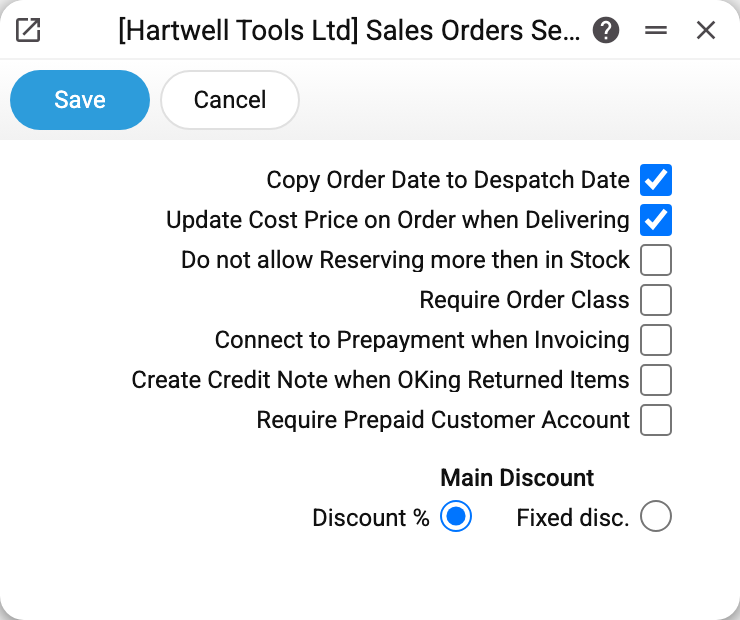
The demo company has the first two boxes ticked — the usual starting set.
Copy Order Date to Despatch Date. The planned despatch date becomes the order date: a new order gets it on creation, and when the order date is changed in the window, the planned date follows. A planned date typed by hand is left alone on save — in a draft and in an approved order alike. Handy when you ship the same day; if you plan deliveries ahead, simply type your own date.
Update Cost Price on Order when Delivering. The most valuable box here. When a shipment is approved, the system goes back to the order and writes into its lines the cost of the batches that actually left (FIFO, converted at the document rate). The line profit is then recalculated from it — the line sum without VAT minus quantity × cost — and the header shows «Total GP» and «GP %» (the profit as a percentage of the sum without VAT). Without the box the "Cost" column stays empty, and "Profit" shows the whole line sum without VAT: the order never tells you what you really earned.
The box works from the moment it is switched on: the cost is written when the shipment is approved, so shipments approved earlier will not bring it.
The same box switches on the below-cost control. If the user's role allows the matching action, the system either warns with a message or refuses to approve the shipment when cost exceeds the selling price. See access rights: without that permission the control stays silent.
Do not allow Reserving more then in Stock. Applies only to orders with the "Reserved" flag. The system checks each line against the stock balance of the document's location and refuses to reserve what is not there. Goods only — services and labour pass freely, as they hold no stock.
Require Order Class. The "Type" field becomes mandatory: without it the document will not save. Types live in the sales order types register. Switch this on when the type actually drives something — reports, numbering, different handling rules; otherwise it only adds work.
Connect to Prepayment when Invoicing. When an invoice is created from a shipment, the system looks for an open prepayment of that customer against this very order and, if found, puts it into the invoice. The customer's debt drops by the advance straight away, and nobody has to match prepayment and invoice by hand.
Create Credit Note when OKing Returned Items. Approving a return from a customer creates a credit note automatically. One condition matters: it appears only when the shipment behind the return already has an approved invoice. With no invoice there is nothing to credit — no debt was ever created.
Require Prepaid Customer Account. A rule about payments: in a row that carries a prepayment number, the order number becomes mandatory — checked when the payment is posted; a draft saves without it. That keeps every advance tied to a specific deal — needed both for the automatic matching above and for tax accounting.
Main discount
The switch at the bottom answers one question: which discount is used by default in the lines of orders, invoices and quotations — a percentage or an absolute amount.
A line carries exactly one discount. As soon as the price changes, the "non-main" one is cleared: choosing "Discount %" wipes the absolute amount, choosing "Fixed disc." wipes the percentage. If one of them is already filled in by hand, the system uses that one and consults the setting only when both are empty.
Parameters
| Parameter | What it changes |
|---|---|
| Copy Order Date to Despatch Date | The planned despatch date equals the order date — on creation and when the order date is changed in the window; a date typed by hand is kept |
| Update Cost Price on Order when Delivering | An approved shipment writes cost and profit into the order lines; enables the below-cost control |
| Do not allow Reserving more then in Stock | Forbids reserving more than the document's location holds (services excluded) |
| Require Order Class | Makes the "Type" field mandatory |
| Connect to Prepayment when Invoicing | An open prepayment for this order is pulled into the invoice automatically |
| Create Credit Note when OKing Returned Items | An approved return creates a credit note — provided the shipment has an approved invoice |
| Require Prepaid Customer Account | In a payment row with a prepayment number the order number is mandatory |
| Main Discount | Which discount is the primary one in the lines: percentage or absolute amount |
Typical situations
- The planned despatch date changed by itself. That is the first box: when the order date is changed, the planned date moves to it. Set the planned date after the order date — saving leaves it alone.
- "Cost" and "Profit" are empty in the order. Three reasons, in order: the second box is off; the shipment is not approved yet; the order line never made it into a shipment. Note that existing documents are not recalculated retroactively — the figures start with the next approved shipment.
- A reservation goes through although the goods are missing. Check that the order has "Reserved" ticked and a location filled in: with no location there is nothing to check against. The other possibility is that the item is set up as a service rather than a stocked good.
- The return is approved but there is no credit note. Then the shipment has no approved invoice. Post the invoice first.
- The discount percentage is ignored in a line. Look for an absolute discount in the same line: once filled, it takes precedence over the setting.
Nearby
- Sales orders — the document this window governs
- Shipments — where the cost figures come from
- Invoices — where the prepayment is pulled into
- Sales order types — the register behind "Require Order Class"
- Price list settings — the neighbouring window: orders from the web page