Quotation price lists
This is an outward-facing price list: a document the customer receives, not an internal price reference. The card here is a generator: you set the item filters and the price sources, and the system assembles the table with prices and stock levels by itself. The finished price list has a validity period and a personal link for the customer.
Where to find it: Modules → Sales Orders → Registers → Quotation price lists
The register lives in the Sales Orders module.
A worked example
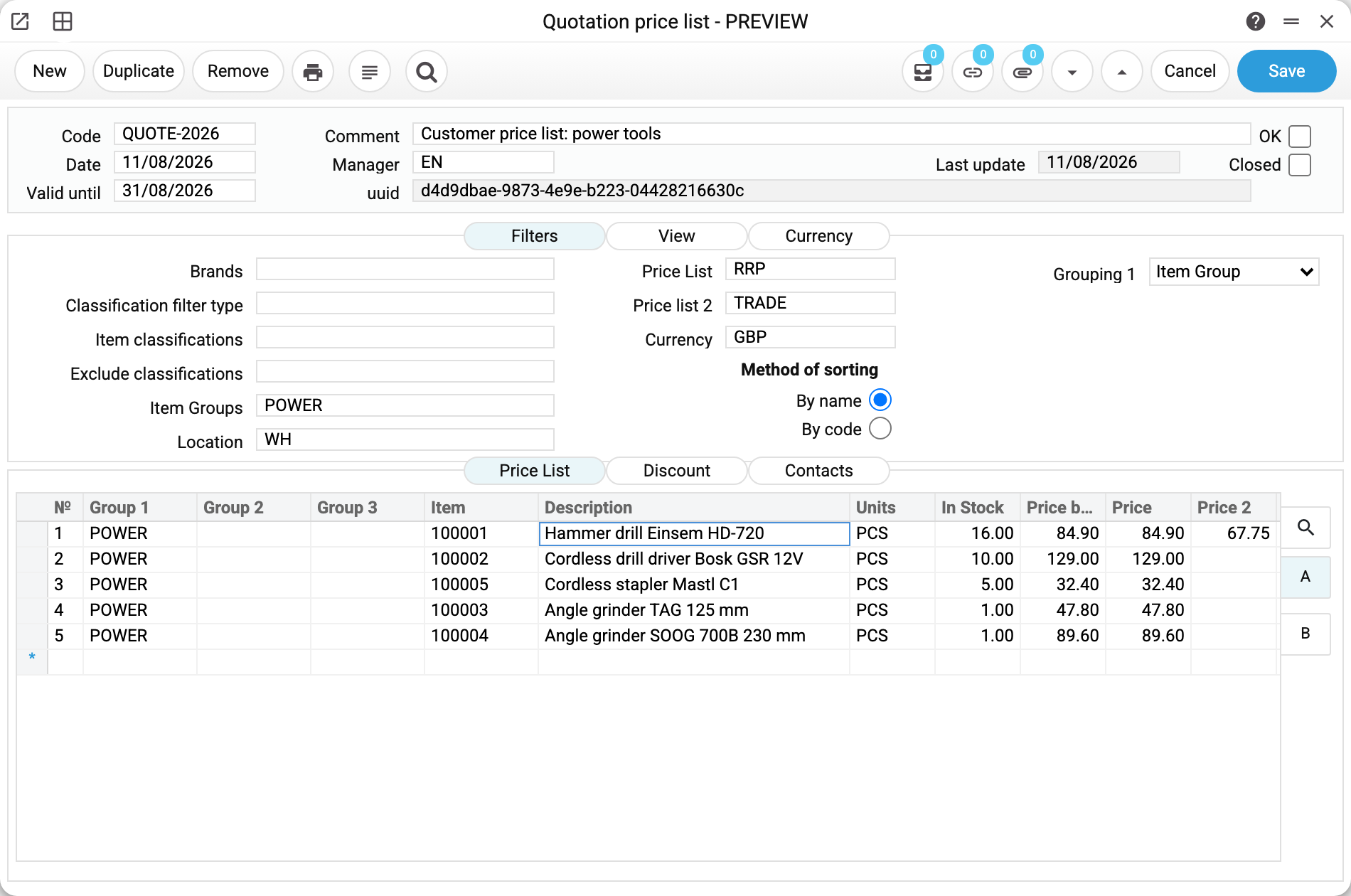
QUOTE-2026 «Customer price list: power tools» from the demo database. In the header — the code, the date, «Valid until» (the offer's validity), the manager and the service uuid — the key the customer link is built on. «Last update» shows how fresh the price list is.
The upper tab block holds the assembly rules:
- «Filters» — which items get in: here — the POWER item group (several codes are written comma-separated). Brands and classifications can select too («Item classifications» to take, «Exclude classifications» to drop), and «Classification filter type» keeps only items with a classification of that type. «Location» (here WH) selects no items: it is where the «In Stock» column comes from, and an empty location means the stock across all locations.
- «Price List» and «Price list 2» — the price sources: the first fills the «Price» column, the second — «Price 2». In the example these are RRP and the TRADE list: the hammer drill shows both (84.90 and 67.75), and where the second column is empty the item simply is not on the second list. The prices are taken from the «Prices» of exactly these lists, as they are: promo price lists replacing them and the «Period» are not applied by the generator. So an order through the link goes at the price list's prices even when an invoice entered in the window on the same day would get the promo price.
- «Grouping 1» — how to arrange items into sections: here «Item Group», which is why the table got its POWER section. Up to three grouping levels are available.
- The «View» and «Currency» tabs — the presentation: show stock or not (and whether to replace the exact number with a label like «>10») and which currency pair's rate to show on the price list page. The «Currency» tab does not convert prices: «Price» comes in the currency of the card's «Currency» field (prices of the first price list are converted into it), while «Price 2» stays in the currency of the second price list.
The lower block is the generated price list itself: section, item, description, unit, «In Stock», «Price before discount», «Price», «Price 2».
The table is filled by the card's menu item (the ▾ button) «Create quotation price list»: it walks the filters over the items, pulls prices and stock and rewrites the table. Running it again is how the price list gets refreshed: it reads the prices from the price lists anew, so a manually corrected «Price before discount» and «Price 2» are lost. The item works only on a saved card (otherwise it answers «Save or discard changes»), and with the «OK» flag it does nothing — just like «Link to contacts».
How the price list reaches the customer
The «Link to contacts» menu item ties the offer to customers. Its window takes «Contact code», «Contact Category» and «Contact Classifications» (several codes comma-separated); the offer is tied to every contact that matches. Empty fields mean every contact in the database. The «Update contact register» tick writes this price list's code into the «Quotation price list» field of each such contact's card, replacing the previous one; when it is ticked, the window warns: «Attention! After this operation, the quotation price list data in the contact card will be updated!». Without the tick the price list code is not written into the cards — and there is no warning. The «Contacts» tab shows exactly the contacts whose card carries this price list's code, and the «Open document» button in a row opens the customer's page.
Each contact has its own personal link (built on the uuid of the price list and of the contact) — it opens a ready price list page in the browser, with no login. You send it yourself. The link lives until «Valid until» passes or the offer is closed with the «Closed» flag; after that the page answers «Комерційна пропозиція неактуальна» (in Ukrainian), and orders from it are refused. The customer's order lands in the system as a sales order (the «Sales Orders» register) priced from the «Price» column; «Price 2» is only shown on the page.
The link is access to the customer's orders. Whoever has the link fills the basket and places an order on behalf of this customer, with no login. The button next to the «Quotation price list» field of the contact card opens this link for every employee who can read «Contacts» — so an employee can get it too. A sales order created through the link is made out to this customer. Send the link only to the customer and do not forward it further.
Refreshing prices and stock
The price list is a snapshot taken at generation time: prices in the source lists change — it does not follow by itself. Saving the card does not refresh prices: it rebuilds the list of items, but rows already in the table keep their «Price before discount» and «Price 2» — each until its own price list is changed («Price before discount» follows «Price List», «Price 2» follows «Price list 2»). «Price» is computed from «Price before discount» minus the discount on every save, so the «Price» column in the table is read-only: put a manually corrected price into «Price before discount». Three ways to refresh the prices: the menu item on the card itself, the «Quotation Price Lists Recalc» maintenance — it regenerates all open offers at once — or the stock recalculation when only the stock figures need refreshing. The menu item and the first maintenance read the prices from the price lists anew: they overwrite manual prices in the table.
Stock on the customer's page is a snapshot too, unless «Calculate balances in real time» is on in the «View» tab. With that tick and «Show stock balance» the page shows the location's stock at the moment it is opened.
A discount inside the price list
The «Discount» tab is the offer's own discount matrix (group, brand or both → «Discount %»). The table then splits «Price before discount» and «Price» — the customer sees the benefit. If several matrix rows fit an item, the last one applies. The «Discount %» field above the matrix is the discount for items no row covers. This is the offer's discount; personal customer discounts in documents are a separate mechanism, the discount matrix.
The «Use discount from customer card» tick joins the two mechanisms: an order through the link also gets the discount from the customer's discount matrix, and it is taken off «Price» — that is, off a price that already has the offer's discount in it. The discounts stack: 10 % from the offer and 5 % from the customer make the item 14.5 % cheaper than «Price before discount». If the customer should get only one of them, leave the tick off or put no discount in the offer itself. Without the tick the customer card's discount does not reach the order.
How to work with it
1. Create the card
Code, dates, item filters, the source price list (and a second one if needed), grouping. Save.
Required: «Code» (unique), «Manager» and «Currency». A new card takes today's date by itself, the manager — whoever creates it (on a copy — whoever copies), and «Currency», «Price List» and «Price list 2» — from the price list settings. A grouping level set to «Classification Type» needs its own filter type (the «Classification filter type 1», 2 or 3 field), and «Show rate» needs both currencies in the «Currency» tab.
2. Generate
The «Create quotation price list» menu item — then eyeball the table: right items, right prices.
3. Hand it to customers
«Link to contacts» — and each chosen customer gets a personal link to the price list page. Send it to the customer: the «Open document» button in the «Contacts» tab opens the link.
Print variables
Values available in this document's printed form templates. How to write a variable in a template — see Print Forms.
Header fields:
Main
| Variable | What it holds |
|---|---|
| QPriceL_Ok | OK |
| QPriceL_No | Code |
| QPriceL_Date | Date |
| QPriceL_Manager | Manager |
| QPriceL_LangCode | Language |
| QPriceL_Update | Last update |
| QPriceL_Close | Closed |
| QPriceL_ValToDate | Valid until |
| QPriceL_uuid | uuid |
| QPriceL_SortBy | Method of sorting |
| QPriceL_FactStr | How stock is shown: «Fact value», «Available» or «Custom string» |
| QPriceL_MinIClass_Name | Exclude classifications (name) |
Currency
| Variable | What it holds |
|---|---|
| QPriceL_Comment | Comment (Code) |
| QPriceL_PriceList2_Comm | Comment (Price list 2) |
| QPriceL_ClassT_Comm | Comment (Classification filter type) |
| QPriceL_FCurCode_Comm | Comment (From currency) |
| QPriceL_ToCurCode_Comm | Comment (To currency) |
| QPriceL_FCurCode_No | From currency |
| QPriceL_ToCurCode_No | To currency |
| QPriceL_ShowRate | Show rate |
Filters
| Variable | What it holds |
|---|---|
| Brand_Code | Brands (code) |
| Brand_Name | Brands (name) |
| PrList_Code | Price List (code) |
| PrList_Comment | Price List (name) |
| QPriceL_ClassT_No | Classification filter type |
| QPriceL_PriceList2_No | Price list 2 |
| ItemClass_No | Item classifications (code) |
| ItemClass_Comment | Item classifications (name) |
| CurCode_No | Currency (code) |
| CurCode_Comment | Currency (name) |
| QPriceL_MinIClass_No | Exclude classifications |
| ItemGroup_No | Item Groups (code) |
| ItemGroup_Comment | Item Groups (name) |
| Loc_Code | Location (code) |
| Loc_Name | Location (name) |
| QPriceL_Group1 | Grouping 1 as a number: 1 classification type, 2 brand, 3 item group |
| QPriceL_Group2 | Grouping 2 as a number, like QPriceL_Group1 |
| QPriceL_Group3 | Grouping 3 as a number, like QPriceL_Group1 |
| QPriceL_GroupClass1 | Classification filter type 1 |
| QPriceL_GroupClass2 | Classification filter type 2 |
| QPriceL_GroupClass3 | Classification filter type 3 |
View
| Variable | What it holds |
|---|---|
| QPriceL_OnStock | Show only on stock |
| QPriceL_RealTimeStockB | same as QPriceL_OnStock |
| QPriceL_ShowStockB | Show stock balance |
| QPriceL_PQtyStock | If item quantity ⩽ |
| QPriceL_MQtyStock | Then show |
| QPriceL_OrFItemQty | Or fact item quantity |
| QPriceL_PCustStr | Show if quantity more |
| QPriceL_Description | Description |
Row fields:
| Variable | What it holds |
|---|---|
| QPriceL_Gr1 | Group 1 |
| QPriceL_Gr2 | Group 2 |
| QPriceL_Gr3 | Group 3 |
| QPriceL_mItem | Item |
| QPriceL_AltC | Alt. code |
| QPriceL_Spec | Description |
| QPriceL_Unit | Units |
| QPriceL_Instock | In Stock |
| QPriceL_BefDis | Price before discount |
| QPriceL_Price1 | Price |
| QPriceL_Price2 | Price 2 |
| QPriceL_ImgLink | Image link |
The records the document refers to through its form fields (location, customer, currency…) also expose the rest of their variables — code and name are already listed in the tables above, the rest is described in the register's article:
- Price List — Price Lists
- Item classifications — Item Classifications
- Currency — Currency Codes (
CurCode_*) - Item Groups — Item Groups
- Location — Locations (
Loc_*)
Common situations
Created the card but the table is empty. The table rebuilds itself on every save of the card, so an empty table means no item passed the filters. Check the brands, groups, classifications and «Show only on stock». Mind the reverse too: any save rebuilds the table, and with «Show only on stock» items without stock drop out of it, even if you only changed the comment. Items with negative stock stay.
A price list of the main company: saved, but the table did not change. This happens when quotation price lists are open to your company through register sharing. You can edit the card's fields, such as the comment or the name, and they are saved. But only the main company rebuilds the table: the items, prices and stock in it are its own, not yours. So saving from your company leaves the table as it is, and the card's menu item «Create quotation price list» answers «The quotation price list of another company is rebuilt only by that company». Such a price list can be refreshed only in the main company. Likewise, deleting your item does not remove rows from the main company's price lists: the item with the same code there is a different one.
An item has a zero price. The «Price» column comes strictly from the chosen price list: no row there — zero here. Either add the price to «Prices» or take the item out of the filter. One exception: if the price list has no price for any item of the selection, the column shows the base price from the item cards, converted into the price list currency, — check that the right price list is chosen.
A customer ordered a closed item, and the order does not go through. The price list filters do not drop closed items (the «Closed» tick on the item card): such an item gets into the table and onto the customer's page, and it can be put into the basket. But the system does not create a sales order with a closed item — the customer gets a refusal naming the item code, and the whole order is not placed, although the basket is kept. To keep closed items out of the price list, filter them out — for example, with a classification in «Exclude classifications» — and regenerate the price list.
«Price 2» is empty. That is normal: the second list fills the column only where it has a price. In the demo the TRADE list covers only consumables and the hammer drill — so only the drill shows a second price.
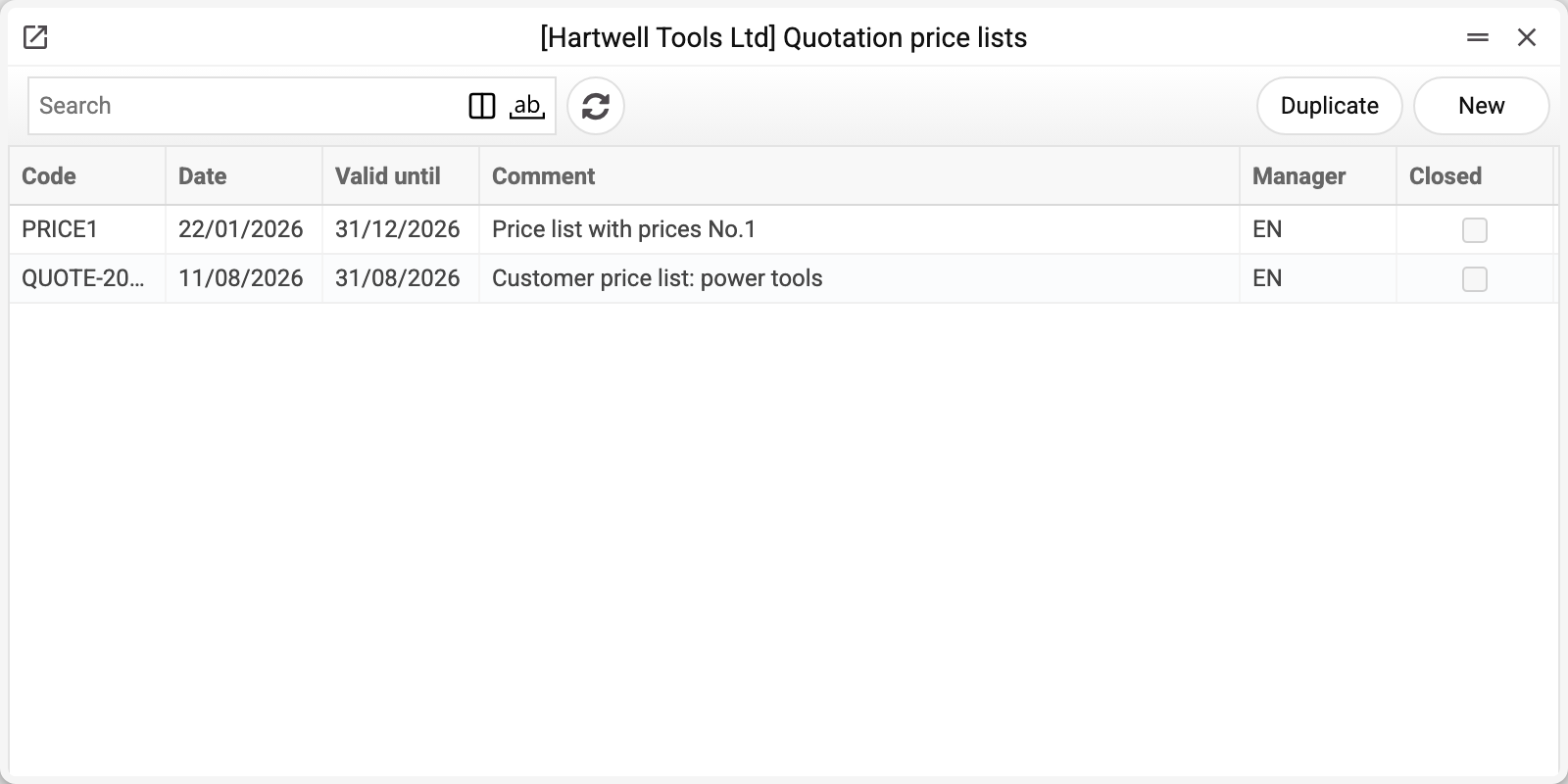
The customer sees old prices. The price list does not refresh itself — regenerate it (the card's menu or the recalculation maintenance).
The link stopped opening. Most likely «Valid until» has passed, or the offer is closed with the «Closed» flag. If the page opens but shows no items, the contact is blocked.
A price list cannot be deleted: «A record of «Quotation price lists» is used in: Contacts!» A price list can be deleted only while its code is on no contact (the «Quotation price list» field of the card) and on no sales order — then the refusal names sales orders. Deleted, it would leave the contact with a code that no longer exists: that contact could not be saved, and its price list link would stop working. A sales order created from the price list carries its code, so a price list that has already been ordered from cannot be deleted while those orders exist. If you no longer need the offer, close it with the «Closed» flag: the link stops opening, and contacts and orders stay intact.
Field reference
| Field | Description |
|---|---|
| Code, Comment | The offer's name; the code is unique |
| OK | Approval: locks the card's fields, and the «Create quotation price list» and «Link to contacts» menu items do nothing with it. Removed by an ordinary edit |
| Closed | The offer is closed: customer links do not open, orders are refused |
| Date, Valid until | When created and until when valid (the «Valid until» day itself is still valid; empty — no end date) |
| Manager | The person responsible for the offer |
| uuid | The service key behind personal links; generated automatically |
| Last update | When the table was last generated |
| Filters: Brands / Item Groups / Item classifications / Exclude classifications / Classification filter type | Which items to collect |
| Location | Where the stock comes from (empty — all locations); selects items only together with «Show only on stock» |
| Price List, Price list 2 | The sources of the «Price» and «Price 2» columns |
| Currency | The currency of the «Price» column (prices of the first price list are converted into it, a price list without a currency counts as the base currency; «Price 2» is in the second price list's currency); the «Currency» tab is the currency pair whose rate the price list page shows |
| Grouping 1–3 | Table sections: classification type, brand or item group. The rows are ordered by exactly these |
| Method of sorting | «By name» or «By code». It does not change the order of the rows in the table: only the print template sees the value |
| The «View» tab | «Show only on stock»; «Show stock balance» and how: «Fact value», «"Available"/"Out of stock"» or «Custom string». In the third mode a quantity above «If item quantity ⩽» is shown as the text from «Show if quantity more», and one not above it — as the text from «Then show» or, with the «Or fact item quantity» tick, as the number itself; without a threshold non-zero stock gives the first text, zero — the second. «Calculate balances in real time» — the page shows the current stock, not the snapshot |
| The «Discount» tab | «Discount %» for items outside the matrix; the offer's discount matrix (group/brand → %); «Use discount from customer card» |
| The «Contacts» tab | Contacts whose card carries this price list's code; «Open document» — the customer's page |