Simulations
The register of "transactions that are not transactions yet". A simulation looks like a transaction — the same matrix of accounts, debits and credits — but it does not touch the balance: it is a plan of future movements where every row carries its own date and status. When the date comes, the row is handed over to a real transaction.
Where to find it: Modules → Nominal Ledger → Registers → Simulations
Walkthrough
Simulation No. 1 in the demo — the write-off plan of a subscription paid up front:
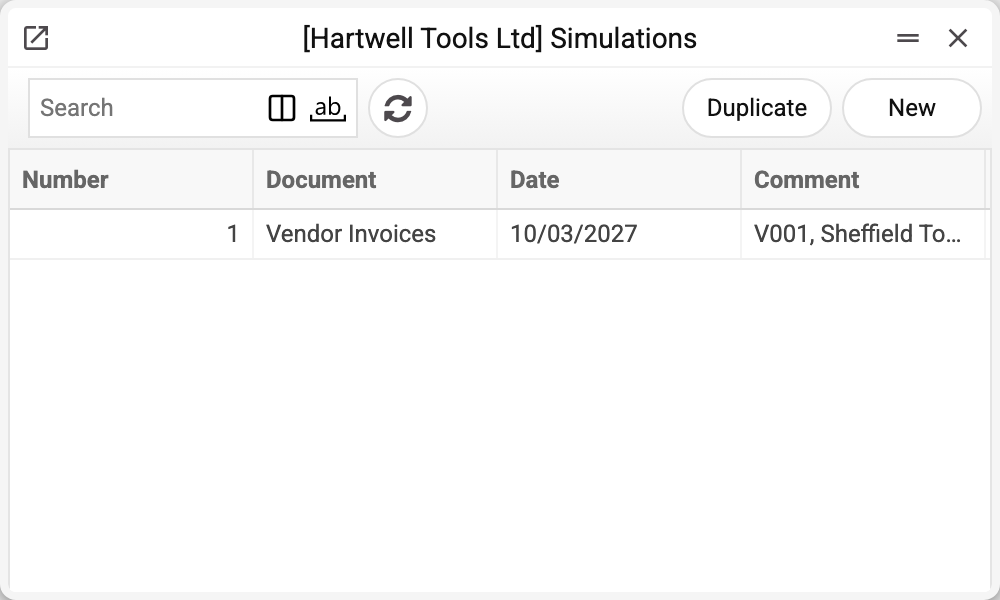
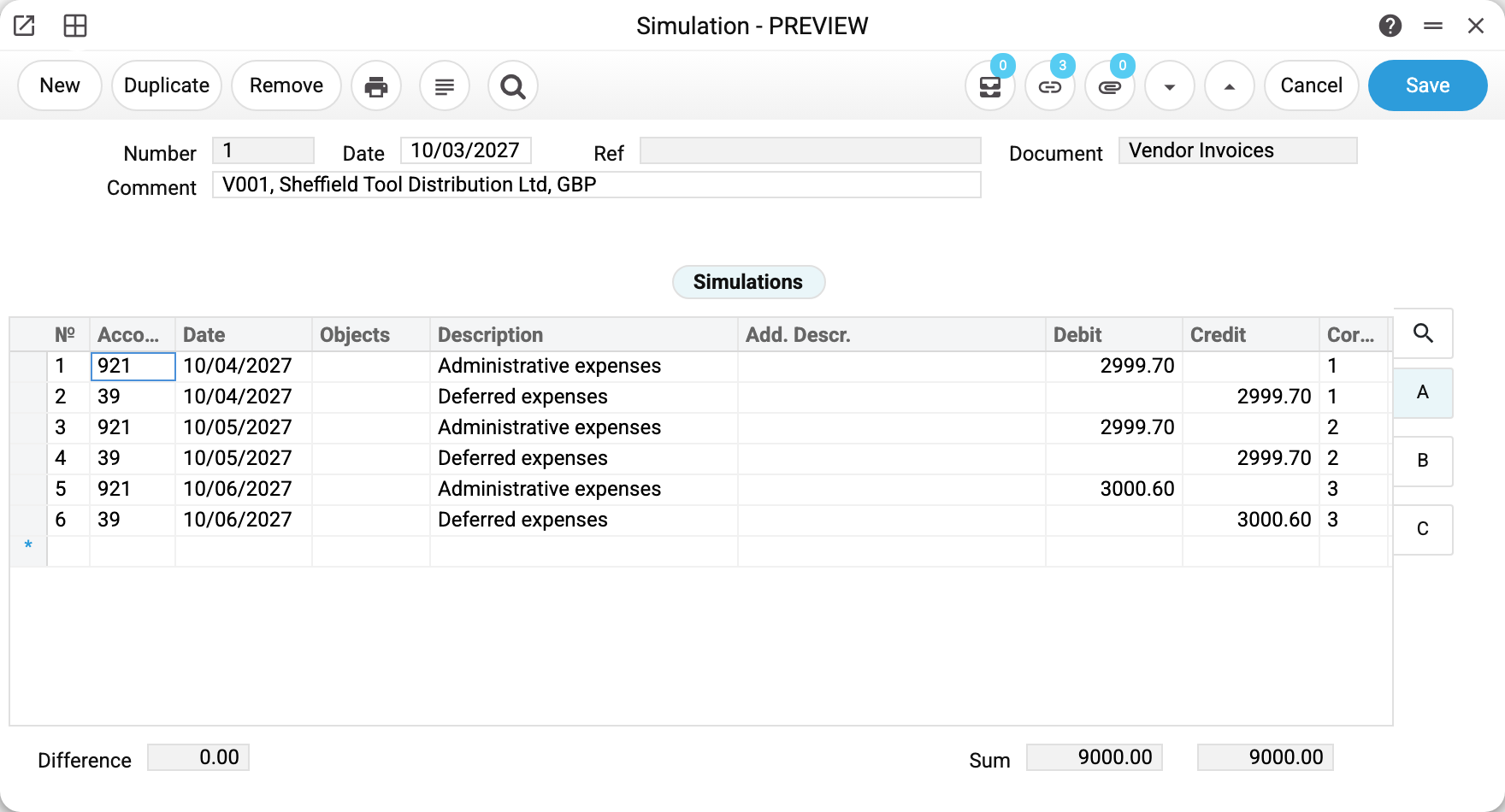
The header holds the number, the creation date, the source document (here "Vendor Invoices") and a comment naming the supplier. The matrix has six rows — three "Dr 921 / Cr 39" pairs dated 10/04, 10/05 and 10/06/2027: a subscription for 9 000 paid on 10/03 with a single invoice must reach expenses month by month. The "Debit" and "Credit" columns balance (the "Difference" at the bottom is 0.00), and every row has a date of its own.
Tab B of the matrix holds the Status column: "Active" — the row still waits for its date, "Submitted" — it has already become a transaction. In the demo the first two pairs are "Submitted" (the maintenance ran up to 31/05/2027) and the June pair is still "Active".
Note the portion amounts: 3 × 2 999.70 = 8 999.10, not 9 000. The system computes each portion as a percentage of the invoice row amount and rounds it separately, and it does not carry the rounding remainder to the last portion. The vendor invoice, however, moved the full 9 000 to account 39, so 0.90 stays on 39 after all portions are submitted.
Where simulations come from
- Automatically from a vendor invoice: a row with the "N/L Accrual" column filled (a deferred expenses schedule) creates a simulation with the schedule's portions when the invoice is posted. The links icon in the card header shows the links: the source invoice and every created transaction.
- By hand: a simulation can be created directly — any plan of future postings with per-row dates. The mechanics are the same: the rows wait until the maintenance submits them.
To make the schedule's portions add up exactly to the row amount, choose the percentages so that the last portion takes the remainder (for example, 33.33 + 33.33 + 33.34 % instead of three times 33.33 %), and check the "Total" field in the schedule: the system does not check the sum of percentages, and a schedule at 99.99 % saves too. If a simulation has already been created with a remainder, correct the amount of the last pair while its rows are still "Active".
How a simulation becomes transactions
The Create transactions from simulations maintenance takes every "Active" row dated no later than the given date, groups the rows by date, and creates one transaction of the "Deferred Expenses" type per date. The rows switch to "Submitted", and the next run no longer picks them up — the maintenance can run daily.
Two things the maintenance skips, silently or with a warning:
- A row without its own date is never submitted. The window does not fill in the row date by itself, and the system lets you save a simulation with an empty row date. Fill in the date on every row.
- A date where debit does not equal credit is not posted: its rows stay "Active", and the maintenance ends with the warning "Not posted, debit does not equal credit" with the simulation number and the date. Saving a simulation does not require debit to equal credit — check "Difference" before the run.
In the demo, a run up to 31/05/2027 produced two transactions: No. 2 of 10/04 and No. 3 of 10/05, each "Dr 921 / Cr 39" for 2 999.70.
Common situations
The simulation exists but the accounts have not moved. As designed: a simulation does not touch the balance. Movements appear once the maintenance submits the rows.
A portion was posted twice. The system does not guard the "Submitted" status: the "Status" column can be switched back to "Active", and choosing the account again in a row resets the status to "Active" on its own. The system lets you save such a simulation, and the next maintenance run posts the portion again — the expense reaches the books twice. So in "Submitted" rows change neither the status nor the account. If the status has already been reset, set "Submitted" back before the maintenance runs. If the portion has already been posted again, delete the extra transaction: transactions created by the maintenance can be deleted.
Cannot delete a simulation. "Records of operations from simulations are created!" — some rows are already "Submitted". Deleting the transactions does not reset the row status, so the simulation is not freed by it. The order is: delete the created transactions (via the simulation's links icon), then on tab B switch the status of those rows to "Active", save — and the simulation can be deleted. Do not set "Active" while the transactions are still there: the maintenance will post those portions again.
Need to fix a portion's amount. While the row is "Active", edit it right in the simulation. Once "Submitted" it is too late — a change to the row no longer reaches the transaction, so work with the transaction instead.
Can just part of a simulation be submitted? Yes — run the maintenance with a date: everything matured by then is submitted, the rest waits for the next run. The maintenance also accepts simulation numbers — then only those are submitted.