Vchasno.Kasa — fiscal receipts (PRRO)
What it is
Vchasno.Kasa is a software-based fiscal cash register (PRRO). The ERPJS integration module lets you fiscalize sales directly from the system: when an invoice is approved or a sale is made in cashier mode, ERPJS automatically sends the receipt to the Vchasno.Kasa PRRO and receives a fiscal number.
Capabilities
- Automatic fiscalization of invoices on approval (OK).
- Cashier mode (POS) — sale, cash/terminal payment, fiscal receipt printing.
- PRRO shifts — opening a shift when the cashier signs in and closing it with a service Z-report.
- Cash in / cash out with fiscalization of service operations.
- Receipt import from the Vchasno.Kasa cabinet back into the system (for receipts issued outside ERPJS).
- Three connection modes to the PRRO: public fiscal API, cloud proxy (DM proxy) and direct mode on the local network (integration overview: Vchasno.Kasa (PRRO)).
Prerequisites: what to get from Vchasno.Kasa
Before configuring ERPJS you need:
- An account in the Vchasno.Kasa cabinet — kasa.vchasno.ua.
- A point of sale and a cash register registered in the cabinet. Note the fiscal number of the cash register (the Device field in ERPJS).
- An access token — depending on the chosen connection mode:
- for the public API — a token from the Keys section of the cabinet;
- for the cloud proxy — a DM proxy token from the operator;
- for direct mode — the address (IP:port) of the cash device on the local network.
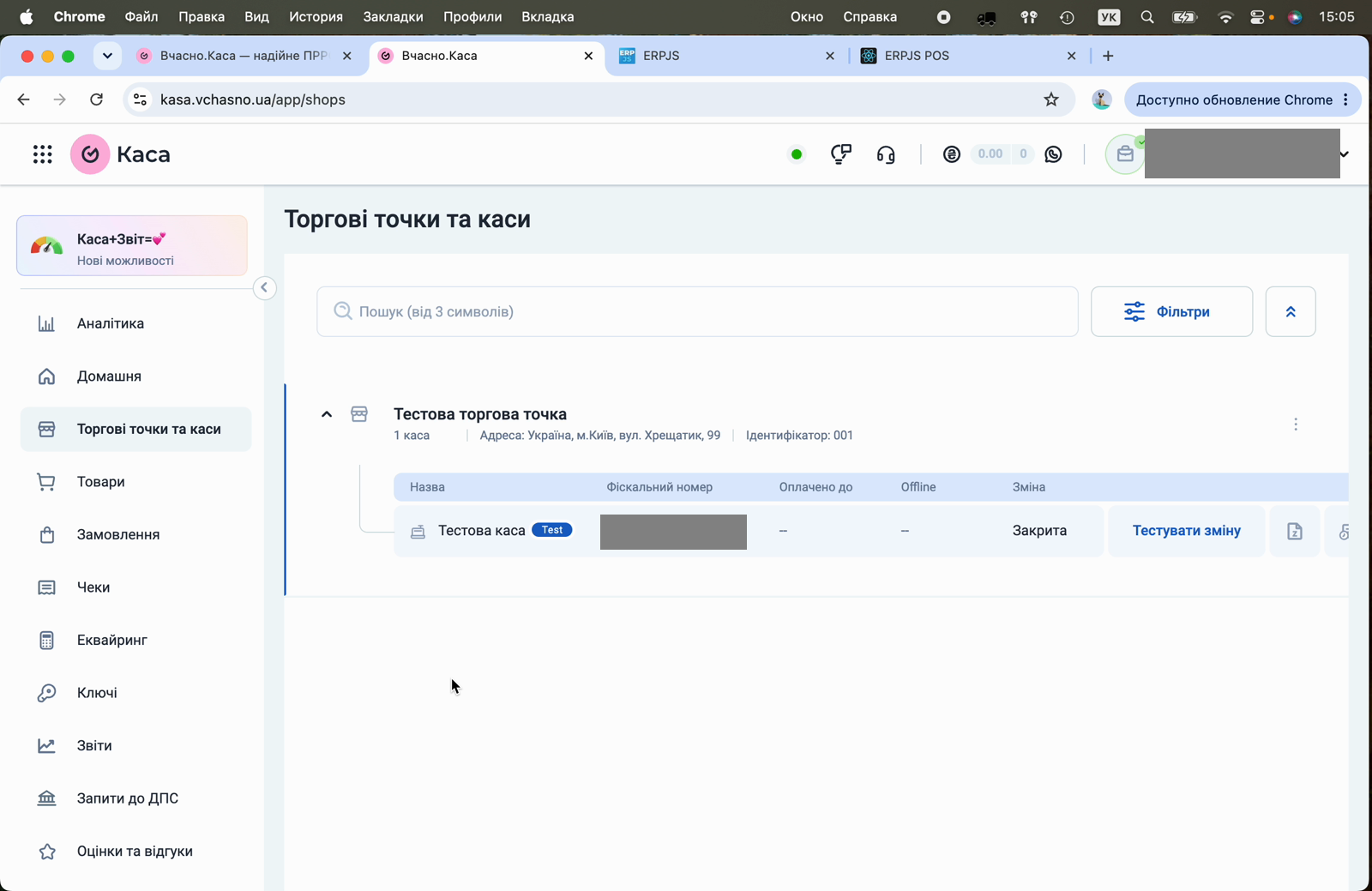
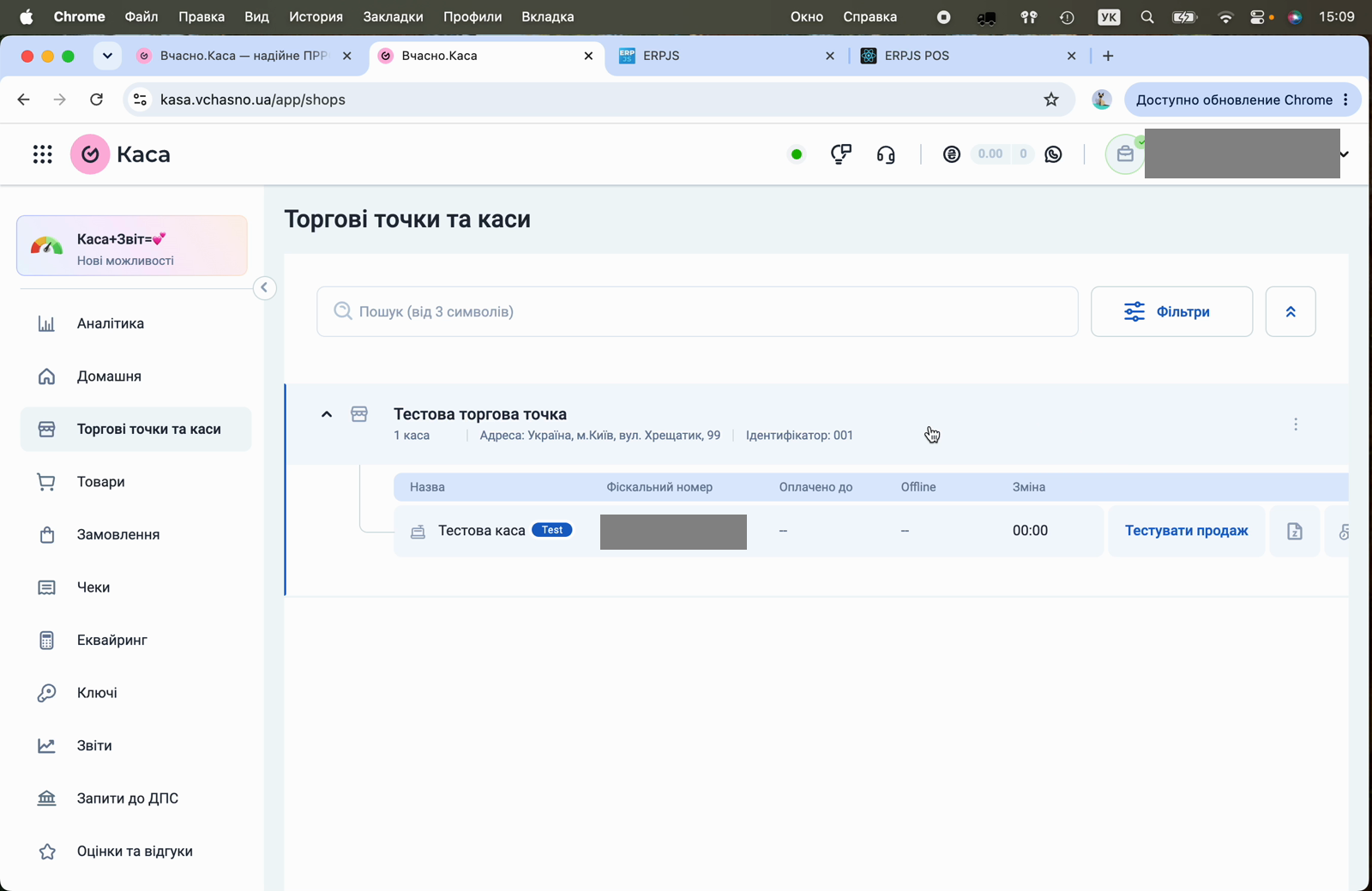
The image shows the "Points of sale and cash registers" section of the cabinet: the point of sale, its identifier and the cash register with its fiscal number. This fiscal number is entered in ERPJS in the Device field.
Step 1. The Vchasno.Kasa account in ERPJS
The module is located in Modules → Vchasno.Kasa.
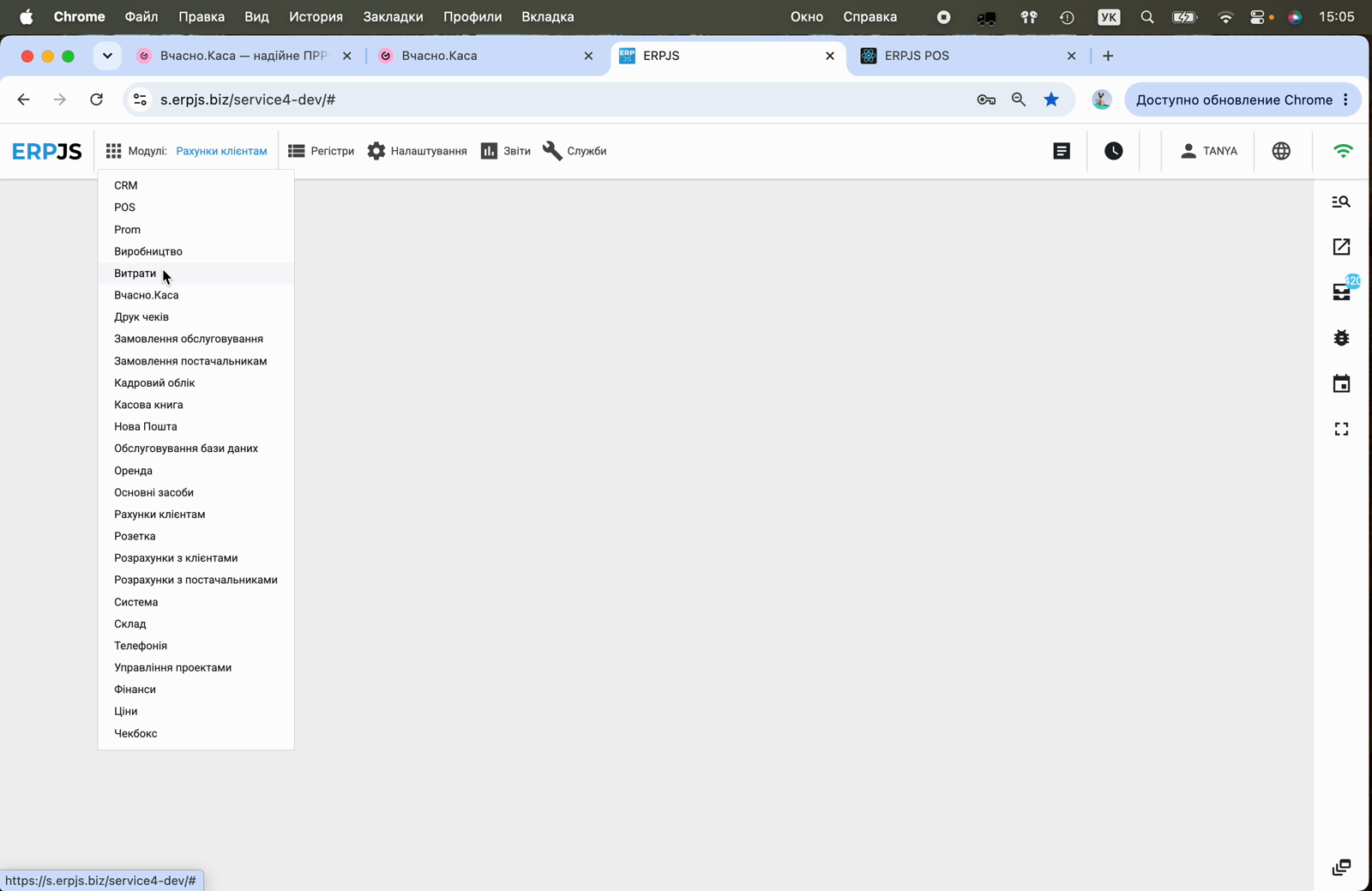
Open Registers → Vchasno.Kasa accounts and create a new record with the New button.
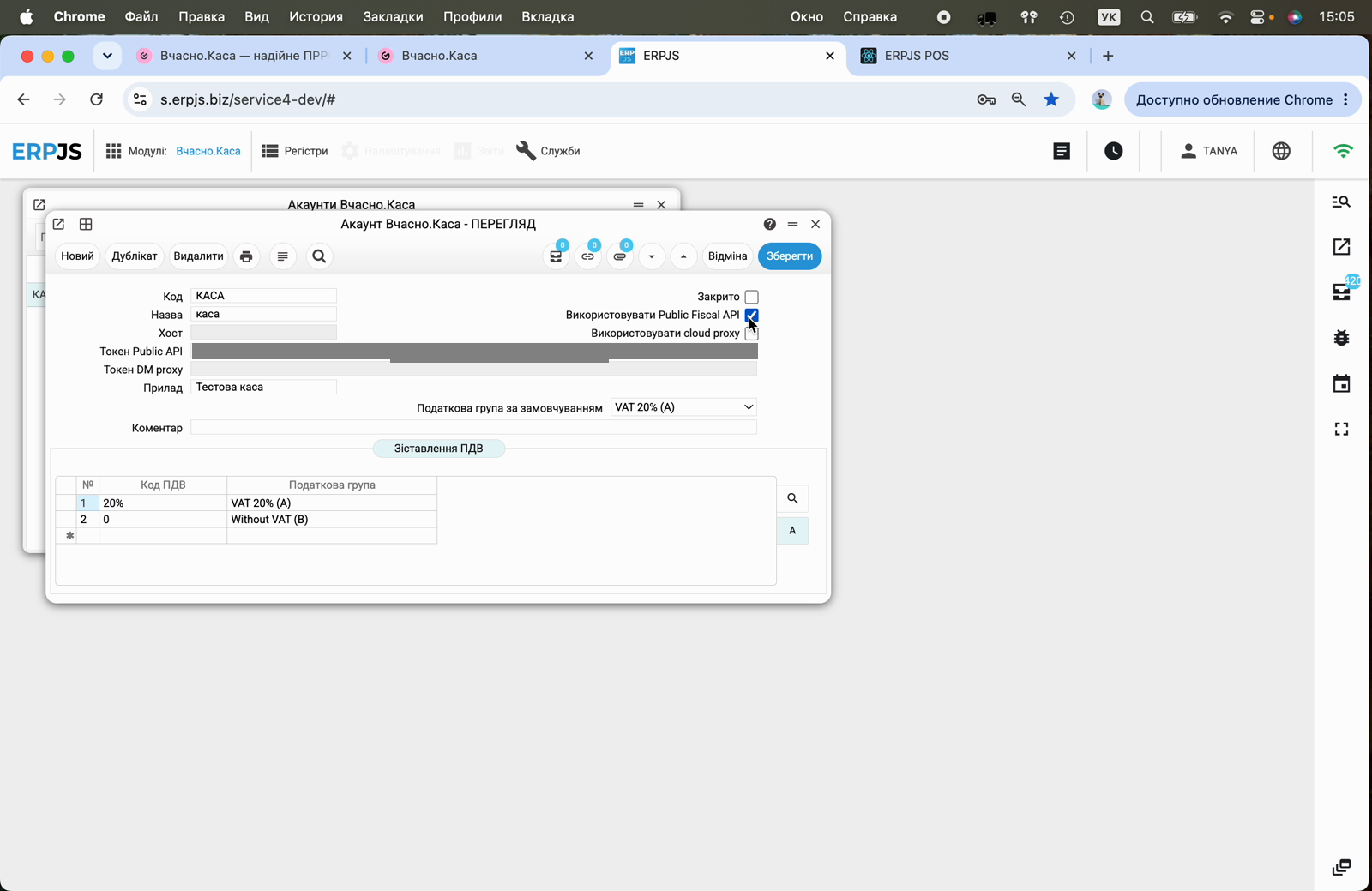
A detailed description of all fields, modes and checks, plus official links (API, key storage), is on the Vchasno.Kasa accounts register page.
Connection modes
Choose one mode using the checkboxes:
- Use Public Fiscal API — the public fiscal API of Vchasno.Kasa. Requires a Public API token. The recommended mode; only it supports receipt import (Step 6).
- Use cloud proxy — the cloud proxy. Requires a DM proxy token.
- If both checkboxes are off — direct mode is used: fill in the Host field (the PRRO address on the local network).
The checkboxes are mutually exclusive: enabling one automatically disables the other, and the token and host fields become active/inactive according to the chosen mode.
Account fields
| Field | Purpose |
|---|---|
| Code | Unique account code (e.g. КАСА). Cash register settings refer to it. Required. |
| Name | Free-form name for convenience. |
| Device | The fiscal number of the cash register from the Vchasno.Kasa cabinet. Required. |
| Public API token | Token for public API mode. |
| DM proxy token | Token for cloud proxy mode. |
| Host | PRRO address for direct mode. |
| Default tax group | The tax group applied when there is no explicit mapping for a VAT code. |
| Comment | Free-form comment. |
| Closed | Archives the account — it is no longer used for fiscalization. |
VAT mapping
The "VAT mapping" tab defines the correspondence between the system's VAT codes and Vchasno.Kasa tax groups:
- VAT code — the rate code in your system (e.g.
20%,0); - Tax group — the corresponding group in Vchasno.Kasa.
Example: 20% → VAT 20% (A), 0 → Without VAT (B). If no mapping is defined for a VAT code, the Default tax group is applied.
Connection test
After filling in the data, click "Test connection" in the window menu. On success a confirmation message appears; on failure — its description (check the token, fiscal number and mode). Save the record with the Save button.
Step 2. Payment Methods
So that ERPJS passes the payment form into the receipt correctly, you need to map your payment modes to Vchasno.Kasa pay types and specify which cash register fiscalizes sales.
Vchasno.Kasa pay type
In Settings → Payment Methods, for each row fill in the "Vchasno.Kasa pay type" column (cash, card, etc.).
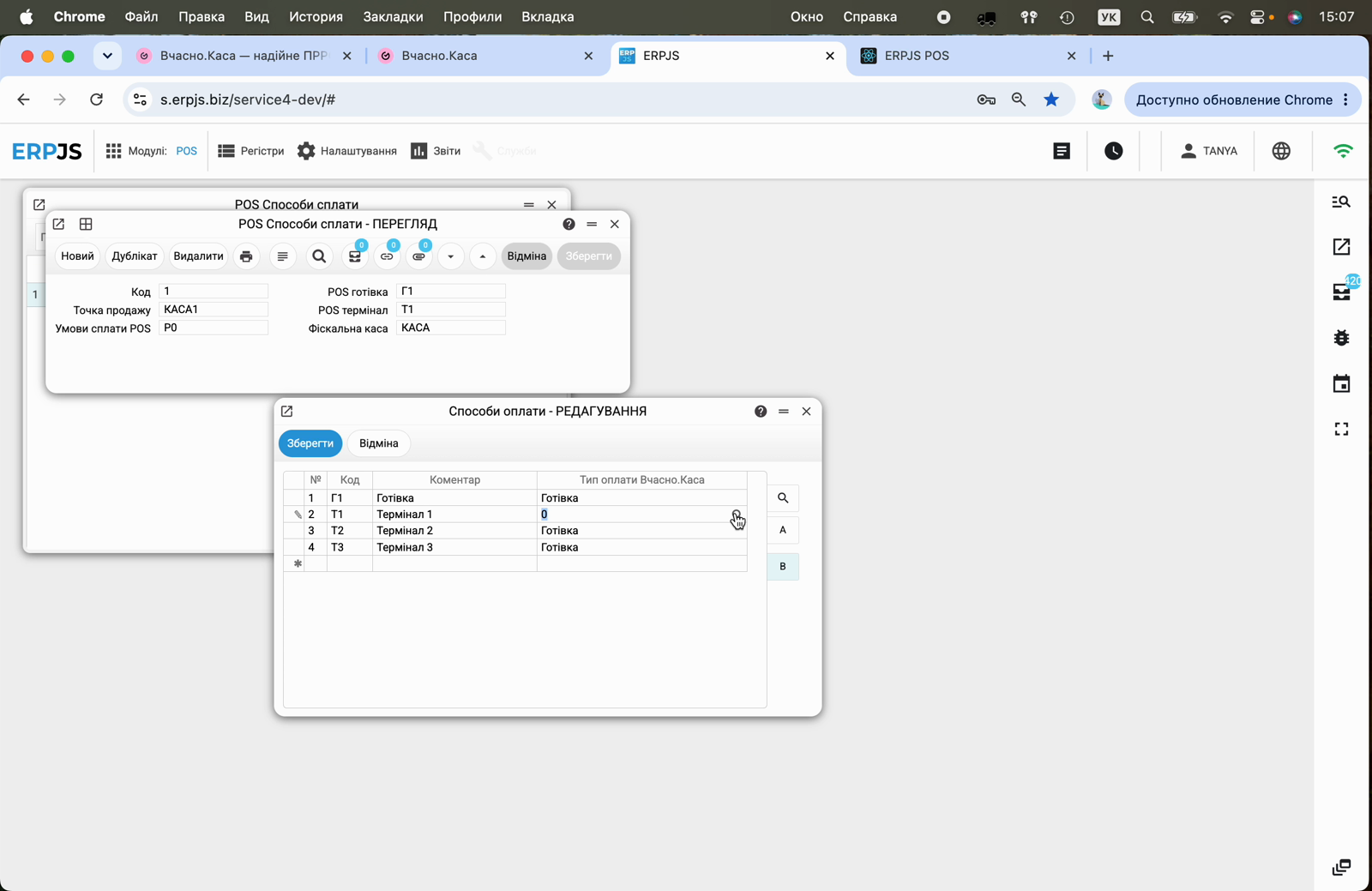
Fiscal cash register for the point of sale
In the POS payment modes register, fill in the "Fiscal cash register" field for the point of sale — the Vchasno.Kasa account code from Step 1.
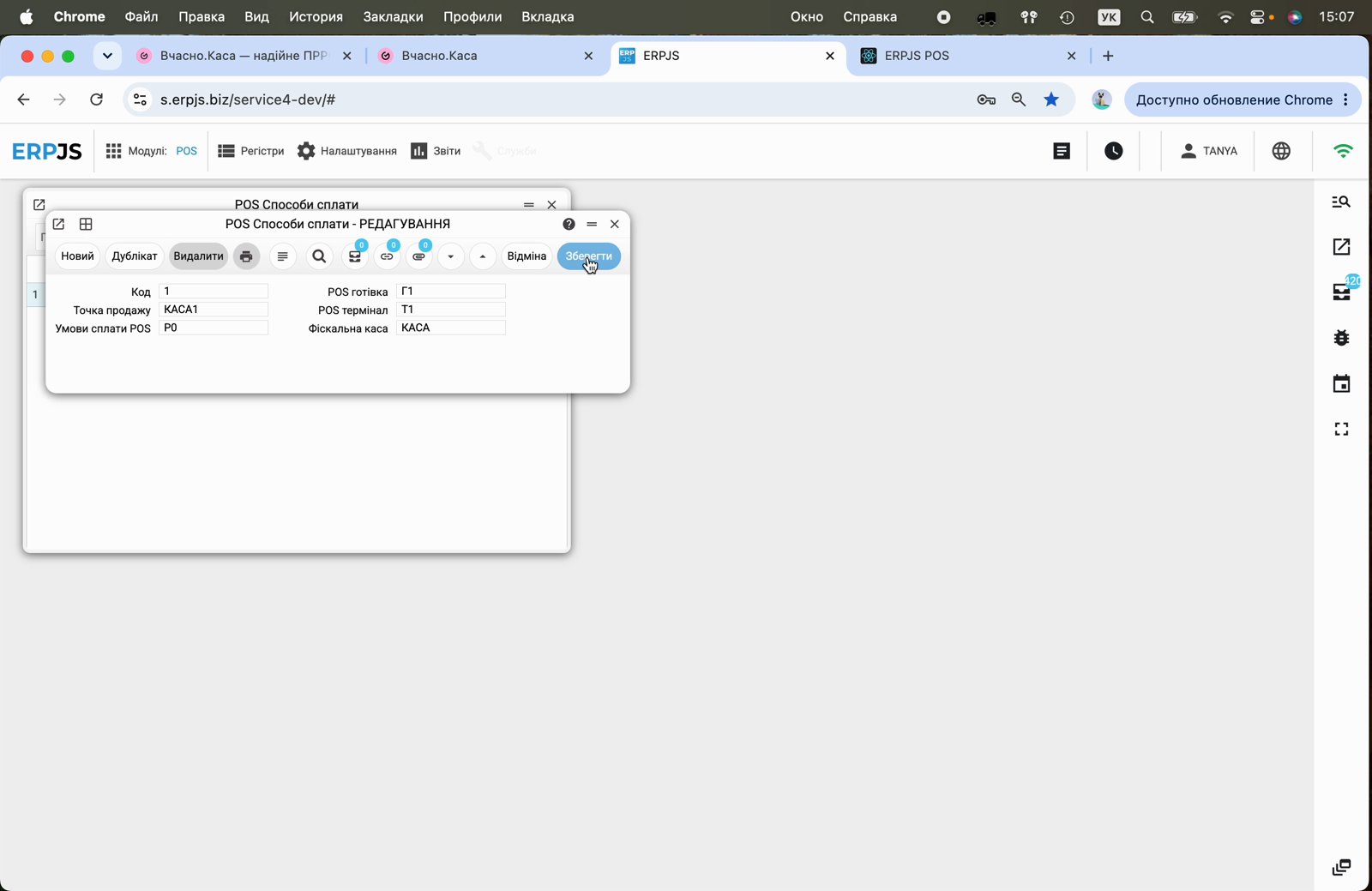
If the fiscal cash register is not set at the point-of-sale level, the value from the POS settings setting is used (the Fiscal cash register field).
Step 3. Sale and automatic fiscalization
Invoice
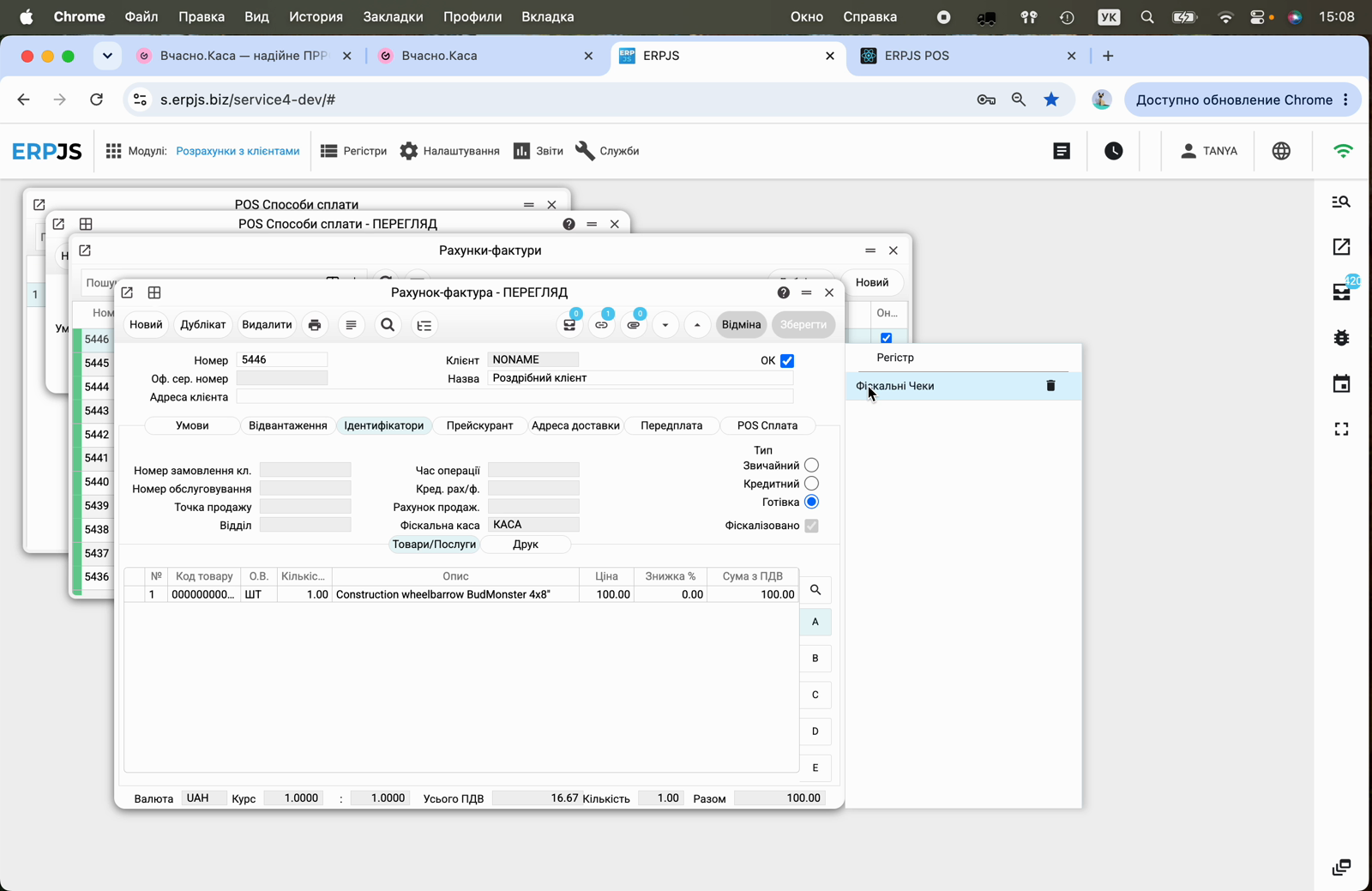
When an invoice with a filled-in Fiscal cash register (the "Identifiers" tab) is approved (OK), ERPJS automatically sends the receipt to the PRRO. An already fiscalized invoice is not re-fiscalized.
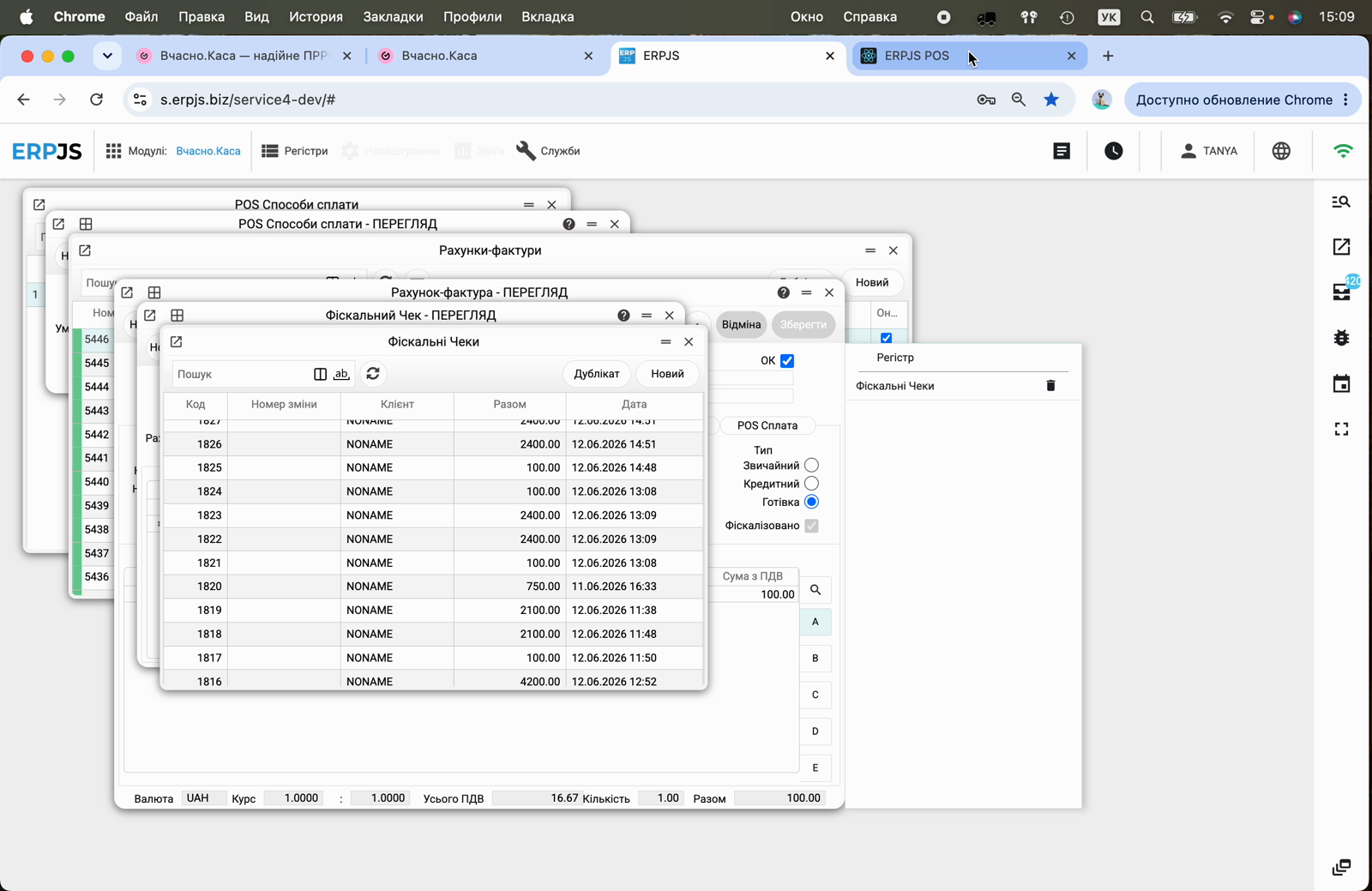
The result is visible on the invoice's "Identifiers" tab: the "Fiscalized" mark is set, and a record with fiscal data (receipt number, date, verification QR) is created in the linked "Fiscal Receipts" register.
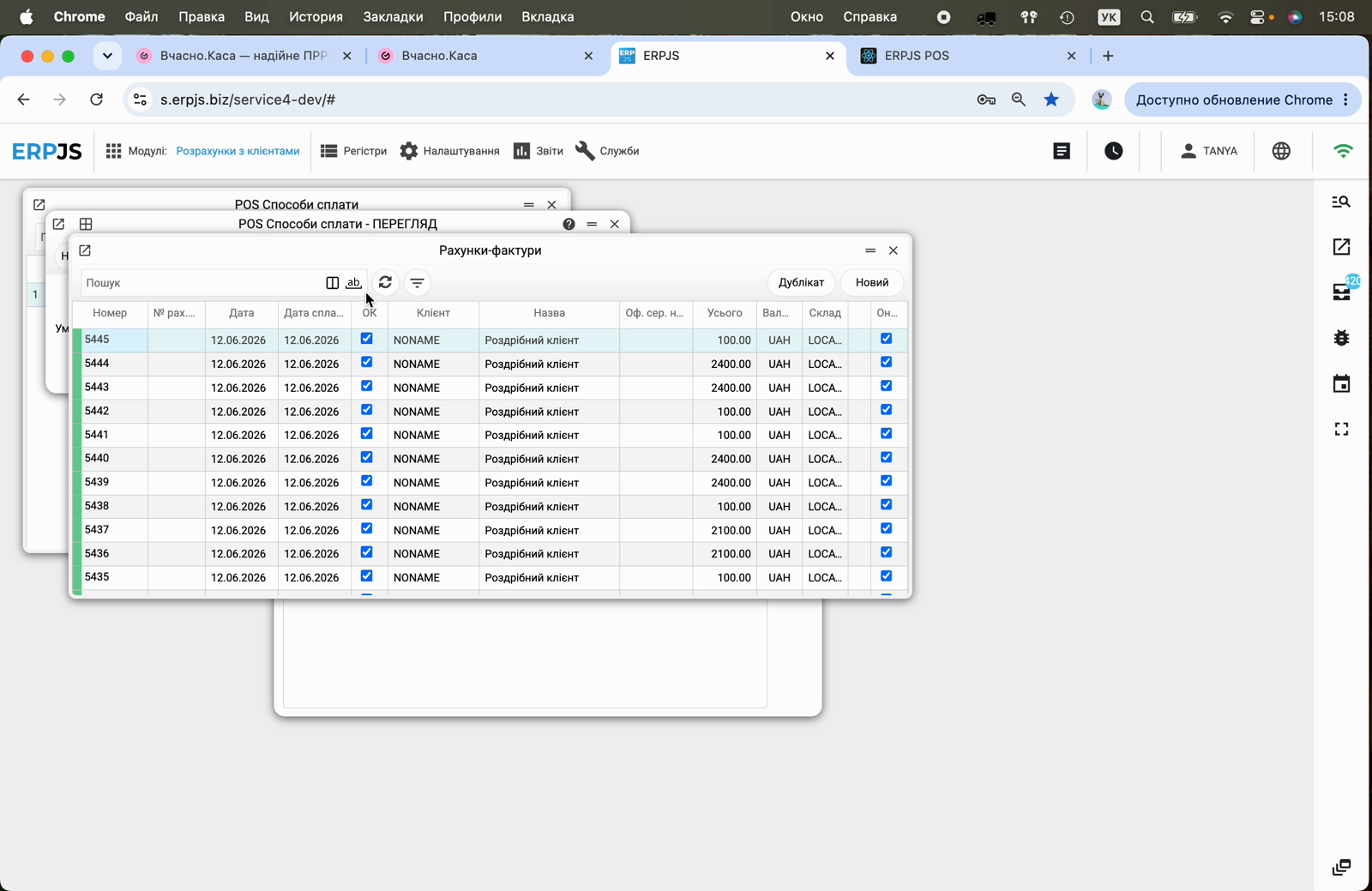
All fiscalized invoices are visible in the Invoices list.
Fiscal receipts accumulate in the Fiscal receipts register.
Cashier mode (POS)
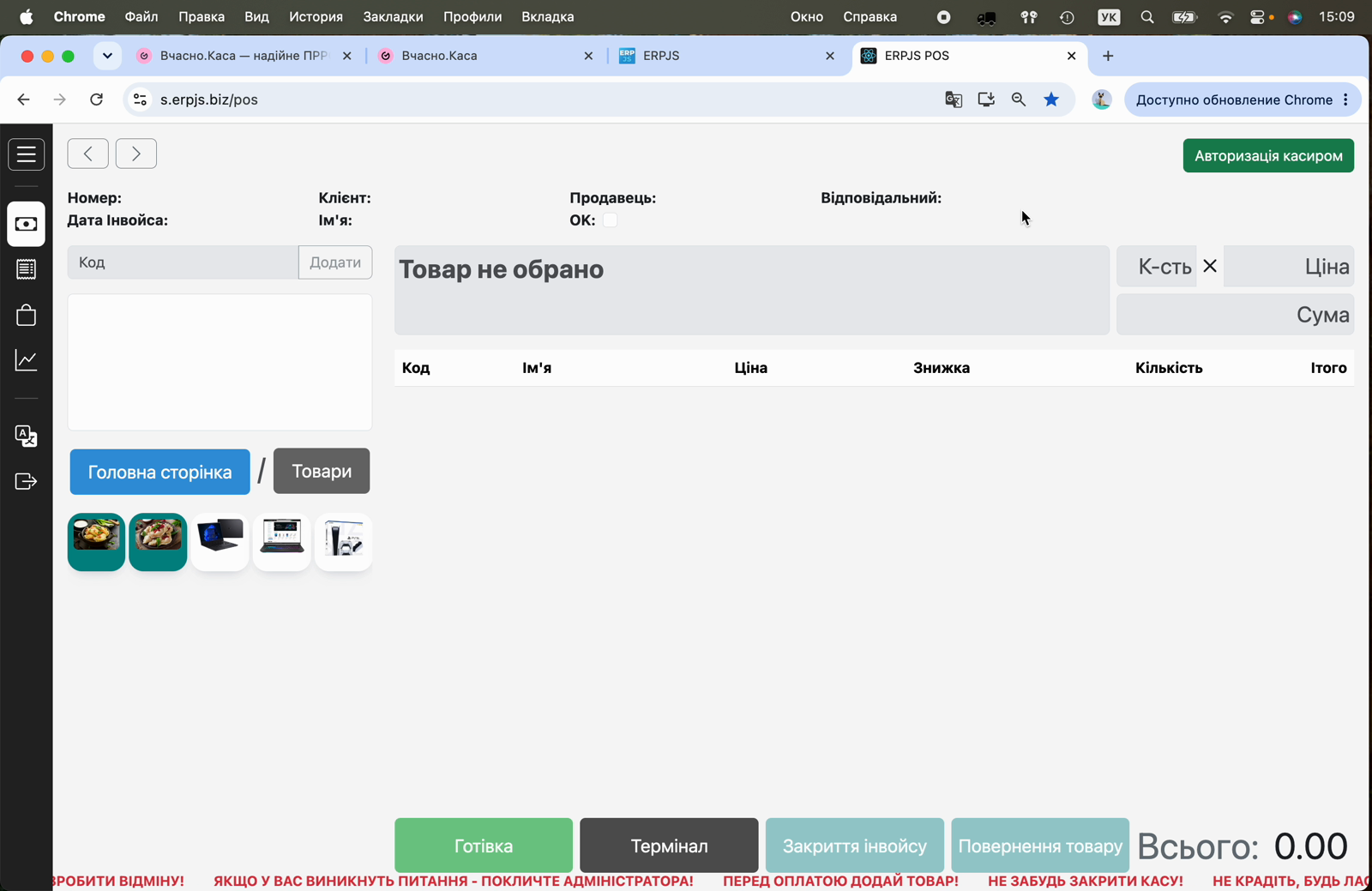
The cashier interface opens at …/pos. The cashier clicks "Cashier authorization" — this opens a shift in the PRRO.
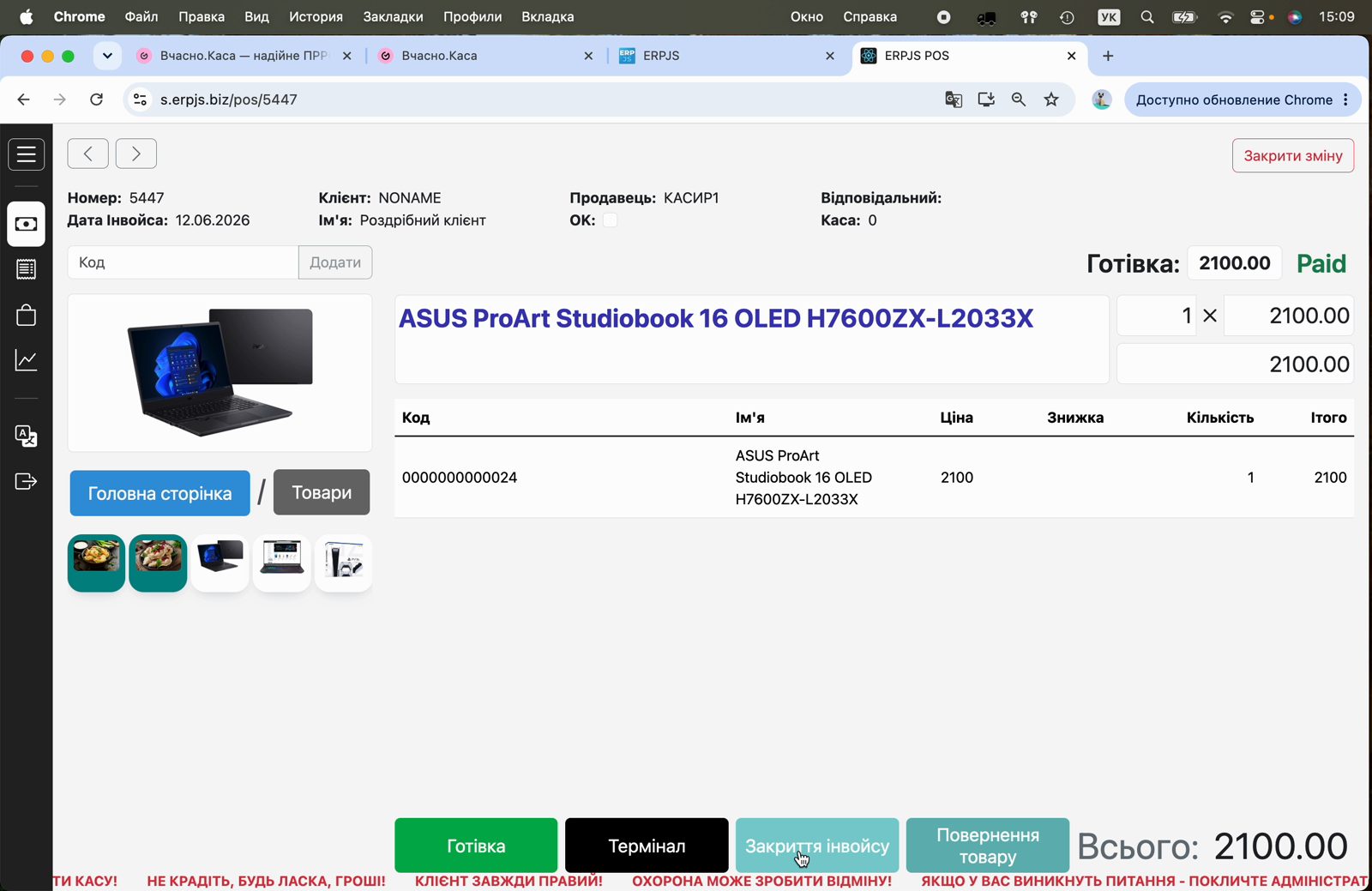
The cashier then adds items, selects the payment form (Cash / Terminal) and completes the sale with the "Close invoice" button. The receipt is automatically fiscalized, the payment is marked Paid, after which the fiscal receipt opens for printing.
Step 4. Shifts (opening and closing, Z-report)
- Opening a shift happens automatically when the cashier authorizes in POS. If the PRRO refuses, the shift does not open.
- Closing a shift is performed by the cash register closing action and is only possible with an empty till: all the cash left is taken out when closing or beforehand with the
cashOutbutton. If cash is left in the till or the PRRO does not accept the cash-out, the shift is not closed and the cashier sees the reason. ERPJS then sends a service Z-report to the PRRO. If the PRRO refuses the Z-report, the shift in ERPJS is closed anyway and the cashier is not told about the refusal — the shift stays open in the PRRO. After closing the cash register, check in the Vchasno.Kasa account that the shift is closed, and close it there if needed. - A cashier change follows the same rule: the new cashier cannot log in while cash is left in the previous cashier's unclosed shift. The previous cashier closes the shift with a cash-out, and the new one puts in the float with the
cashInbutton.
Do not leave a shift open at the end of the working day — always close the cash register (Z-report).
Step 5. Cash in and cash out
Cash in and cash out with the POS buttons (types cashIn and cashOut) are fiscalized in the PRRO together with the cash operation; if the PRRO refuses, the operation is not recorded.
The cash-out amount entered when closing the cash register is fiscalized in the PRRO as well, before the Z-report. If the PRRO does not accept it, the cash register is not closed: the cash stays in the till and in the PRRO.
Step 6. Receipt import
If some receipts were issued outside ERPJS (directly at the cash register), they can be imported back into the system. Open Maintenances → Vchasno.Kasa Receipts Import.
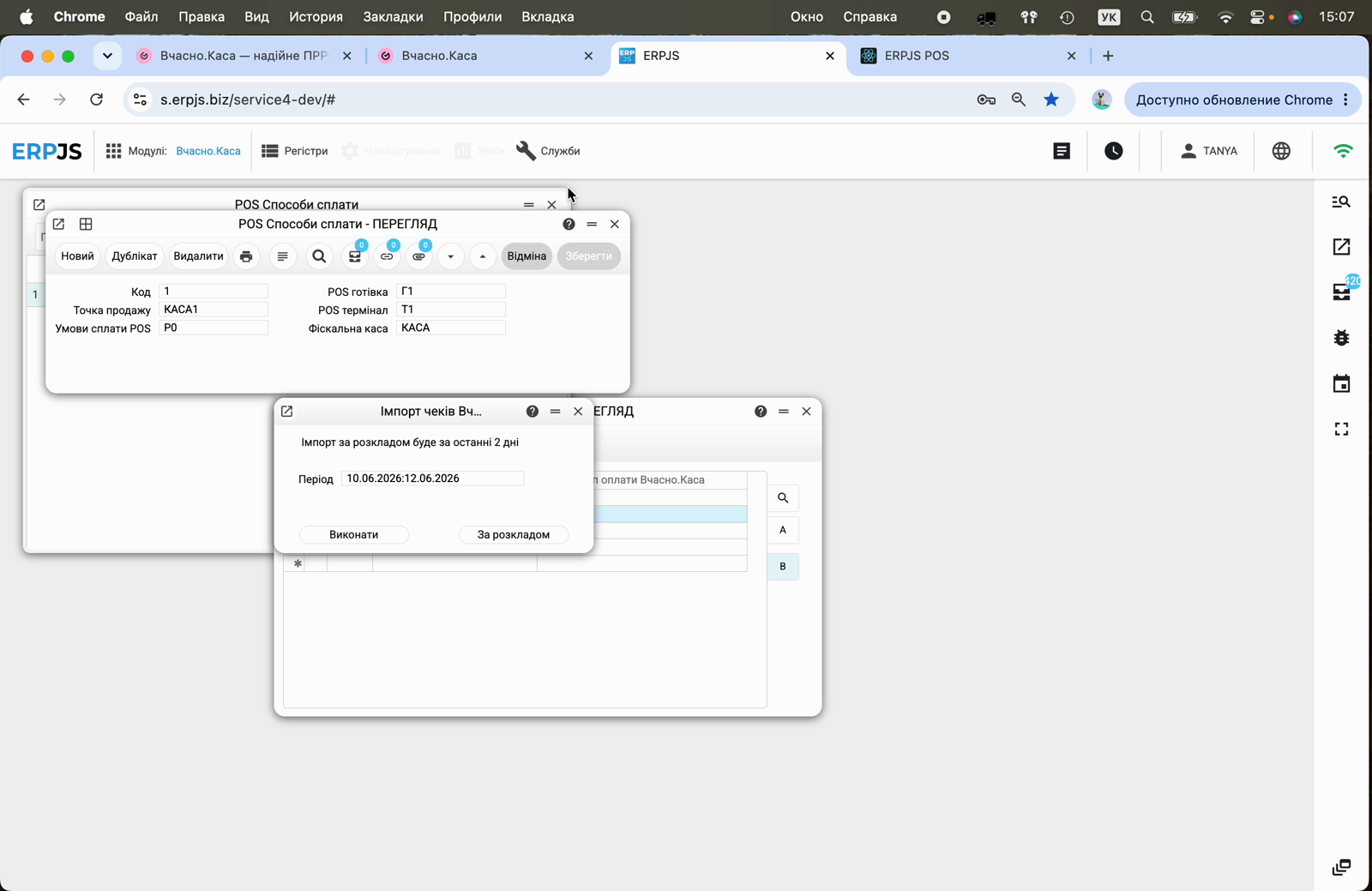
- Period — a date range (the last 2 days by default).
- Execute — start the import manually.
- Scheduled — enable regular automatic import.
The system downloads shifts and receipts from the cabinet, matches items by code/barcode and creates invoices together with Fiscal receipts records.
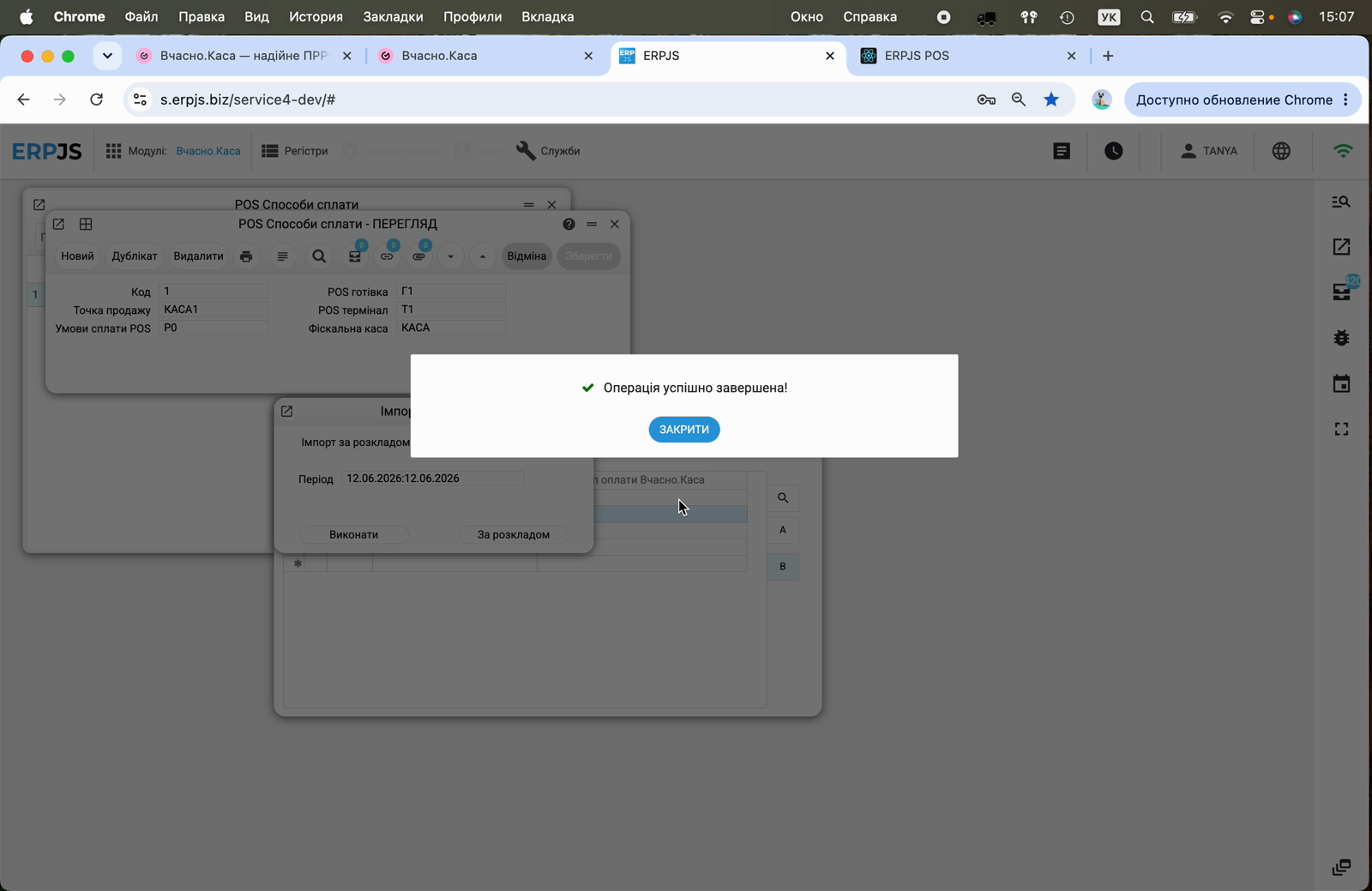
Important: import works only in public fiscal API mode. Receipts with a whole-receipt global discount are skipped (the system does not distribute such a discount across lines). If a receipt's item is not found in the catalog, the invoice is created as a draft (not approved).
Step 7. Verification in the Vchasno.Kasa cabinet
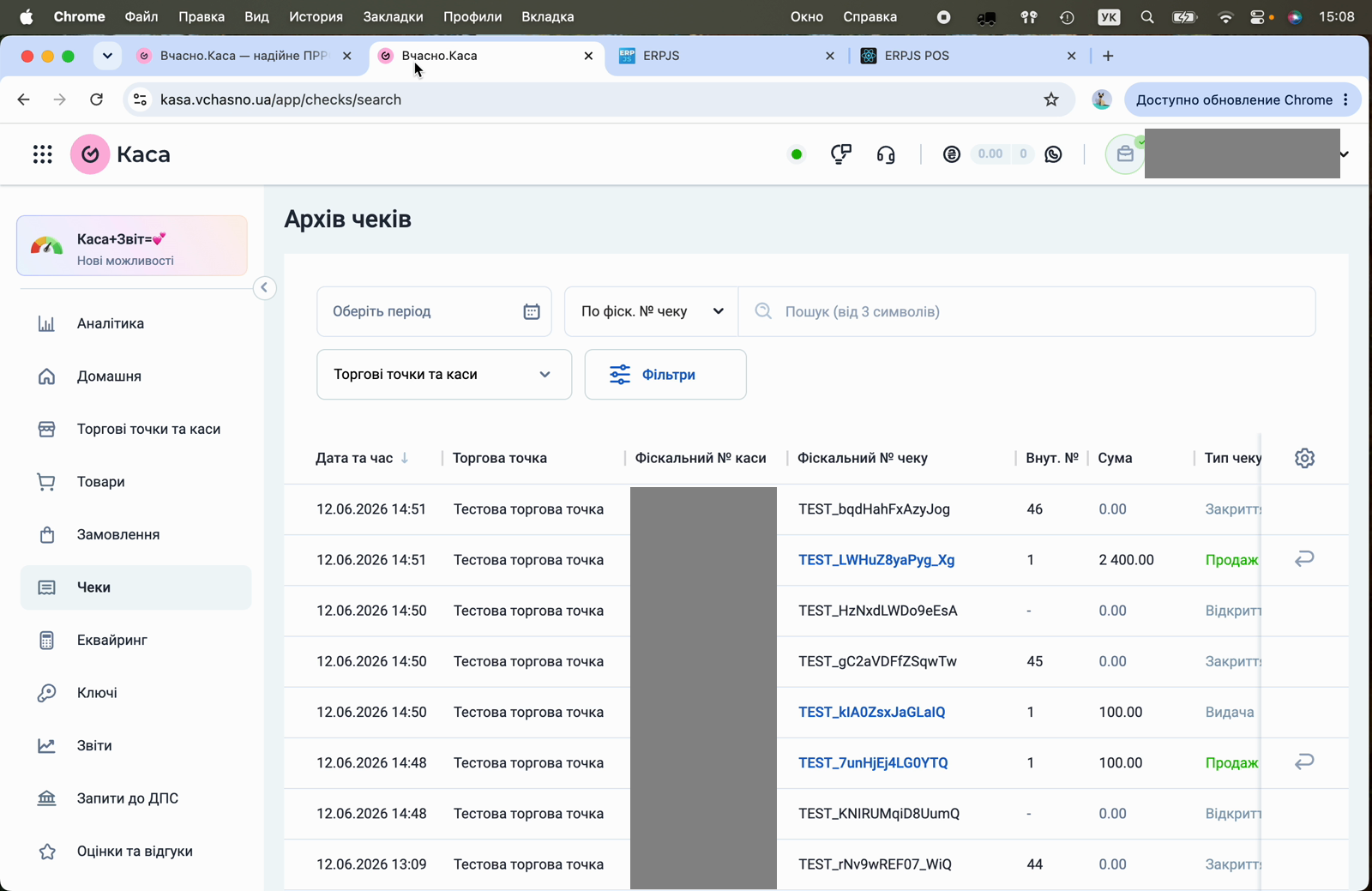
All fiscalized receipts are available in the Vchasno.Kasa cabinet in the "Receipts" (Receipt archive) section, and the shift state — in the "Points of sale and cash registers" section.
Limitations and notes
- Public fiscal API mode is required for receipt import.
- Receipts with a global discount on the whole receipt are skipped during import.
- One Vchasno.Kasa account corresponds to one cash register (fiscal number). For several cash registers, create separate accounts and link them to the respective points of sale.
- An archived account (the Closed checkbox) does not participate in fiscalization.