Service Stock Movements
A customer's device taken in for repair also has to "be somewhere": at the reception desk, at the repair bench, with an engineer. But it is not stock — it is someone else's property, accepted against a service order, and it is counted one by one, by order number. Service movements carry such devices between service locations.
Where to find it: Modules → Stock → Registers → Service Stock Movements
What sets the document apart from an ordinary stock movement is that it is two-phase. The device is first sent, then received — and each step is confirmed separately.
A worked example
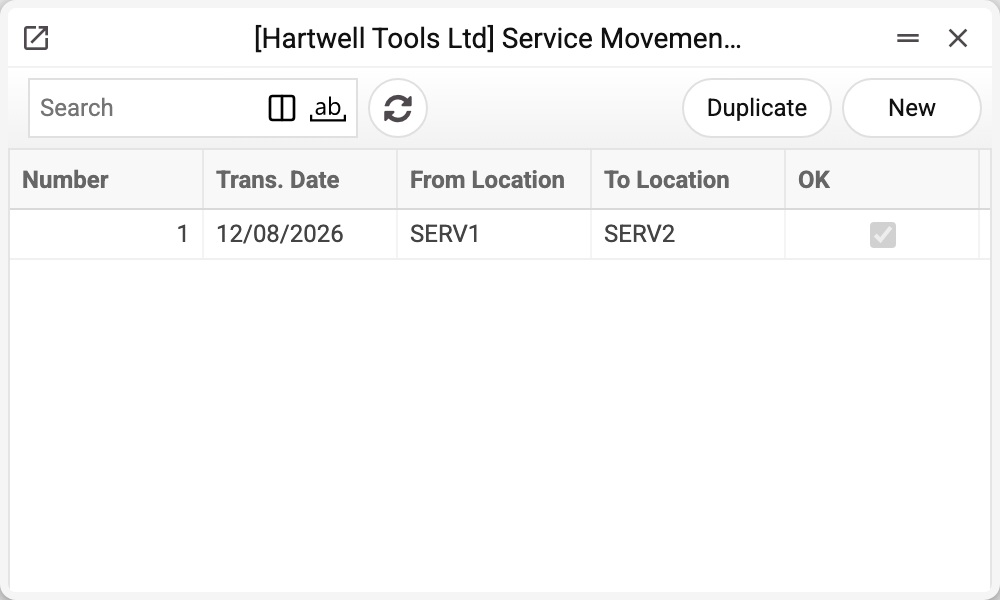
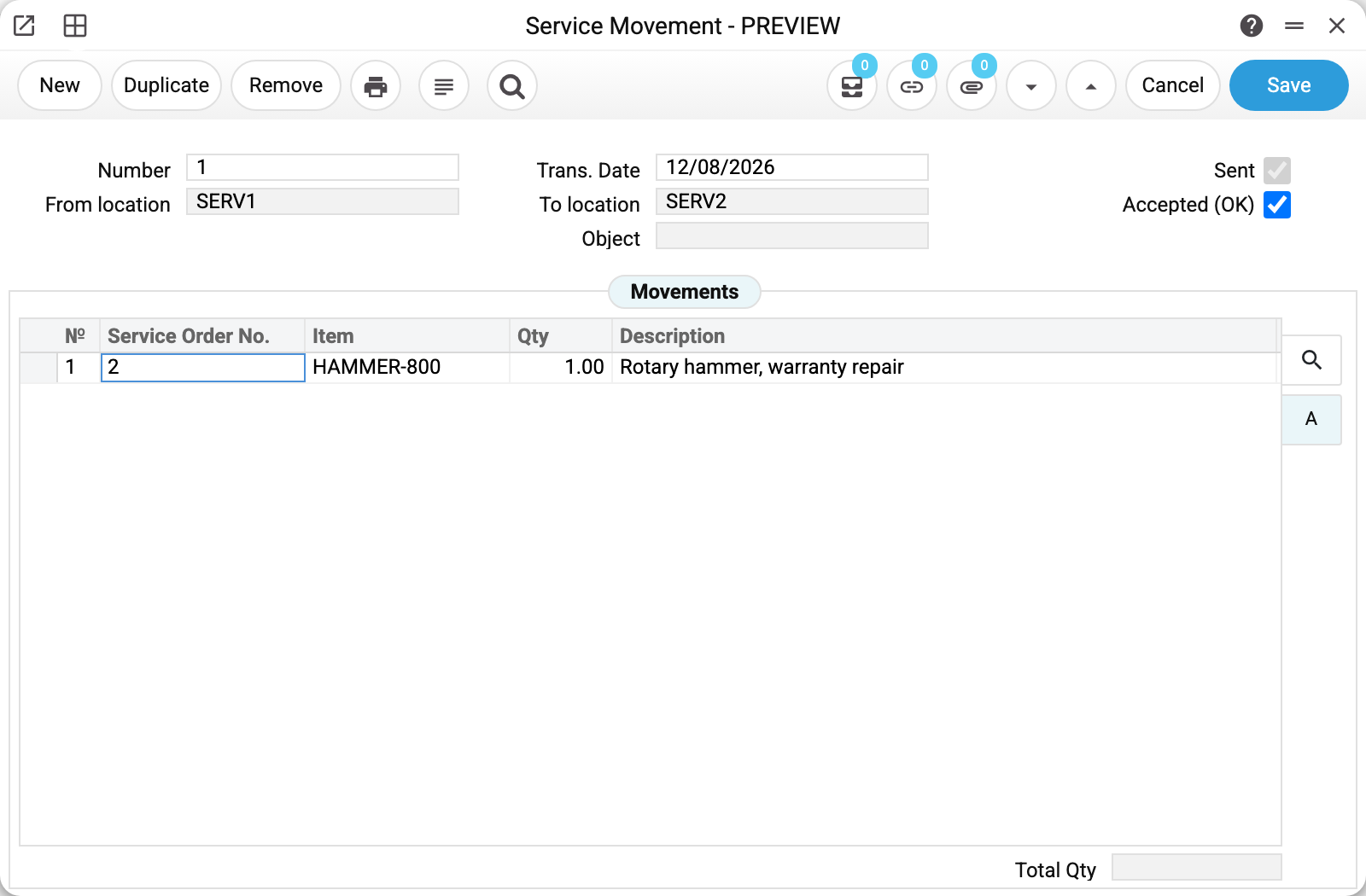
Movement No. 1 of 12/08/2026: the rotary hammer from service order No. 2 travels from SERV1 (reception) to SERV2. The line holds not a serial number but the service order number; the device is identified by the pair "order + item", because that is how it entered the workshop.
The two checkboxes on the right are the heart of the document:
- Sent — the device has left; the system immediately removes it from the source location;
- Accepted (OK) — the device has arrived; only now does it appear at the destination.
The order is strict: approving "Accepted" without "Sent" is refused — the message says the document has to be sent first. Ticking both flags in one save is refused as well ("The device has not yet been moved!"): save "Sent" first and tick "Accepted" in a later save, once the device has arrived. There is no way back either: a cleared flag cannot be saved — the system answers "The device has already been sent!", or "The device has already been moved!" if you clear the second one.
This is stock protection, not pedantry: the write-off happened the moment the flag was set, and the system deliberately refuses to undo it by toggling.
If you sent it by mistake. Deleting the document is not an option either — deletion requires no flags at all, and the flags cannot be cleared. Meanwhile the device counts as in transit: written off at the source, not yet received at the destination. There is one way out, and it is the warehouse-correct one: finish the document — set "Accepted" — and then create a counter-movement back. Both movements stay in the history, which is more honest than an erased trail.
Between the two flags the device is counted nowhere — it is in transit. That is not a gap but the whole point of two phases: while the box is crossing town, it is neither at reception nor at the bench.
What the system does
On "Sent" it removes one unit from the source: the service item status, the serial balance and a history row.
On "Accepted" it adds one unit at the destination in the same way.
Before sending, the system checks that the device really is at the source location and that a service order with that number exists. If not, the document is not approved.
Typical situations
The device has "gone missing". Look at the document: if only "Sent" is ticked, it is in transit. Tick "Accepted" when it has physically arrived, not in advance.
Wrong destination chosen. While only "Sent" is ticked, the destination can still be changed and saved — the device has not arrived there yet. Once "Accepted" is ticked it is too late — make a movement back the other way.
A device or the source location of a sent document needs changing. It cannot be done: on "Sent" the devices were already written off the source location by exactly these rows, so the rows and "From location" are greyed out, and a change saved bypassing the window is refused — "The movement has already been sent!". Take an extra device through to acceptance and return it with a counter-movement; send a missing one with a new document.
Do not confuse this with the goods warehouse. Only customer devices in service locations move here. Spare parts fitted during a repair are ordinary stock and travel by ordinary movement.
Where to look next
- Service orders — where the order number comes from;
- Service locations — what the device travels between;
- Stock movements — the same idea for goods, in a single step.
Print variables
Values available in this document's printed form templates. How to write a variable in a template — see Print Forms.
Header fields:
| Variable | What it holds |
|---|---|
| Ok | Accepted (OK) |
| Number | Number |
| Trans_Date | Trans. Date |
| Status | Sent |
| From_Code | From location (code) |
| From_Name | From location (name) |
| To_Code | To location (code) |
| To_Name | To location (name) |
| Objects | Object |
| Total_Qty | Total Qty |
Row fields:
| Variable | What it holds |
|---|---|
| No | Row position number |
| Serial_No | Service Order No. |
| Item_Code | Item |
| Qty | Qty |
| Description | Description |
| Unit | Unit code |
| Unit_Name | Unit name |
The records the document refers to through its form fields (location, customer, currency…) also expose the rest of their variables — code and name are already listed in the tables above, the rest is described in the register's article:
- From location — Service Locations (
From_*) - To location — Service Locations (
To_*) - Company details — name, addresses, bank accounts, officers, the printing user: Main Company