Project Classifications
A label hung on a project on top of its class and phase: urgent, under warranty, pilot. A project has one label, just as it has one class, but unlike the class the label configures nothing — which is what makes it handy for ad-hoc marks and easy to change (there are no reports by label yet — see below).
Where to find it: Modules → Project Management → Registers → Project Classifications
A worked example
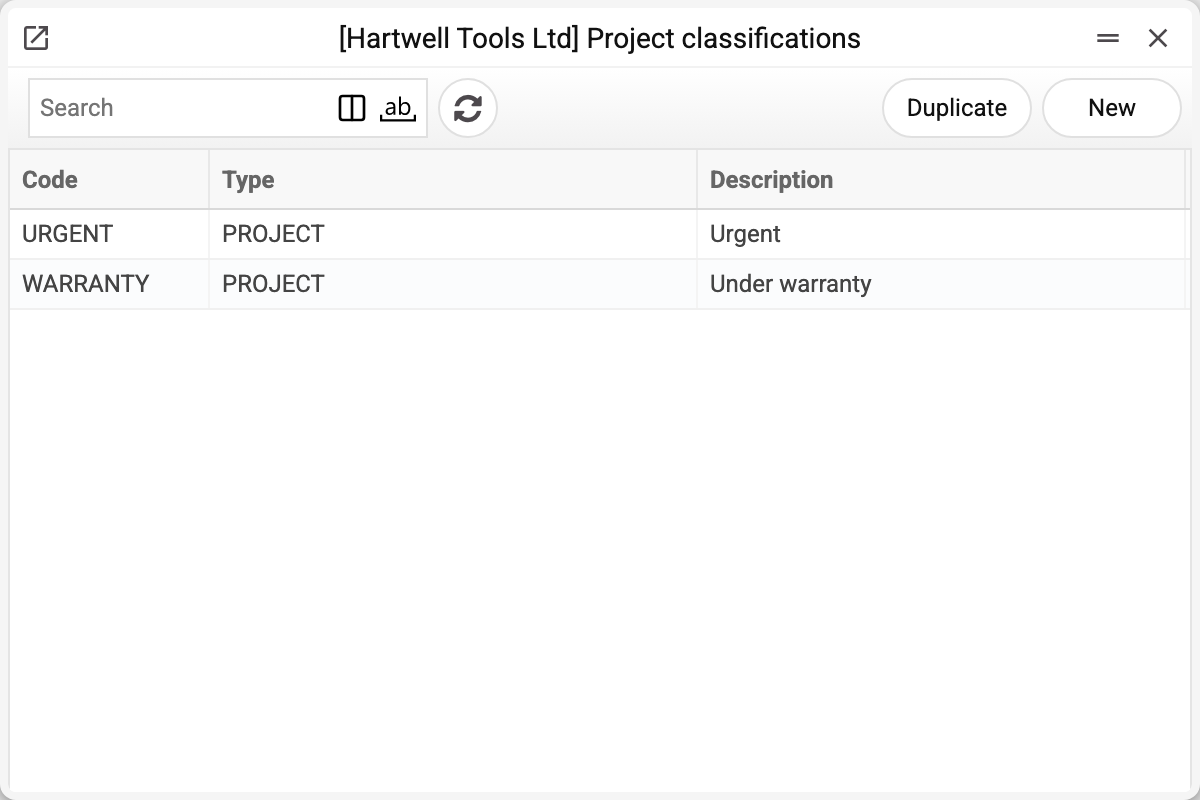
The journal shows the label code, its type and description. There are two labels of type PROJECT here; we take apart «Urgent».
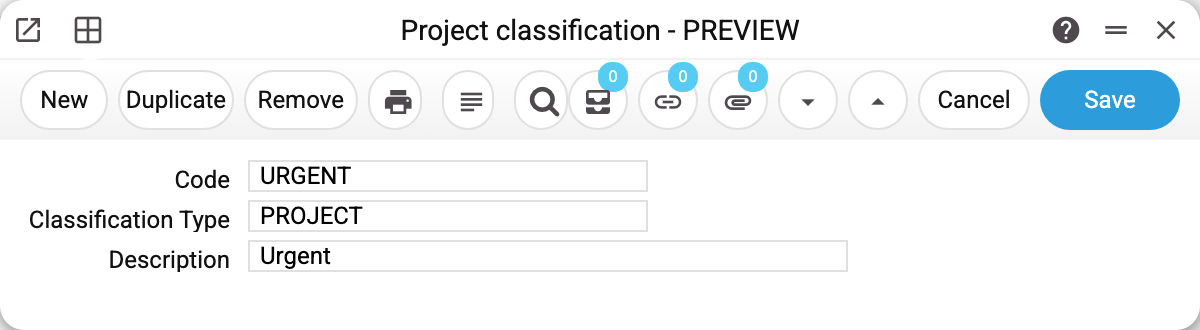
Classification URGENT, classification type PROJECT.
The "Classification Type" field is optional, but a type that is entered must exist in the types list — otherwise the label will not save: "Classification type '…' is not found!". When a label is picked on the project card, the type shows in the "Type" column, which helps tell labels apart; it sets no other rules.
Labels and types
The order is: the classification type first ("Projects", say), then labels of that type. The lookup on the project card shows all project labels together with their type.
One rule worth remembering: a project carries one label — the field takes one code; several codes separated by commas will not save.
Typical situations
A label is missing from the lookup. The lookup shows records of this very directory — check that the label was created here and not among item or contact classifications.
Reporting by label is needed. There is none at the moment: the classification is only stored on the project card — no report filters or groups by it, and the projects journal has no column for it. The project filter of the reports takes the project code, not the label.
The label cannot be deleted: "A record of «Project Classifications» is used in: Projects!" A project holds the label — with a label that is no longer in the register the project card would not save («Classification '' is not found!»). Remove the label from the projects first (or set another one), then delete.
Where to look next
- Classification types — what a label belongs to.
- Project — where the label is assigned.
- Project classes — the hard split instead of labels.