Shipments
In the usual sales chain it is the shipment that changes stock. The order records the agreement, the invoice creates the debt, the payment brings the money — and the goods leave the stock figures here.
There is one exception worth knowing: a customer invoice can write the goods off by itself when its "Update stock" flag is set. Then no shipment is needed — and the two must not both be done, or the goods leave the warehouse twice. The default for that flag comes from the Invoices setting.
Where to find it: Modules → Stock → Registers → Shipments
Along with the stock, a shipment does two more things you cannot see on the screen:
- it writes off the cost — not the price you sell at, but what the goods cost you. The system takes it from the actual batches on a FIFO basis: the oldest one leaves first;
- it posts to the ledger: cost into expenses, goods out of stock.
That is why this document carries no selling price and no amount due — they are not its business. A shipment deals in quantities and cost.
The register lives in the Stock module. It is created from the order card with «Create Shipment»: you do not build one from scratch — the rows always come from an order.
Where it sits
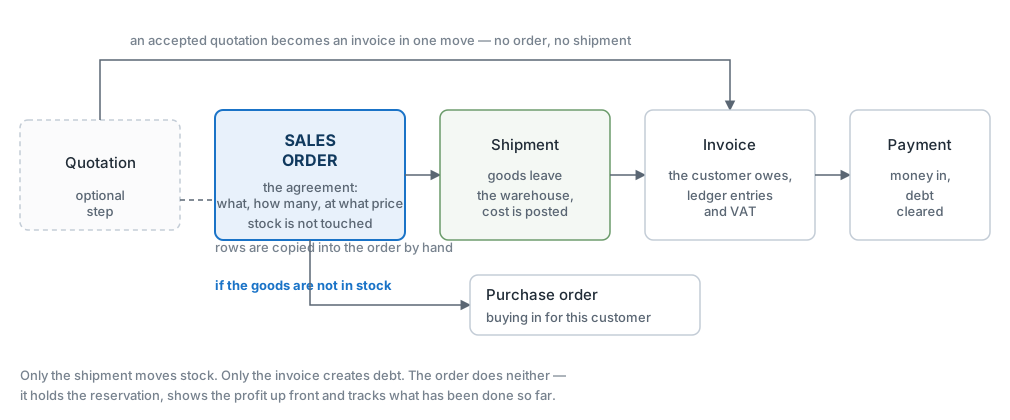
What approval does
- lowers the stock at the location named in the header;
- closes the batches on a FIFO basis and records their cost in the rows;
- posts to the ledger: debit the cost account, credit the stock account;
- writes the shipped quantity back into the order — so the order knows what has been done;
- releases the reservation on whatever has gone.
A worked example
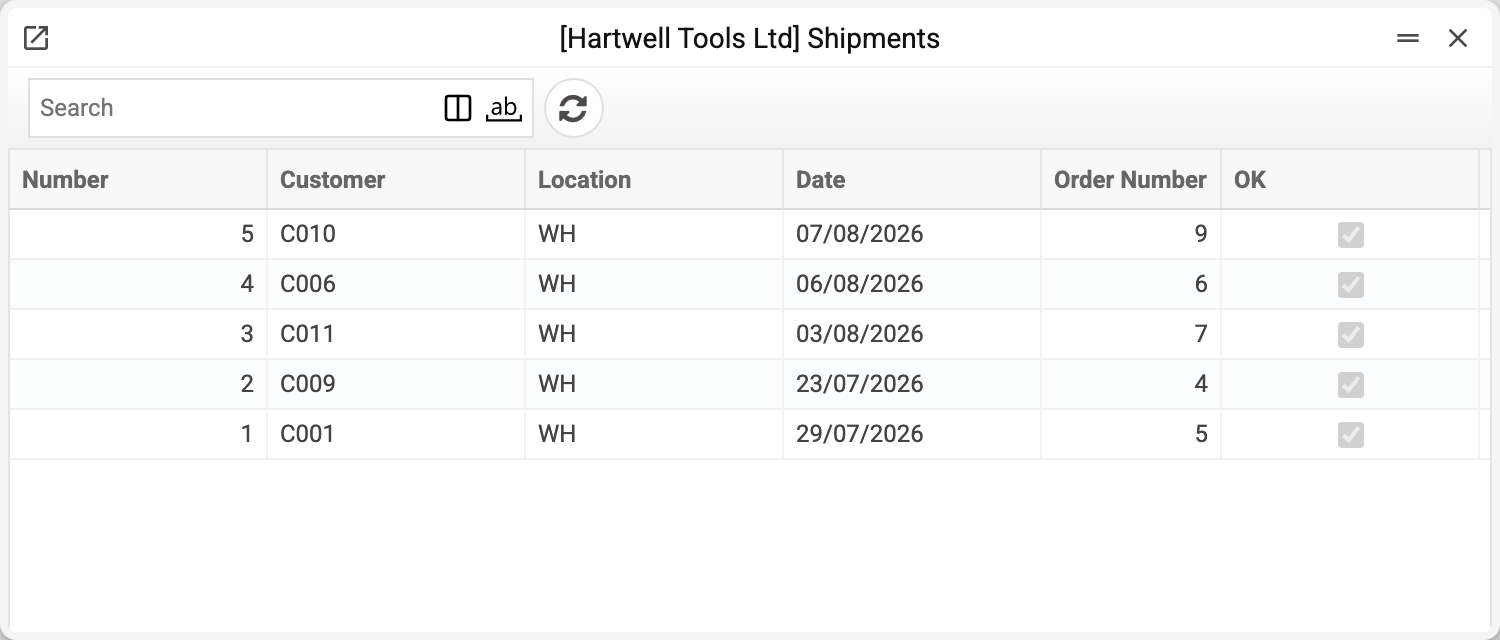
The journal answers the question "what has already left": customer, warehouse, date, order number and the OK tick — approved document or still a draft. The two columns on the right are about delivery: whether the shipment is marked as a Nova Poshta parcel and what status the carrier reports.
Stockport Shopfitters Ltd is having its order delivered in parts. This shipment takes out 6 helmets and 15 pairs of safety glasses; the respirators stay behind.
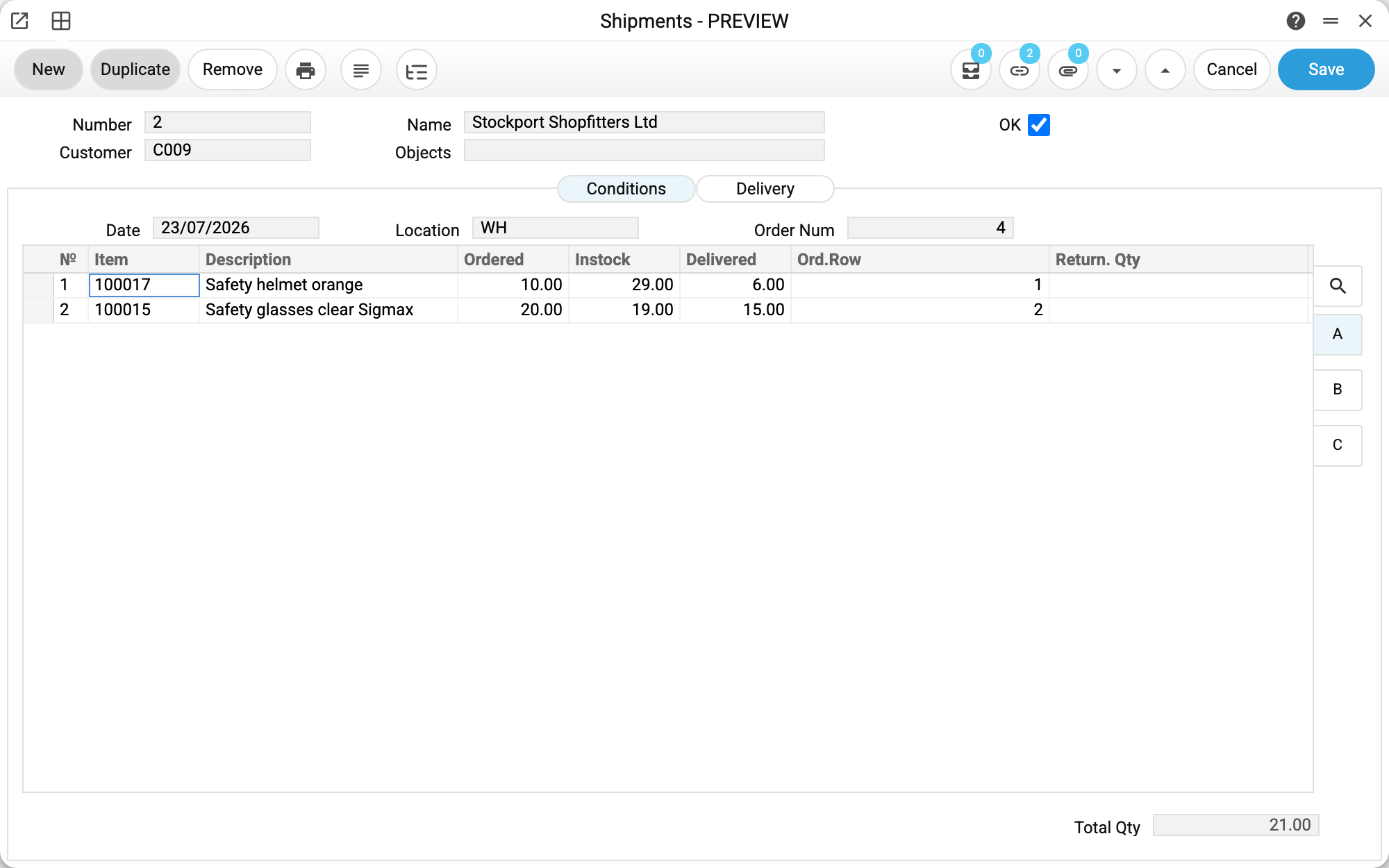
The header is short, and everything in it matters. «Location» WH is the warehouse the goods are taken from — this is what the write-off will hit. «Order Num» 4 is the order this shipment was made from; the rows came from there and cannot be added by hand.
Three numbers in a row

- «Ordered» 10 — how much of that order line was still outstanding when the shipment was created;
- «Instock» 29 — how much is in the warehouse right now;
- «Delivered» 6 — how much you are handing over with this document.
Only the last one is editable. The system shows the first two so that you can see your limits: no more than ordered, and no more than there is. That is the whole job — put the real quantities into the rows.
«Ord.Row» points back at the row of the order this one came from. That link is what lets the order count what has been done.
What it cost you

This is the other half of the operation — the half the customer never sees.
«Cost» 5.30 is what one helmet cost you. It is not an estimate and not an average: it is the figure those helmets were taken into stock at, by the goods receipt behind them. The purchasing chain and the sales chain meet in this number.
«Total» 31.80 is the cost of the whole row, 6 × 5.30. That is the amount that goes into expenses, on «Cost A/C» 902.
Now work out the margin: you sell the helmet at 9.70 before tax and bought it at 5.30 — 4.40 each, 26.40 on this row, and 34.50 on the glasses. That is where the profit in the reports comes from, and that is why cost is worth checking before approval rather than after.
Not everybody can see the cost sheet — it is governed by a separate permission. Without it the row shows only the cost account.
What changed after approval
Six helmets and fifteen pairs of glasses came off the stock of warehouse WH, and the order got its shipped quantities on sheet D. The order stays open: 4 helmets, 5 pairs of glasses and all 30 respirators are still to go.
What the document posts
A shipment answers for the goods half of the deal only, and the transaction says exactly that: the cost leaves the stock and becomes an expense.
| Dr | Cr | Amount | For what |
|---|---|---|---|
| 902 | 201 | 31.80 | six helmets at 5.30 |
| 902 | 201 | 42.00 | fifteen pairs of glasses at 2.80 |
There is no revenue and no customer debt here — those appear on the invoice. So between the shipment and the invoice the company looks like this: the goods are gone, the money has not arrived, and the cost has already been recognised as an expense. That is a normal intermediate state, but if the invoice is forgotten it becomes permanent — and the profit stays understated by exactly this amount.
There are as many rows as there are batches shipped: one position assembled from two deliveries produces two rows at different costs.
The shipment posts only if the «Shipments» box is ticked on the «Logistics» tab of the «Records from Subsystems» setting; without it the document is approved with no transaction and no warning.
Where the accounts come from
The cost account is visible right in the line — the «Cost A/C» column on sheet B, 902 «Cost of goods sold» in the example. Clear it and the account will be looked up from the item card, then the item group, then the general settings.
The stock account is not shown in the line at all: the system resolves it on approval along the chain item card → item group → location card → settings. By default the goods receipt takes its account along the same chain, so the goods are usually written off from the account they were taken onto. But if the account on the receipt row was corrected by hand, or the stock account on the item card, item group or location card was changed after the receipt, the shipment writes the goods off from the current account while their value stays on the old one — it is moved across with a manual posting.
Hence a practical consequence: comparing shipments by their accounts is pointless when the items belong to different groups — identical-looking documents will post differently. The account numbers in the example come from the demonstration database; your company will have its own.
How to work with it
1. Create it from the order
Order card → «Create Shipment». The rows come across by themselves, with the quantities still outstanding.
2. Bring it in line with reality
Correct «Delivered» in each row to what is actually leaving. Rows that are not going at all can be zeroed — they stay in the order.
3. Check the cost
Sheet B shows the cost per unit and per row. An empty cost usually means the goods were never taken into stock properly; a cost above the selling price means the deal is at a loss.
4. Approve
OK and save. From this moment the stock is lower, the ledger entries exist, and the document can no longer be edited.
5. Next
- «Create Invoice» — bill for what has gone;
- «Create a customer return» — if the goods come back;
- «Create a waybill» and the express-carrier waybills — the transport documents;
- «Open transaction record» — the ledger entry that was made.
If the module settings have automatic invoicing after shipment switched on, the invoice appears by itself, without the command.
How to be sure the document is right
- «Total Qty» equals what actually left the warehouse.
- The location in the header is the one the goods were really picked from.
- Cost is filled in on every row, and it is below the selling price.
- After approval, «Open transaction record» shows an entry for the cost amount.
- The order's shipped columns have been updated.
Print variables
Values available in this document's printed form templates. How to write a variable in a template — see Print Forms.
Header fields:
| Variable | What it holds |
|---|---|
| Ok | OK |
| Number | Number |
| Cust_Code | Customer |
| Contact_Code | Customer (code) |
| Contact_Name | Customer (name) |
| Cust_Name | Name |
| Objects | Objects |
| Date | Date |
| Loc_Code | Location (code) |
| Loc_Name | Location (name) |
| Order_No | Order Num |
| Total_Quantity | Total Qty |
| Cust_Addr1 | City |
| Cust_Addr2 | Street |
| Cust_Addr3 | Building |
Row fields:
| Variable | What it holds |
|---|---|
| No | Row position number |
| Item_Code | Item |
| Description | Description |
| Ordered | Ordered |
| InStock | Instock |
| Delivered | Delivered |
| Ord_Row | Ord.Row |
| Qty | Return. Qty |
| Price | Cost |
| CostPrice | same as Price |
| Total | Total |
| CostTotal | same as Total |
| MObjects | Objects |
| Serial_No | Serial No. |
| SalePrice | Sale price from the sales order row (empty if the row is not from an order or the person printing has no right to read «Sales Orders») |
| SaleTotal | Row amount at sale prices: the sales order row amount pro rata to the shipped quantity (empty in the same cases as SalePrice) |
| Unit | Unit code |
| Unit_Name | Unit name |
| Barcode | Item barcode |
The records the document refers to through its form fields (location, customer, currency…) also expose the rest of their variables — code and name are already listed in the tables above, the rest is described in the register's article:
- Customer — Contacts
- Location — Locations (
Loc_*) - Company details — name, addresses, bank accounts, officers, the printing user: Main Company
Common situations
A mistake, and the document is already approved. There is no fixing it: editing an approved shipment is refused with «the document is approved», and an ordinary user is not allowed to un-approve it either — "You cannot unapprove a warehouse document. You need the canUnOkStockDock permission. Contact the administrator". That permission (or the shipment-specific one) can only come from a role — the background "default access" never grants tasks. In the demo database the ADMIN role has it. Stock figures, batches and ledger entries already stand behind it. If the goods really are coming back, raise a return.
The customer took less than ordered. That is the normal course: lower the quantity, the rest stays in the order and goes with the next shipment.
There is less in the warehouse than needed. Ship what you have. The order stays open for the difference, and the purchasing for it can be started from the order itself.
The goods have to go from another warehouse. The location is set in the header and is one for the whole document: the write-off and the stock check use it. If part of the goods leaves from another warehouse, make a separate shipment for it with that location in the header.
Selling below cost. The system notices: one user simply gets a message that the price is below cost, another is not allowed to tick OK at all. The difference is a permission, and it is handed out deliberately: the first for a salesman, the second for people who are not allowed to sign off discounts. This works only when «Update Cost Price on Order when Delivering» is on in «Sales Orders Setting» — without it there is neither the warning nor the ban.
Field reference
Header
| Field | Where | Description |
|---|---|---|
| Number | always | Shipment number, assigned automatically |
| Customer, Name | always | The customer and their name from the card |
| Objects | always | Analytical objects of the document |
| OK | always | Approval: writes off stock and posts to the ledger |
| Date | Conditions | The date the goods left |
| Location | Conditions | The warehouse the goods are taken from |
| Order Num | Conditions | The order this shipment was made from |
| Delivery | Delivery | Delivery terms, mode and address for the transport documents |
| Address code, Address type | Delivery | Which of the customer's addresses is used |
| Country, Region, City, Street, House, Floor, Flat | Delivery | Where to deliver; substituted from the customer card and not editable in the document |
| Nova Poshta | Nova Poshta | The express waybill data, when the integration is on |
Item rows
| Field | Sheet | Description |
|---|---|---|
| Item, Description | all | Item code and name |
| Ordered | A | Still outstanding on the order line |
| Instock | A | Currently in the warehouse |
| Delivered | A | How much is being handed over — the only editable quantity of the row (besides it: the item, serial numbers, objects and the cost account) |
| Ord.Row | A | The order row this one came from |
| Return. Qty | A | How much of this row has come back — by approved returns; a draft return is not counted |
| Cost | B | Cost per unit, FIFO |
| Total | B | Cost of the row |
| Cost A/C | B | The account the cost is written off to |
Document totals
| Field | Description |
|---|---|
| Total Qty | Total units shipped |