Sales Orders Report
The fulfilment dossier: for every sales order of the period the report gathers all derived documents into one block — invoices with the outstanding debt of each, shipments, credit notes and returns. It answers "where does this order stand": what has left the warehouse, what is invoiced, what is paid.
Where to find it: Modules → Sales Orders → Reports → Sales Orders Report
For an even deeper drill-down — with document lines, payments and order tasks — use the neighbouring Sales Orders Status. This report is lighter: documents appear as headers, but the whole period fits one screen.
A worked example
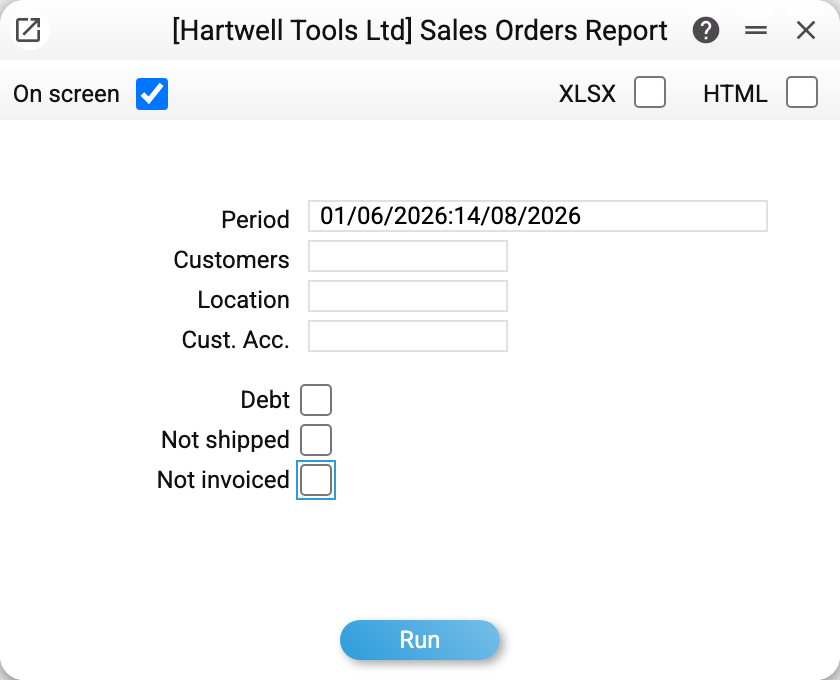
Orders for June–August 2026:
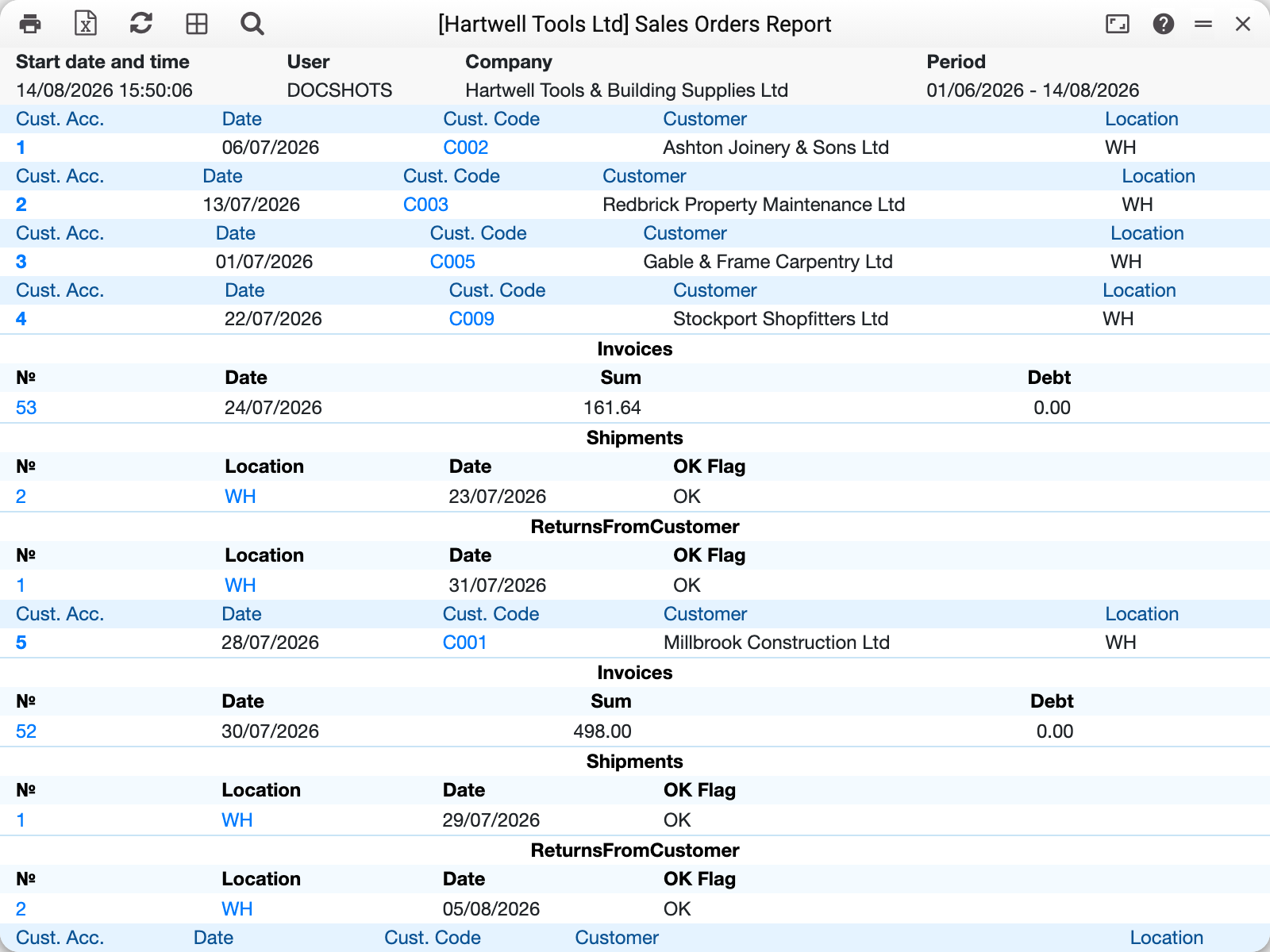
Each order is a card of its own. Take order No. 4 for Stockport Shopfitters Ltd (the same one that runs through the orders and shipments articles):
- Invoices: No. 53 of 24/07/2026 for 161.64, debt 0.00 — the invoice is paid;
- Shipments: No. 2, stock WH, marked OK — part of the goods has left;
- the order itself is larger, so it is fulfilled partially: the invoice and the shipment cover only what was actually shipped.
Document numbers in the blocks are links — a click opens the invoice or the shipment itself.
Where the numbers come from
- Orders are selected by the order date (the "Order Date" field of the order card). An old order with fresh shipments this month will not show in this month's report — the period filters orders, not their documents.
- Debt per invoice comes from the open-invoices ledger (the same figure as in the receivables report): what remains unpaid right now, regardless of the report period. All invoices of the order are listed, unapproved ones included: an unapproved invoice shows a debt of 0.00 because it is not on the books yet, not because it is paid.
- Shipments are all listed, but only confirmed ones (OK) count into the "shipped" quantity.
- Credit notes and returns from customer get their own blocks — both the sale and its reverse flow are visible.
Parameters
| Parameter | What it does |
|---|---|
| Period | Order dates |
| Customers | Orders of one customer by code |
| Location | Orders with this stock in the header |
| Cust. Acc. | One specific order number |
| Order Type | Only orders of this type — the order card's "Order Type" field (the "Sales order types" directory). Empty — all types. A code missing from the directory is refused: "Code not found!" with the field highlighted |
| Debt | Keep only orders with unpaid invoices; the invoice block then lists only those carrying debt |
| Not shipped | Select orders where more was ordered than shipped. Only lines that go to shipment (stock items and sets) count: an order of services, labour or "plain" items only does not land here — there is nothing to ship in it. Shipped counts as the larger of two: the marks in these lines, or confirmed shipments minus confirmed returns |
| Not invoiced | Select orders where more was ordered than invoiced: a credit note reduces the invoiced quantity, unapproved invoices count; over-invoiced orders do not land here |
The "Debt", "Not shipped" and "Not invoiced" checkboxes combine with OR: two ticks give the orders that match at least one of them.
Common situations
The report opens with the checkboxes OFF. "Debt", "Not shipped" and "Not invoiced" are unticked by default — the first run shows ALL orders of the period with all their invoices (the frames in this article are taken that way). A tick narrows the list to "problem" orders, and "Debt" also keeps only unpaid invoices in the invoice blocks.
Ticked a filter and the report is empty. No order of the period matches the condition. An empty result here means "no such orders", not a broken filter. The same goes for "Order Type": empty means no orders of this type in the period.
An order is missing although it just had documents. Check the order's own date: the period filters by it, not by invoice or shipment dates.
Debt does not match the period. Normal: debt is the "as of now" state. If the invoice was paid after the period end, the debt still shows zero.