Items Setting
Every new item card starts with empty fields, and some of them are the same across the whole company: the unit of measure and the VAT rate. This setting defines those defaults once, so nobody types them forty times a day.
Where to find it: Modules → Stock → Settings → Items Setting
Its other half is three switches: the alternative-code check, the Prom.ua synchronisation and the "Set" column in stock documents.
A worked example
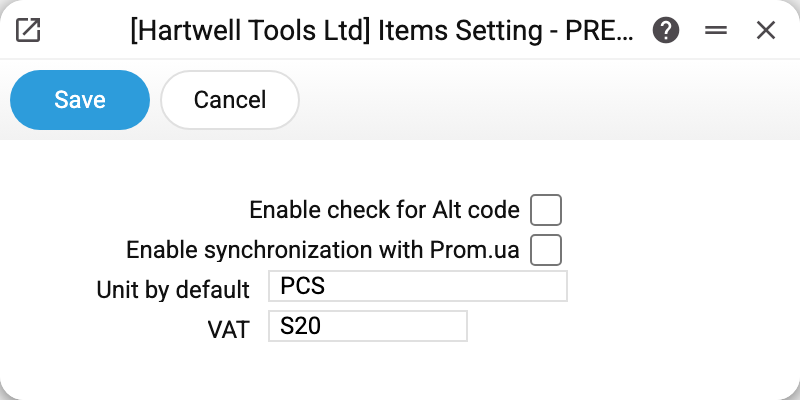
Two fields are filled in the demo company:
- Unit by default —
PCS; - VAT — code
S20.
Create a new item card and the "Unit of measur." field already reads PCS. That is the whole visible effect of the setting: the system pre-fills the value in a new card, and you change it to PACK or M when you need to.
The Enable check for Alt code, Enable synchronization with Prom.ua and Show "Set" column in Goods Receipts and Stock Movements checkboxes are cleared in the demo company.
What each field does
Unit by default is the only field that really goes into a new card. The value comes from the units register; if the setting is empty, the card's field stays empty too — and the system will not save an item without a unit. A unit named in this setting cannot be deleted from the register.
VAT is NOT copied into the card. It works differently: during customs clearance the system takes the VAT rate from the item card, when that is empty — from the item group, and only then — from this setting. So it is a company-wide fallback rate, the last link in the search, not a template for new cards.
Enable check for Alt code. The alternative code is the item's code at the supplier, or its old code from a previous system. With the box cleared, different cards may share the same alternative code. With it ticked, the system checks on save and rejects duplicates: "Product with this Alt.code already exists". Turn it on where goods are looked up by the supplier's code at receiving.
Enable synchronization with Prom.ua is the main switch for uploading prices and stock to Prom.ua. Cleared — the upload services send nothing, even when run by hand or on a schedule, and report that synchronization is off. Ticked — prices and stock go to Prom.ua when those services run and Prom Options is filled in — for items that have a Prom code and «Synchronization with Prom.ua» ticked on the card (the «Sync.» tab). The keys update service sets both the Prom code and this tick when it links an item for the first time; on an item that is already linked, a tick cleared by hand it does not restore. If the Prom code is typed into the card by hand, the tick is set by hand too. Items skipped because of a cleared tick are reported as a count. Order import from Prom.ua is not governed by this checkbox.
Show "Set" column in Goods Receipts and Stock Movements. When the code of an item set is entered in a goods receipt or a stock movement, the system replaces that row with the set's components. With the box cleared, the row table has no separate column for the set code — that is how documents look in companies that do not use sets. With it ticked, the rows get a "Set" column: for a component it holds the code of the set it came from, for an ordinary item it is empty. The "↳" mark before a component's code is there either way, because it comes from the row itself. Despite its label, the same switch also shows the "Set" column in the production window — on input rows expanded from a set. The switch only changes how the window looks: the set code is always stored in the rows, and windows that are already open have to be reopened.
Typical situations
New cards get the wrong unit. Change the value here — it applies to cards created AFTER the change. Existing cards are not rewritten.
I want new items to get a VAT rate straight away. That is not how it works: the rate is entered by hand on the card's "Acc" tab ("VAT Code" field). The setting only serves customs clearance.
I switched the Alt code check on and old cards no longer save. Then duplicates have already accumulated. The check fires when any card is saved, so clean up the repeats first and switch the box on afterwards.
A receipt has rows marked "↳", but I cannot see which set they belong to. Tick the "Set" column box and reopen the document: the set code appears in its own column. And the other way round: if you do not use sets, keep the box cleared and the windows stay free of an unused column.
Where to look next
- Item card — where the pre-filled unit and VAT rate actually show up.
- Item code ranges — where the code of a new card comes from.
- Units and Item groups — the registers the card relies on.