Vendor Invoices
The goods are already in the warehouse and you have not paid for them yet. A supplier invoice records your debt: how much you owe, to whom and by when.
Where to find it: Modules → Purchase Ledger → Registers → Vendor Invoices
It is the mirror image of a customer invoice. The purchase order agrees the deal, the goods receipt puts the goods into stock, and the invoice:
- creates the payable — the amount you owe the supplier;
- posts to the ledger: expense or stock on the debit side, the debt to the supplier on the credit side, VAT on its own line;
- sets the due date, from which the debt counts as overdue;
- is the basis for reclaiming the VAT.
It does not touch stock: the receipt has already recorded the quantities and the cost. And the other way round — without an invoice the goods in the warehouse still carry their cost, but there is no debt to the supplier: nothing to pay against, and the reconciliation with them will not match.
The register lives in the Purchase Ledger module.
Where it sits
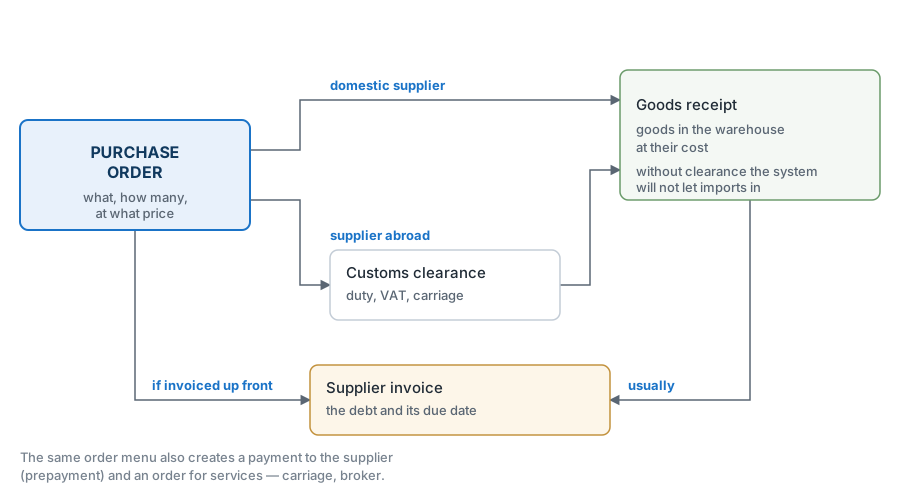
There are two ways to create it, and the choice decides what lands in the rows:
- from the goods receipt — the invoice carries what actually arrived. This is the usual case: goods first, paperwork second;
- from the order — the invoice carries what was ordered. That is what you do when the supplier invoices in advance, before despatch.
A worked example
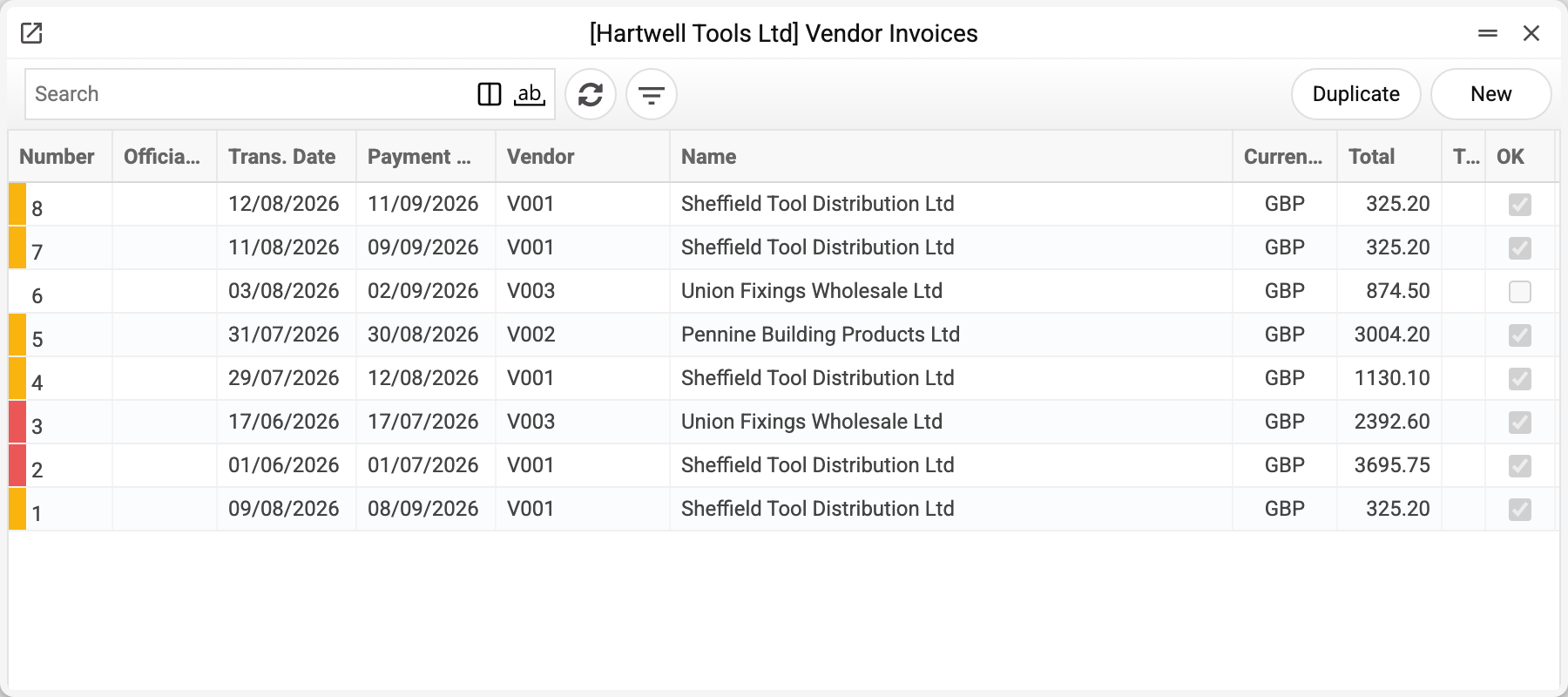
To the left of the number there is a coloured marker, and it is the most useful thing in the journal. It tells you where the invoice stands:
| Colour | What it means |
|---|---|
| Red | unpaid, and the due date has come: an invoice turns red already on the due date itself |
| Yellow | unpaid, not yet due (or no due date set) |
| Green | approved, and no open debt is left on it: paid, or fully closed by a credit note. A cash invoice, an invoice fully covered by a prepayment and a credit note against an invoice turn green right after approval — no debt arises on them |
| Grey | unpaid, but the vendor is closed |
| No marker | the document is not approved yet |
So the journal answers "who are we owing right now" without opening the accounts payable report.
Five drills arrived on goods receipt №8, and Sheffield Tool Distribution invoiced for them.
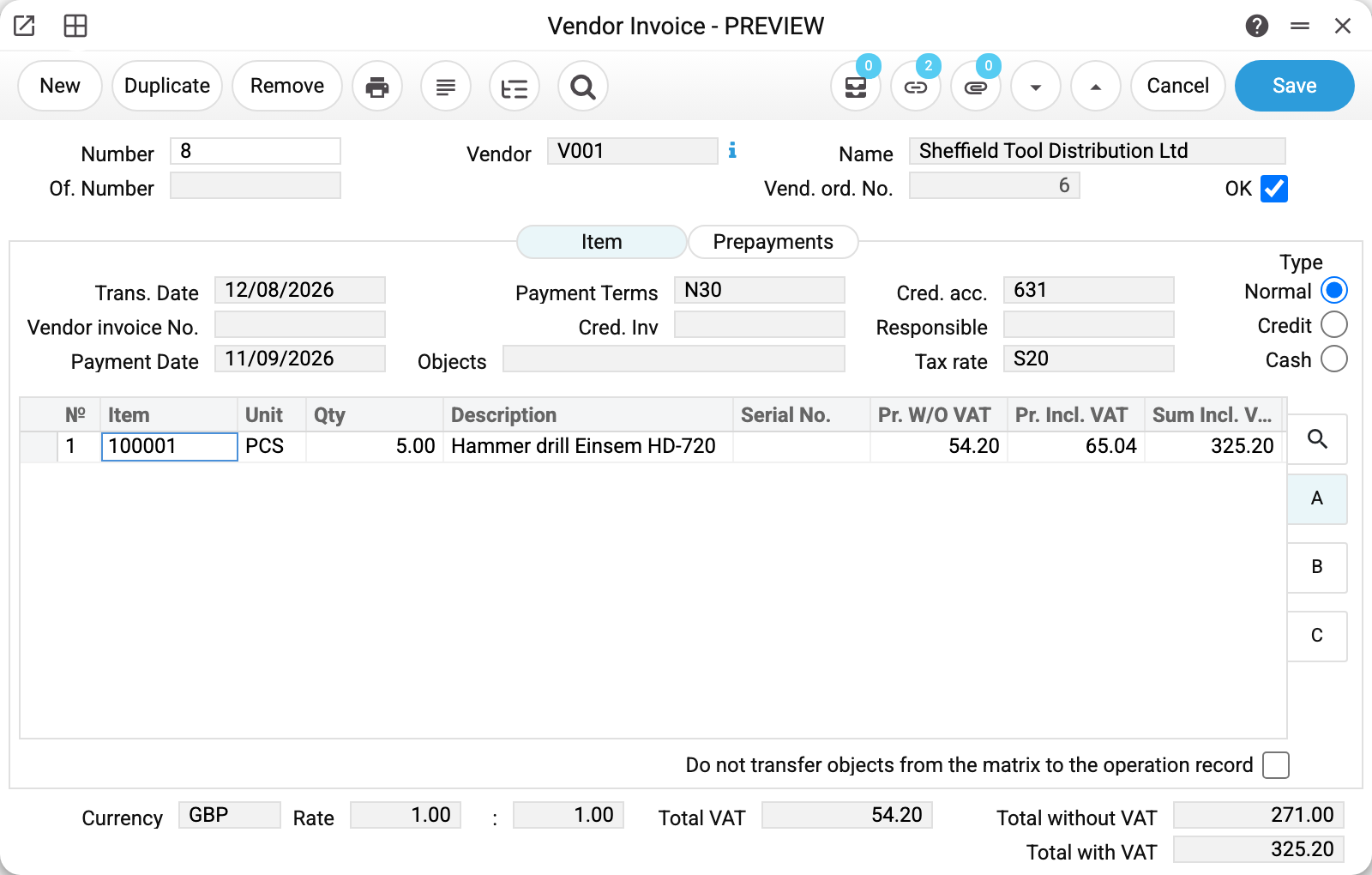
The header holds three dates and one field the ledger entry depends on.
«Trans. Date» 12/08/2026 is the date the debt enters the books. «Payment Terms» N30 came from the supplier card, and «Payment Date» 11/09/2026 is worked out from them — thirty days out. That is the date by which the invoice becomes overdue if the money does not leave in time.
«Vendor invoice No.» is the number the document carries at the supplier's end. Your own number and theirs are different things, and reconciliations need theirs.
«Cred. acc.» is the account the debt sits on. This is the payables account: it later shows how much you owe all your suppliers together.
«Tax rate» S20 is the VAT code for the rows: a new row takes it, and changing the rate in the header rewrites the code in every row. The reclaimable tax is made up of the rows' VAT. «Type» on the right — an ordinary invoice, a credit one (reducing the debt) or a cash one.
The rows
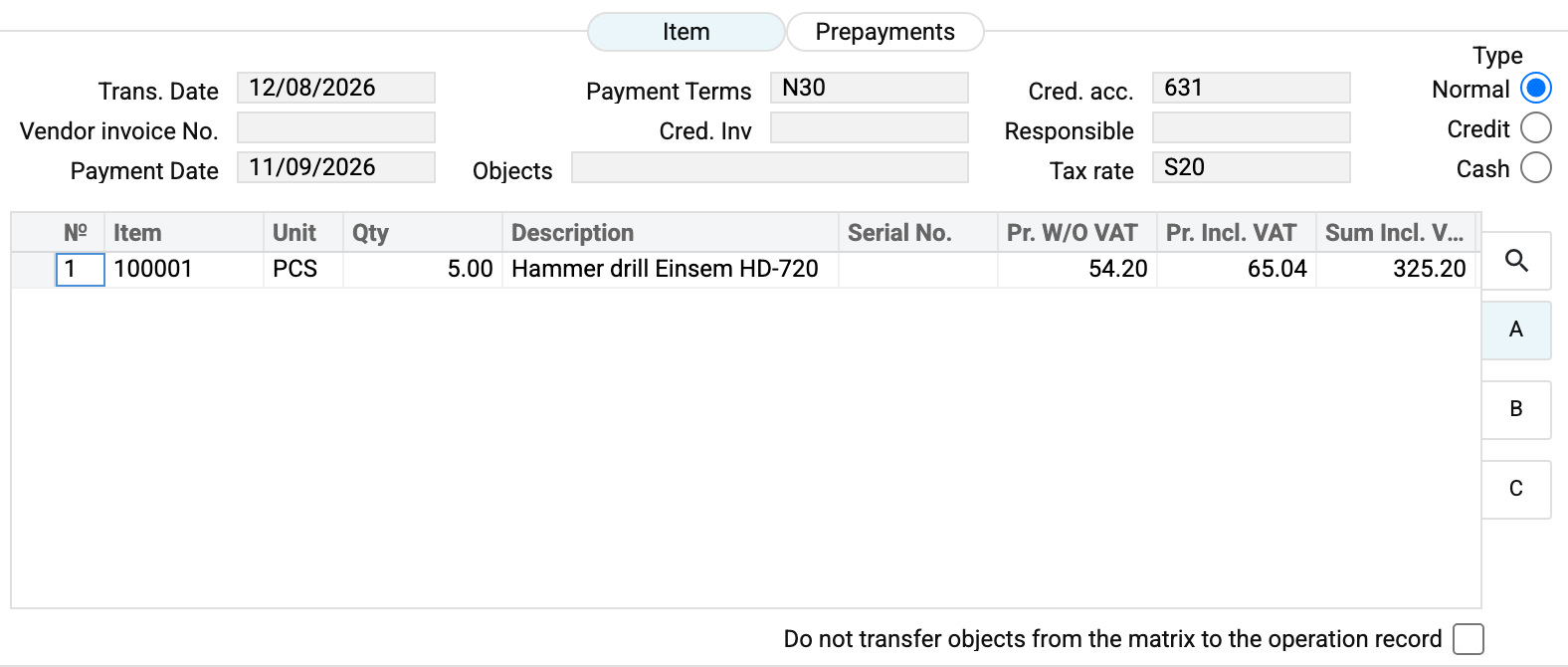
Two price columns here, and that is more useful than it looks: «Pr. W/O VAT» 54.20 is what you compare with the goods receipt, «Pr. Incl. VAT» is what the supplier wrote on their paper. The row amount 325.20 includes the tax.
The row's VAT code. Choosing an item or an account in a row gives the row the header's VAT code (the «Tax rate» field), and a code picked in the row by hand is replaced. The row works out its VAT amount itself from the code. If the supplier's paper shows a different row VAT (say, because of rounding), type it into the «Amount VAT» column — the row's VAT code stays, and on approval exactly the typed amount is posted to that code's tax credit account. A row with a VAT amount but no VAT code (one that came in by import, for example) cannot be approved: the program refuses and highlights the row — pick the row's VAT code.
The supplier states the amount without VAT. Rent, electricity and other services often come that way: the paper shows the amount before tax, with VAT charged on top. Instead of recalculating by hand, turn on the vendor invoice settings — the rows get a «Sum without VAT» column. The amount typed there is primary: VAT is added on top by the row's VAT code, and «Sum Incl. VAT» is calculated. Rent of 45,000 without VAT with a 16% code gives VAT 7,200 and 52,200 including VAT. The same 45,000 typed into «Sum Incl. VAT» would mean a debt of 45,000 with 6,206.90 of VAT inside — both the tax and the debt understated.
At the bottom: «Total without VAT» 271.00, «Total VAT» 54.20, «Total with VAT» 325.20. Here the first figure equals the value of goods receipt №8: the receipt is in the base currency and carries no freight. In general, compare the rows' prices and quantities: the receipt's value is its cost in the base currency including freight and additional costs, so a receipt in a foreign currency or with costs legitimately shows a different figure. If prices or quantities differ, the supplier has invoiced something other than what they delivered, and that is worth sorting out before approval.
What changed after approval
A debt of 325.20 appeared on the payables account, and the ledger got its entries. The fives in the order's «Inv» column appeared even earlier — when the invoice was saved as a draft: that column counts unapproved invoices too. Stock did not move at all: the goods were put there by the receipt on the same day.
What the document posts
Here is what the goods receipt did not create — the liability to the supplier and the tax credit:
| Dr | Cr | Amount | What it is |
|---|---|---|---|
| 685 | 631 | 271.00 | the value of the goods without tax |
| 6442 | 631 | 54.20 | the VAT on the supplier's invoice |
The credit side totals 325.20, exactly what you owe. On the debit side that debt is split in two: the value of the goods and the tax you will later reclaim.
The pair «receipt + vendor invoice» closes the circle: the receipt brought the goods onto the location, the invoice turned that into an obligation. Skip the invoice and the goods stay in stock at the receipt's cost — the cost of sales is taken from it when they are sold — but no obligation to the supplier appears: a payment has nothing to settle, and the reconciliation with the supplier will not match.
The supplier invoice posts only if the «Vendor Invoices» box is ticked on the «Accounting» tab of the «Records from Subsystems» setting; without it the document is approved with no transaction and no warning.
Where the accounts come from
- The payable account (credit) stands in the header — the «Cred. acc.» field. It is not taken from the general setting first but from the supplier: the account on the supplier card, then the supplier category, and only last of all the general account in «Account Usage», the «Creditors» tab, field «Creditors». That is how settlements with a foreign and a domestic supplier can land on different accounts automatically — if their categories say so.
- The cost account (debit) lives in the rows. When the invoice is created from a receipt it comes across from there: if the «Goods Receipts» box is ticked on the «Logistics» tab of the «Records from Subsystems» setting (receipts post to the ledger), it is the very account the receipt credited; without that box it is the stock account of the receipt row.
- The tax account is decided by the VAT code in the row: every code carries its own tax-credit account.
- Cash payment. If the payment terms are of the cash type, the cash account of those terms is credited instead of the settlement account: no debt arises, the money counts as paid at once.
- Deferred expenses. If the row names a distribution schedule (the "N/L Accrual" column), the debit goes to the schedule's holding account rather than to the account in the row, and a simulation of the future write-offs is created.
How to work with it
1. Create it
From the goods receipt — «Create supplier invoice»; the rows carry across with the actual quantities (less what has already been invoiced against this receipt). The receipt has to be approved: a draft gives no invoice. Or from the order, if you are paying up front. Invoices with no goods behind them — services, rent, utilities — are entered by hand.
2. Reconcile with the supplier's paper
Enter the «Vendor invoice No.» and compare the rows' prices and quantities with the receipt and the supplier's paper. A discrepancy means either the price changed or something else was delivered. «Total without VAT» equals the receipt's value only when the receipt is in the base currency with no freight or additional costs: the receipt's value is its cost.
3. Check the due date
«Payment Date» is calculated from the payment terms counting from the transaction date, and it cannot be corrected by hand: the field is read-only. If you agreed on a different term, choose different payment terms. This is the date the invoice will be judged overdue by. If the invoice is already approved and you agreed to pay later, leave the due date alone: document menu → «We plan to pay…» — the payment calendar will put the invoice on the new date.
4. Approve
OK and save. The debt exists, the entries are made, and from now on only the «Comment» can be edited in the document. Only a user whose role has the «Can remove OK» action can remove the OK.
5. Next — from the document menu
- «Create payment to vendor» — when you pay;
- «We plan to pay…» — when you will pay later than the due date: the payment calendar puts the invoice on that date, while the invoice and its due date stay unchanged (Expected payment dates). Approved invoices only;
- «Create VAT invoice» — the tax document, where one is required;
- «Create credit note» — when the supplier reduces the amount. The draft credit note gets the invoice lines less what this invoice's credit notes have already credited — including those created from returns to the supplier and those not yet approved; with nothing left to credit — «Invoice credit accounts have been created for all goods!». The VAT of a draft line is what remains of the invoice line's VAT, not the rate applied to the price: a full credit note mirrors the invoice even when its VAT was typed by hand;
- «Invoice status» — what has happened to this invoice so far;
- «Create asset» — if you bought a fixed asset;
- «Open transaction record» — the ledger entry.
How to be sure the document is right
- Prices of the rows are those of the receipt the invoice is for, and the quantities are what has not yet been invoiced against it: if part of the goods is already on another invoice for this receipt or on an advance invoice from the order, the new invoice carries only the remainder. A credit note to such an invoice returns what it credits to the remainder: after an invoice is reversed, a new invoice from the same receipt offers the goods and freight again (for a receipt without an order — since 11.10.2026; before that it did not see a credit note made from the invoice). The receipt's value is its cost in the base currency with freight and costs, so it matches «Total without VAT» only without a foreign currency or costs.
- The «Vendor invoice No.» is filled in — without it, reconciling with the supplier turns into guesswork.
- The «Payment Terms» are the ones you agreed, not the default off the card: the «Payment Date» is calculated from them and is not edited by hand.
- The rows' VAT codes are those on the supplier's paper: the reclaimable tax and the posting are made up of the rows' VAT. The «Tax rate» in the header is only a value for the rows, and changing it rewrites the code in every row. Every row with VAT carries a VAT code: the program will not approve a row with a VAT amount and no code.
- After approval, «Open transaction record» shows the entry: the debt on one side, stock and VAT on the other.
Print variables
Values available in this document's printed form templates. How to write a variable in a template — see Print Forms.
Header fields:
| Variable | What it holds |
|---|---|
| VI_OK | OK |
| VI_No | Number |
| VI_Vendor_Code | Vendor |
| VI_Offcial_Number | Of. Number |
| VI_Vendor_Name | Name |
| VI_Purchase_Order_Number | Vend. ord. No. |
| VI_Total_With_VAT | Total with VAT |
| VI_Total_VAT | Total VAT |
| VI_Total_Without_VAT | Total without VAT |
| VI_Currency | Currency |
| VI_From_Rate | Rate |
| VI_To_Rate | : |
| VI_Trans_Date | Trans. Date |
| VI_Invoice_Number | Vendor invoice No. |
| VI_Pay_Date | Payment Date |
| VI_Payment_Terms | Payment Terms |
| VI_Cred_Acc | Cred. acc. |
| VI_Responsible | Responsible |
| VI_Tax_Rate | Tax rate |
| VI_Cred_Inv | Cred. Inv |
| VI_Objects | Objects |
| VI_Not_Transfer_Matrix_Objects | Do not transfer objects from the matrix to the operation record |
| VI_Type | Type |
Row fields:
| Variable | What it holds |
|---|---|
| MNo | Row position number |
| MAccNumber | A/C |
| MObjects | Objects |
| MName | Name |
| MItem | Item |
| MQuantity | Quantity |
| MSerialNumber | Serial No. |
| MDescription | Description |
| MSum_With_VAT | Sum Incl. VAT |
| MAmount_VAT | Amount VAT |
| MPrice_Without_VAT | Pr. W/O VAT |
| MPrice_With_VAT | Pr. Incl. VAT |
| MVAT_Rate | VAT Rate |
| MUnit | Unit |
| MAccrual | N/L Accrual |
| MSum_Without_VAT | Sum without VAT |
Common situations
The invoice arrived before the goods. Raise it from the order: the debt is recorded, and the goods enter stock when they arrive, on their own receipt.
The supplier invoiced more than they delivered. Do not approve it: sort the discrepancy out first. An approved invoice can be corrected only by withdrawing the approval (clear OK, correct, approve again), and the system allows that while the invoice has no approved payment or credit note. Once it has one, the reduction is made with a credit note. Only a role with the «Can remove OK» action can remove the OK.
One invoice for several receipts. That happens when the goods came in consignments. Rows can be added to a single document — what matters is that the total matches what the supplier invoiced.
An invoice for services rather than goods. Entered by hand, with no receipt behind it: the rows carry an expense account instead of an item.
You paid in advance. The prepayment is applied on the «Prepayments» tab, and the amount due drops by what has already been paid. Only a prepayment of the same supplier and in the invoice currency can be applied. Where it came from and what became of it is shown by the prepayments history.
Time to pay. Payment is entered as a vendor payment: the payment row carries the number of this invoice, and the debt is settled in full or in part.
Field reference
Header
| Field | Description |
|---|---|
| Number | Your internal invoice number, assigned automatically |
| Of. number | Official number, if your numbering differs |
| Vendor, Name | The supplier and their name from the card |
| Vend. ord. No. | The order the invoice is for |
| OK | Approval: creates the debt and posts to the ledger |
| Trans. Date | The date the debt enters the books |
| Vendor invoice No. | The number of the document at the supplier's end — for reconciliation |
| Payment Date | When it has to be paid; after this the debt is overdue. Calculated from the payment terms, not edited by hand |
| Payment Terms | The due date is worked out from them |
| Cred. Inv | On a credit note — the supplier invoice it corrects; empty on an ordinary invoice. Set by the «Create credit note» menu item; in a draft it can be typed or picked by hand: the pick list shows approved invoices of this supplier with their amount, and all approved ones while there is no supplier yet; credit notes are not in it. An entered number brings that invoice's payables account and, in the same currency, its rate; a supplier chosen after the number changes neither the type, nor the payment terms, nor the currency and rate. A credit note against another credit note will not save |
| Objects | Analytical objects of the document |
| Cred. acc. | The account the debt to the supplier sits on |
| Responsible | Who handles this invoice on your side |
| Tax rate | The rate that goes down to the rows |
| Type | Ordinary / Credit / Cash. Set by the payment terms, not changed by hand; a credit note is created from the invoice menu |
Rows
| Field | Description |
|---|---|
| Item, Description | Item code and name |
| Unit, Qty | Unit of measure and quantity |
| Serial No. | Serial numbers, if the item is tracked by unit |
| Pr. W/O VAT | Unit price before tax — what you compare with the receipt |
| Pr. Incl. VAT | Unit price with tax — what is on the supplier's paper |
| Sum Incl. VAT | Row amount including tax |
| Sum without VAT | Row amount before tax. The column exists only with the vendor invoice settings turned on: then the amount is typed here and VAT is added on top |
Document totals
| Field | Description |
|---|---|
| Currency, Rate | Currency of the invoice and its rate against the base one. The currency comes from the supplier card; if the card sets one, an invoice in another currency will not save |
| Total VAT | Tax on the document |
| Total without VAT | Amount before tax |
| Total with VAT | What you owe the supplier |