Roles
A role is a position described in the language of permissions: what a person in this position sees, what they can change, and what they will not see at all. A role is created once and assigned to everyone who works the same way: five cashiers — one КАСА role.
Where to find it: Modules → System → Registers → Roles
The register lives in the System module. How a role combines with the default access and the companies is covered in «Access rights»; this article is about how roles work inside and how to build your own.
A worked example: the receiver's role
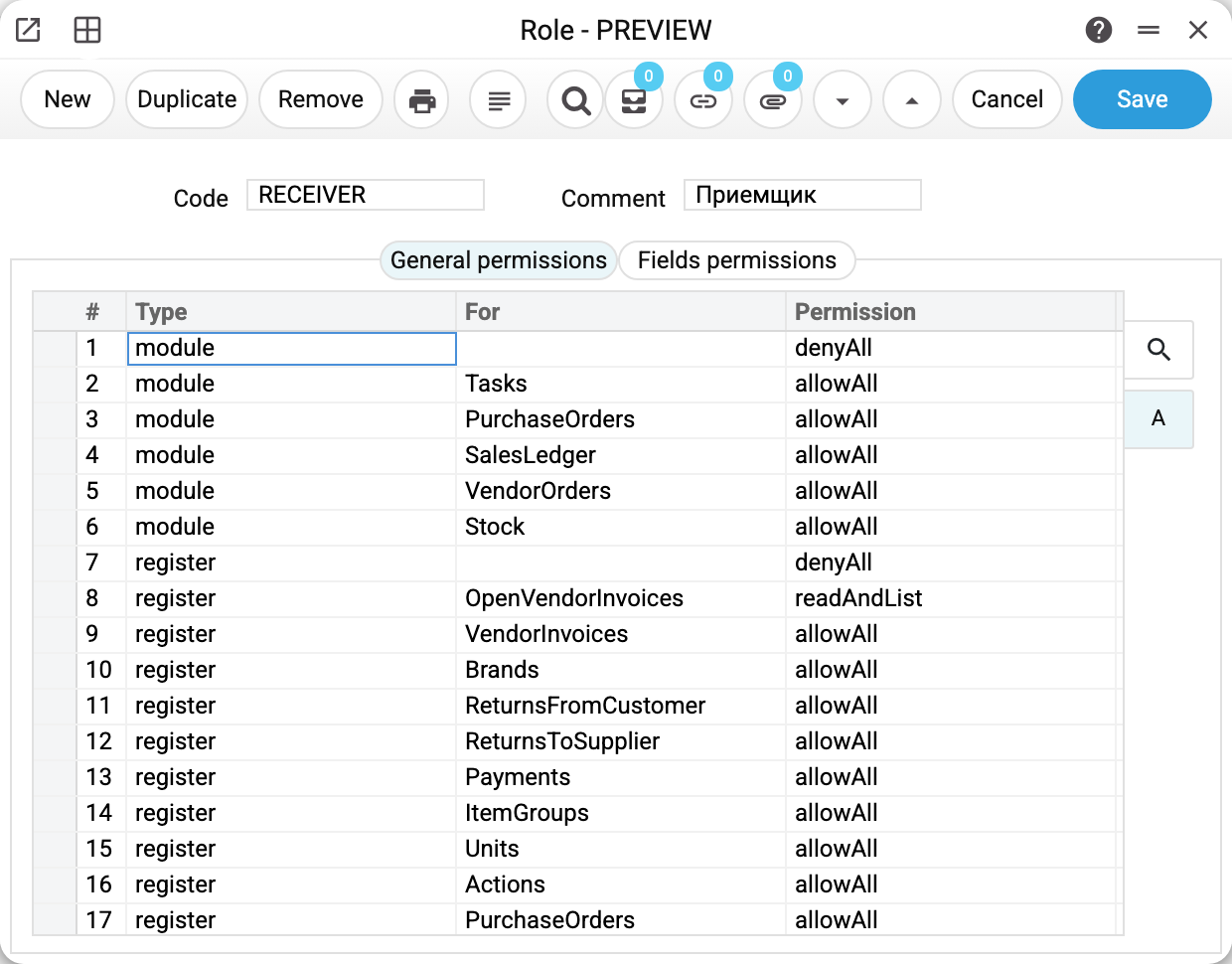
A role's header has two fields — the «Code» (this is what goes into the user card) and the «Comment» in human language. The essence is in the rows of the «General permissions» tab: every row says what it is about («Type»), about which one exactly («For») and what is allowed («Permission»).
Reading the frame from the top:
- row 1:
modulewith an empty «For» anddenyAll— all modules are denied. An empty «For» column means «all objects of this type»; - rows 2–6: five modules — Tasks, Purchase and Sales Orders, Sales, Stock — fully allowed. An exact row beats the general one: the denied background is pierced exactly for these five;
- row 7:
registerwith an empty «For» — all registers are denied too; - row 8: «Open Vendor's Invoices» (
OpenVendorInvoices) —readAndList: the receiver sees what the firm still owes but cannot fix anything there; - below — the receiver's working registers (goods receipts, returns, payments, items, reference books) with full access.
This is the main pattern of building a role: deny everything first, then allow what is needed. Such a role is self-sufficient — it does not care what «Default access» stands on the person's card, because the role answers every question itself.
The codes in the «Permission» column are the same across the system:
| Code | What it allows |
|---|---|
allowAll |
everything: see, create, change, delete |
readAndList |
see the list and open records without changing anything (does not open a maintenance) |
showOnly |
only see the item (does not open a maintenance) |
runOnly |
only run (actions and maintenances) |
denyAll |
nothing |
The opposite pattern: the observer
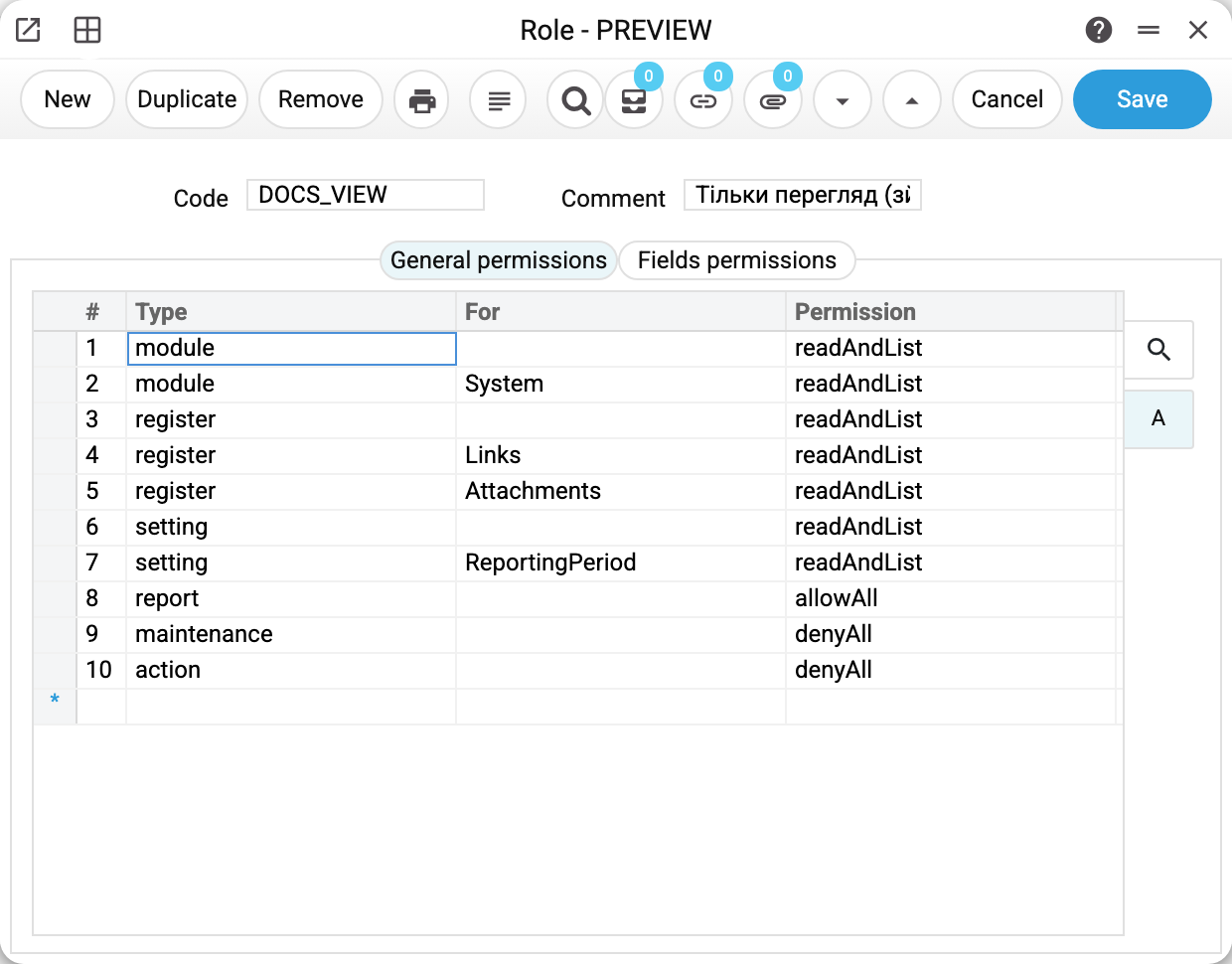
The role turned inside out — for an auditor or an observer: modules, registers and settings get readAndList everywhere, reports get allowAll (running a report changes no data), maintenance and actions get denyAll. Ten rows — and the person sees the whole system touching nothing.
Subtleties worth knowing
What a person with read-only rights sees. They open an existing record with its fields locked, and «Save» and «Cancel» in it are inactive (settings windows do not show them at all). The «New» button in the list stays — the system refuses when they try to create a record. If a user complains «the button is there but does not work» — that is not a glitch, that is permissions.
A maintenance item is either visible and runnable, or hidden. The maintenance permission is a single one: there is no separate «see but not run». It is visible and runnable only with a code that allows running — allowAll or runOnly; readAndList, showOnly and the «Read only» default hide it.
A separate action is decided by its action row, and without a row — by its default. Separate operations — like «remove OK from a document» — are decided by the action's own action row, and if there is none, by the action row with an empty «for»; the «Default access» of the user card does not open them. When neither row exists, the action's default applies: most are forbidden, but four are open — «Can change salesman in POS», «Can open process manager», «Can open resource manager» and «Show report on all bonuses». To forbid such an action, use its own row or the row with an empty «for» with denyAll. Some actions are allowed only by their own row, and the row with an empty «for» does not open them: removing OK from stock documents, «Can unconfirm Rental Agreements», «Can change Transaction Correction History», «Can change open invoices, prepayments and payment histories», «Can change item history», «Can send payments to the bank». Nor does it switch on the restrictions «Deny confirm if cost is higher» and «Send message if cost is higher».
Two maintenances are opened only by their own row. «Delete company (cascade)» and «Clear Database» irreversibly erase data, so neither a maintenance row with an empty «For» nor the user card's «Default access» opens them: a maintenance row for this very service with allowAll or runOnly is needed (since 24.10.2026). A person without a role cannot run them.
The «Fields permissions» tab is finer tuning inside a register: a single field can be set for the role to «read only (for field permission)», «edit only (for field permission)», «create only (for field permission)» or «hidden (for field permission)». The window enforces the first three; the exception is the approval (OK) flag: if the field right has no editing («read only (for field permission)», «create only (for field permission)»), the role cannot approve a document or remove the approval — neither in the window nor over the API or import.
«hidden (for field permission)» hides the value on the server too. The role does not get the value of such a field in the card, the list, the export or the API; a text search looks only through the visible fields, and a matrix field is hidden together with its rows. The same holds for the till and the Telegram bot: the till does not search by a hidden field — a cashier whose role hides the item barcode will not find the item by scanning (only by a visible code or name), and the bot does not show hidden values in tasks and timesheets. Do not hide the customer code from a cashier role: the till puts a customer on the receipt by code, so without it the cashier finds the customer by name but cannot select them. A report or a print form can show a hidden value in any column, so a role with at least one hidden field gets no reports and no printing: the answer is «The report is unavailable to your role…» or «Printing is unavailable to your role…». For now this applies to every report and every form. To hide cost and purchase prices, use the «Show cost price» right (below): it does not close reports, it only removes the cost from them.
«Show cost price» closes both the columns and the data. The action row with the «Show cost price» action (that is its name in the pick list; the row itself shows its code, viewCost) decides more than whether the cost columns are drawn in document windows: without this right the server removes cost, purchase price and gross profit fields from the response — to the window, the API, the export and the change history. For such a person a text search in lists and at the till looks only through the visible fields, just as for «hidden (for field permission)»: it finds nothing by cost price, and a string typed from two fields at once (code and name together) is not found either — search by one field.
Production, projects and purchasing show the cost price — even without this right. In the «Recipe», «Production», «Production operation», «Project's Budget» and «Stock Revaluation» windows the item's cost price fills into the row by itself as soon as the item is picked, and anyone with access to these windows sees it. A project budget created from a quotation carries the quotation's cost and profit into its own fields. In a «Purchase Order» and a «Goods Receipt» an entered item code fills the row with the price from the item card — its «Cost in base currency» field: a person without the right sees in the new row what the item card hides from them, without even saving the document. Purchasing documents show their prices and cost prices to anyone with access to the window. SERP works the same way: the right protects the item card and the sales documents, while purchasing, production and projects are limited by access to the windows themselves. If someone must not see cost prices, do not give them access to these registers.
A role change applies at once. The server checks the role's rights on every action, so once the edit is saved everyone carrying the role works with the new rights — no new login needed; their sessions stay open.
A role code will not change. User cards refer to the role by its code, so once saved the code cannot be changed — the system refuses: "Can't change code". Need a different code — copy the role, put the copy on the users' cards, and delete the old one.
A role without rows is an empty shell. With no rows, everything is decided by the «Default access» of each user's card. A new role is never empty: on its first save it gets four rows by itself (unless they are already there) — module System and register Links and Attachments with allowAll, setting ReportingPeriod with readAndList. A role people are sitting on (on the card or on the «Companies» tab) cannot be deleted — "You can't delete role with existing users". And if a card names a role that is not in the register (the record was removed bypassing the window, by import or in the database), the person gets nothing: everything is denied, not opened by the card's background.
How to work with it
1. Start from a copy
«Duplicate» on a similar role — and edit the difference. From scratch, start with five denying rows (module, register, setting, report, maintenance — all with an empty «For» and denyAll), then add the permissions. The four rows a role gets on creation (System, Links, Attachments, ReportingPeriod) are specific, so the denying background does not close them.
2. Allow what is needed
Modules — so the menu items appear (only the items: the data of a closed module is closed by the rows of its registers, reports and maintenances — hence the five denying rows at the start); registers — the working documents and reference books; reports — the ones the position needs. Remember readAndList for «see without touching».
3. Assign and check
Put the role code into the user cards — and log in as one of them: the right menu items, the right buttons, the right reports.
Common situations
«My menu item disappeared». Someone edited the role. Check the row about this module or register and the «Permission» column; remember that an exact row overrides the general one.
They should see a maintenance item but not run it. Not possible — the permission is single. Close the item and run it under another role.
One person — different duties in different firms. A role can be assigned per company on the «Companies» tab of the user card — see «Access rights».
A new register appeared in the system — who sees it? Roles with an allowed background (allowAll on all registers) see it at once; roles built «from denial» do not, until a row is added. That is an argument for building strict roles from denial: new things in the system do not open to people by themselves.
Field reference
| Field | Description |
|---|---|
| Code | The role's name; this is what goes into the user card |
| Comment | The position's human name |
| The «General permissions» tab | Permission rows: «Type» (module / register / setting / report / maintenance / action), «For» (the object; empty = all), «Permission» (a code from the table above) |
| The «Fields permissions» tab | Precise rights on individual register fields: hidden (the server does not give the value either; such a role gets no reports and no printing), read only, edit only or create only |