Item Status Report
One picture of an item: how much there is, where it sits, how much of it is already promised to customers and how much is on its way from a supplier. Prices from every price list are there too. This is the report to open when a customer asks "have you got it?".
Where to find it: Modules → Stock → Reports → Item Status Report
It differs from the location report in point of view: that one is a single warehouse and the whole range, this one is a single item across every warehouse.
Parameters
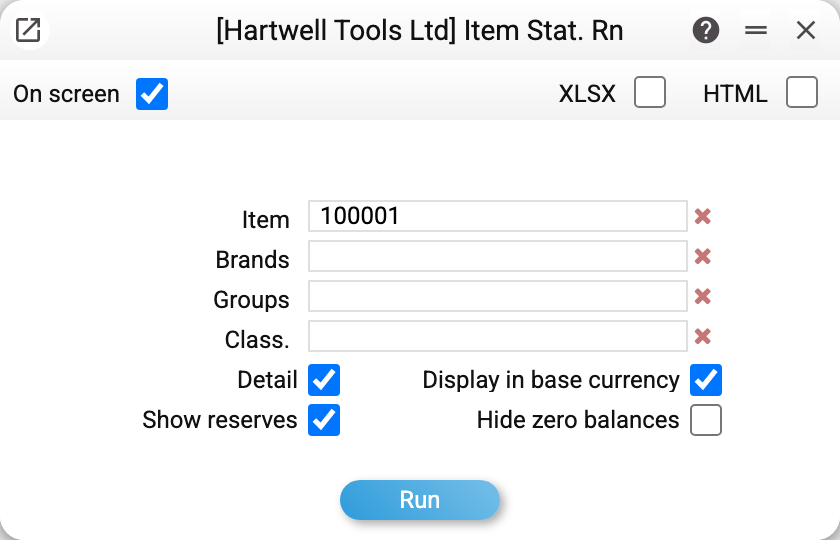
- Item — one position; without it the report covers the whole range.
- Brands, Groups, Class. — filters by card attributes.
- Detail — under each item, break the balance down by location and show the price-list prices; without it, one line per item. Serial numbers and reserves do not depend on this checkbox.
- Show reserves — add the list of who exactly the stock is reserved for.
- Display in base currency — convert price-list prices into the base currency.
- Hide zero balances — drop items whose total "On stock" is exactly zero, even if they have a reserve or an order; an item with a negative balance stays.
A worked example
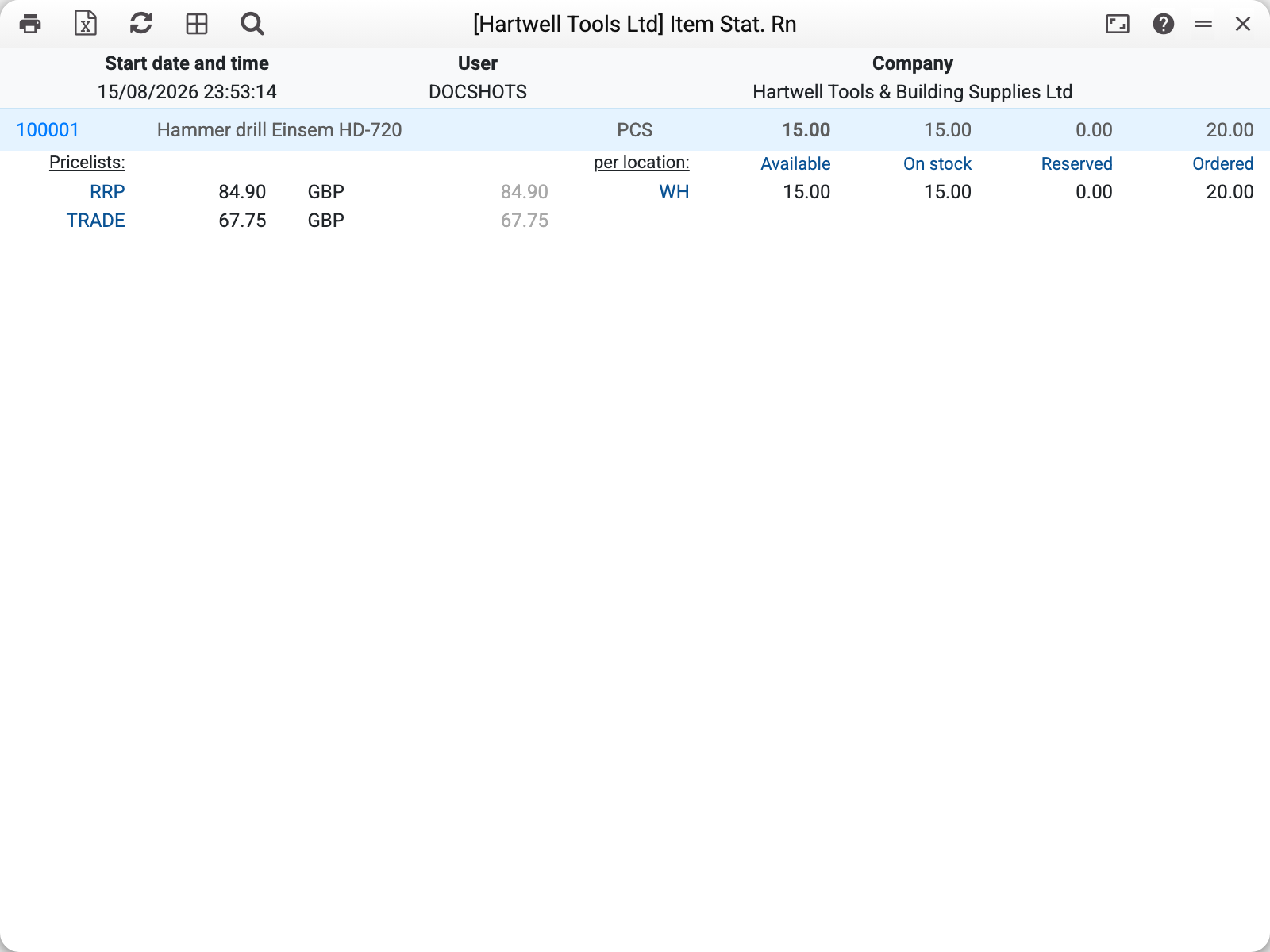
The drill 100001 on one screen: "Available", "On stock", "Reserved", "Ordered from supplier" — not yet received on approved purchase orders — and "Ordered by customer": how much of the item sits in customer orders and is not shipped yet, the same "Qty in orders" figure as in the "Item Statuses" register.
The report's key arithmetic: available = in stock − reserved, but never below zero: when more is reserved than is on hand, the report shows 0, not a minus, so this column does not tell you the size of the shortage. "Ordered from supplier" stays out of that formula — goods in transit cannot be sold as stock on hand, but it shows that the shortage will soon be covered. "Ordered by customer" stays out too: it is demand, it does not cover a shortage but shows how much customers are still waiting for.
Below is the same picture by location. That is why the location report for a single warehouse shows less than the closing balance in the item history: the latter is the sum across every location.
On the left are the price lists, so a salesperson sees straight away what price to quote. Only users whose role allows the "Show cost price" action (the role row shows its code, viewCost; see Roles) see this part; for everyone else it is empty — on screen and in the Excel export.
For an item with serial-number tracking, a list of serial numbers follows: number, location, quantity — with or without "Detail".
At the bottom are the reserves: order number, customer, quantity and how many days have passed since the order date. That is the age of the order, not of the reserve: the reserve may have been switched on later. Old orders holding a reserve stand out at once — a reason to review them. An order partly shipped by an approved shipment is in the list too — with the quantity it still holds: ordered minus shipped by approved shipments — the way "Reserved" counts it too. Orders holding a reserve across the whole stock are in the stock reserves report, in "Detail" mode.
How to use it
"Is it in stock?" Look at "Available", not at "On stock": the difference is someone else's goods, already promised to another customer.
"When will it arrive?" A non-zero "Ordered from supplier" means goods are in transit: what is still to be received on approved purchase orders, drafts not counted; the details are in the order status report.
Reviewing stale reserves. The day count in the reserves block (from the order date) suggests which orders are worth reviewing: release the reserve and put the stock back on sale. When the reserve was switched on the report does not show — look at the order itself.
The stock is not where you looked. The by-location breakdown explains why the sales warehouse looks empty — it went to the service point.
Where to look next
- Location report — the whole range of one warehouse;
- Item history — how the balance came about;
- Items/Services — the item card;
- Purchase order status — when the ordered goods arrive.