Quotations
Every other sales document starts when the customer has already said yes. A sales order is a commitment, an invoice is a debt, a shipment is stock that has already left the building. A quotation is the only document for the stage where the customer is still thinking.
Where to find it: Modules → Project Management (also in modules: Sales Orders) → Registers → Quotations
It commits nobody to anything and changes nothing — no stock, no ledger entries, no debt. But it does four things that are worth keeping in the system rather than in an email thread:
- it shows the profit before you quote a price — cost and margin are visible inside the quotation itself, so a discount becomes a decision instead of a guess;
- it expires — «Valid until» records how long the price stands;
- it keeps the variants — every new variant of the same deal gets its own number, variants under one project budget are also counted as versions, and all of them stay in the register;
- it turns into an invoice in one move — an accepted quotation does not have to be retyped.
And one more thing: rejected quotations do not disappear. The status and decision date on each one are exactly the raw material a sales funnel is built from.
The register is in two modules — Sales Orders and Project Management. It is one and the same register: a quotation created from one module is visible from the other.
Where it sits
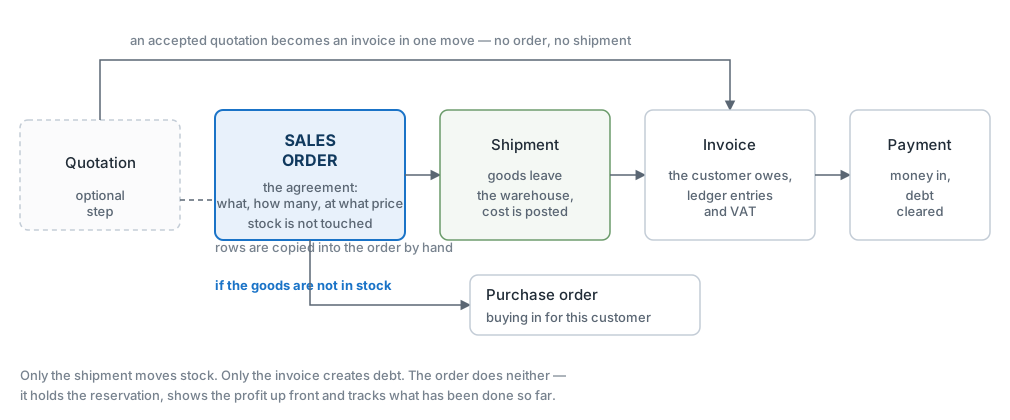
A quotation stands in front of the chain rather than inside it — it is an optional step. Once the customer agrees, there are two routes:
- turn the accepted quotation straight into an invoice — from the card menu, in one move. Nothing is written off stock, so this is the route for services, and for deals where you do not run stock accounting anyway;
- start the normal chain — card menu → «Create sales order»: the sales order gets the quotation rows and the address from the «Del. Address» tab, and the quotation itself becomes accepted; then shipment → invoice → payment.
A worked example
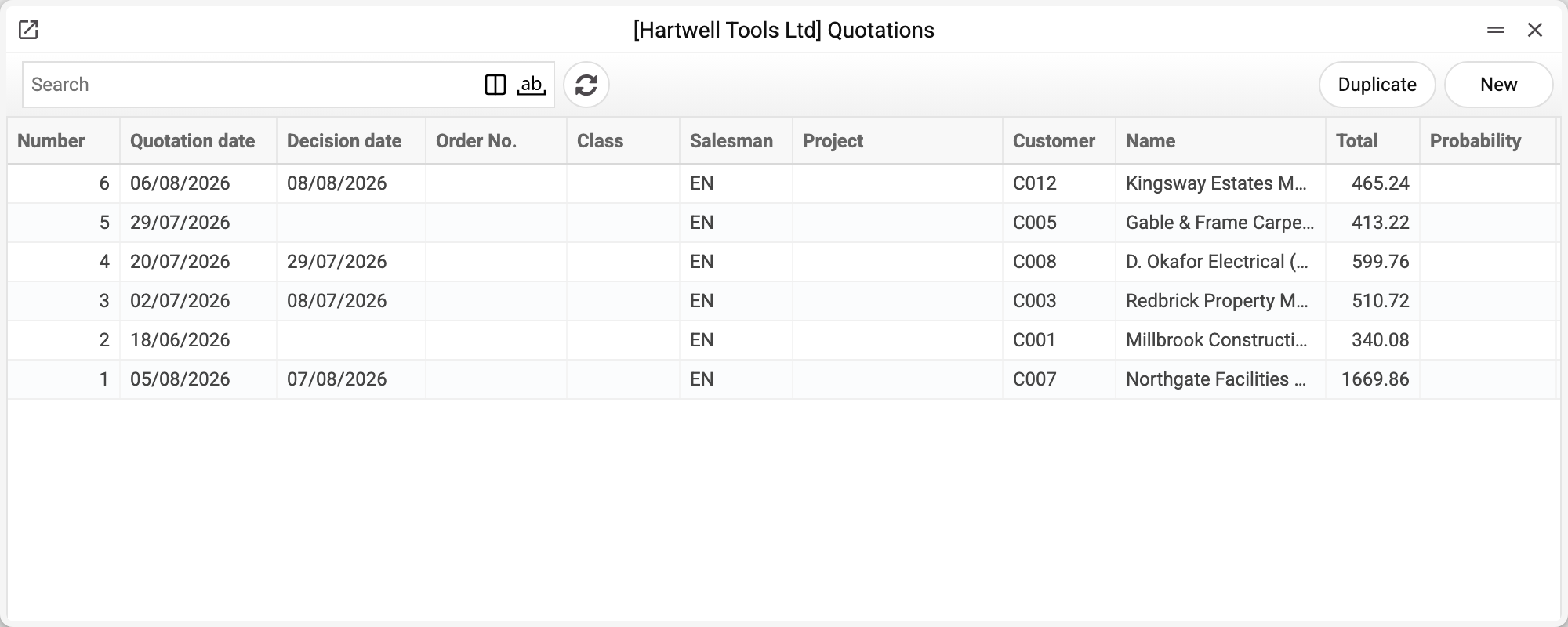
The journal shows the number, quotation and decision dates, salesman, customer, total and probability. We will take No. 1 for Northgate Facilities Group Ltd, 1,669.86.
Northgate Facilities Group Ltd asked for a price on kitting out a new storeroom: shelving, step ladders and tape measures. They asked for a discount on the ladders.
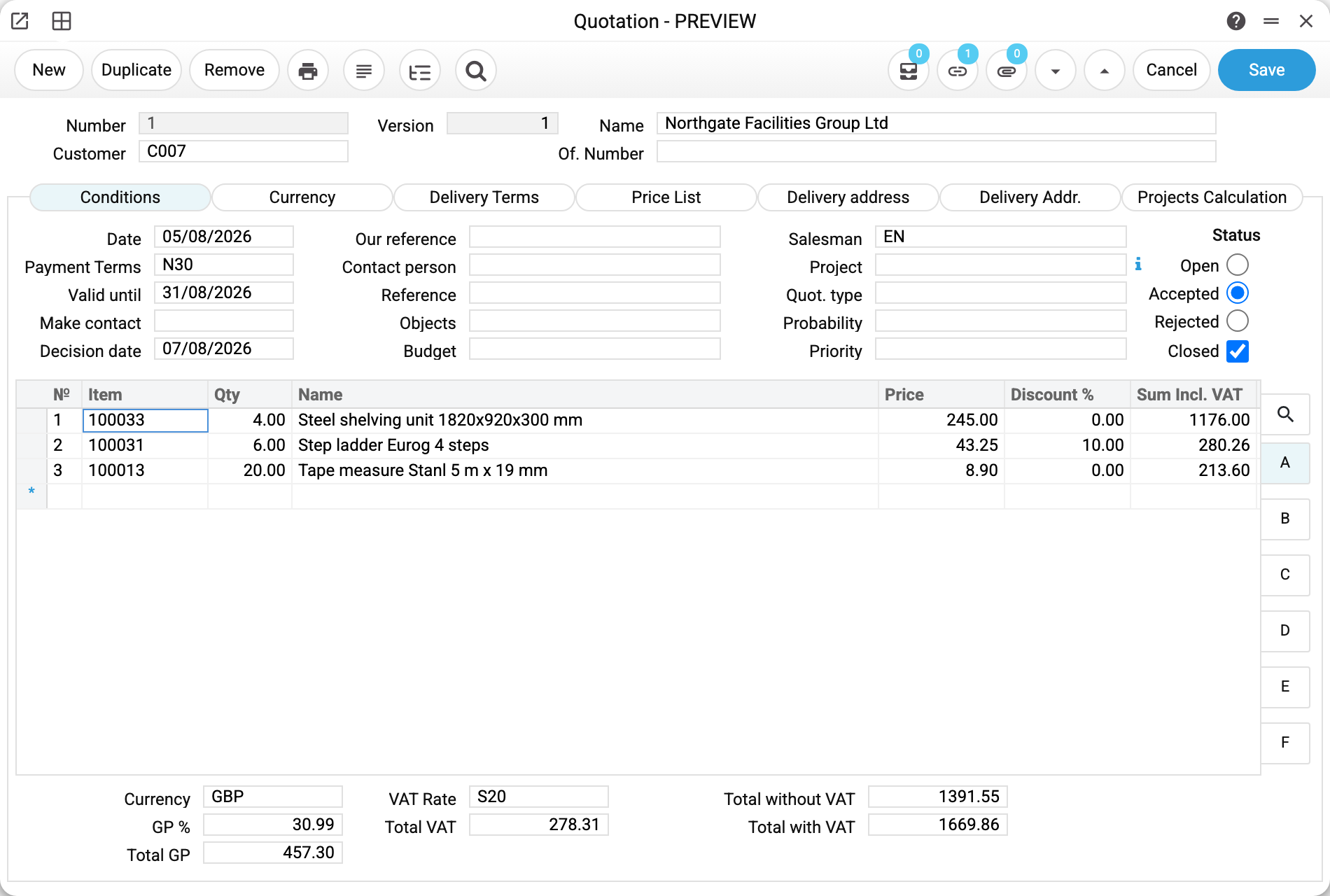
The header shows number 1 and version 1: the number runs through the register; both are filled in by the system and cannot be edited. The version counts the variants within one project budget: the first quotation for a budget is 1, the next one for the same budget is 2. A new quotation without a budget always gets version 1.
The «Conditions» tab holds everything that applies to the deal as a whole:
- «Date» is when the quotation was drawn up, «Valid until» 31/08/2026 is how long the prices stand. The second date does nothing automatically — the system will not close the quotation when it passes. It is a marker for you. It is not among the print variables, so it does not reach the printed form by itself: to tell the customer, put the date into the template or the covering email;
- «Payment Terms» N30 will decide the due date once the quotation becomes an invoice;
- «Make contact» is when you plan to follow up, «Decision date» 07/08/2026 is when the customer answered;
- «Status» on the right: Open / Accepted / Rejected. Here it is Accepted. The «Probability» field is filled in when you click a status button: accepted — 100, rejected — 0, open — empty. You can also correct it by hand; a status changed outside the window (by import or through the API) leaves the probability alone.
There is no OK box on a quotation — it is never approved. There is only «Closed», which takes a quotation you will not return to out of the working list.
The rows: prices and a discount

The «Price List» tab names the price list RRP, and all three prices come from it: shelving 245.00, step ladder 43.25, tape measure 8.90. Where the list has no line for an item, the price falls back to the item card. The rules are the same as in a sales order, and the order is where you can see the difference at work — there the list price and the card price are not the same.
Rows 1 and 3 carry no discount, so the amount is simply quantity × price plus tax: 4 × 245.00 = 980.00, with VAT 1,176.00; 20 × 8.90 = 178.00, with VAT 213.60.
Row 2 is the interesting one — 10 % off:
6 × 43.25 = 259.50      quantity × price
−10 %     = 233.55      discount on the row
+20 %     = 280.26      VAT on top
The column is called «Sum Incl. VAT», and it means it. So checking a row by multiplying price by quantity only works when prices are held without tax, as they are here. If prices include VAT, the tax is not added on top but extracted from the same amount — and the multiplication will agree.
The discount belongs to the row, not to the document. The column here holds a percentage, but module settings can make a fixed amount the primary one — then the discount is entered as a sum instead of a percentage.
Where the tax is

Sheet B breaks the tax down by row: 196.00 + 46.71 + 35.60. Every row carries the rate S20 — the same as in the totals. «Account» and «Objects» are empty here. A row takes its «Objects» from the item card (the items in this example have none); «Account» is entered by hand when the row's revenue should go to an account other than the item group's. Both columns pass to the invoice and the sales order created from the quotation; the quotation itself posts nothing.
The totals

On the right is what the customer sees: «Total without VAT» 1,391.55, «Total VAT» 278.31, «Total with VAT» 1,669.86. On the left is what only you see: «Total GP» and «GP %». They, like sheet C, are shown only to users whose role has the «Show cost price» action; everyone else does not see these fields. Those two numbers are what separates a quotation from an invoice — on an invoice the margin turns up after the fact, here you know it before the conversation about price.
What happened next
The customer agreed, the status was set to Accepted, and «Create invoice» was called from the card menu. The result is invoice №54 for the same 1,669.86 and the same 30 units, due 30 days from today. The invoice date is today, but the exchange rate is taken from the quotation, not from today's exchange rates.
The invoice is created as a draft, without OK: it still has to be opened, checked and approved. The quotation stays as it was — Accepted does not come off it, and «Closed» is not set. Once the invoice is approved, the quotation rows whose item is on the invoice get the invoice number («Invoice») and its date («Inv. date») on sheet F.
A quotation posts nothing
This is the lightest document of the chain: it changes nothing in the stock, in the money or in the books. Nothing appears in the Transactions register after it — not even when the customer agrees and the status turns to Accepted.
The customer's agreement is an event for the salesperson, not for accounting. The first transaction appears when the quotation grows into an invoice and that invoice is approved — or, if the deal runs through an order and a shipment, on the shipment.
How to work with it
1. Pick the customer
This is the one genuinely mandatory header field. The customer code pulls the name, contact person, salesman, currency (with its rate), payment terms, price list, discount table and VAT rate from the contact card — most of the header fills itself in. If the card has no salesman, a new quotation gets the user who creates it; the default location and price list of a new quotation come from the user's card. A closed customer (the «Closed» box in their card) cannot be put on a new quotation — saving refuses.
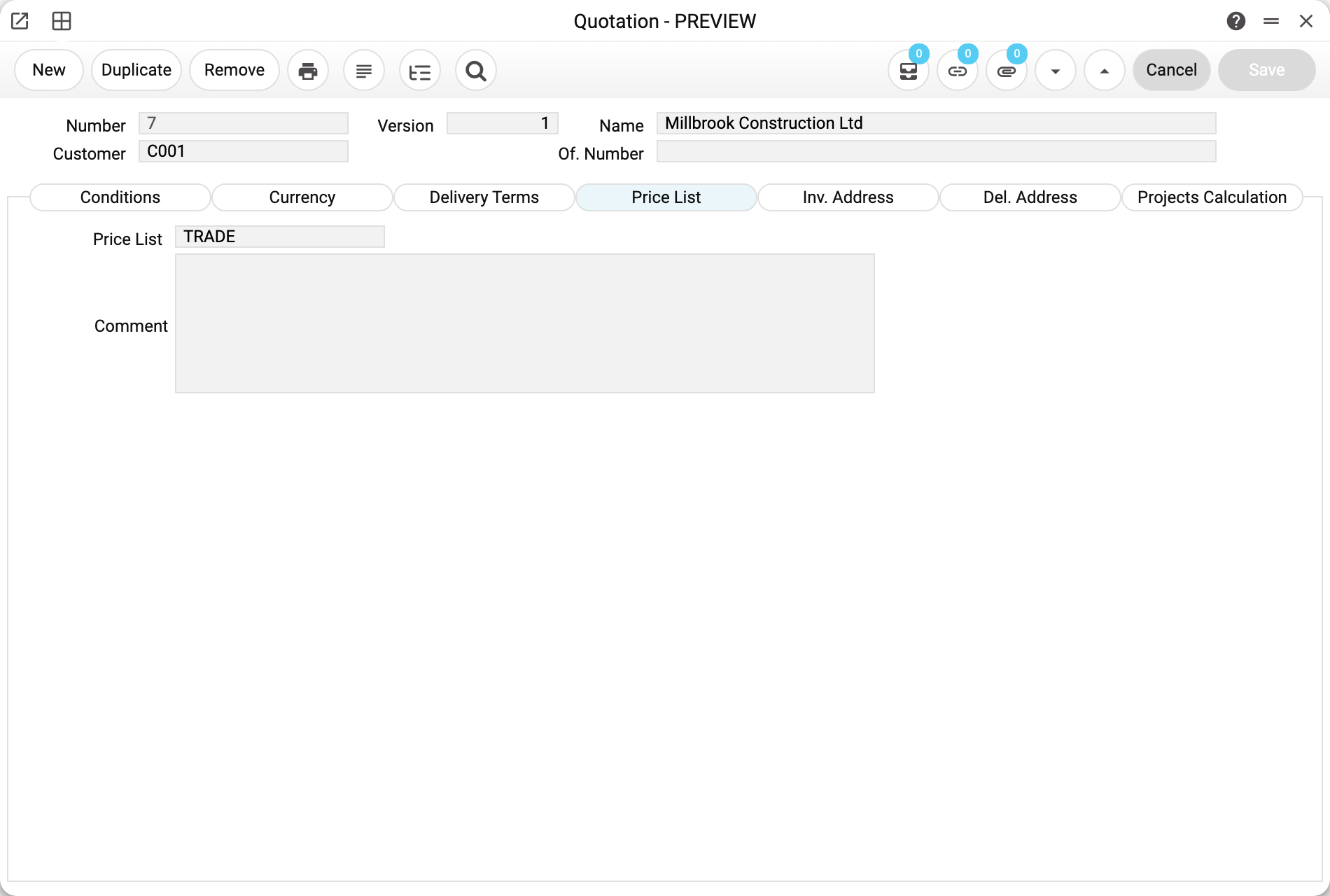
This is how it looks in quotation No. 7 for Millbrook Construction Ltd: the TRADE price list came from the customer card together with the other terms. The «Comment» next to it is free text for yourself.
The card brings no addresses. The address tabs carry the same names as in the sales order — «Inv. Address» and «Del. Address» — but both are filled in by hand. Only «Del. Address» goes any further — «Create sales order» carries it into the order; the invoice does not get it. From the «Inv. Address» tab only «Region» passes to the order; its other fields (address, bank, tax number, phone, VAT, approval status) are for reference only: they reach neither the printed form nor the invoice or the order.
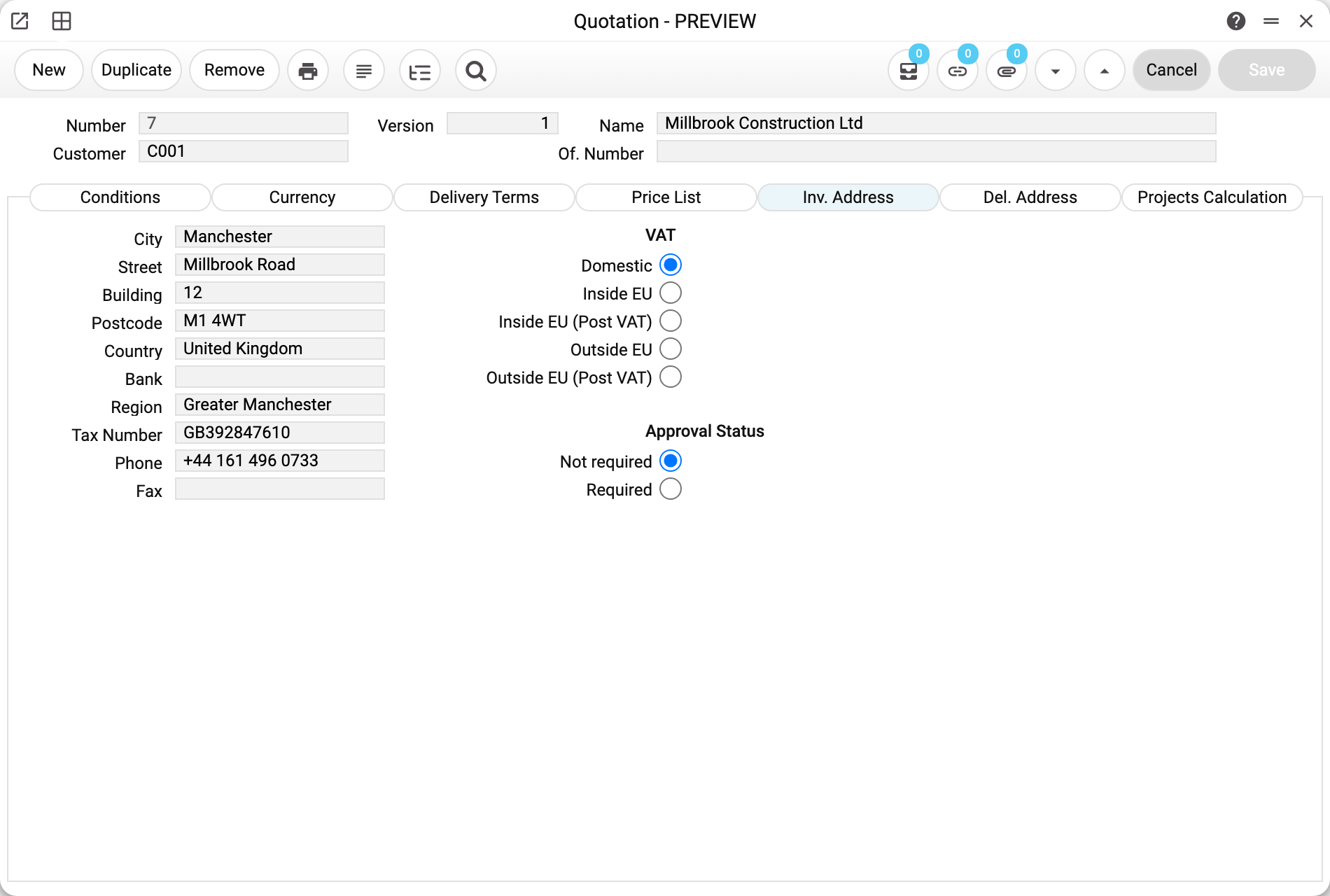
In quotation No. 7 the «Inv. Address» tab holds Millbrook's registered address — 12 Millbrook Road, Manchester — with the tax number and phone; the VAT type is «Domestic».
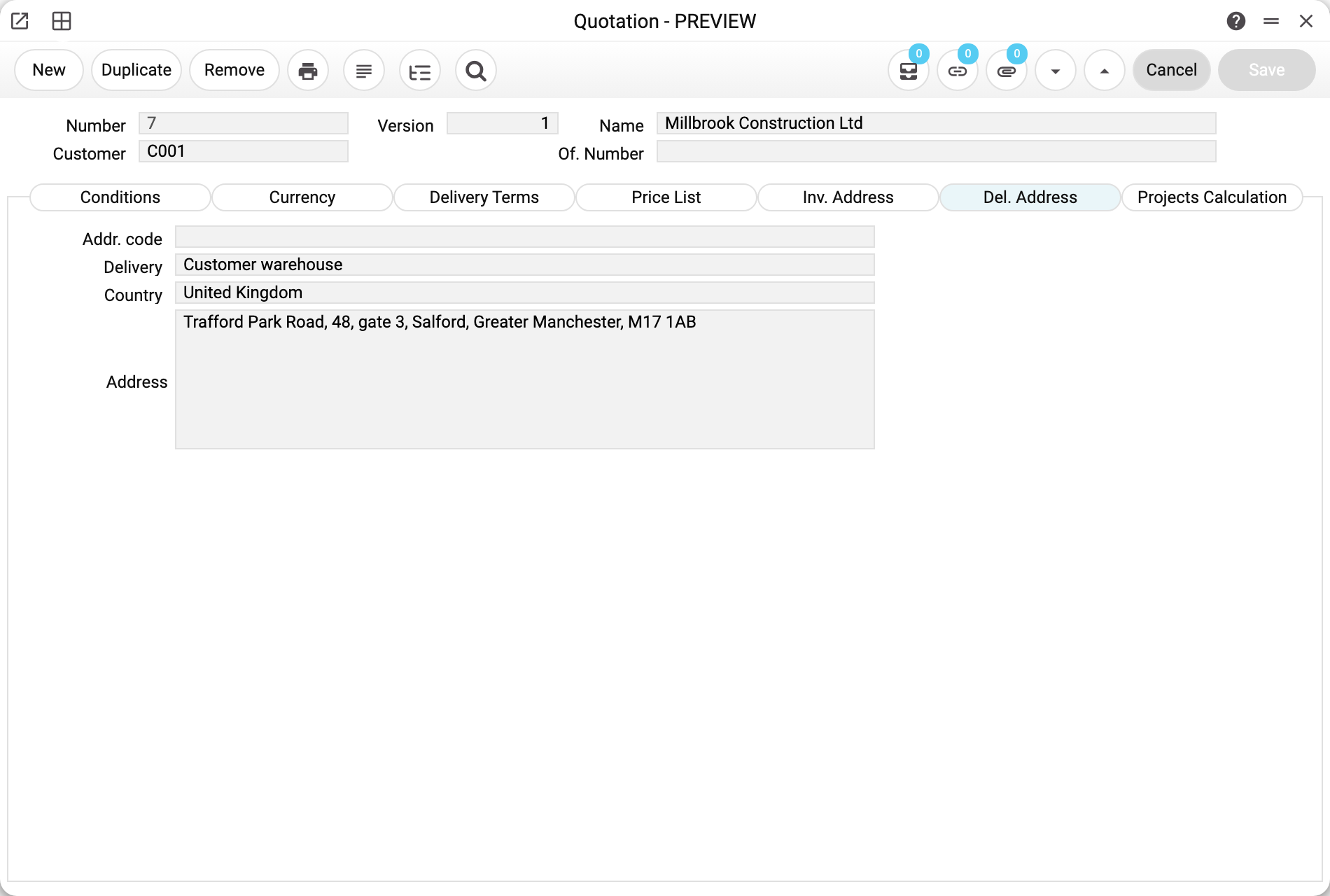
«Del. Address» says where the goods go: the customer warehouse on Trafford Park Road in Salford. This is the address «Create sales order» will carry into the order.
If you name a project, a budget becomes mandatory too: a project quotation will not save without one.
Picking a budget in the «Budget» field is more than a link. It replaces all quotation rows with the budget rows and fills in the budget's customer, today's date, the budget currency, totals and VAT rate, and from the budget's project — the objects, the project itself and the payment terms (when the project has them). If the budget's customer differs from the quotation's, the rest of the customer header — name, contact person, salesman, price list, discount table — comes from that customer's card, just as when you pick a customer by hand. The budget currency's rate is taken from exchange rates on the quotation date when the currency changed; the same currency keeps the rate already there. Closed budgets (status «Closed» — set when another quotation of the project is accepted) are not offered, and a closed budget typed in by hand is not accepted: «Project budget '…' is closed!» — just like «Create a budget proposal» in a closed budget. A quotation whose budget was closed after it was made is edited as before.
2. Fill in the dates and terms
«Date», «Valid until», «Payment Terms» — the minimum a quotation needs before you show it to a customer; of these, the date and payment terms reach the printed form, «Valid until» is not among the print variables. «Make contact» and «Salesman» matter if you run a funnel and want to see who should call whom back.
Two fields that change the numbers sit elsewhere: the warehouse — «Location» on the «Delivery Terms» tab — and the price list, on the tab of the same name. The VAT rate and the currency, by contrast, are close at hand: the rate is in the totals below the rows, the currency is there and on the «Currency» tab.
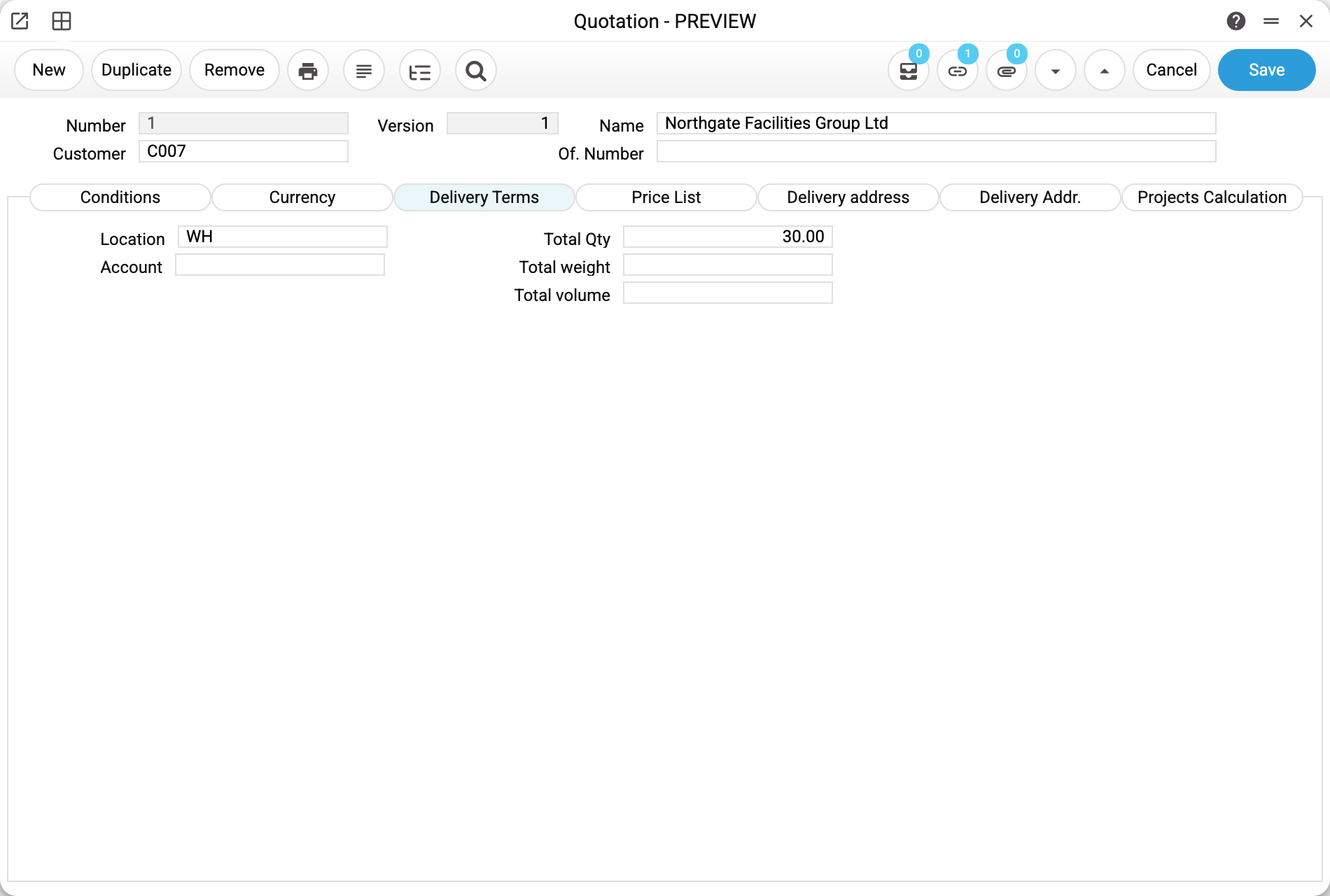
In this quotation the location is WH, and «Total Qty» 30 is the sum of the row quantities (4 + 6 + 20). Weight and volume are empty here.
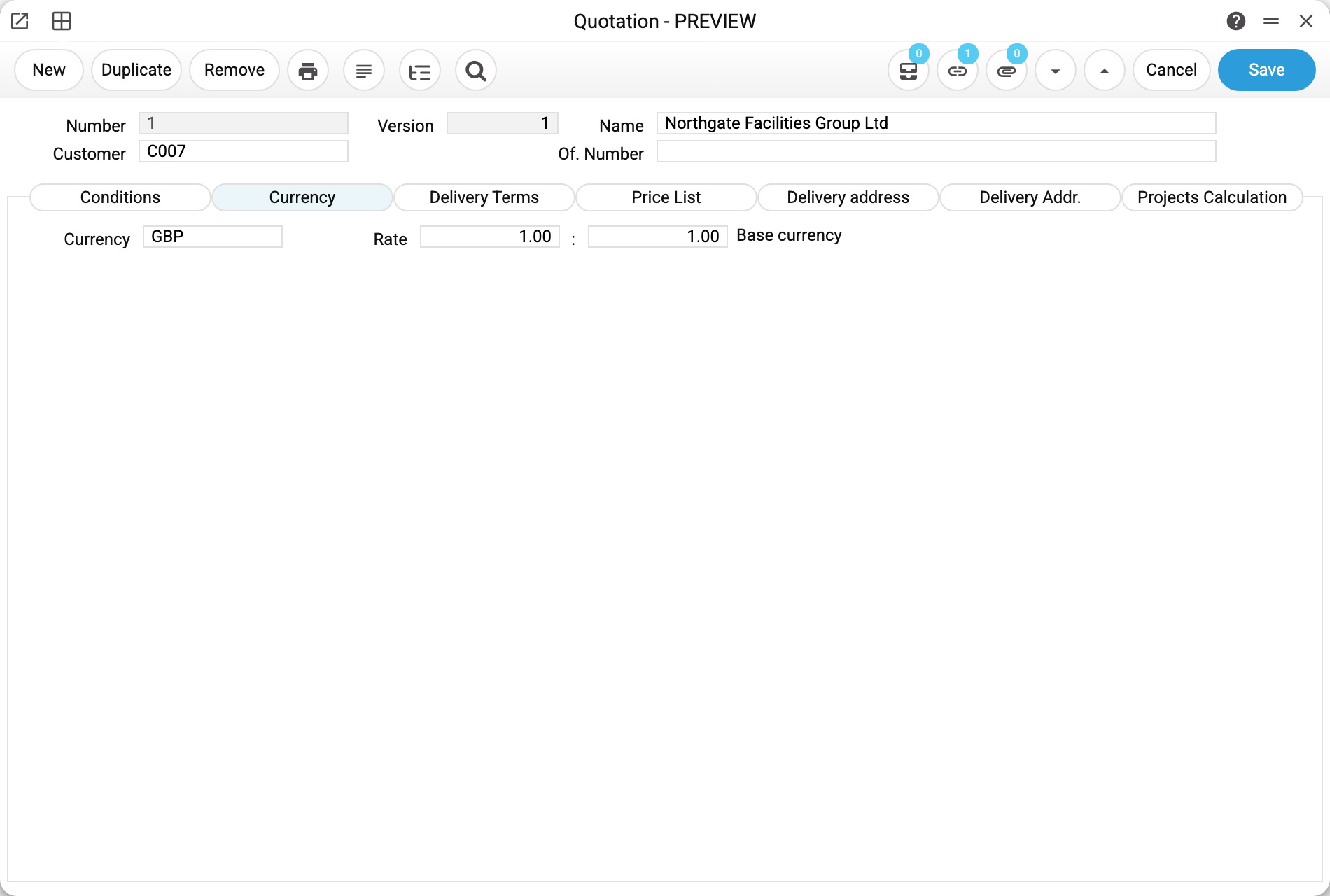
The «Currency» tab holds the currency code and the rate as a pair «X : Y» against the base currency; a quotation in pounds sterling shows 1.00 : 1.00. When you change the currency or pick a customer with a different one, the rate comes from the exchange rates on the quotation date, and the prices of item rows are read again in the new currency; a fixed-amount discount («Fixed discount») and the «Markup» on those rows are converted into the new currency together with the price. No rate for that date — the quotation refuses and asks you to enter one. Changing the «Date» also takes the rate on the new date: row amounts are recalculated with it, while prices stay as they were.
3. Enter the rows
The item code pulls the name, the price and the objects from the item card, the tax rate comes from the customer card, the item card, the item group or the general settings (or from the rate in the totals once you have changed it yourself), the amount is calculated. Quantity and discount are yours to enter.
Saving refuses if any row has a negative quantity («The quantity cannot be negative») or a zero «Sum Incl. VAT» («Enter the sum» with the row number). A row without an item code is accepted by the quotation, but neither an invoice nor an order can be created from such a quotation (see step 7).
Markup. Sheet F has a «Markup» column — an amount added to the row. It is part of the row's VAT base: VAT is worked out from the row amount together with the markup, with the same VAT code, and the row price does not change from the markup. Example: 1 × 50, markup 10, rate 20 % with prices excluding VAT — VAT 12, row amount 72. The row amount can be retyped by hand: the system derives the discount from the amount without the markup. The markup does not pass on its own to the invoice or sales order created from the quotation: the row amount arrives with it, but the price, quantity and discount without it, so any edit of that row in the invoice or order (quantity, price, discount, rate) recalculates the amount as price × quantity − discount, and the markup silently disappears. A surcharge the customer has to pay is safer built into the row price.
4. Look at the profit
Sheet C of the row matrix shows «Price», «Cost», «GP %» and «Profit» for every row. This is the moment the whole document exists for: you can see which row will survive a discount and which one is already at the limit. The cost and profit columns on it, like the «Total GP» and «GP %» totals, are visible only to users with the «Show cost price» action; without it the sheet keeps the price and the discount, and the server calculates cost and profit on saving.
5. Send it to the customer
The print button in the header produces the printed quotation.
6. Record the answer
The customer replied — set the status to Accepted or Rejected and fill in the decision date. The probability fills itself in when you click the button.
If the quotation names a project, acceptance does more than mark it: the moment it becomes accepted (by the status button, «Create sales order» or «Create project budget»), all other quotations of the same project get «Closed», and the project budgets get an acceptance status: this quotation's budget — accepted, the others — not. Quotations without a project do not close one another.
7. Accepted quotation → invoice or sales order
Card menu → «Create invoice». The invoice that gets created opens straight away; check it and approve it. It takes the «Update warehouse» box from the «Write off warehouse by invoice» setting, so such an invoice moves stock itself; if a sales order has already been created from the quotation, the box is off, because that order's shipment moves the stock. An invoice is created only from an accepted quotation that is not closed — otherwise the system answers «Quotation must be accepted». Every quotation row needs an item card: on a row with no item code, or with a code that is not among the items, the invoice is not created — the system names the item code, but not the row number.
If you want to run the deal through the stock chain instead, call «Create sales order» from the menu: the sales order gets the quotation rows, the address from the «Del. Address» tab and the region, and the quotation becomes accepted by itself — with probability 100 and today as the decision date. This works only from an open quotation: an accepted, rejected or closed one does not give an order. A row without an item stops it too — here the system names the row number.
The same menu has two more items for project deals. «Create project» makes a project from a quotation that has none yet and puts it into the «Project» field. «Create project budget» — for a quotation with a project, neither closed nor rejected, in the project currency: it creates a new budget version from the quotation rows, writes it into the «Budget» field and makes the quotation accepted.
How to be sure the document is right
- «Total with VAT» matches the figure you quoted to the customer.
- On sheet B, every taxable row has its VAT rate and VAT amount filled in. A row with an item takes its rate from the customer card, the item card or the item group; the rate in the totals overwrites such rows only when you change it yourself, and an empty one does not zero their tax. Rows without an item code always take the rate in the totals: an empty rate there removes their tax. Changing the rate also recalculates «Profit» and «GP %» of the rows and «Total GP» and «GP %» of the document: profit is counted from the amount without VAT, so with VAT-inclusive prices it changes together with the rate.
- «Valid until» is set, and it is in the future. A quotation with no expiry is a promise to hold the price forever.
- On sheet C, «Profit» is not negative on any row. A negative one means the price is below «Cost» — sometimes deliberate, more often a mistyped price or one discount too many.
- If the deal will go through a sales order, «Del. Address» is filled in: that is the address «Create sales order» carries into the order. The details on the «Inv. Address» tab, apart from the region, go nowhere — neither to the printed form nor to the invoice or the order — so they cannot reach a document for the customer from there.
- If the quotation is not in the base currency, the «Currency» tab holds that currency's rate, not 1.00 : 1.00. An invoice from the quotation takes exactly that rate.
- The «Markup» column on sheet F is empty. If it is not, remember that on the invoice it disappears at the first edit of the row.
Print variables
Values available in this document's printed form templates. How to write a variable in a template — see Print Forms.
Header fields:
| Variable | What it holds |
|---|---|
| QT_No | Number |
| Cust_Name | Name |
| QT_Version | Version |
| Cust_Code | Customer |
| QT_Date | Date |
| Pay_Terms | Payment Terms |
| Decision_Date | Decision date |
| Objects | Objects |
| Budget_Code | Budget |
| Salesman | Salesman |
| Proj_Code | Project |
| Currency | Currency |
| VAT | VAT Rate |
| Trans_Rate | Rate |
| Location | Warehouse |
| Total_Qty | Total Qty |
| Price_List | Price List |
| Total_Sum | Document total |
| Total_GP | Total GP |
| Total_VAT | Total VAT |
| Total_w/o_VAT | Total without VAT |
Row fields:
| Variable | What it holds |
|---|---|
| No | Row position number |
| Item_Code | Item |
| Qty | Qty |
| Description | Name |
| Price | Price |
| Discount | % |
| Sum_With_VAT | Amount including VAT |
| Units | Unit |
| MVAT | VAT Rate |
| Sum_VAT | VAT Sum |
| Sum_w/o_VAT | Row amount excluding VAT |
| Unit_Name | Unit name |
The records the document refers to through its form fields (location, customer, currency…) also expose the rest of their variables — code and name are already listed in the tables above, the rest is described in the register's article:
- Exchange Rates (
System_rate) - Company details — name, addresses, bank accounts, officers, the printing user: Main Company
Common situations
«Create invoice» answers that the quotation must be accepted. An invoice is only created from a quotation with the status Accepted and without the «Closed» box. Check both.
«Create invoice» was clicked twice. There will be no second invoice — the same one opens again. One invoice per quotation.
The quotation became an invoice and is still sitting among the active ones. It will: the system does not close it. Set «Closed» yourself when the work on it is finished.
The customer wants it costed differently. Do not edit an accepted quotation — make a new one. Both stay in the register, and it stays visible what you offered first. Keep in mind: if both belong to one project, accepting the new one closes the old one.
The quotation cannot be deleted. A quotation already linked to a sales order, an invoice, a project or a budget cannot be deleted: the system answers «Cannot delete quotation with linked documents» and lists them. If only the budget holds it, clear the «Project» and «Budget» fields in the quotation, save it, and then delete it.
On an invoice from a quotation the row amount went down on its own. You changed the quantity, price or discount of an invoice row that had a «Markup» in the quotation — the invoice recalculated the amount without it. Put the surcharge into the price of the invoice row.
The customer said no. Status Rejected and the decision date. Do not delete it: refusals are half of what tells you why deals do not close.
The prices are not what you expected. Look at the price list on the «Price List» tab. A price comes from that list when the list has a line for the item; when it does not — or when no list is named at all — the price comes from the item card. Price list entries can also differ from one date to another.
Field reference
Header
The fields above the tabs are always visible; the rest is spread over the tabs, and the «Where» column says which one.
| Field | Where | Description |
|---|---|---|
| Number | always | Quotation number, assigned automatically |
| Version | always | Variant number within the project budget; without a budget — 1; assigned automatically, not editable |
| Customer, Name | always | The customer and their name from the card |
| Of. Number | always | Official number (pro forma), if your numbering towards the customer differs |
| Date | Conditions | The date the quotation was drawn up |
| Payment Terms | Conditions | Decide the due date on the future invoice |
| Valid until | Conditions | How long the prices stand; informational, closes nothing by itself and is not among the print variables |
| Make contact | Conditions | When the next contact with the customer is planned |
| Decision date | Conditions | When the customer accepted or rejected the quotation |
| Our reference, Contact person | Conditions | Who runs the deal on your side and on the customer's |
| Reference | Conditions | Free reference (letter number, tender number) |
| Objects | Conditions | Analytical objects of the document |
| Budget | Conditions | Project budget; mandatory once «Project» is filled in. Picking a budget replaces the quotation rows and totals with the budget's data; a changed currency comes with its rate on the quotation date |
| Salesman | Conditions | The manager the sale is credited to; by default — from the customer card, otherwise whoever created the quotation; passes to the invoice and the order |
| Project | Conditions | Link to a project |
| Quot. type | Conditions | Classification of the quotation for reports |
| Probability | Conditions | Filled in when you click a status button: accepted — 100, rejected — 0; can be corrected by hand |
| Priority | Conditions | Priority for follow-up |
| Status | Conditions | Open / Accepted / Rejected |
| Closed | Conditions | The quotation is no longer in play |
| Currency, Rates | Currency | Currency of the quotation and its rate against the base one |
| Location | Delivery Terms | The warehouse the goods are planned to ship from |
| Account | Delivery Terms | An account from the chart of accounts, picked from the list by hand; the system neither fills it in nor uses it anywhere. In the quotation list this column is headed «Order No.» |
| Total Qty, Total weight, Total volume | Delivery Terms | Row totals — for logistics |
| Price List | Price List | The source of prices, and it decides whether they already include VAT |
| Comment | Price List | Free text for yourself; it is not among the print variables |
| City, Street, Building, Postcode, Country | Inv. Address | The customer's address, by hand; for reference — it goes to neither print, invoice nor order |
| Bank, Region, Tax Number, Phone, Fax | Inv. Address | The customer's details, for reference; «Region» passes to an order created from the quotation |
| VAT | Inv. Address | Tax treatment: Domestic / Inside EU / Inside EU (Post VAT) / Outside EU / Outside EU (Post VAT); for reference — it does not change the row VAT |
| Approval Status | Inv. Address | A note «does it need signing off»: Not required / Required; the system does not enforce any sign-off from it |
| Address code, Delivery, Country, Address | Del. Address | Where the goods go, by hand; «Create sales order» carries it into the order, the invoice does not get it |
| Markup, Total time, Total purchases, Total materials, Total location goods | Projects Calculation | Entered by hand, the system does not calculate them; «Markup» passes to a budget created with «Create project budget», the rest are not used anywhere |
| Invoice time, Invoice purchases, Invoice materials, Invoice stocked items | Projects Calculation | Whether each kind of spend is invoiced at the actual figure or at the quoted one |
Item rows
The matrix has six sheets; the code, quantity and name are visible on all of them, the rest differs.
| Field | Sheet | Description |
|---|---|---|
| Item | all | Item code |
| Qty | all | The quantity you are offering |
| Name | all | Item name |
| Price | A | Unit price from the price list or from the item card |
| Discount % | A | Discount on the row |
| Sum Incl. VAT | A | Row amount including tax |
| Account | B | The row's income account: it passes to an order created from the quotation and to the invoice — there it becomes the row's income account, and the invoice's ledger entries post this row's revenue to it rather than to the item group's account (rules — in the invoice) |
| Objects | B | Analytical objects of the row; filled in from the item card, pass to the invoice and the order |
| VAT Rate, VAT Sum | B | Tax rate and tax amount of the row |
| Cost | C | Purchase cost per unit; visible only with the «Show cost price» action |
| GP %, Profit | C | Profitability of the row; visible only with the «Show cost price» action |
| Salesmen | D | The managers the sale is split between |
| Invoiced | D | The system does not fill this column in; whether the row went onto an approved invoice is shown on sheet F |
| Price factor, Recipe | D | Coefficient applied to the price, and the kit contents |
| Unit, Unit Qty, Unit Price | E | Unit of measure and the price recalculated onto it |
| Width, Height, Depth | E | Dimensions, for items priced by size |
| Stage, Person, Group, Time class | F | Project attributes of the row |
| Markup | F | An amount added to the row amount after VAT: not taxed, does not pass on its own to the invoice or the order (see step 3) |
| Type, Inv. after | F | Invoicing rules for a project row |
| Inv. date, Invoice | F | Date and number of the invoice created from the quotation; filled in by the system when that invoice is approved |
Document totals
| Field | Description |
|---|---|
| Currency | Currency of the quotation |
| VAT Rate | The rate that goes down to the rows |
| Total without VAT | Quotation amount before tax |
| Total VAT | Tax on the document |
| Total with VAT | The figure you quote to the customer |
| Total GP | Profit on the document — the sum of the row profits; visible only with the «Show cost price» action |
| GP % | Profit as a share of the sale; visible only with the «Show cost price» action |