Service Orders
This is the service centre's main document: one record — one customer device taken in for repair. The order walks the device through the whole journey — acceptance, diagnostics, agreement, repair, handover and payment — and on its own sends SMS to the customer and hands out tasks to the staff.
Where to find it: Modules → Service Orders → Registers → Service Orders
The register lives in the Service Orders module.
The list
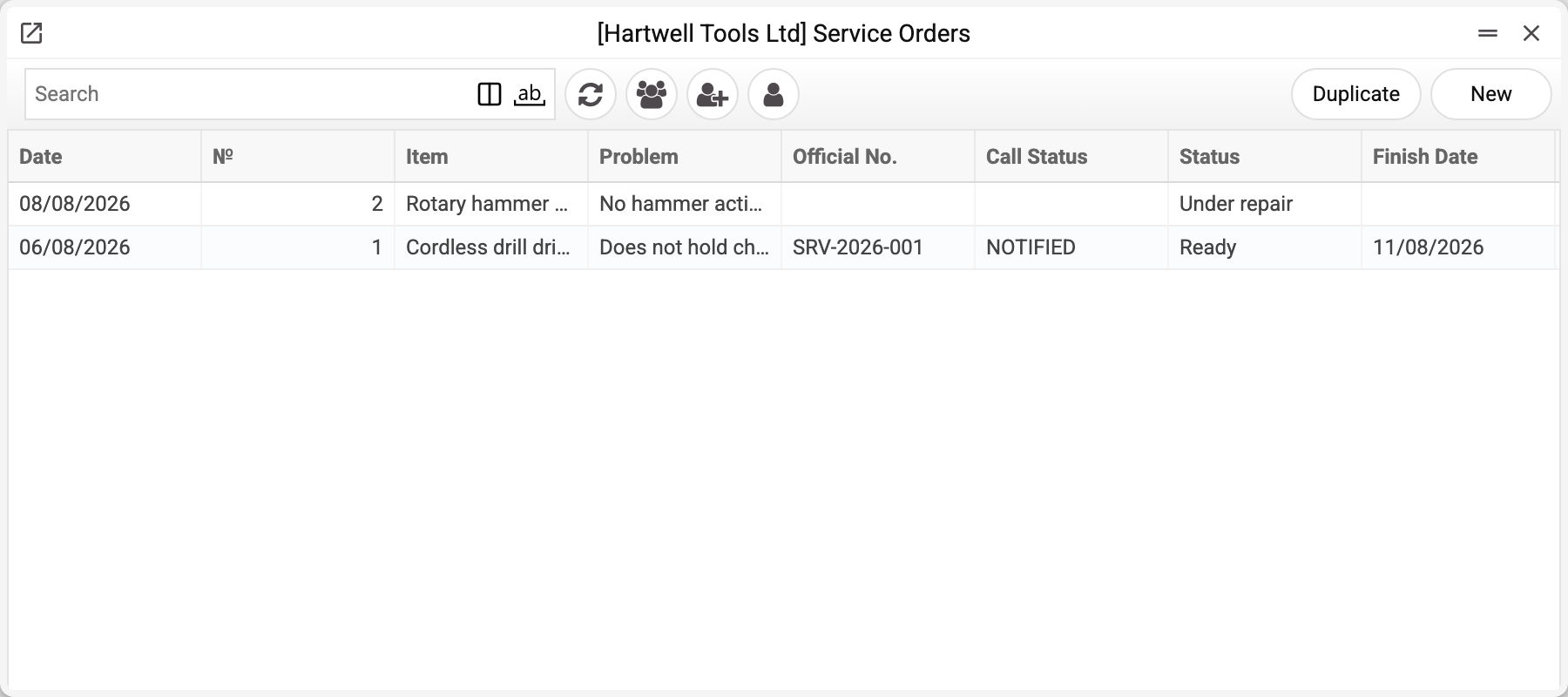
The list is the receptionist's desk: acceptance date, number, device, complaint, official number, the call status, the current repair status and its finish date. It shows the queue at a glance: what waits for diagnostics, what is under repair, what is ready for pickup.
A worked example
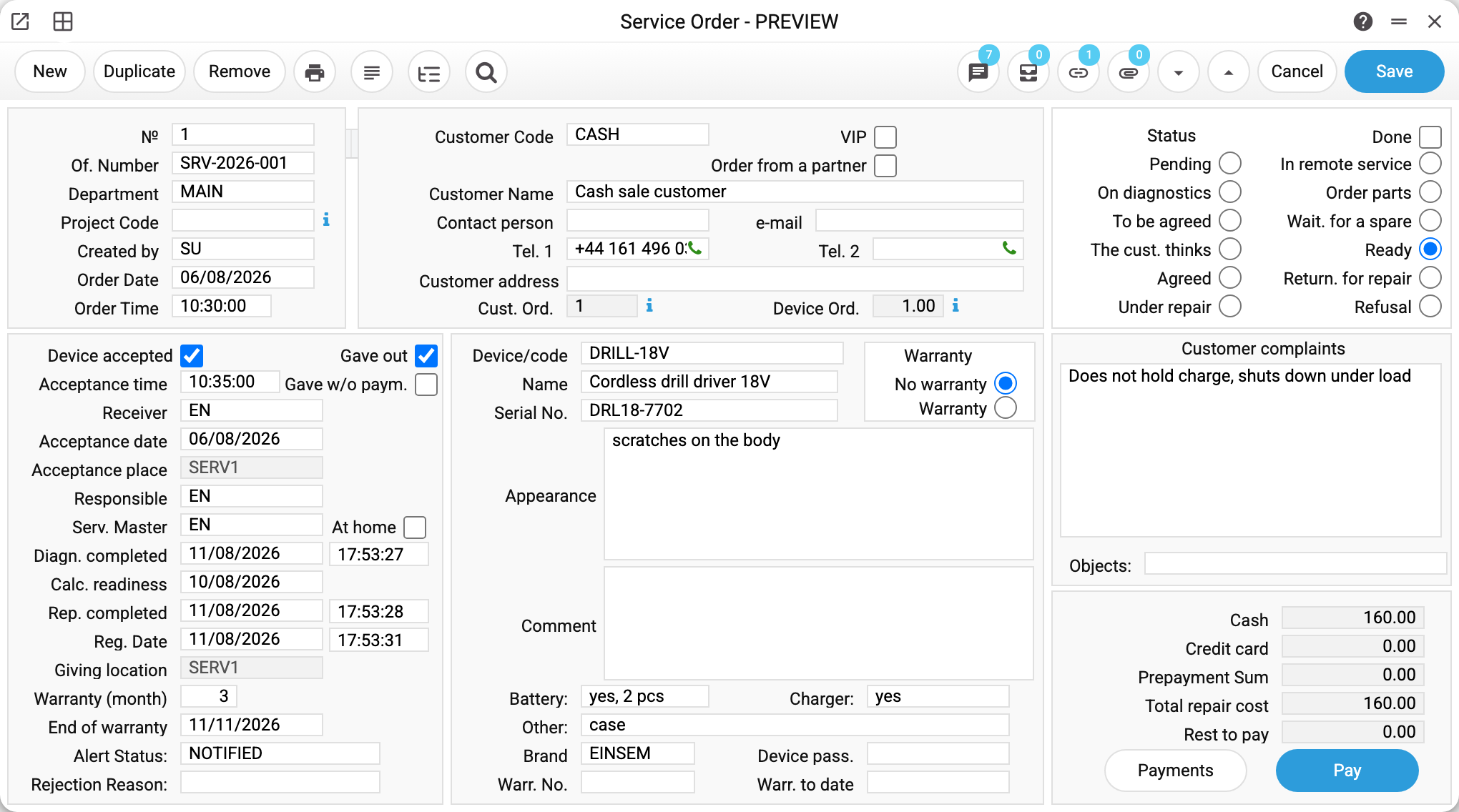
Order No. 1 from the demo database — a cycle walked to the end: a drill accepted on 06/08, repaired and handed out, paid in cash.
- The header — the number (assigned automatically), «Of. Number» for the paper form, the department (no work sheet can be created without it), who created the order.
- The customer. Enter the code or any phone number — the system finds the contact and pulls the name, phones, e-mail, address and VIP status by itself. A new customer need not be created separately: with no code but with a phone and a name entered, saving creates the contact itself, with the phone as its code. «Cust. Ord.» shows how many orders this customer has already brought (this one included).
- The device. The code comes from the «Service Items» reference — the name and brand fill in automatically. Serial number, what came with it («Battery», «Charger», «Other»), the device password, appearance — everything recorded at acceptance. To the right — «Customer complaints» in the customer's words.
- Status (the right-hand column) — twelve states from «Pending» to «Refusal». Not just a label: changing the status triggers the automation (see below).
- The acceptance/handover block — the «Device accepted» and «Gave out» checkboxes with dates, places and people: receiver, responsible, service master.
- Money (bottom right) — «Total repair cost» accumulates from work sheets; below it — how it was paid (cash, card, prepayment) and «Rest to pay». The «Pay» button records the payment on the date entered in the payment window, «Payments» shows their history.
What happens automatically
A status change is the document's main lever:
- the customer gets an SMS: on the move to «On diagnostics» (the acceptance text), at «Ready» (with the amount due) and at «Refusal». The texts and the on/off switch live in the «Text SMS» setting; if the contact has Telegram linked and the bot is running, the message goes there instead of an SMS — and the SMS switch does not stop it;
- tasks are created for the staff according to the «Actions Setting» — whoever is in charge of a status gets the task;
- apart from the automatic ones there is a manual send: the order menu → «Send SMS». The number and the text are shown before sending and can be corrected. This belongs to whoever runs the order, so it requires the right to edit service orders; a user who may only view them gets «Permissions denied»;
- stage dates («Diagn. completed», «Rep. completed», the handover date) are stamped by the document itself.
Acceptance and handover move the device stock. The «Device accepted» checkbox puts the device onto a service location — a separate store for customer devices, not the goods warehouse. «Gave out» takes it off. So it is always visible whose devices are physically in the workshop; where a device is now, where it was accepted and where it was handed over is shown by the «Service Item History Report».
The system spots a repeat repair by itself. As soon as the serial number is entered, it looks for earlier orders for the same device with the same serial number — from any customer — and, if the warranty from that repair still runs on the new order's date, sets the «Warranty» switch itself with the message «This item is covered by the warranty terms with its serial number in Order No». Saving a new order created outside the window (API, import) does the same. A warranty order will not save without «Warr. No.» and «Warr. to date». If the earlier order was from the same customer, the receptionist also gets the message «This customer's device is under warranty! Service Order: No». At handover the system computes «End of warranty» = handover date + «Warranty (month)».
Work sheets and money
Labour and parts are not edited in the order — they live in «Worksheets». The card's menu item (the ▾ button) «Create work table» starts a work sheet that inherits the customer, their discount, price list and warranty type. The order must be saved, the device accepted, the status not «Pending», and the department chosen.
Every approved work sheet adds its total to «Total repair cost». Then the payment: the «Pay» button on a saved order opens a window with the payment modes of the order's department — the amounts and the payment date are entered there. The «Cash», «Credit card» and «Prepayment Sum» fields are filled in by the system; while «Total repair cost» is zero, the payment goes in as a prepayment. Without payment modes in the department the window will not open. Overpayment is stopped by the «Prohibit overpayment» checkbox in the «Service Order Required Fields» setting («Overpayment is prohibited!»); without it an extra amount makes the balance negative — an overpayment: «Rest to pay» shows it as a minus, and it does not block the handover. The goal is no debt left: «Rest to pay» zero or below. If a prepayment fully covers the work sheet, the order counts as paid on the work sheet's date: it gets into the Paid Orders Report without a separate «Pay».
A payment counts from the saved order, so a payment from a stale window or from two windows adds to what is already recorded. The amount may use a comma as the decimal separator; what is not a number is not accepted: «The payment amount is not a number!». To give money back to the customer, enter the amount with a minus: the prepayment above the repair cost is returned first, the rest raises the customer's debt.
Handover is possible only from «Ready» or «Refusal», and only with no debt: «Rest to pay» zero or below (an overpayment does not block it), otherwise «Close balance payable». Only the handover itself is judged: a work sheet posted after it may create a debt, and the order can still be saved and paid in parts. If the device leaves with a debt — the separate «Gave w/o paym.» checkbox: with no debt (zero or overpaid) it does not take («There are no debts on the order», then plain «Gave out»), and the system opens a task about it for the person in charge.
The card's menu also holds: «Order Status» — the «SO Status Report» (the order's status chronology), the customer's device history, the customer's receivables and label printing for the device (what exactly to print — in the «Labels Print Setting»).
How to work with it
1. Accept the device
A new record: customer (code or phone), device, serial number, what came with it, the complaint. Save. Then tick «Device accepted» with the acceptance place — and save again: the checkbox works only on an already saved document.
2. Diagnostics and agreement
Statuses «On diagnostics» → «To be agreed» → «Agreed» (or «The cust. thinks»). Create the work sheet, enter the labour.
3. Repair and readiness
«Under repair» → «Ready» — the customer receives an SMS with the amount. If the repair is impossible — «Refusal» (with a cause) — an SMS goes out too.
4. Hand over and get paid
Enter the payment, «Pay», tick «Gave out» with the giving location. The repair warranty goes into «Warranty (month)».
Print variables
Values available in this document's printed form templates. How to write a variable in a template — see Print Forms.
Header fields:
| Variable | What it holds |
|---|---|
| Cust_Phone | Phone |
| Number | № |
| Code | Department (code) |
| Trans_Date | Order Date |
| Cust_Name | Customer Name |
| Gave_Out | Giving Date |
| Item_Code | Device/code |
| Description | Name |
| Serial_No | Serial No. |
| Appearance | Appearance |
| Item_Comment | Comment |
| Battery | Battery : |
| Charger | Charger : |
| Other | Other : |
| Warr_No | Warr. No. |
| Warr_to_Date | Warr. to date |
| Cust_Complaints | Customer Complaints |
| Pers_Discount | Credit card |
| Prepay_Sum | Prepayment Sum |
| Rep_Cost | Total repair cost |
| Warr_Months | Warranty |
| Sum_pay | Rest to pay |
Row fields:
| Variable | What it holds |
|---|---|
| No | Row position number |
| Qty | Device Ord. |
| Description | Name |
| Sum | Sum |
| Unit | Unit code |
| Unit_Name | Unit name |
| WS_Discount | % |
The records the document refers to through its form fields (location, customer, currency…) also expose the rest of their variables — code and name are already listed in the tables above, the rest is described in the register's article:
- Department — Departments
- Company details — name, addresses, bank accounts, officers, the printing user: Main Company
Common situations
«Do not check the box "device accepted" and save the document». Acceptance is recorded on a saved order: first save without the checkbox, then tick it.
The work sheet won't create. Three usual causes: the device is not accepted (no checkbox), the order is still «Pending», no department chosen.
The device won't hand over. Handover works only in «Ready» or «Refusal» and with no debt («Rest to pay» zero or below). Either close the debt with a payment, or (if it leaves without money) — «Gave w/o paym.».
The SMS did not go out. The order has no phone, or SMS texts are switched off or empty in «Text SMS», or the SMS gateway is not configured. If the contact has Telegram linked, the message went there rather than as an SMS. If Telegram refused (the customer blocked the bot or deleted the chat), the order is still saved, the reason goes to the server log, and no SMS is sent instead.
The status won't change. Every status except «Pending» needs a service master («Enter service master code»), and «On diagnostics» also needs the device accepted («Need to accept the device»). A new document saves only in «Pending».
A warranty message appeared. The same device with the same serial number has been repaired before, and the warranty from that repair is still running — the system recognized it and set «Warranty» itself. Fill in «Warr. No.» and «Warr. to date»: without them a warranty order will not save.
The department won't change. Once a payment is recorded, the order's department is fixed.
Field reference
| Field | Description |
|---|---|
| №, Of. Number | Internal number (automatic) and the official form number |
| Department | The service branch from the Departments register; required for work sheets, fixed after payment |
| Customer Code, Name, Tel. 1/2, e-mail, Address | The customer; fills in by code or by phone |
| Cust. Ord. | How many orders this customer has (counted by the system) |
| Device/code, Name, Brand | The device from the «Service Items» reference |
| Serial No. | The serial; together with the device code (from any customer) it drives the automatic repeat-warranty-repair detection |
| Battery, Charger, Other, Device pass. | What came with the device, recorded at acceptance |
| Customer complaints, Appearance, Comment | The problem and condition |
| Status | The 12 cycle states; a change fires SMS and tasks |
| Device accepted / Gave out / Gave w/o paym. | The device's movement: onto the service location and back |
| Receiver, Responsible, Serv. Master | The order's people (system users) |
| Warranty / No warranty | The repair type; inherited by work sheets |
| Warranty (month), End of warranty | The repair warranty; the date is computed at handover |
| Alert Status | The customer call result |
| Rejection Reason | The causes reference when the repair did not happen |
| Cash, Credit card, Prepayment Sum | How it was paid |
| Total repair cost, Rest to pay | The work sheets' total and the unpaid balance |