POS Commands Setting
The till has a single input field — the one the barcode scanner types into. This setting lets the cashier put more than item codes there: short commands that change a quantity, apply a discount, delete a line or find a customer. No reaching for the mouse — everything is done from the keyboard or the scanner.
Where to find it: Modules → POS → Settings → POS Commands Setting
A command is a character or a short run of characters that you choose yourself; the system sets no length limit, but shorter is quicker to type. It must not contain digits, otherwise the system cannot tell a command from an item code.
Worked example
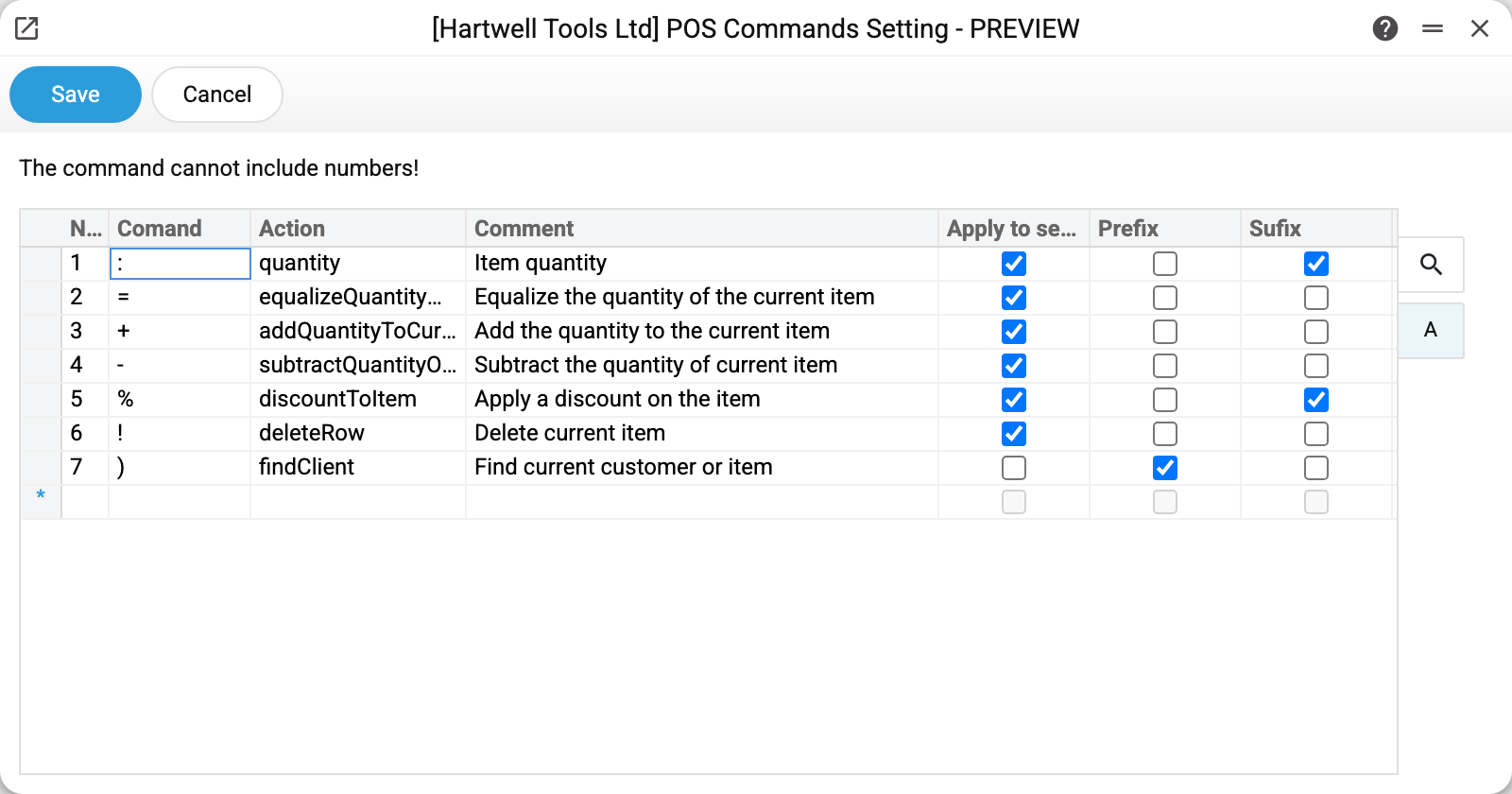
Seven rows — seven actions the system can perform from the command line.
| Command | What it does |
|---|---|
: |
item quantity — add a line with the quantity right away |
= |
set the quantity of the current line to the value entered |
+ |
add the quantity to the current line |
- |
subtract the quantity from the current line |
% |
discount on the current item, in per cent |
! |
delete the current receipt line |
) |
find a customer; if there is no customer with that code, find the item with that code and add it to the receipt |
Operation is picked from a fixed list, never typed. The Comment is filled in by the system.
Three flags define how the command is typed. Choosing the operation gives them default values (for the quantity — "Prefix") — in a new row and when the operation is changed in a filled one — and they can be changed. (Before 30.10.2026 changing the operation cleared a flag that was already on, and "Apply to selected element" could not be turned on at all.) "Prefix" and "Suffix" exclude each other — switch one on and the other clears.
Prefix means the character comes before the value, Suffix — after it. Compare two rows from the screenshot:
- the quantity command
:is a suffix, so the cashier types3:100015— first how many, then the item code; - the customer command
)is a prefix, so the cashier types)HARTWELL— first the character, then the customer code.
If no item code follows the character (just 3:), the system answers with a hint: "Item code is not specified! (Enter the command before the item code)". With the sides swapped (100015:3) the system reads 3 as the item code and, if there is no such item, answers "Item not found!".
Apply to selected element means the command acts on the selected receipt line rather than on the whole receipt. That is why +, -, =, % and ! carry that flag: the cashier taps the line first, then types the command. Without the flag the +, -, = and ! commands do nothing, and the till answers "Command or item not found".
The discount works from both sides as well: 10% with the suffix flag, %10 with the prefix one. The value is always a percentage and may have a fraction: 2.5% and 2,5% both give a 2.5 % discount. Zero or text is rejected. For a cashier without the right to change discounts the command refuses: "Changing the discount is not allowed for you. A manager can confirm it in the "Edit item" window."
The quantity in the :, =, + and - commands may have a fraction too — with a point or a comma: 1.5 and 1,5 both give 1.5 (up to five decimal places). That is how a weighed item is entered by command.
Where the data comes from
There is one setting per company — commands cannot differ between tills or departments.
- Operation is a fixed list of seven items built into the system; an eighth cannot be added. Each operation can take one row at most.
- Comment arrives together with the operation but can be rewritten in your own words.
- The command character is validated on save: digits are refused.
The entered text is parsed on the server: the till simply forwards whatever the cashier typed, and the system looks for the characters it knows. That is why commands work the same from the keyboard and from a scanner that "types" a barcode.
Parameters
| Column | Description |
|---|---|
| Command | The character that triggers the action. No digits. |
| Operation | One of: quantity, equalize / add / subtract quantity, discount, delete line, find customer (or item). |
| Comment | Explanation, filled in automatically. |
| Apply to selected element | The command acts on the selected receipt line. |
| Prefix | The character is typed before the value. |
| Suffix | The character is typed after the value. |
Common situations
The till answers "Command or item not found". What was typed matches neither an item code nor any command. Check the character in this setting — the cashier may have a different keyboard layout and typed something else instead of :.
The quantity lands on the wrong item. +, - and = act on the selected line. If no line is selected, tap it in the receipt first.
The discount is refused. The percentage must not be zero or text; 0% is rejected. A fractional percentage is fine — 2.5% or 2,5%.
I want different characters. Change them freely — nothing in the code is tied to a particular character, only the pair "character + action" matters. If the whole typed text matches an item code or barcode, the system adds the item instead of running the command — so an item with the character in its code still scans. In combinations like 3:code, however, such a code is parsed wrongly, so it is better to avoid characters that occur inside your barcodes.
See also
- POS Buttons — the same actions as buttons on screen
- POS Sale Header Setting — which columns the receipt shows